Introduction
This manual provides detailed instructions for setting up, operating, maintaining, and troubleshooting your GEEKOM GeekBook X14 Pro laptop. Please read this manual thoroughly before using your device to ensure proper functionality and longevity. Keep this manual for future reference.
Qu'y a-t-il dans la boîte
Upon unboxing your GEEKOM GeekBook X14 Pro, verify that all the following items are included:
- GEEKOM GeekBook X14 Pro Laptop
- GEEKOM GeekBook X14 Pro Premium Packaging
- 65W PD GaN Fast Charger
- Câble USB-C vers USB-C
- Station d'accueil
- Manuel d'utilisation

Produit terminéview
The GEEKOM GeekBook X14 Pro is an ultra-light and thin laptop designed for professionals. It features a magnesium alloy unibody chassis, weighing only 999g and tapering to 6mm at its thinnest point.

Caractéristiques principales :
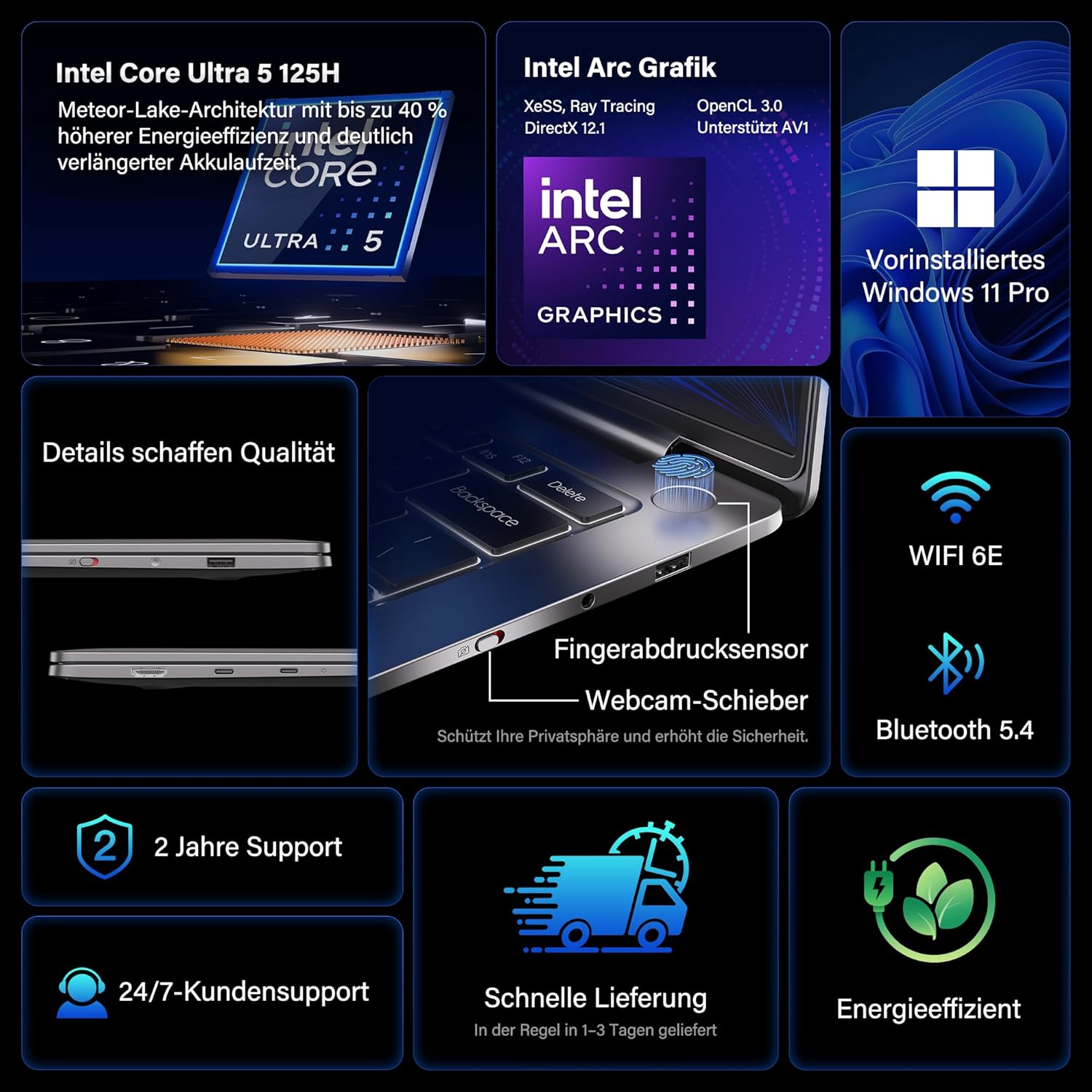
- Processeur: Intel Core Ultra 5 125H (14 cores, 18 threads, up to 4.5 GHz)
- Graphique: Intel Arc Graphics with Xe-LPG architecture
- Afficher: 14-inch 2.8K OLED (2880 x 1800) with 120Hz refresh rate, 100% DCI-P3, up to 450 nits brightness
- Mémoire: 32GB LPDDR5x RAM (7500 MT/s)
- Stockage: SSD NVMe PCIe 4.0 de 1 To
- Système opérateur: Windows 11 Professionnel préinstallé
- Connectivité : 2x USB4 (40 Gbps), 1x USB 3.2 Gen 1 Type-A (5 Gbps), HDMI 2.0, Wi-Fi 6E, Bluetooth 5.4
- Sécurité: Fingerprint sensor in power button, physical webcam slider
- Audio: Audio DTS:X Ultra
- Batterie: 72 Wh, up to 16 hours battery life, 65W USB-C fast charging
- Refroidissement: GEEKOM IceBlade 2.0 cooling system with adjustable fan profiles

Ports et connecteurs :
- 2x USB4 (40 Gbps)
- 1x USB 3.2 Gen 1 Type-A (5 Gbps)
- 1x HDMI 2.0
- 1 prise audio 3.5 mm
- Power Input (via USB-C)

Installation
1. Mise sous tension et charge initiales
- Connect the 65W PD GaN Fast Charger to a power outlet and then to one of the USB-C ports on your laptop.
- Laissez l'ordinateur portable se charger pendant au moins 30 minutes avant la première utilisation, ou jusqu'à ce que l'indicateur de batterie affiche une charge suffisante.
- Press the power button (integrated with the fingerprint sensor) to turn on the laptop.
2. Installation de Windows 11 Pro
Suivez les instructions à l'écran pour terminer la configuration initiale de Windows 11 Pro. Cela comprend :
- Sélectionnez votre région et votre disposition de clavier.
- Connexion à un réseau Wi-Fi.
- Se connecter avec un compte Microsoft ou créer un compte local.
- Configuration des paramètres de confidentialité.
3. Configuration du capteur d'empreintes digitales
Pour une sécurité renforcée et une connexion rapide, configurez le capteur d'empreintes digitales :
- Aller à Paramètres > Comptes > Options de connexion.
- Sous « Moyens de connexion », sélectionnez Reconnaissance d'empreintes digitales (Windows Hello) et suivez les instructions pour enregistrer vos empreintes digitales.
Mode d'emploi
Fonctionnalités d'affichage
The 14-inch 2.8K OLED display offers vibrant colors and sharp details. With a 120Hz refresh rate, scrolling and animations are smooth. The display covers 100% DCI-P3 color gamut and reaches up to 450 nits brightness, ensuring clear visibility in various lighting conditions.

Performance
Equipped with an Intel Core Ultra 5 125H processor, 32GB LPDDR5x RAM, and a 1TB PCIe 4.0 NVMe SSD, the GeekBook X14 Pro delivers efficient performance for demanding tasks, quick application launches, and seamless multitasking.

Connectivité
The laptop supports Wi-Fi 6E for fast and stable wireless internet connections and Bluetooth 5.4 for connecting peripherals. The two USB4 ports offer high-speed data transfer (40 Gbps) and support up to three 4K external displays simultaneously via the included mini docking station or direct connection.
Audio
Experience clear and spatial audio with DTS:X Ultra technology, enhancing your video calls, movies, and music playback.
Cooling System (GEEKOM IceBlade 2.0)
The GEEKOM IceBlade 2.0 cooling system ensures optimal performance even under sustained load. It features a quiet fan and a dual-heatpipe design to efficiently dissipate heat. You can switch between three intelligent fan profiles (Silent, Standard, Performance) by pressing Fn + P to balance noise and cooling efficiency.

Batterie et charge
The 72 Wh battery provides up to 16 hours of usage. The included 65W USB-C PD GaN fast charger can charge the battery up to 80% in approximately one hour, allowing for quick power-ups on the go.

Webcam Privacy Slider
For enhanced privacy, the laptop includes a physical slider to cover the webcame lorsqu'elle n'est pas utilisée.
Entretien
Nettoyage
- Utilisez un chiffon doux non pelucheux pour nettoyer l'écran et le châssis.
- Pour les taches tenaces, frottez légèrementampNettoyez le chiffon avec de l'eau ou une solution nettoyante adaptée aux écrans.
- Évitez d'utiliser des produits chimiques agressifs, des matériaux abrasifs ou une humidité excessive.
- Assurez-vous que l'ordinateur portable est éteint et débranché avant de le nettoyer.
Mises à jour logicielles
Regularly check for and install Windows updates and driver updates to ensure optimal performance, security, and compatibility. You can check for Windows updates via Paramètres > Mise à jour Windows.
Dépannage
L'ordinateur portable ne s'allume pas
- Assurez-vous que le chargeur est correctement connecté à la fois à l'ordinateur portable et à une prise de courant fonctionnelle.
- Allow the laptop to charge for at least 30 minutes.
- Try a different power outlet or USB-C port if available.
Problèmes d'affichage
- If the screen is black, ensure the laptop is powered on and not in sleep mode. Press any key or the power button briefly.
- Check display settings in Windows if external monitors are not detected or showing incorrect resolution.
Performances lentes
- Fermez les applications inutiles qui s'exécutent en arrière-plan.
- Assurez-vous que Windows et vos pilotes sont à jour.
- Vérifiez que vous disposez de suffisamment d'espace de stockage libre sur le SSD.
- Monitor CPU/RAM usage in Task Manager to identify resource-intensive processes.
Problèmes de connectivité
- Wifi: Redémarrez votre routeur et votre ordinateur portable. Assurez-vous que le Wi-Fi est activé dans les paramètres Windows.
- Bluetooth : Ensure Bluetooth is enabled and devices are in pairing mode. Remove and re-pair devices if issues persist.
- USB/HDMI: Ensure cables are securely connected. Test with different cables or ports if possible.
Pour obtenir de l'aide supplémentaire, veuillez consulter la section Garantie et assistance.
Caractéristiques
| Fonctionnalité | Détail |
|---|---|
| Marque | GEEKOM |
| Nom du modèle | GeekBook X14 Pro |
| Numéro de modèle | NX14CM |
| Couleur | Gris titane |
| Facteur de forme | Ultra-portable and Ultra-light Notebook |
| Taille de l'écran | 14 pouces |
| Résolution de l'écran | 2.8K (2880 x 1800 pixels, 16:10) |
| Type de processeur | Processeur Intel Core Ultra 5 125H |
| Vitesse du processeur | Jusqu'à 4.5 GHz |
| Taille de la RAM | 32 Go |
| Technologie RAM | LPDDR5x |
| Vitesse d'horloge de la mémoire | 7500 MHz |
| Taille du disque dur | 1 To |
| Type de disque dur | SSD (PCIe x4) |
| Coprocesseur graphique | Carte graphique Intel Arc |
| Type sans fil | 802.11ax (Wi-Fi 6E), Bluetooth 5.4 |
| Ports USB | 2x USB4, 1x USB 3.2 Gen 1 Type-A |
| Ports HDMI | 1 2.0 (HDMI XNUMX) |
| Système opérateur | Windows 11 Pro |
| Durée de vie moyenne de la batterie | Up to 16 Hours (72 Wh) |
| Poids de l'article | 999g (Laptop only) |
| Caractéristiques spéciales | Fingerprint sensor, Webcam privacy slider, DTS:X Ultra Audio, GEEKOM IceBlade 2.0 cooling, Mini docking station included |
Garantie et assistance
The GEEKOM GeekBook X14 Pro comes with a Garantie de 2 ans. GEEKOM provides Assistance clientèle 24h/7 et XNUMXj/XNUMX for any technical assistance or inquiries you may have.
Pour obtenir de l'aide, veuillez consulter le site officiel de GEEKOM. webConsultez leur site web ou contactez directement leur service client. Munissez-vous de votre reçu d'achat et du numéro de série du produit lorsque vous contactez l'assistance.
The product undergoes extensive reliability testing, including thermal shock, vibration, humidity, and impact tests, to ensure durability and high quality.


