1. Introduction
Welcome to the Penstar eNote Pro, a 10.3-inch color E-Ink paper tablet designed for natural writing, reading, and digital note-taking. This device combines the feel of traditional paper with advanced digital features, including AI-powered voice-to-text conversion and seamless cloud synchronization. This manual provides detailed instructions to help you get started and maximize your eNote Pro experience.
Video: Penstar eNote Pro Color E-Ink Paper Tablet Overview
Cette vidéo offre un aperçu généralview of the Penstar eNote Pro, showcasing sa conception et ses fonctionnalités clés.
2. Contenu de la boîte
Your Penstar eNote Pro package includes the following items:
- Penstar eNote Pro Color E-ink Paper Tablet
- Penstar Premium Aluminum-alloy Digital Stylus B6 Pen
- Spare Nibs Kit (10 Nibs)
- Magnetic Leather Folio Cover
- Câble USB-A vers USB-C
- Guide d'utilisation rapide

Image: All-in-One Setup
This image displays all components included in the Penstar eNote Pro package, ensuring you have everything needed to begin.
Video: Unboxing - Penstar eNote Pro Paper Tablet
This video demonstrates the unboxing experience and shows the contents of the Penstar eNote Pro package.
3. Appareil terminéview
3.1. Caractéristiques physiques
The Penstar eNote Pro features a sleek design with essential components strategically placed for optimal usability.
- 10.3-inch Kaleido 3 Color E-Ink Display: Offers a paper-like reading and writing experience with vibrant colors and adjustable front light.
- Bouton d'alimentation : Located on the top edge for turning the device on/off and sleep/wake functions.
- Interface de type C: A versatile port for charging, OTG (On-The-Go) connections, and headphone audio.
- PenSlot: An innovative design feature on the side to securely store your B6 Stylus.
- 8 MP F2.4 AI Camera: Integrated on the back for document scanning and image capture.
- 5 Physical Customizable Shortcut Buttons: Located on the left bezel for quick access to frequently used functions.
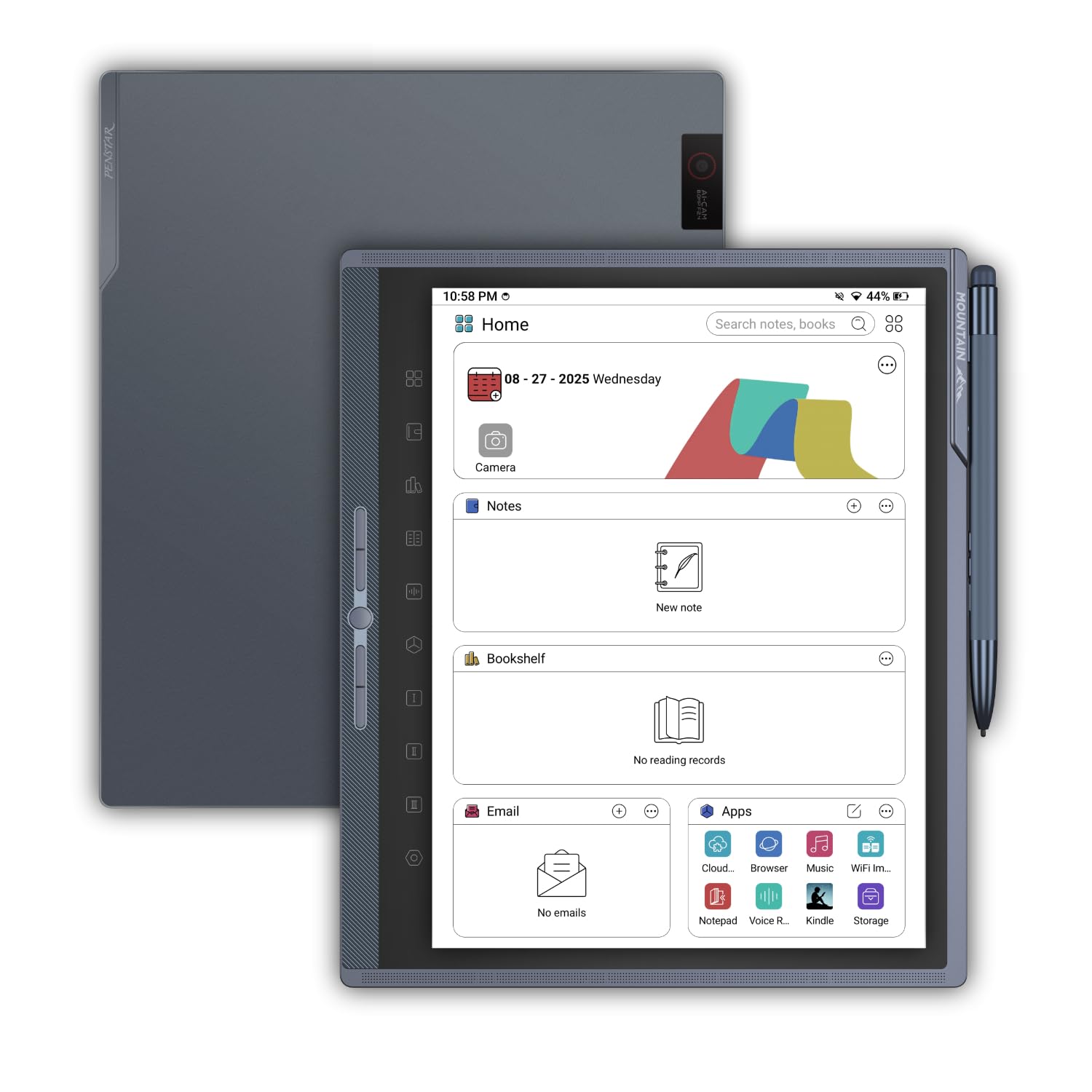
Image: Penstar eNote Pro with Stylus
This image shows the Penstar eNote Pro tablet with its B6 Stylus securely docked in the PenSlot.

Image: Smart Access In Flow - Pen-Only Smart Side Bar
This image highlights the pen-exclusive side menu and physical shortcut buttons for efficient navigation and control.
3.2. Technologie d'affichage
The eNote Pro features a 10.3-inch Kaleido 3 color E-Ink display. This technology provides a low-glare, paper-like visual experience, reducing eye strain during extended reading or writing sessions. The adjustable front light allows for comfortable use in various lighting conditions, from bright sunlight to dim indoor environments.

Image: Read Bright Feel Right
This image demonstrates the glare-free display and comfortable reading experience provided by the eNote Pro's E-Ink screen.
4. Installation
4.1. Mise sous tension initiale
- Press and hold the Power Button on the top edge of the device until the Penstar logo appears.
- Suivez les instructions à l'écran pour sélectionner votre langue, vous connecter à un réseau Wi-Fi et terminer la configuration initiale.
4.2. Utilisation du stylet
The included B6 Metal Stylus is inductively powered by the screen and does not require charging. Simply remove it from the PenSlot and begin writing or navigating.
- Sensibilité à la pression : The stylus supports 8192 levels of pressure sensitivity for precise writing and drawing.
- Fonction gomme : The top of the stylus acts as an eraser.
- Boutons programmables : The stylus features three programmable buttons for custom shortcuts.

Image: Write Naturally - Stylus Features
This image illustrates the B6 Stylus's pressure sensitivity, built-in eraser, and secure PenSlot storage.
4.3. Connexion au Wi-Fi
- Depuis l'écran d'accueil, appuyez sur Paramètres icon (gear symbol).
- Sélectionner Réseau et Internet.
- Basculer Wifi à ON.
- Sélectionnez le réseau souhaité dans la liste et saisissez le mot de passe si vous y êtes invité.
5. Mode d'emploi
5.1. Écriture et prise de notes
The eNote Pro offers a natural writing experience with advanced features:
- MyScript Technology: Convert handwritten notes into editable text instantly.
- Pen-Only Smart Side Bar: Access app switches and shortcuts with a simple pen tap, preventing accidental finger touches.
- Custom Button Controls: Utilize the 5 physical buttons for ultra-fast workflow, launching tools or switching applications.

Image: True to Paper Writing Experience
This image illustrates the natural and precise writing experience on the eNote Pro's E-Ink display.
Video: Testing the Penstar eNote Pro Stylus
This video demonstrates the responsiveness and writing feel of the Penstar eNote Pro stylus, including a pen latency test.
5.2. Lecture
The eNote Pro is optimized for comfortable reading:
- Supports various formats including EPUB and PDF.
- Adjust font size, style, and line spacing for personalized comfort.
- Annotate directly on documents and e-books using the stylus.
- Utilize the adjustable front light for optimal visibility in any environment.

Image: Color in Every Thought
This image shows the eNote Pro displaying a document with soft, balanced colors, enhancing clarity and focus.
5.3. AI-Powered Voice-to-Text
Convert spoken words into text with high accuracy:
- Real-time transcription supporting over 52 languages.
- Automatically generate structured meeting summaries using built-in AI tools.
- Ideal for business meetings, academic conferences, and brainstorming sessions.

Image: Ideas, Refined Instantly - Real-time Voice to Text
This image shows the eNote Pro's real-time voice-to-text feature in action, converting speech into organized notes.
5.4. Cloud Connectivity and Sync
Access your notes and documents anywhere, anytime:
- Seamlessly sync files via Google Drive, OneDrive, or Dropbox.
- Share your work instantly via email or PDF export.
- Stay connected across devices with the Penstar App on your phone, laptop, or iPad.

Image: Your Work. Always Connected
This image demonstrates the eNote Pro's cloud connectivity, allowing users to access and continue their work across multiple devices.
5.5. Fonctionnalités de la caméra
The built-in camera allows for quick document capture:
- Scan documents and whiteboards with high clarity.
- Import handwritten notes with crisp accuracy.
- Enhance images with intelligent image processing.

Image: Built-in Camera - Scan Clearly
This image shows a user utilizing the eNote Pro's integrated camera for scanning documents.
6. Entretien
6.1. Nettoyage de l'écran
To maintain optimal screen clarity, gently wipe the display with a soft, lint-free cloth. For stubborn smudges, slightly dampNettoyez le chiffon avec de l'eau ou une solution nettoyante spécialement conçue pour les écrans électroniques. Évitez les produits chimiques agressifs et les matériaux abrasifs.
6.2. Entretien de la batterie
The eNote Pro is equipped with a 6500 mAh battery designed for long usage. To prolong battery life:
- Évitez les températures extrêmes.
- Rechargez l'appareil régulièrement, mais évitez de le laisser complètement chargé ou complètement déchargé pendant des périodes prolongées.
- Utilisez le câble USB-C fourni pour le chargement.
6.3. Remplacement de la pointe du stylet
Over time, the stylus nib may wear down. Your eNote Pro comes with a spare nibs kit (10 nibs). To replace a nib:
- Gently pull the old nib straight out from the stylus.
- Insert a new nib firmly until it clicks into place.
7. Dépannage
If you encounter issues with your Penstar eNote Pro, refer to the following common solutions:
| Problème | Solution possible |
|---|---|
| L'appareil ne s'allume pas | Ensure the device is charged. Connect it to a power source using the provided USB-C cable. If unresponsive, perform a hard reset by holding the power button for 10-15 seconds. |
| Le stylet ne répond pas | Check if the stylus nib is properly inserted. If the nib is worn, replace it with a new one from the spare kit. Ensure the stylus is within range of the screen. |
| Problèmes de connexion Wi-Fi | Verify your Wi-Fi password. Restart your router and the eNote Pro. Ensure the device is within range of the Wi-Fi signal. |
| Handwriting conversion errors | Ensure your handwriting is clear and legible. Check the language settings for handwriting recognition. Update the device software to the latest version. |
| Screen lag or slow performance | Close unnecessary applications running in the background. Restart the device. E-Ink screens inherently have a slower refresh rate than LCD/OLED, which is normal behavior. |
| Apps not installing from Google Play Store | The eNote Pro runs on Android 14 but may not have Google Play certification. You may need to use alternative app stores or sideload .apk files for some applications. Apps requiring Google Play Services may not function fully. |
If the problem persists, please contact Penstar customer support for further assistance.
8. Spécifications
Key technical specifications for the Penstar eNote Pro (Model M10C):
| Fonctionnalité | Détail |
|---|---|
| Taille de l'écran | 10.3 pouces |
| Résolution de l'écran | 2480 x 1860 Pixels (300 ppi B&W, 150 ppi Color) |
| Processeur | 2.2 GHz Rockchip RK3576 Octa-core |
| BÉLIER | 4 Go |
| Stockage | 128 Go de mémoire flash |
| Système opérateur | Android 14 (Penstar OS 2.0) |
| Autonomie de la batterie | Up to 2 weeks (6500 mAh) |
| Type sans fil | 802.11a/b/g/n/ac/ad/ax |
| Caméra | 8 MP F2.4 AI Camera |
| Style | Penstar Premium Aluminum-alloy Digital Stylus B6 (8192 Pressure Sensitivity) |
| Dimensions (L x l x H) | 9.2 x 7.8 x 0.2 pouces |
| Poids de l'article | 15.2 onces |
| Couleur | Iceberg Gray |
9. Garantie et assistance
The Penstar eNote Pro comes with a manufacturer's warranty. Please refer to the warranty card included in your package or visit the official Penstar webConsultez le site pour connaître les conditions générales de garantie détaillées.
For technical support, product inquiries, or service requests, please contact Penstar customer support through their official website or the contact information provided in your Quick User Guide.


