1. Introduction
Thank you for choosing the Pisichen 27-inch 4K UHD Touchscreen Monitor with Webcam. This manual provides essential information for the safe and efficient operation of your new monitor. Please read it thoroughly before use and retain it for future reference.
2. Consignes de sécurité
- Source d'alimentation : Utilisez uniquement l'adaptateur secteur fourni avec le moniteur. Assurez-vous que la prise de courant supporte la tension.tage exigences.
- Ventilation: Ne pas obstruer les ouvertures de ventilation. Laisser un espace suffisant autour du moniteur pour une bonne circulation de l'air.
- Exposition aux liquides : Tenez le moniteur à l'écart des liquides. Ne l'exposez pas à la pluie ni à l'humidité.
- Nettoyage: Disconnect the power cable before cleaning. Use a soft, dry cloth. Avoid abrasive cleaners.
- Placement: Placez le moniteur sur une surface stable et plane pour éviter qu'il ne tombe.
- Entretien: N’essayez pas de réparer vous-même le moniteur. Confiez toute réparation à un personnel qualifié.
3. Contenu du colis
Veuillez vérifier le contenu du colis à la réception. Si des articles sont manquants ou endommagés, veuillez contacter votre revendeur.
- Pisichen 27-inch 4K UHD Touchscreen Monitor
- Support pour écran (base et bras)
- Adaptateur secteur
- Câble HDMI
- USB-B to USB-A Cable (for Touch Function)
- Manuel d'utilisation
4. Produit terminéview
4.1 Principales caractéristiques
- Ultra HD 4K Touchscreen Display: 27-inch 4K Ultra HD screen with vibrant colors, sharp details, and wide viewing angles. Features a responsive 10-point touchscreen for intuitive control.
- Built-in High-Definition Webcame: Intégré webcam for video calls, online meetings, and streaming, reducing desk clutter.
- Connectivité polyvalente : Multiple ports including HDMI, DisplayPort, and USB-C for easy connections to various devices. Supports both touch and traditional input.
- Optimized for Productivity and Creativity: Large 4K touch display for precise control and streamlined workflows, ideal for graphic designers, content creators, and multitasking.
- Sleek and Functional Design: Modern design with an adjustable stand for optimal viewing angles and comfort during extended use.
4.2 Ports de surveillance
The monitor features various ports for connecting to your devices. Refer to the image below for port identification.
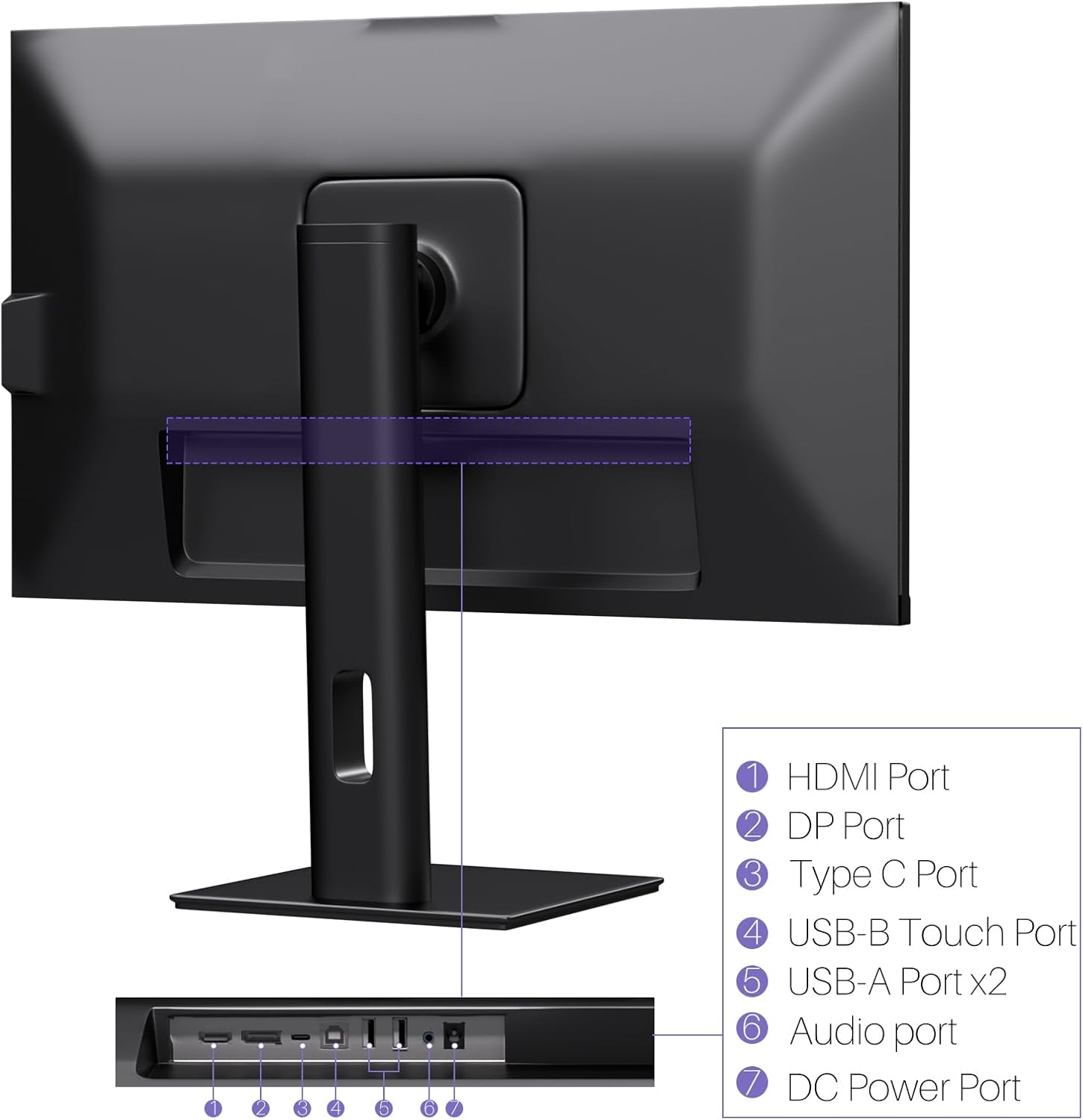
Image : Arrière view of the monitor displaying the HDMI, DP, Type-C, USB-B Touch, USB-A, Audio, and DC Power ports.
- Port HDMI: Connects to devices via HDMI cable for video and audio input.
- Port DP : Connects to devices via DisplayPort cable for video and audio input.
- Port de type C: Connects to devices via USB-C cable for video, audio, and power delivery. (Requires USB-C port on signal device to support DisplayPort Alternate Mode for touch functionality).
- USB-B Touch Port: Connects to your computer via USB-B to USB-A cable to enable touchscreen functionality.
- Port USB-A (x2) : Pour connecter des périphériques USB.
- Port audio: Pour connecter des périphériques audio externes.
- Port d'alimentation CC : Se connecte à l'adaptateur secteur.
5. Instructions de configuration
5.1 Assemblage du support
- Retirez soigneusement le moniteur et son support de leur emballage.
- Attach the stand arm to the monitor's VESA mounting points.
- Secure the stand base to the arm using the provided screws.
- Ensure all connections are tight and the monitor is stable.
5.2 Connexion à un appareil
The monitor supports various connection types. Choose the appropriate cable for your device.

Image: Connection diagrams illustrating how to connect the monitor as a secondary display (HDMI/DP + DC), a touchscreen monitor (HDMI/DP + USB-B + DC), or via USB-C (USB-C + DC).
- For Video and Audio (Non-Touch): Connect an HDMI or DisplayPort cable from your computer to the corresponding port on the monitor.
- For Video, Audio, and Touch (Windows PC): Connect an HDMI or DisplayPort cable for video/audio. Additionally, connect the USB-B to USB-A cable from the monitor's USB-B Touch Port to a USB-A port on your computer.
- For Video, Audio, and Touch (USB-C Compatible Device): Connect a USB-C cable from your device to the monitor's Type-C port. Ensure your device's USB-C port supports DisplayPort Alternate Mode for touch functionality.
5.3 Connexion d'alimentation
- Connect the power adapter to the monitor's DC Power Port.
- Branchez l’adaptateur secteur sur une prise murale.
6. Mode d'emploi
6.1 Mise sous/hors tension
Appuyez sur le bouton d'alimentation situé sur le moniteur pour l'allumer ou l'éteindre.
6.2 Menu d'affichage à l'écran (OSD)
Use the control buttons (typically located on the back or bottom of the monitor) to navigate the OSD menu. This menu allows you to adjust settings such as brightness, contrast, color temperature, input source, and other display parameters.
6.3 Fonctionnalités de l'écran tactile
The monitor features a 10-point multi-touch screen. Ensure the USB-B to USB-A cable (or USB-C cable for compatible devices) is connected to enable touch functionality.

Image: A user's hand interacting with the monitor screen, highlighting the responsive 10-point touch experience.
- Basic Touch: Tap to click, swipe to scroll.
- Gestes multitouch : Use two fingers to zoom in/out, rotate, or pan, depending on the application.
- Touch Calibration (Windows Only): If the cursor does not align with your touch, calibration may be required. Go to Control Panel > Hardware and Sound > Tablet PC Settings > Calibrate. Follow the on-screen prompts.
6.4 Utilisation du système intégré Webcame
L'intégré webcam is automatically detected by most operating systems and video conferencing applications. No additional drivers are typically required.

Image: The monitor displaying a video conference call, showcasing its integrated webcam for seamless communication.
- Ouvrez votre logiciel de visioconférence préféré (par exemple, Zoom, Microsoft Teams, Skype).
- Select the integrated webcam as your video input device in the application's settings.
6.5 Adjusting Display Resolution
To set the resolution of the monitor (Windows):
- Right-click on your desktop and select "Display Settings."
- Find your monitor (if multiple displays are connected).
- Under "Display resolution," select the recommended resolution of 3840 x 2160.
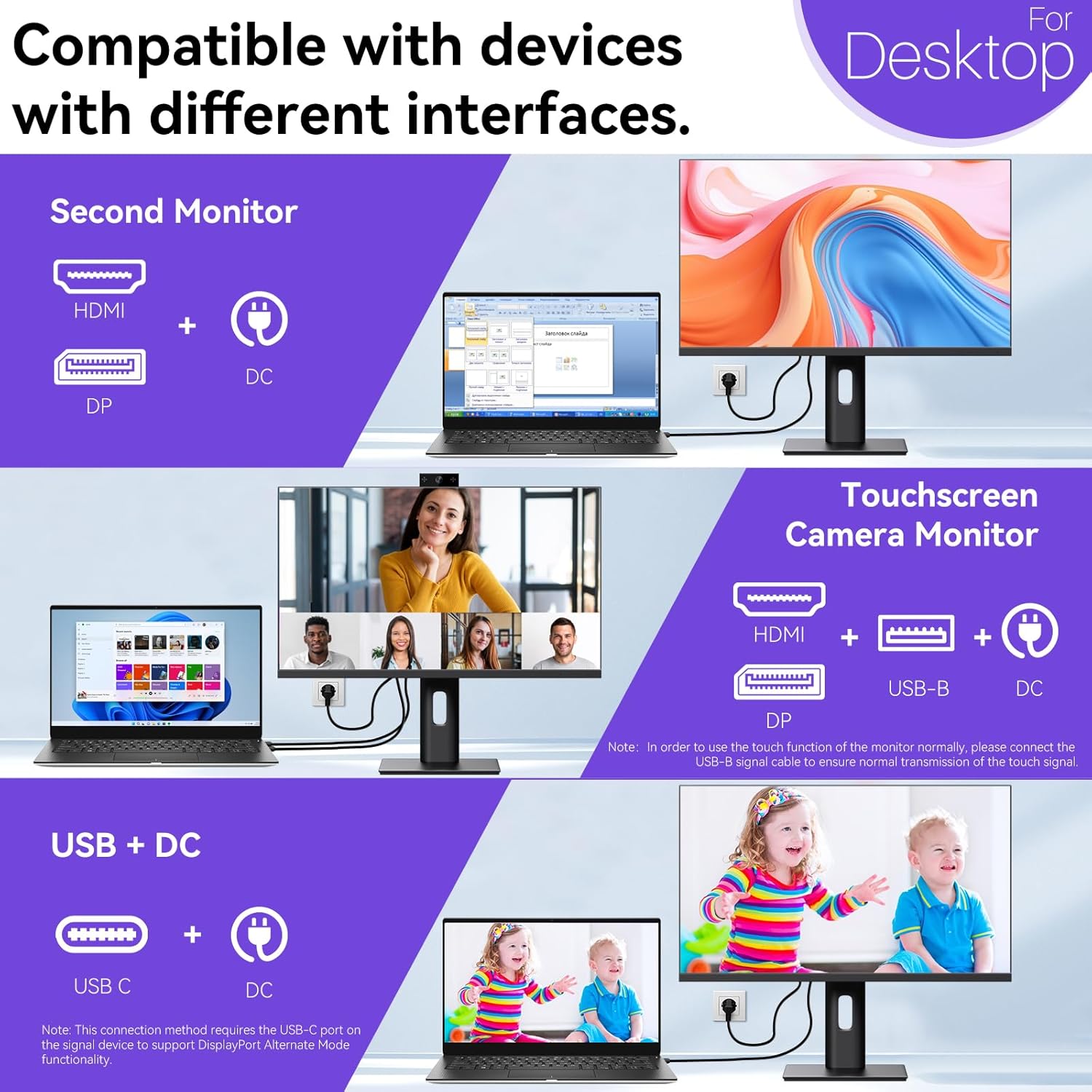
Image: A visual comparison demonstrating the superior clarity of 4K UHD (3840x2160) compared to FHD (1920x1080) and QHD (2560x1440) resolutions.
7. Entretien
- Nettoyage de l'écran : Essuyez délicatement l'écran avec un chiffon doux non pelucheux. Pour les taches tenaces, frottez légèrement.ampNettoyez le chiffon avec de l'eau ou une solution nettoyante spécifique pour écran. Ne vaporisez pas de liquide directement sur l'écran.
- Nettoyage du Casing: Utilisez un chiffon doux et sec pour nettoyer le moniteur.asing.
- Stockage: Si vous devez ranger le moniteur pendant une période prolongée, débranchez-le de l'alimentation, remettez-le dans son emballage d'origine et rangez-le dans un endroit frais et sec.
8. Dépannage
If you encounter issues with your monitor, refer to the following troubleshooting guide. For problems not listed, please contact customer support.
| Problème | Cause possible | Solution |
|---|---|---|
| Aucune image à l'écran | Câble d'alimentation débranché ; câble vidéo débranché ; source d'entrée incorrecte sélectionnée. | Ensure power cable is securely connected. Check video cable (HDMI/DP/USB-C) connections. Select correct input source via OSD menu. |
| L'écran tactile ne répond pas | USB-B cable not connected; USB-C port not supporting DisplayPort Alternate Mode; Device incompatibility (e.g., iPhone). | Ensure the USB-B to USB-A cable is connected from the monitor to your computer. If using USB-C, verify your device's USB-C port supports DisplayPort Alternate Mode. Note: Touch function is not supported when connected to an iPhone due to iOS system restrictions. |
| Cursor moves incorrectly (Windows) | Touchscreen calibration required. | Perform touchscreen calibration: Go to Control Panel > Hardware and Sound > Tablet PC Settings > Calibrate. |
| Webcame non détectée | USB connection issue; Software settings. | Ensure all necessary USB cables are connected. Check your application's settings to select the correct webcame. |
9. Spécifications
| Fonctionnalité | Détail |
|---|---|
| Marque | Pisicène |
| Numéro de modèle | 27INTSCMR-4K |
| Taille de l'écran | 27 pouces |
| Résolution | 3840 x 2160 pixels (4K UHD 2160p) |
| Rapport hauteur/largeur | 16:9 |
| Luminosité de l'image | 400 XNUMX Candela |
| Description de la surface de l'écran | Brillant |
| Dimensions du produit | 14.37 x 24.21 x 16.54 pouces |
| Poids de l'article | 16.59 livres |
| Fabricant | Shenzhen Konowa Electronics Co., LTD |
| Connectivité | HDMI, DisplayPort, USB-C, USB-B (for touch), USB-A (x2), Audio Port |
10. Garantie et assistance
This product comes with a manufacturer's warranty. Please refer to the warranty card included in your package for specific terms and conditions. For technical support or inquiries, please contact Pisichen customer service at support_2308@163.com. When contacting support, please provide your model number and a detailed description of the issue, including any relevant pictures or videos.


