Introduction
Thank you for choosing the ProtoArc KM310 Wireless Mechanical Keyboard and Mouse. This combo offers a responsive typing experience with low-profile linear red switches and versatile multi-device connectivity. The ergonomic mouse is designed for comfort and precision. This manual provides detailed instructions for setup, operation, maintenance, and troubleshooting to ensure optimal performance.
Qu'y a-t-il dans la boîte

Image: Contents of the ProtoArc KM310 package, including the keyboard, mouse, charging cable, and user manual.
- Clavier mécanique sans fil ProtoArc KM310
- Souris sans fil ProtoArc
- Câble de chargement USB-C
- Manuel d'utilisation
Produit terminéview
Caractéristiques du clavier

Image : Un gros plan view of the ProtoArc KM310 keyboard, highlighting its low-profile keys and linear red switches.
- Bas-Profile Clés mécaniques : Equipped with linear red switches for a smooth, quiet, and responsive typing experience.
- Aluminum Top Case: Provides durability and a sleek, modern aesthetic.
- Pieds inclinables réglables : Ergonomically designed with 2-stage foot mats offering 6° and 9° tilt options for comfortable typing.
- Mise en page pleine grandeur : A 108-key layout suitable for office and business use.
Caractéristiques de la souris

Image: The ProtoArc KM310 mouse being held, showcasing its ergonomic design for a natural grip.
- 63G Ultra-Lightweight: Reduces hand fatigue during extended use and enhances portability.
- Conception ergonomique : Contoured shape for a comfortable and natural grip.
- DPI réglable : Three DPI levels (1000/1600/2400) for tailored control and precision.
- Clic silencieux : Conçu pour un fonctionnement silencieux.
- Boutons Suivant/Précédent : Integrated for seamless browsing.
Connectivité et puissance
- Connectivité multi-appareils : Connects up to 3 devices via 2.4G USB receiver or Dual Bluetooth (BT1, BT2).
- Rechargeable: Both keyboard and mouse feature Type-C charging. The mouse's USB receiver is stored on its bottom.
- Longue durée de vie de la batterie : Up to 150-200 days standby time; 2-3 hours for a full charge.
Instructions d'installation
1. Chargement des appareils

Image: The keyboard and mouse are shown connected to power sources via USB-C cables for charging.
- Connect the provided USB-C charging cable to the charging port on the keyboard (located on the top edge) and the mouse (located on the front edge).
- Branchez l'autre extrémité du câble à une source d'alimentation USB (par exemple, un port USB d'ordinateur, un adaptateur secteur USB).
- The indicator lights will show charging status. Allow 2-3 hours for a full charge.
2. Connexion aux appareils

Image: A desk setup showing the ProtoArc KM310 keyboard and mouse connected to a laptop, monitor, and tablet, illustrating multi-device capability.
The KM310 combo supports three connection modes: 2.4G wireless via USB receiver, Bluetooth 1 (BT1), and Bluetooth 2 (BT2).
2.1. Connexion sans fil 2.4G
- Repérez le récepteur USB rangé dans le compartiment situé sous la souris.
- Branchez le récepteur USB dans un port USB disponible sur votre ordinateur.
- Allumez le clavier et la souris à l’aide de leurs interrupteurs d’alimentation respectifs.
- Les appareils devraient se connecter automatiquement.
2.2. Connexion Bluetooth (BT1 / BT2)
- Allumez le clavier et la souris.
- Sur le clavier, appuyez sur la touche BT1 or BT2 key (usually located on the number pad, indicated by orange keycaps) to select the desired Bluetooth channel. The indicator light will flash.
- On your device (computer, tablet, etc.), go to Bluetooth settings and search for "ProtoArc KM310 Keyboard" and "ProtoArc KM310 Mouse".
- Select the devices to pair. The indicator light will stop flashing once connected.
- Répétez l'opération pour un deuxième appareil Bluetooth en utilisant l'autre canal BT.
2.3. Basculement entre les appareils
To switch between connected devices, simply press the corresponding connection key on the keyboard (2.4G, BT1, or BT2) and the channel switch button on the bottom of the mouse.
Mode d'emploi
Utilisation du clavier
- Dactylographie: Le low-profile linear red switches provide a responsive and quiet typing experience.
- Compatibilité du système d'exploitation : The keyboard is compatible with Windows and Mac OS. Keys like 'Win' and 'Alt' also show 'Option' and 'Cmd' for Mac users.
- Réglage de l'inclinaison : Use the adjustable tilt legs on the underside of the keyboard to set your preferred typing angle (6° or 9°).
Utilisation de la souris
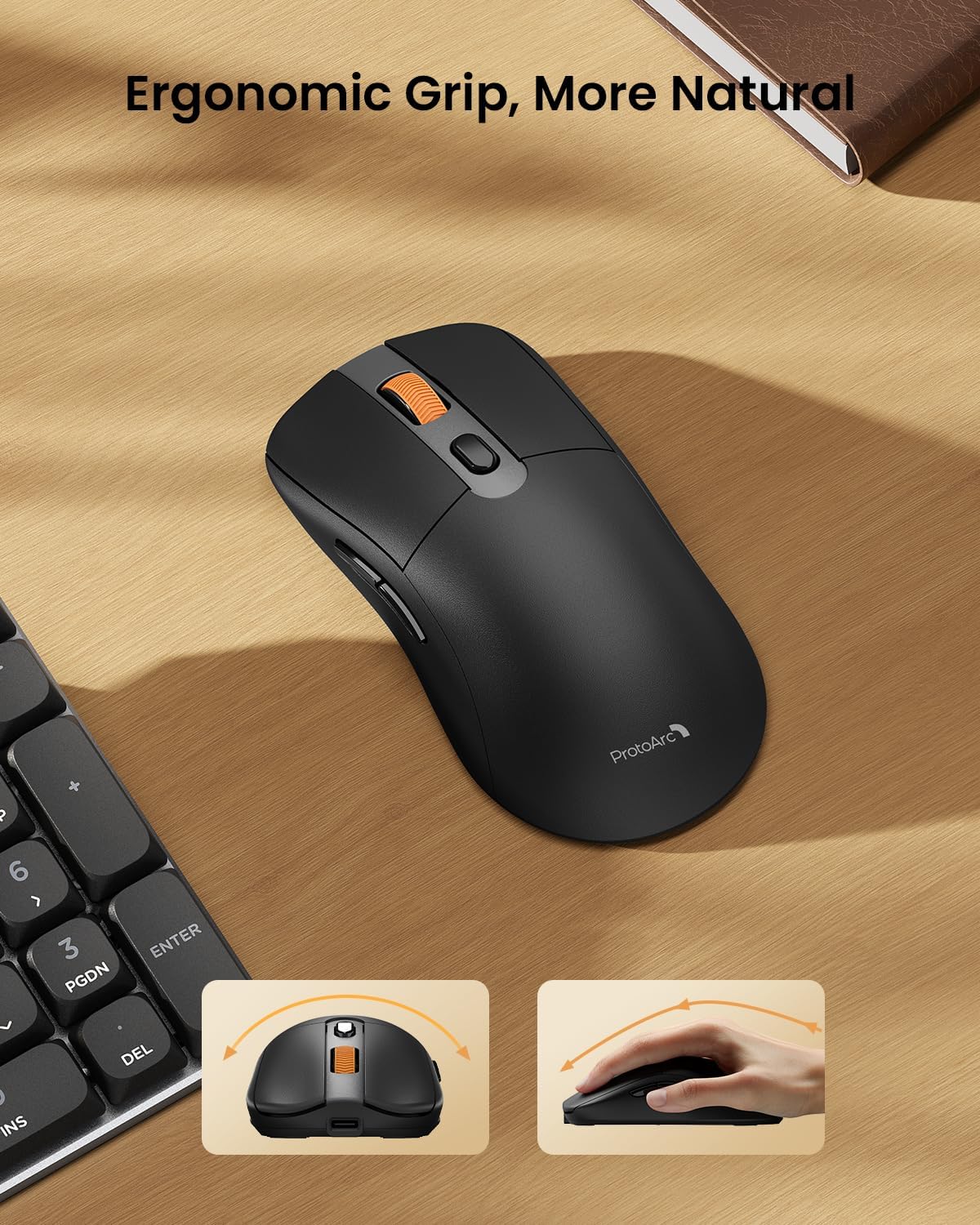
Image: A close-up of the ProtoArc KM310 mouse, illustrating the three adjustable DPI settings (1000, 1600, 2400).
- Ajustement PPP : Press the DPI switch button (usually located near the scroll wheel) to cycle through the 3 DPI levels (1000/1600/2400) to match your preference for cursor speed and precision.
- Boutons de navigation: Use the forward and backward buttons on the side of the mouse for quick navigation in web navigateurs ou file explorateurs.
- Clics silencieux : La souris est dotée de boutons de clic silencieux pour un environnement de travail paisible.
Entretien
- Nettoyage: Utilisez un chiffon doux et sec pour essuyer le clavier et la souris. Pour les saletés tenaces, un chiffon légèrement plus sec peut être utile.amp On peut utiliser un chiffon imbibé de savon doux, en veillant à ce qu'aucun liquide ne pénètre dans l'appareil.
- Entretien de la batterie: Recharge the devices when the battery indicator is low. Avoid prolonged exposure to extreme temperatures.
- Stockage: When not in use for extended periods, turn off the devices to conserve battery life. Store the USB receiver inside the mouse to prevent loss.
Dépannage
Keyboard/Mouse Not Turning On or Stopping Working
- Vérifier la batterie : Ensure both the keyboard and mouse are sufficiently charged. Connect them to a power source using the USB-C cable.
- Réparer les appareils :
- For 2.4G connection, ensure the USB receiver is securely plugged in and the devices are set to 2.4G mode.
- For Bluetooth connection, ensure the devices are set to the correct BT channel (BT1 or BT2) and re-pair them through your device's Bluetooth settings.
- Essayez un autre câble : If charging issues persist, try using a different USB-C cable to rule out a faulty cable.
- Ingérence: Rapprochez les appareils de votre ordinateur ou éloignez-les des autres appareils sans fil susceptibles de provoquer des interférences.
- Contacter le support : If the issue persists, please contact ProtoArc customer support for further assistance.
Caractéristiques
| Numéro de modèle | KM310 |
| Marque | ProtoArc |
| Couleur | Gris sidéral |
| Technologie de connectivité | Bluetooth, USB (sans fil 2.4 GHz) |
| Caractéristiques spéciales | Faible Profile Keys, Linear Red Switches, Ergonomic Design, Ultra-Light Mouse, Ergonomic Mouse |
| Appareils compatibles | Laptop, Personal Computer, Tablet (Windows 7/8/10, Mac OS X 10.12, Android 4.3 or higher) |
| Poids de l'article | 2.31 livres |
| Dimensions du colis | 17.68 x 8.07 x 2.05 pouces |
Garantie et assistance
The ProtoArc KM310 Mechanical Keyboard and Mouse combo comes with a Garantie d'un an.
For any questions, technical support, or warranty claims, please contact ProtoArc customer service:
- E-mail: support@protoarc.com
- Téléphone: +1 866-287-8188
Vidéo officielle du produit
Vidéo : Présentation vidéo officielle du produitasing the features and design of the ProtoArc KM310 Aluminum Mechanical Keyboard and Mouse.


