Introduction
The ONIKUMA X22 Wired Gaming Headset is designed to provide an immersive audio experience for gamers. It features dynamic RGB lighting, a comfortable design, and a clear communication microphone. This manual provides essential information for the proper setup, operation, maintenance, and troubleshooting of your headset.
Caractéristiques principales :
- Stunning RGB lighting effects to enhance the gaming atmosphere.
- 50mm dynamic drivers deliver impressive stereo sound.
- Features a 360-degree omnidirectional microphone with active noise reduction for clear sound.
- Convenient inline controls for RGB lighting, microphone mute, and volume adjustment.
- Designed with an adjustable suspended headband and well-ventilated ear cups for comfortable wear.
Instructions d'installation
Follow these steps to set up your ONIKUMA X22 Gaming Headset:
- Connectez le câble audio : Plug the 3.5mm audio jack of the headset into the corresponding audio port on your gaming device (PC, console controller, etc.). Ensure the connection is secure.
- Connect the USB Cable (for RGB Lighting): Plug the USB-A connector into an available USB port on your device. This connection powers the RGB lighting feature. The headset will function for audio and microphone without the USB connection, but RGB lighting requires it.
- Ajuster le bandeau : Place the headset on your head and adjust the suspended headband for a comfortable fit. The headband is designed to adapt to various head sizes.
- Position du microphone : Adjust the flexible microphone boom to position the microphone near your mouth for optimal voice pickup. Ensure it is not obstructing your vision.
- Test sonore initial : Play some audio or initiate a voice chat to confirm sound output and microphone input are working correctly. Adjust system volume settings as needed.
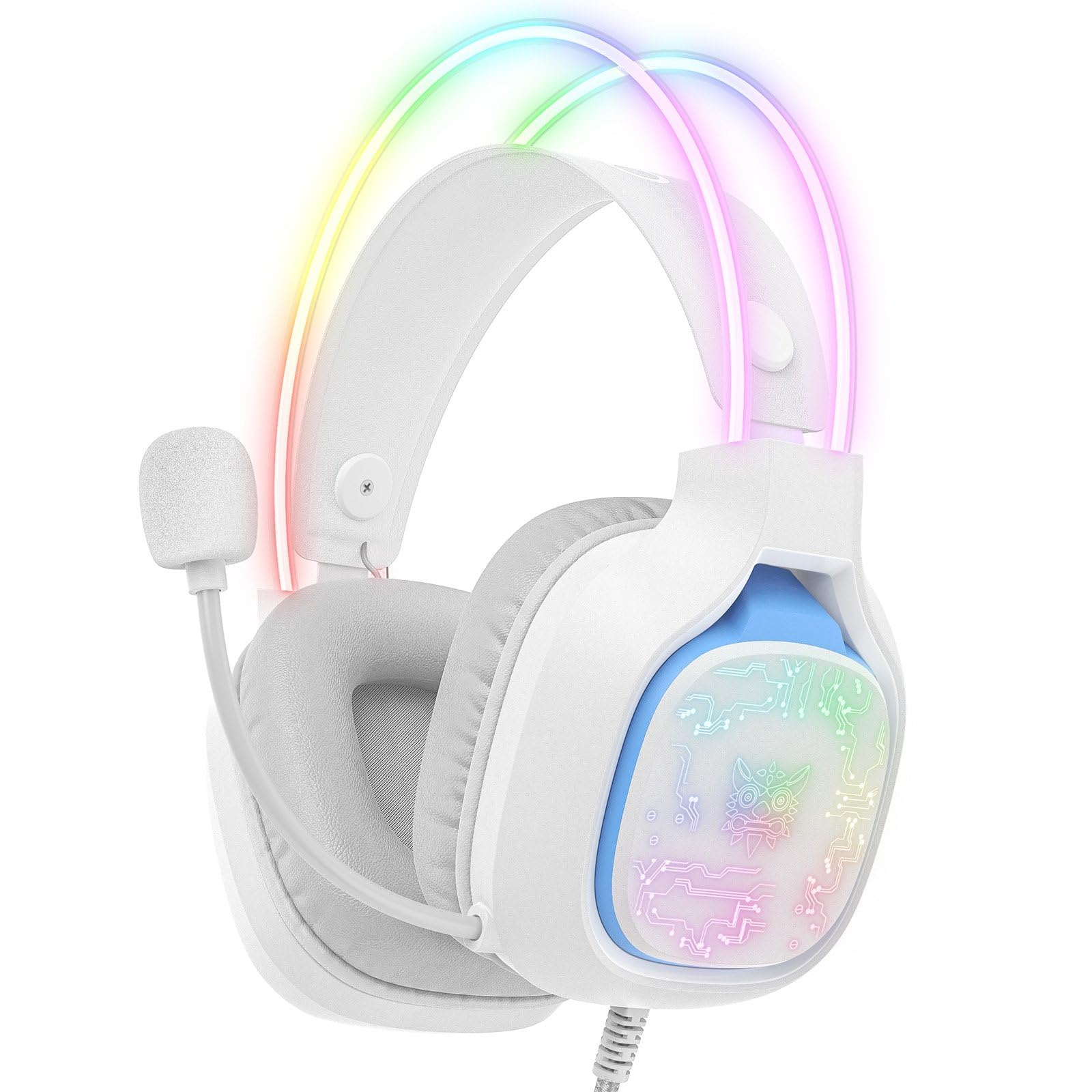
Image: The ONIKUMA X22 Gaming Headset with its 3.5mm audio jack and USB connector, ready for connection to a gaming device. The adjustable headband and microphone are visible.
Mode d'emploi
The ONIKUMA X22 features convenient inline controls for easy management during use:
- Contrôle du volume : Locate the volume roller on the inline control unit. Roll it up to increase volume and down to decrease volume.
- Micro muet : A switch on the inline control unit allows you to quickly mute or unmute the microphone. Slide the switch to the 'Mute' position to disable the microphone, and to the 'Unmute' position to enable it.
- Contrôle de l'éclairage RVB : If connected via USB, the RGB lighting will activate automatically. Some models may include a button on the inline control to cycle through lighting modes or turn the RGB off/on. Refer to the specific product packaging for detailed RGB control options if available.
For optimal performance, ensure your device's audio settings are configured to use the ONIKUMA X22 as the default playback and recording device.
Entretien
Un entretien approprié garantit la longévité et les performances de votre casque :
- Nettoyage: Utilisez un chiffon doux et sec pour essuyer les oreillettes et l'arceau. Pour les saletés tenaces, un chiffon légèrement plus sec peut être utile.amp Vous pouvez utiliser un chiffon imbibé de savon doux, en veillant à ce qu'aucun liquide ne pénètre dans les grilles des haut-parleurs ou le microphone. N'utilisez pas de produits chimiques agressifs ni de nettoyants abrasifs.
- Stockage: When not in use, store the headset in a clean, dry place away from direct sunlight and extreme temperatures. Avoid placing heavy objects on the headset.
- Entretien des câbles : Avoid sharp bends or excessive pulling on the cables. Always grasp the plug, not the cable, when disconnecting.
- Ear Cup Replacement: If the ear cushions become worn, they may be replaceable. Check the manufacturer's webConsultez le site ou contactez le service d'assistance pour obtenir des pièces de rechange.
Dépannage
Si vous rencontrez des problèmes avec votre casque, consultez les solutions courantes suivantes :
- Pas de son :
- Assurez-vous que la prise audio 3.5 mm est complètement insérée dans le port audio de l'appareil.
- Vérifiez le réglage du volume intégré et augmentez le volume.
- Verify your device's system volume is not muted or set too low.
- Vérifiez que le casque est bien sélectionné comme périphérique de sortie audio par défaut dans les paramètres sonores de votre système d'exploitation.
- Testez le casque sur un autre appareil pour exclure un problème lié à l'appareil.
- Le microphone ne fonctionne pas :
- Ensure the microphone mute switch on the inline control is in the 'Unmute' position.
- Vérifiez que le microphone est correctement positionné près de votre bouche.
- Verify the headset microphone is selected as the default input device in your operating system's sound settings and communication applications.
- Adjust the microphone input level in your device's sound settings.
- Testez le microphone sur un autre appareil.
- L'éclairage RVB ne fonctionne pas :
- Ensure the USB-A connector is securely plugged into a powered USB port.
- Essayez un port USB différent.
- If there is an RGB control button on the inline unit, press it to cycle through modes or activate the lighting.
- Coupe inconfortable :
- Adjust the suspended headband to find the most comfortable position.
- Ensure the ear cups are fully covering your ears without excessive pressure.
Caractéristiques
| Fonctionnalité | Détail |
|---|---|
| Numéro de modèle | X22 |
| Diamètre du conducteur | 50 mm |
| Gamme de fréquences | 20 Hz - 20 kHz |
| Type de microphone | 360-degree Omnidirectional with Active Noise Reduction |
| Connectivité | 3.5mm Audio Jack + USB-A (for RGB) |
| Longueur du câble | 1.8 mètres |
| Poids | 364 grammes |
| Dimensions d'expédition | 23.5 x 19.4 x 11.4 cm |
| Date de sortie | 26 septembre 2025 |
Informations sur la garantie
The ONIKUMA X22 Gaming Headset is covered by a standard manufacturer's warranty. The duration and terms of the warranty may vary by region and retailer. Please retain your proof of purchase for warranty claims. For specific details regarding your warranty coverage, refer to the documentation included with your product or visit the official ONIKUMA website.
Assistance clientèle
For technical assistance, product inquiries, or customer service, please contact ONIKUMA customer support. You can typically find contact information, including email addresses, phone numbers, or support portals, on the official ONIKUMA website. Please have your product model (X22) and purchase details ready when contacting support.
Officiel Website: www.onikuma.net (Remarque : ceci est un espace réservé) URL. Refer to your product packaging for the correct official webplacer.)


