Introduction
This manual provides detailed instructions for the setup, operation, and maintenance of your FLYDIGI Direwolf 4 PC Controller. Designed for multi-platform compatibility, this controller offers advanced features for an enhanced gaming experience across PC, Nintendo Switch, TV, and Android devices. Please read this manual thoroughly to ensure proper use and to maximize the performance of your device.
Installation
1. Modes de connexion
The FLYDIGI Direwolf 4 controller supports three connection modes:
- Connectivité filaire : Connect the controller directly to your device using a USB-C cable. This mode also charges the controller.
- Connectivité Bluetooth : Pour une connexion sans fil aux appareils compatibles.
- 2.4G Dongle Wireless Connectivity: Use the included 2.4G dongle for a stable wireless connection, particularly recommended for PC.
2. Appariement initial
Follow these general steps for initial pairing:
- Mise sous tension : Press and hold the FLYDIGI logo button to power on the controller.
- Sélectionnez le mode: Use the mode switch on the controller to select the desired connection mode (Bluetooth or 2.4G).
- Jumelage :
- Bluetooth : On your device, navigate to Bluetooth settings and select "FLYDIGI Direwolf 4" to pair.
- Clé 2.4G : Insert the 2.4G dongle into a USB port on your device. The controller should automatically connect.
- Wired: Simply connect the USB-C cable from the controller to your device. No pairing is required.

Image: The FLYDIGI Direwolf 4 controller demonstrating its compatibility with various platforms including PC, Nintendo Switch, Android, and iOS, highlighting its versatile connectivity options.
Mode d'emploi
1. FORCEFLEX Joysticks
The patented FORCEFLEX Joysticks allow for adjustable tension, ranging from 40gf to 80gf. This feature provides stable recentering and zero drift, ensuring precise control and durability for up to 5 million cycles. Adjust the tension to suit your preference for different game genres.

Image: An exploded diagram illustrating the internal mechanism of the FORCEFLEX Joystick, highlighting its adjustable tension ring and components designed for precise centering and durability.
2. FORCESWITCH Triggers 2.0
Switch between two trigger modes for optimal gameplay:
- Micro Mode: Provides a crisp, fast response ideal for shooting games.
- Mode linéaire à effet Hall : Offers precise, gradual control, perfect for racing games and other genres requiring nuanced input.
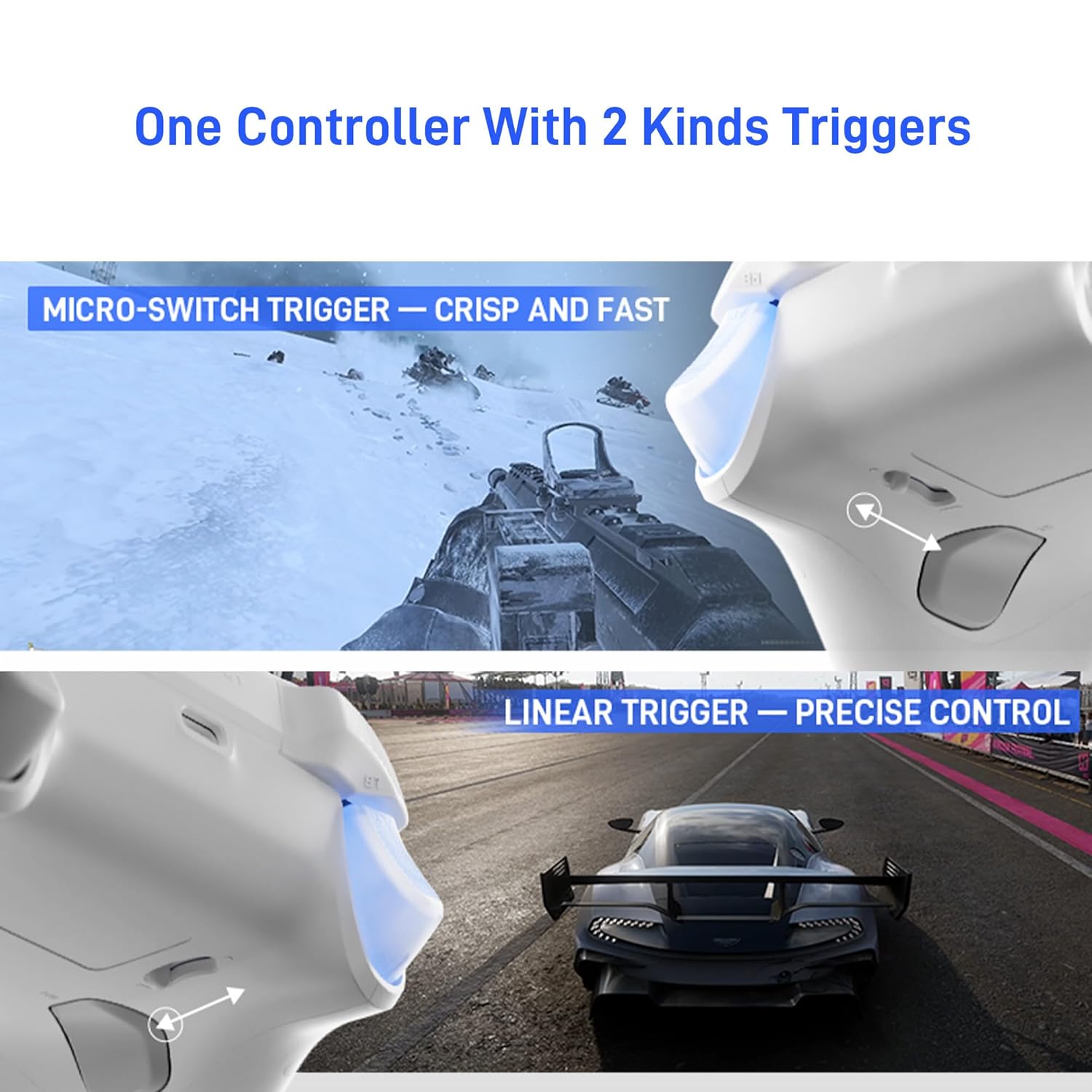
Image: The controller's triggers are depicted, illustrating the Micro-Switch Trigger for rapid input in a shooting game scenario and the Linear Trigger for fine-tuned control in a racing game.
3. Upgraded Stereo Vibration
Experience immersive feedback with realistic stereo vibration delivered through both grip areas of the controller.

Image : Un interne view of the controller showing the placement of two vibration motors within the grips, designed to provide stereo haptic feedback.
4. Rotary Eight-Way D-Pad & Silent Buttons
The upgraded rotary-pivoted D-Pad facilitates easy execution of combos without misinputs. The soft-touch silicone ABXY buttons provide precise and quiet actuation.

Image: A detailed exploded diagram of the Rotary-Pivoted D-Pad 2.0, illustrating its design for smooth, accurate directional input and combo execution.
5. 6-Axis Gyro & 1000Hz Polling Rate
Built with FLYDIGI's high polling rate technology, the controller offers a 1000Hz report rate for low-latency response and accurate motion sensing. The integrated 6-axis gyro is ideal for precise aiming and control in shooting or racing games.

Image: The controller is shown in a first-person perspective within a game, illustrating how the 6-Axis Gyro provides accurate motion sensing for aiming.

Image: A graphical representation comparing the trajectory smoothness between a 500Hz and a 1000Hz report rate, demonstrating the improved precision of the 1000Hz rate.
6. Macro-Programmable Rear Buttons
The controller features macro-programmable rear buttons for easier control and custom command execution. These can be configured using the FLYDIGI software.

Image: The back of the controller is shown, emphasizing the placement of the macro-programmable buttons designed for customizable inputs during gameplay.
7. Assistance logicielle
While the controller can be used without additional software, installing the FLYDIGI software unlocks extensive customization options, including button remapping and creating game profiles. This software enhances the controller's functionality and allows for a personalized gaming experience.
Entretien
1. Informations sur la batterie
The controller includes 1 AAAA battery. For optimal battery life, ensure the controller is fully charged before first use and when not in use for extended periods. Charging can be done via wired connection or an optional Direwolf 4 exclusive charging dock (sold separately).

Image: The FLYDIGI Direwolf 4 controller resting on its dedicated charging dock, showcasing its stable and non-slip design, with intelligent charging features.
2. Nettoyage et stockage
Pour nettoyer la manette, utilisez un chiffon doux et sec. Évitez les produits chimiques agressifs et les matériaux abrasifs. Rangez la manette dans un endroit frais et sec, à l'abri de la lumière directe du soleil et des températures extrêmes afin d'éviter tout dommage.
Dépannage
If you encounter issues with your FLYDIGI Direwolf 4 controller, refer to the following common solutions:
- Le contrôleur ne se connecte pas : Ensure the controller is charged. Verify the correct connection mode (Wired, Bluetooth, 2.4G) is selected. For Bluetooth, ensure your device's Bluetooth is enabled and the controller is in pairing mode. For 2.4G, ensure the dongle is securely inserted.
- Délai d'entrée ou déconnexions : For wireless connections, ensure you are within range of your device/dongle and there is minimal interference from other wireless devices. Consider switching to a wired connection if issues persist.
- Boutons ou joysticks ne répondant pas : Check for physical obstructions. If using the FLYDIGI software, ensure no conflicting profiles are active. Try resetting the controller (refer to the FLYDIGI software or official support for specific reset procedures).
- Vibration ne fonctionne pas : Ensure vibration is enabled in your game settings and the FLYDIGI software. Check if the controller's battery level is sufficient.
- Le logiciel ne reconnaît pas la manette : Ensure the FLYDIGI software is up-to-date. Connect the controller via wired mode to establish initial communication with the software.
Caractéristiques
| Fonctionnalité | Détail |
|---|---|
| Numéro de modèle | Direwolf 4 |
| Connectivité | Connexion filaire (USB-C), Bluetooth, sans fil 2.4 GHz |
| Plateformes compatibles | PC, Nintendo Switch, TV, Android, Laptop (NOT Support Xbox/PS) |
| Manettes de jeu | FORCEFLEX Joysticks (40gf-80gf adjustable tension, zero drift) |
| Déclencheurs | FORCESWITCH Triggers 2.0 (Micro Mode & Hall Effect Linear Mode) |
| Vibration | Upgraded Stereo Vibration |
| Croix directionnelle | Rotary Eight-Way D-Pad |
| Boutons | Silent Silicone ABXY Buttons, Macro-Programmable Rear Buttons |
| Détection de mouvement | Gyroscope à 6 axes |
| Taux de sondage | 1000 Hz |
| Batterie | 1 pile AAAA (incluse) |
| Poids de l'article | 8.2 onces |
| Fabricant | Flydigi |
Garantie et assistance
For warranty information, technical support, or further assistance with your FLYDIGI Direwolf 4 controller, please visit the official FLYDIGI website or contact their customer support directly. You can also find additional resources and product information on the FLYDIGI Store on Amazon.
Produit terminéview Vidéo
Vidéo : Un officiel au-dessusview of the FLYDIGI Direwolf 4 Wireless PC Controller, demonstrating its key features and functionalities.


