Introduction
This manual provides comprehensive instructions for the safe and efficient operation of your NIIMBOT D110 Bluetooth Label Maker Machine. Please read this manual thoroughly before using the device to ensure proper setup, usage, and maintenance.
Contenu du colis
À l'ouverture du colis, vérifiez que tous les éléments suivants sont inclus :
- 1 x NIIMBOT D110 Label Maker Machine
- 1 x 12x40mm Thermal Label Roll (pre-installed in printer)
- 1 x câble USB de type C
- Manuel de l'utilisateur (ce document)
- Additional 3 rolls of clear labels (packaged separately)
Installation
1. Chargement de l'appareil
Before initial use, fully charge the NIIMBOT D110 label maker.
- Connect the provided Type-C USB cable to the charging port on the label maker.
- Connectez l'autre extrémité du câble USB à un adaptateur secteur USB standard (non inclus) ou au port USB d'un ordinateur.
- Le voyant lumineux indiquera l'état de charge (par exemple, rouge pendant la charge, vert lorsque la charge est complète).
2. Installation du ruban d'étiquettes
The device comes with one roll of label tape pre-installed. To replace or install new tape:
- Open the label compartment cover by gently lifting it.
- Remove any empty label roll.
- Insert the new label roll with the printing surface facing upwards, ensuring the label edge extends slightly out of the slot.
- Refermez fermement le couvercle du compartiment jusqu'à ce qu'il s'enclenche.

Image: NIIMBOT D110 Label Maker with a label roll being inserted and a smartphone displaying the NIIMBOT app interface for label creation.
3. Téléchargement de l'application et connexion Bluetooth
The NIIMBOT D110 operates via a dedicated mobile application.
- Download the "NIIMBOT" app from the App Store (for iOS) or Google Play Store (for Android). You can search for "NIIMBOT" or scan the QR code provided in the quick start guide.
- Assurez-vous que Bluetooth est activé sur votre appareil mobile.
- Open the NIIMBOT app.
- Turn on the D110 label maker by pressing and holding the power button.
- Within the app, search for available devices and select "D110" to connect. The indicator light on the printer will confirm a successful connection.
Image: The NIIMBOT D110 Bluetooth Label Maker, highlighting its wireless connectivity and showing icons for downloading the companion app from the App Store and Google Play.
4. PC Connection (Optional)
For more versatile content editing, the D110 can also be connected to a computer.
- Download and install the necessary drivers from the official NIIMBOT website.
- Connect the D110 to your computer using the provided Type-C USB cable.
- Follow the on-screen instructions in the NIIMBOT PC software to begin creating and printing labels.
Mode d'emploi
1. Creating Labels with the NIIMBOT App
The NIIMBOT app offers various features for designing your labels.
- Saisie de texte: Enter your desired text.
- Symboles et icônes : Access over 1500 symbols to enhance your labels.
- Langues : Supports over 10 languages for text input.
- Cadres: Choose from over 100 frames to customize label borders.
- QR Code & Barcode: Generate and print QR codes or barcodes directly from the app.
- Modèles: Utilize various built-in templates for quick label creation.
- Impression par lots: Print multiple identical or different labels efficiently.

Image: The NIIMBOT app interface showcasing its powerful functions, including a wide selection of symbols, support for multiple languages, various frames, and the ability to generate QR codes and barcodes.
2. Impression d'étiquettes
Après avoir conçu votre étiquette dans l'application :
- Review Votre étiquette s'affiche sur l'écran de l'application.
- Ensure the D110 is connected via Bluetooth and has sufficient battery.
- Appuyez sur le bouton « Imprimer » dans l'application.
- The label maker will automatically feed and print the label.
- Déchirez l'étiquette imprimée le long du bord dentelé.
3. Formats d'étiquettes pris en charge
The D110 supports various label widths from 0.47 inches (12mm) to 0.59 inches (15mm). Ensure you use genuine NIIMBOT thermal labels for optimal performance.

Image: The NIIMBOT D110 Label Maker demonstrating its compatibility with various label sizes, including 12x22mm, 12x40mm, 14x40mm, 14x60mm, 15x30mm, and 15x50mm, with exampmoins d'étiquettes imprimées.
4. Ex d'applicationamples
The NIIMBOT D110 is suitable for a wide range of labeling needs, including:
- School supplies (notebooks, binders, pencil cases)
- Food storage and organization
- Reminder labels for medication or tasks
- Gift labeling
- Travel item identification
- Cosmetic organization
- Office filing and organization
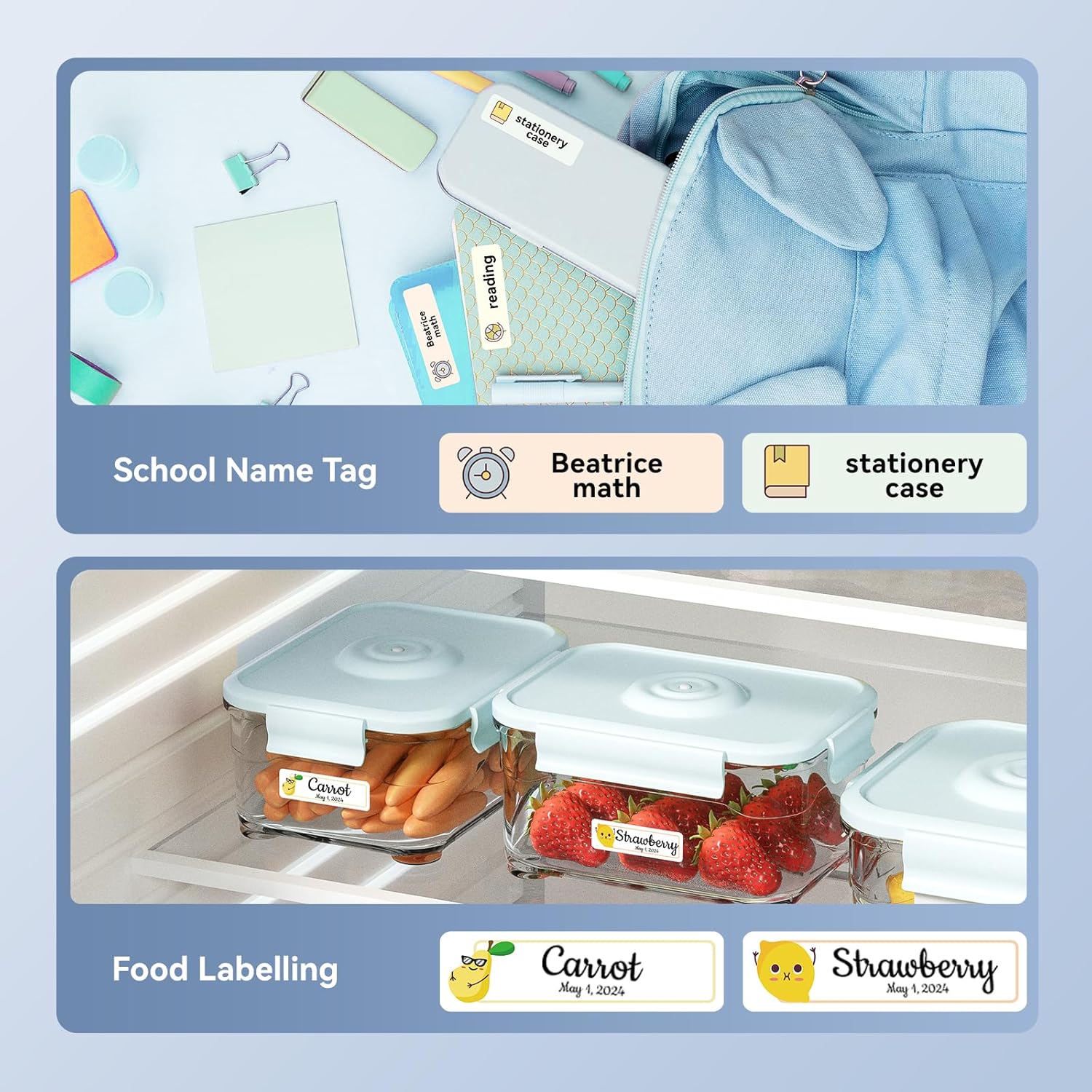
Image : Examples of labels created with the NIIMBOT D110, demonstrating use for school name tags on backpacks and stationery, as well as for food labeling on storage containers with contents and dates.

Image : Examples of labels created with the NIIMBOT D110, showing application for medication reminders in a pill organizer and decorative labels for gifts.

Image : Examples of labels created with the NIIMBOT D110, illustrating use for organizing travel toiletries like shampoo and conditioner, and for identifying makeup products such as eyeliner and eyeshadow.
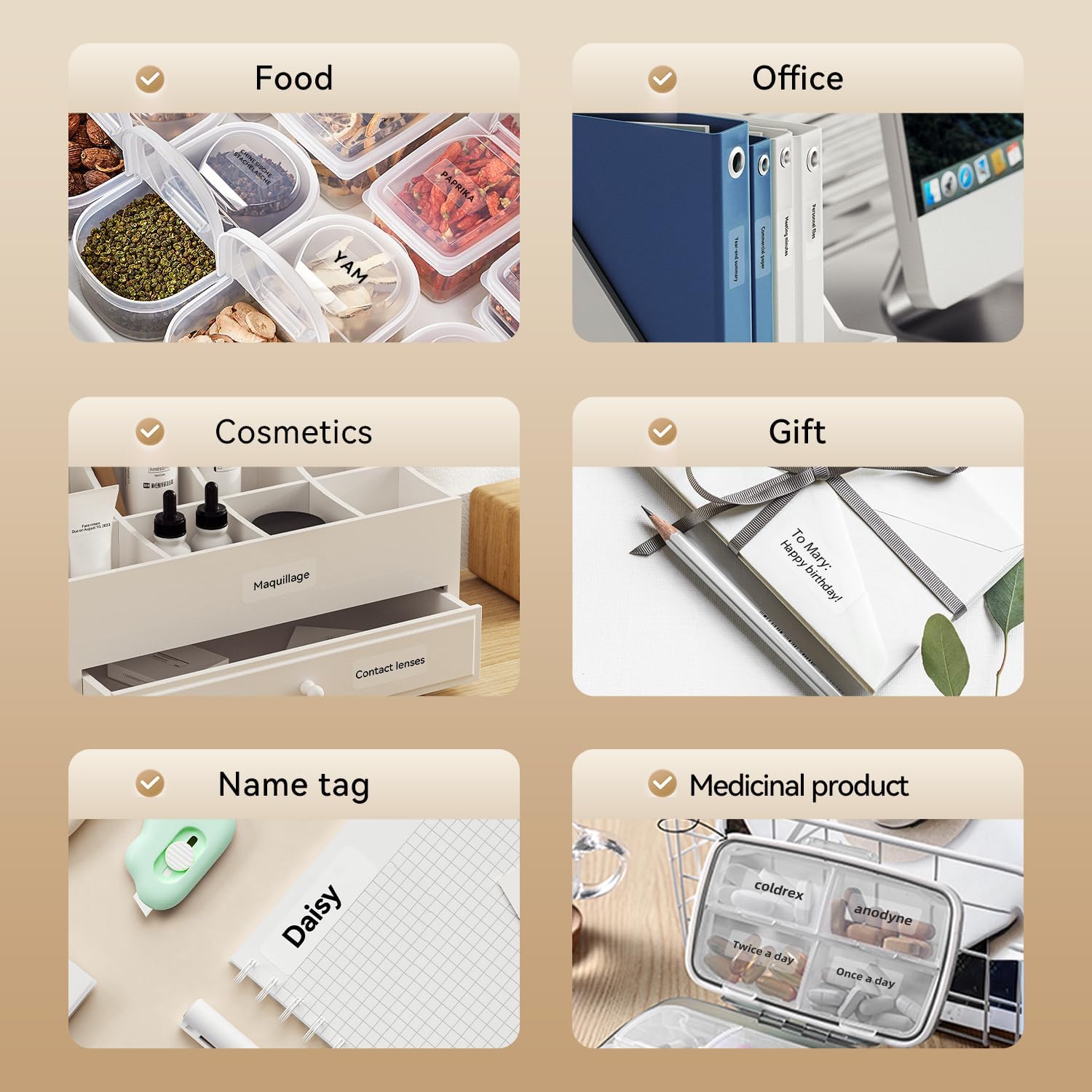
Image: A collage of various application examples for NIIMBOT D110 labels, including organizing food containers, office supplies, cosmetic items, gifts, creating name tags, and labeling medicinal products.
Entretien
1. Nettoyage de la tête d'impression
Pour garantir une qualité d'impression optimale, nettoyez régulièrement la tête d'impression.
- Éteignez l'étiqueteuse et débranchez-la de toute source d'alimentation.
- Ouvrez le couvercle du compartiment à étiquettes.
- Essuyez délicatement la tête d'impression avec un coton-tige.ampenrichi avec de l'alcool isopropylique.
- Laissez la tête d'impression sécher complètement avant de refermer le couvercle et de reprendre l'utilisation.
2. Entretien de la batterie
Pour prolonger la durée de vie de la batterie :
- Évitez de décharger complètement la batterie fréquemment.
- Rechargez l'appareil régulièrement, même si vous ne l'utilisez pas constamment.
- Rangez l'appareil dans un endroit frais et sec lorsqu'il n'est pas utilisé pendant une période prolongée.
3. Stockage
Store the label maker and label rolls in a dry environment, away from direct sunlight and extreme temperatures.
Dépannage
| Problème | Cause possible | Solution |
|---|---|---|
| L'appareil ne s'allume pas | Batterie faible | Chargez l'appareil à l'aide du câble USB fourni. |
| Impossible de se connecter via Bluetooth | Bluetooth is off; App not open; Device out of range | Ensure Bluetooth is enabled on your phone, open the NIIMBOT app, and keep the printer within close proximity. Restart both devices if necessary. |
| Mauvaise qualité d'impression | Tête d'impression encrassée ; type d'étiquette incorrect ; batterie faible | Clean the print head (refer to Maintenance section). Ensure you are using genuine NIIMBOT thermal labels. Charge the device. |
| Les étiquettes ne s'alimentent pas correctement | Label roll incorrectly installed; Label jammed | Open the cover and re-install the label roll, ensuring it is properly aligned. Remove any jammed labels carefully. |
| "No ink" message | Thermal printers do not use ink. This message is incorrect or a misunderstanding. | The D110 is a thermal printer and does not require ink. Ensure the label roll is correctly installed and is thermal paper. |
Caractéristiques
| Fonctionnalité | Détail |
|---|---|
| Modèle | NIIMBOT D110 |
| Méthode d'impression | Impression thermique (sans encre) |
| Connectivité | Bluetooth, USB (for PC) |
| Largeur d'étiquette prise en charge | 0.47'' - 0.59'' (12 mm - 15 mm) |
| Poids | 0.2 lb (approximately 90g) |
| Dimensions | 3.8'' x 2.9'' x 1.1'' (approximately 9.65cm x 7.37cm x 2.79cm) |
| Puissance d'entrée | Type-C USB |

Image: A visual comparison showing the NIIMBOT D110 as significantly smaller and lighter (0.2 lb, 3.8"x2.9"x1.1") compared to a traditional label printer (1.2 lb, 7"x6.3"x2.2").
Garantie et assistance
For warranty information and technical support, please refer to the official NIIMBOT website or contact NIIMBOT customer service directly. Details can typically be found on the product packaging or the manufacturer's website.
Support en ligne: Visite www.niimbot.com Pour consulter la FAQ, télécharger les pilotes et obtenir les informations de contact.