1. Introduction
Thank you for choosing the Transformers GM04 Lightweight Wireless Gaming Mouse. This manual provides essential information for setting up, operating, and maintaining your new gaming mouse. Designed for precision and comfort, the GM04 features a high-precision PAW3311 sensor, triple connection modes (2.4G wireless, Bluetooth 5.3, and USB-C wired), 5 programmable buttons, and up to 100 hours of battery life. Its ergonomic design and lightweight construction ensure a comfortable and responsive experience for gaming, work, and study.
2. Contenu de la boîte
- TF-GM04 Wireless Gaming Mouse x 1
- USB Wireless Dongle x 1
- Câble USB-C x 1
- Manuel d'utilisation x 1
3. Produit terminéview
Familiarize yourself with the key features and components of your Transformers GM04 gaming mouse.
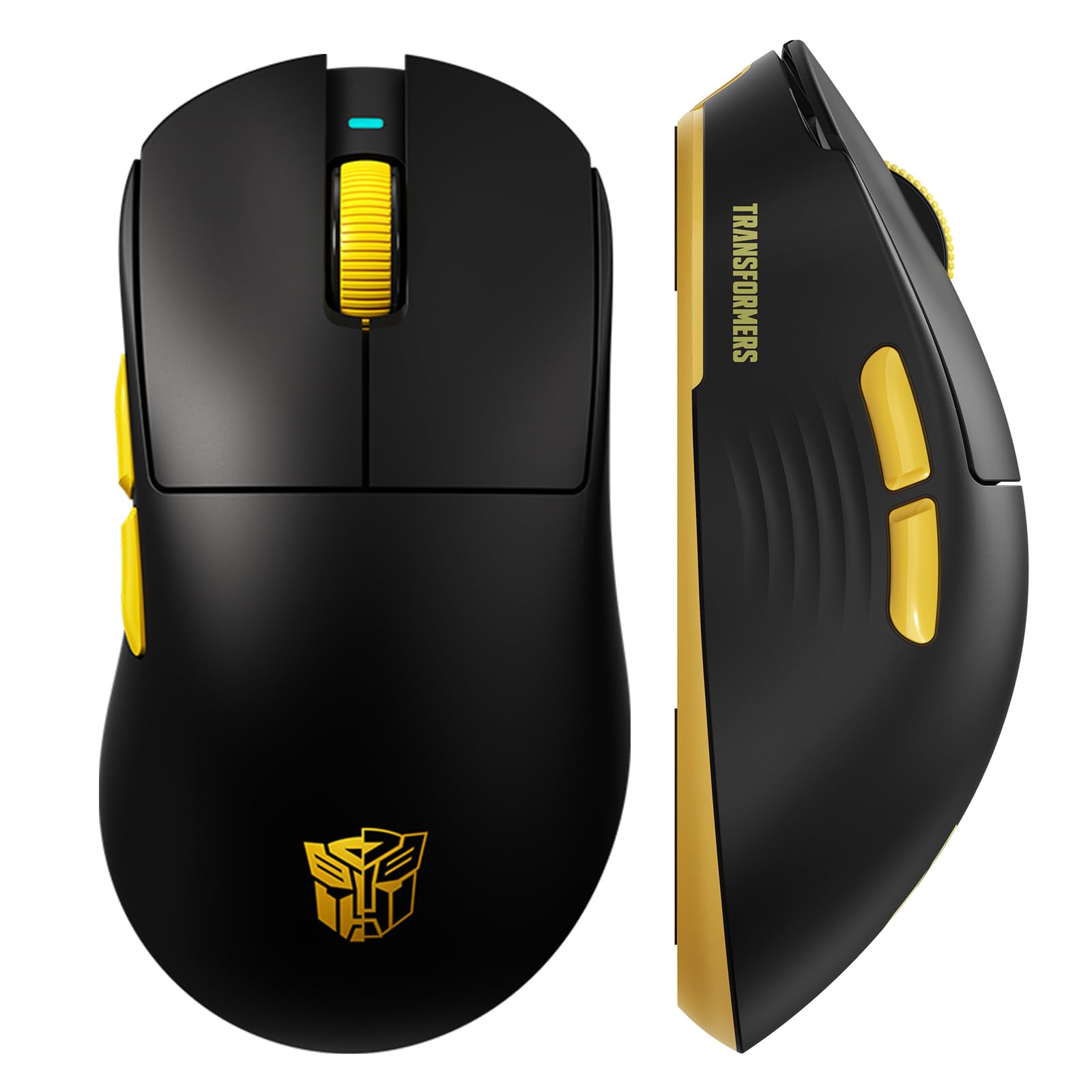
Image 1: The Transformers GM04 Wireless Gaming Mouse, showcasing its sleek black and yellow design, along with icons highlighting its core features such as PixArt PAW3311 sensor, up to 12000 DPI, 1000Hz polling rate, 20 million clicks, Tri-Mode connectivity, custom macros, 63g lightweight design, and up to 100 hours of battery life. A USB wireless dongle is also visible next to the mouse.

Image 2: A hand demonstrating the ergonomic design of the Transformers GM04 mouse. The image highlights how the mouse fits comfortably in the palm, promoting more comfort and less fatigue during extended use, thanks to its non-slip texture.

Image 3: The underside of the Transformers GM04 mouse, detailing the 2.4G/OFF/BT switch for connection modes, the DPI button, and the storage compartment for the 2.4G wireless receiver. This view is crucial for understanding how to switch modes and adjust settings.

Image 4: An illustration of the 6-level adjustable DPI settings for the Transformers GM04 mouse. It shows the DPI values (1200, 2400, 3200, 4800, 6400, 12000) and their corresponding LED indicator colors (Red, Green, Blue, Purple, Yellow, Cyan), which helps users identify the current DPI level.
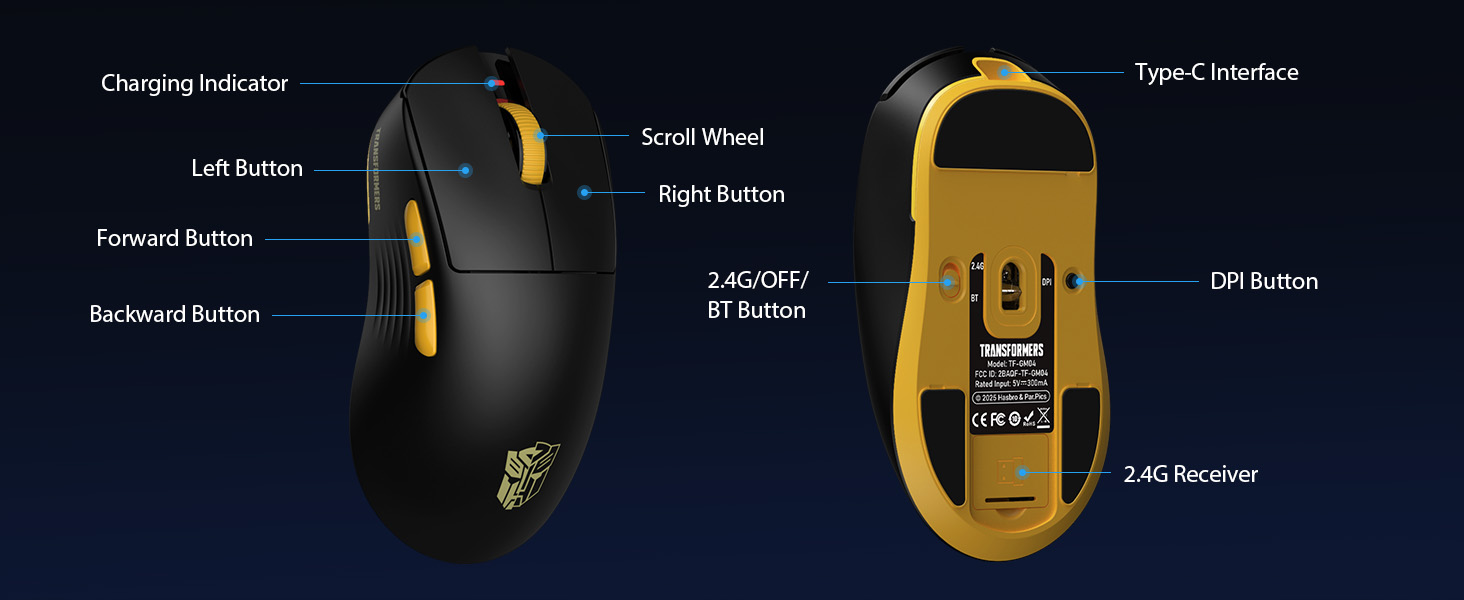
Image 5: Un éclaté view diagram of the Transformers GM04 mouse, highlighting the HUANO micro switches. This image emphasizes the precision-engineered mechanical switches designed for crisp feedback and a lifespan of over 20 million clicks, ideal for rapid gaming actions.
Vidéo 1: An official product video from Transformers Keyboard showcasing the GM04 Lightweight Wireless Gaming Mouse. This short video provides a dynamic overview of the mouse's design and features.
4. Installation
4.1. Charger la souris
Before first use, it is recommended to fully charge your GM04 mouse. Connect the provided USB-C cable to the mouse's front port and the other end to a USB power source (e.g., computer USB port, USB wall adapter). The LED indicator will show charging status.
4.2. Connexion de la souris
The GM04 mouse supports three connection modes: 2.4G Wireless, Bluetooth 5.3, and USB-C Wired. Use the switch on the bottom of the mouse to select your desired mode.
4.2.1. Mode sans fil 2.4 GHz
- Remove the USB wireless dongle from its storage slot on the bottom of the mouse.
- Plug the USB wireless dongle into an available USB-A port on your computer.
- Faites glisser le commutateur de mode situé sous la souris sur la position « 2.4G ».
- La souris devrait se connecter automatiquement à votre ordinateur.
4.2.2. Mode Bluetooth
- Faites glisser le commutateur de mode situé sous la souris sur la position « BT ».
- Sur votre ordinateur ou appareil, ouvrez les paramètres Bluetooth et recherchez de nouveaux appareils.
- Select "TF-GM04 BT" from the list of available devices to pair.
- The mouse should connect and be ready for use.
4.2.3. Mode filaire USB-C
- Connect the provided USB-C cable to the mouse's front port and the other end to a USB-A port on your computer.
- La souris passera automatiquement en mode filaire et commencera à se charger.
5. Fonctionnement
5.1. Réglage DPI
The GM04 mouse offers 6 default DPI settings. To cycle through these settings, press the Bouton DPI located on the bottom of the mouse. The LED indicator will change color to reflect the current DPI level:
- Rouge: 1200 DPI
- Vert: 2400 DPI
- Bleu: 3200 DPI
- Violet: 4800 DPI
- Jaune: 6400 DPI
- Cyan : 12000 DPI
5.2. Boutons programmables
The mouse features 5 programmable buttons. To customize these buttons with macro commands, shortcut keys, or other functions, you will need to use the dedicated driver software. This software is typically available for Windows systems under 2.4G wireless and wired modes. Bluetooth mode may not support full software customization.
5.3. Commutation du mode de connexion
Easily switch between 2.4G Wireless, Bluetooth, and Wired modes using the dedicated switch on the bottom of the mouse. This allows for seamless transitions between multiple devices.
5.4. Indicateurs LED
- Indicateur DPI : Changes color according to the current DPI setting (see 5.1).
- Indicateur de charge : A green LED near the scroll wheel indicates charging. It turns off when fully charged.
6. Entretien
6.1. Nettoyage
Pour conserver des performances et une apparence optimales, nettoyez régulièrement votre souris. Utilisez un chiffon doux et sec pour essuyer sa surface. Pour les saletés tenaces, frottez légèrement avec un chiffon doux.amp Un chiffon peut être utilisé, à condition d'empêcher toute humidité de pénétrer dans les composants internes. Évitez les produits chimiques agressifs et les matériaux abrasifs.
6.2. Entretien de la batterie
The GM04 mouse is equipped with a 500mAh high-capacity battery. To prolong battery life:
- Évitez de décharger complètement la batterie fréquemment.
- Rangez la souris dans un endroit frais et sec lorsqu'elle n'est pas utilisée pendant une période prolongée.
- If using wired mode, the mouse will charge automatically.
7. Dépannage
7.1. Souris ne répondant pas
- Vérifier la batterie : Ensure the mouse is charged. Connect it via USB-C cable.
- Vérifier le mode de connexion : Verify the switch on the bottom is set to the correct mode (2.4G, BT, or Wired).
- Re-pair (2.4G/Bluetooth): For 2.4G, try plugging the dongle into a different USB port. For Bluetooth, unpair and re-pair the device in your computer's settings.
- Try Wired Mode: Connect the mouse directly via USB-C cable to see if it functions.
7.2. Le DPI ne change pas
- Ensure you are pressing the correct DPI button on the bottom of the mouse.
- Observe the LED indicator for color changes to confirm DPI cycles.
- Si vous utilisez un logiciel personnalisé, assurez-vous que les paramètres sont correctement appliqués.
7.3. Lag or Disconnection in Wireless Mode
- Réduire les interférences : Move the mouse closer to the receiver/device. Avoid obstacles or other wireless devices that may cause interference.
- Vérifier la batterie : Low battery can affect wireless performance.
- Mettre à jour les pilotes : Ensure your computer's Bluetooth or USB drivers are up to date.
8. Spécifications
| Fonctionnalité | Détail |
|---|---|
| Dimensions du produit | 4.68 x 2.52 x 0.1 pouces |
| Poids de l'article | 2.22 onces (environ 63 g) |
| Numéro de modèle de l'article | TF-GM04 |
| Technologie de connectivité | Sans fil 2.4 GHz, Bluetooth 5.3, USB-C filaire |
| Technologie de détection de mouvement | Optique (capteur PAW3311) |
| Paramètres PPP | 1200/2400/3200/4800/6400/12000 (Adjustable) |
| Taux de sondage | 1000Hz (1ms latency) |
| Vitesse de suivi | 300 IPS |
| Accélération | 35 G |
| Boutons | 5 boutons programmables |
| Type de commutateur | HUANO Micro Switches (20 Million Clicks) |
| Capacité de la batterie | 500mAh |
| Autonomie de la batterie | Jusqu'à 100 heures (mode Bluetooth) |
| Compatibilité | Windows, Mac OS, and other systems |
9. Garantie et assistance
9.1. Informations sur la garantie
The Transformers GM04 Lightweight Wireless Gaming Mouse comes with a standard manufacturer's warranty. Please refer to the packaging or the official Transformers webConsultez le site pour connaître les conditions générales de garantie détaillées. Conservez votre reçu d'achat comme preuve d'achat pour toute réclamation au titre de la garantie.
9.2. Assistance clientèle
For technical assistance, troubleshooting, or any questions regarding your Transformers GM04 mouse, please contact Transformers customer support. Contact details can typically be found on the product packaging or the official brand website.