1. Introduction
This user manual provides detailed instructions for the Bemi Cognita Tab 6+ E-Reader. Please read this manual carefully before using your device to ensure proper operation and to maximize your reading experience. Keep this manual for future reference.
1.1 Contenu du paquet
- Bemi Cognita Tab 6+ E-Reader
- Câble de chargement USB
Vérifiez que tous les articles sont présents et en bon état lors du déballage.
2. Appareil terminéview
Familiarize yourself with the physical components of your Bemi Cognita Tab 6+ E-Reader.

Figure 2.1 : Devant view of the Bemi Cognita Tab 6+ E-Reader. The device features a 6-inch E-Ink display with the Bemi logo and model name visible. The screen is designed to mimic paper for a comfortable reading experience.

Figure 2.2 : Devant et derrière view of the Bemi Cognita Tab 6+ E-Reader. This image highlights the device's thin design and the textured back cover, which provides a secure grip.

Figure 2.3 : Côté view of the Bemi Cognita Tab 6+ E-Reader, illustrating the location of the power button and a small LED indicator. This button is used for turning the device on/off and waking it from sleep.
2.1 Composants clés :
- 6-inch E-Ink Touchscreen: Glare-free display for comfortable reading.
- Bouton d'alimentation : Situé sur le côté pour allumer/éteindre l'appareil et le mettre en veille/réveil.
- Port USB-C : Pour le chargement et le transfert de données.
- Emplacement pour carte MicroSD : Capacité de stockage extensible jusqu'à 256 Go.
- Boutons de commande latéraux : For page turning and navigation.
- SMARTlight: Adjustable front light for reading in various conditions.
3. Installation
3.1 Charge initiale
Before first use, fully charge your Bemi Cognita Tab 6+ E-Reader. Connect the provided USB cable to the device's USB-C port and the other end to a compatible USB power adapter (not included) or a computer's USB port.
- Une charge complète prend généralement environ 2 à 3 heures.
- Le voyant de charge indiquera l'état de charge.
3.2 Mise sous/hors tension
- Pour allumer : Press and hold the Power button (refer to Figure 2.3) for a few seconds until the screen activates.
- Pour éteindre : Maintenez le bouton Marche/Arrêt enfoncé jusqu'à ce qu'un menu d'arrêt apparaisse, puis sélectionnez « Éteindre ».
- Pour dormir/se réveiller : Appuyez brièvement sur le bouton Marche/Arrêt pour mettre l'appareil en veille ou le réveiller.
3.3 Connexion Wi-Fi
Connecting to Wi-Fi allows you to download books, transfer files, and access online services.
- Depuis l'écran d'accueil, appuyez sur Paramètres icône.
- Sélectionner Wifi.
- Basculez le commutateur Wi-Fi vers On.
- The device will scan for available networks. Select your desired network from the list.
- Saisissez le mot de passe si vous y êtes invité, puis appuyez sur Connecter.
3.4 Configuration initiale
Upon first power-on, you may be guided through initial setup steps, including language selection and time zone settings. Follow the on-screen prompts.
4. Mode d'emploi
4.1 Navigation dans l'interface
The Bemi Cognita Tab 6+ features a touch-sensitive E-Ink screen and physical side buttons for navigation.
- Gestes tactiles : Touchez pour sélectionner, faites glisser pour faire défiler, pincez pour zoomer (lorsque cette fonctionnalité est prise en charge).
- Boutons latéraux : Use the physical buttons on the side to turn pages forward or backward during reading.
- Capteur G : The device automatically rotates the screen orientation based on how you hold it, accommodating both right and left-handed users.
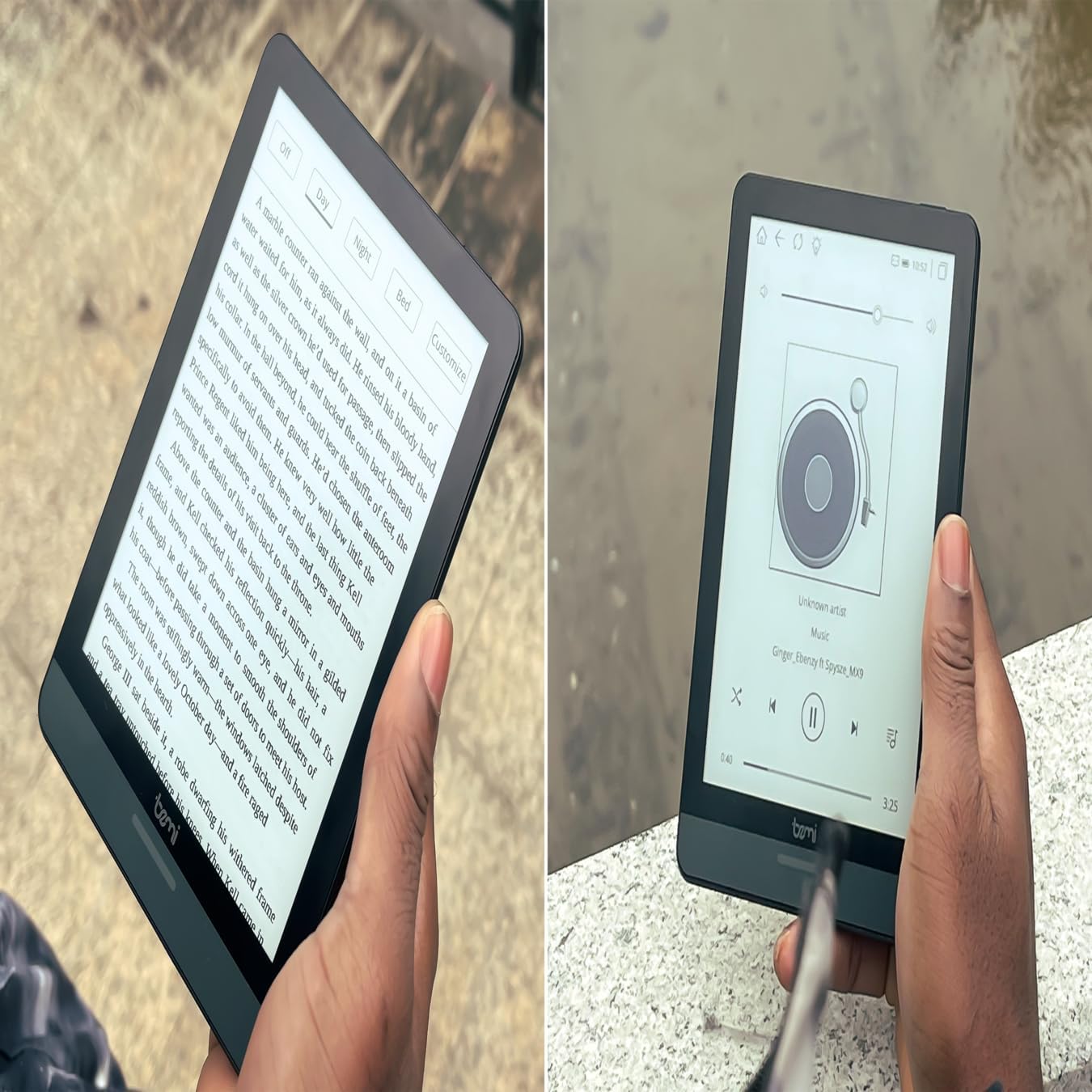
Figure 4.1 : User holding the Bemi Cognita Tab 6+ E-Reader while reading. The image shows the clear text display on the E-Ink screen, highlighting the device's readability.
4.2 Lire des livres
Ouvrir et lire un livre :
- Depuis l'écran d'accueil, appuyez sur le Bibliothèque or Livres icône.
- Browse your collection or use the search function to find a book.
- Tap on the book cover to open it.
- Use the touch screen or side buttons to turn pages.
4.3 Adjusting SMARTlight
The SMARTlight feature allows you to adjust both the brightness and color temperature of the screen's front light.
- During reading, tap the center of the screen to bring up the reading menu.
- Recherchez le Lumière or SMARTlight icône.
- Adjust the sliders for brightness (intensity) and color temperature (warm to cool) to your preference.
4.4 Transfert Files
You can transfer e-books and other supported files to your device via Wi-Fi or USB cable.
- Par Wi-Fi : If your device supports cloud services or direct Wi-Fi transfer, follow the specific application instructions.
- Par câble USB :
- Connect your E-Reader to a computer using the provided USB cable.
- Le périphérique apparaîtra comme un lecteur de stockage amovible sur votre ordinateur.
- Glissez-déposez l'élément souhaité. files (e.g., EPUB, PDF, MOBI) into the appropriate folders on the E-Reader (e.g., "Books" folder).
- Éjectez le périphérique de votre ordinateur en toute sécurité avant de débrancher le câble.
4.5 Using MicroSD Card
To expand storage, insert a microSD card (up to 256GB) into the designated slot.
- Insérez délicatement la carte microSD, contacts dorés vers le bas, jusqu'à ce qu'elle s'enclenche.
- Pour la retirer, poussez délicatement la carte vers l'intérieur jusqu'à ce qu'elle se détache.
- Files on the microSD card will be accessible through the device's file manager or library.
5. Entretien
5.1 Nettoyage de l'appareil
- Utilisez un chiffon doux non pelucheux pour essuyer délicatement l'écran et le boîtier de l'appareil.
- Pour les taches tenaces, légèrement dampnettoyez le chiffon avec de l'eau ou un nettoyant pour écrans spécialement conçu pour les appareils électroniques.
- Évitez d'utiliser des produits chimiques agressifs, des matériaux abrasifs ou une humidité excessive.
5.2 Entretien de la batterie
- Pour prolonger la durée de vie de la batterie, évitez de la décharger complètement et fréquemment.
- Rangez l'appareil dans un endroit frais et sec lorsqu'il n'est pas utilisé pendant une période prolongée.
- Charge the device regularly, even if not used, to prevent deep discharge.
5.3 Stockage
When not in use, store your E-Reader in a protective case to prevent scratches and damage to the screen.
6. Dépannage
If you encounter issues with your Bemi Cognita Tab 6+, refer to the following common solutions:
| Problème | Solution |
|---|---|
| L'appareil ne s'allume pas. | Ensure the battery is charged. Connect the device to a power source for at least 30 minutes. If it still doesn't turn on, try a hard reset by holding the power button for 10-15 seconds. |
| L'écran est figé ou ne répond pas. | Perform a soft reset by holding the power button for 5-7 seconds until the device restarts. If the issue persists, try a hard reset. |
| Impossible de se connecter au Wi-Fi. | Check if Wi-Fi is enabled in settings. Verify the Wi-Fi password. Restart your E-Reader and your Wi-Fi router. Ensure you are within range of the Wi-Fi signal. |
| Books are not appearing in the library. | Assurez-vous que files are in a supported format (e.g., EPUB, PDF). If transferred via USB, ensure they are in the correct folder. Try refreshing the library or restarting the device. |
| La batterie se décharge rapidement. | Reduce screen brightness. Turn off Wi-Fi and Bluetooth when not in use. Close background applications. Ensure the device is not constantly searching for networks. |
7. Spécifications
| Fonctionnalité | Détail |
|---|---|
| Nom du modèle | Bemi Cognita Tab 6+ |
| Taille de l'écran | 6 Inches (E-Ink Carta, 1024x758, 212 ppi) |
| Mémoire interne | 32 Go |
| Stockage extensible | Emplacement pour carte microSD, jusqu'à 256 Go |
| Connectivité | Wi-Fi, Bluetooth |
| Système opérateur | Android 8.1 |
| Entrée de l'interface humaine | Touchscreen, Side Control Buttons |
| Caractéristiques spéciales | Adjustable SMARTlight, G-Sensor for auto-rotation, Glare-Free & Eye-Friendly E-Ink Display |
| Dimensions (environ) | 7 mm d'épaisseur |
| Composants inclus | Câble USB |
8. Garantie et assistance
8.1 Informations sur la garantie
Your Bemi Cognita Tab 6+ E-Reader comes with a standard manufacturer's warranty. Please refer to the warranty card included in your product packaging or visit the official Bemi webConsultez le site pour connaître les conditions générales détaillées concernant la couverture et la durée de la garantie.
Des plans de protection optionnels peuvent être offerts pour une couverture étendue. Veuillez vous renseigner auprès de votre détaillant pour plus de détails.
8.2 Assistance clientèle
For technical assistance, troubleshooting beyond this manual, or warranty claims, please contact Bemi customer support:
- Website: www.bemi-electronics.com
- E-mail: Refer to the Bemi website pour l'adresse e-mail de contact.
- Téléphone: Refer to the Bemi website pour les numéros de téléphone de contact.
When contacting support, please have your device model (Cognita Tab 6+) and purchase information ready.


