Introduction
The Mercusys MA72XH is a high-performance Wi-Fi 6 AX1800 USB adapter designed to provide fast and stable wireless connectivity for your desktop or laptop computer. Featuring dual-band support, USB 3.0 interface, and advanced security protocols like WPA3, this adapter enhances your online experience for streaming, gaming, and video calls. This manual provides detailed instructions for the proper installation, operation, and maintenance of your MA72XH adapter.
Contenu du colis
Vérifiez que votre colis contient les éléments suivants :
- 1 x Mercusys MA72XH AX1800 High-Performance Dual-Band Wireless USB Adapter
- 1 x Guide d'installation rapide
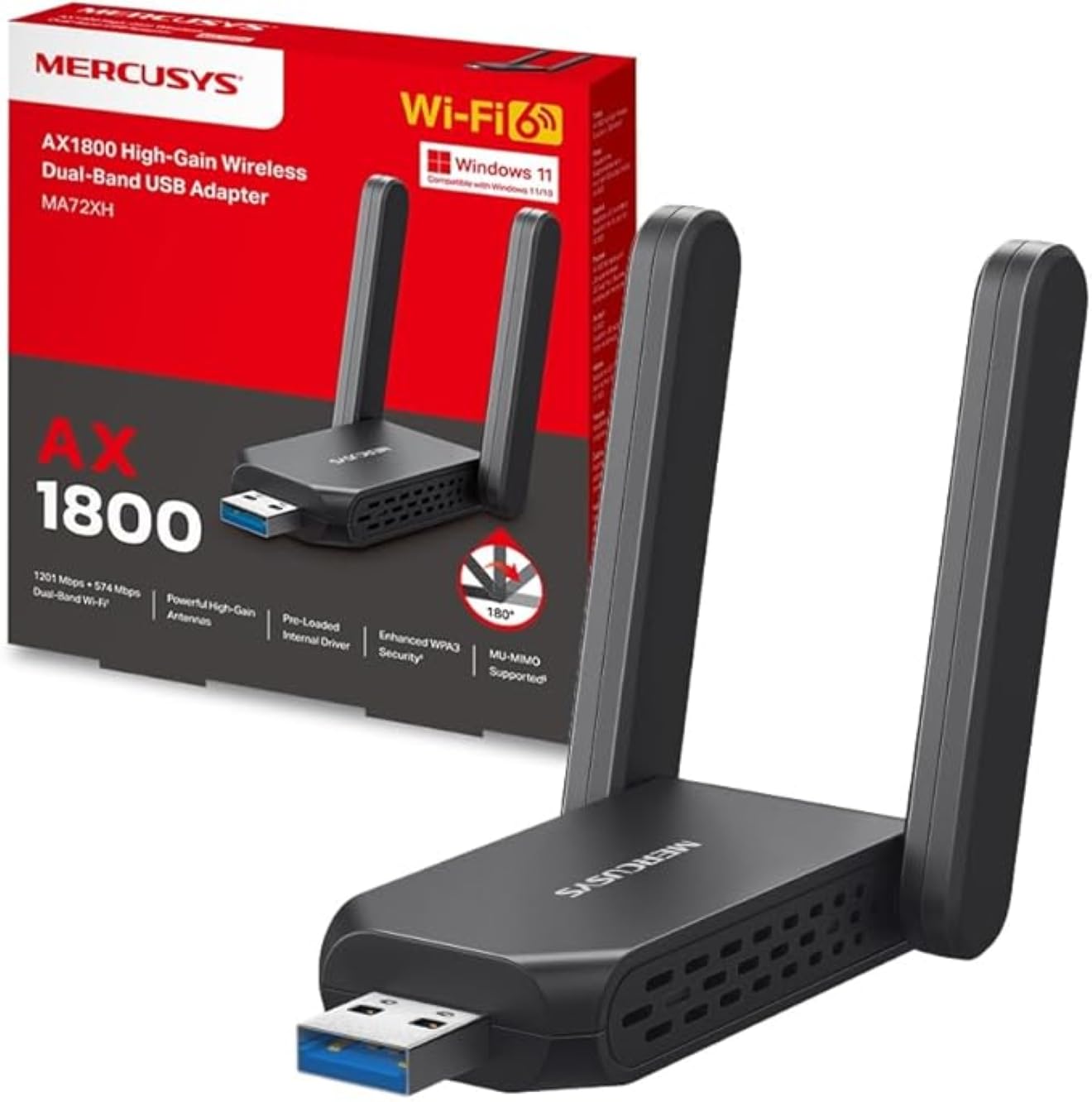
Image: The Mercusys MA72XH WiFi 6 AX1800 USB Adapter, showcasing son design compact et ses deux antennes externes réglables.
Caractéristiques du produit
- Wi-Fi double bande haut débit : Achieves speeds up to 1201 Mbps on the 5 GHz band and 574 Mbps on the 2.4 GHz band, supported by two high-performance antennas.
- Preloaded Internal Driver: Offers simple plug-and-play installation for most Windows 10/11 systems, eliminating the need for manual driver downloads in many cases.
- Technologie MU-MIMO : Enables the adapter to communicate with multiple devices simultaneously, reducing latency and improving overall network efficiency.
- Enhanced WPA3 Security: Utilizes the latest Wi-Fi security standard to provide robust protection for your network and personal data against unauthorized access.
- Interface USB 3.0: Ensures superior data transfer speeds, optimizing performance for high-definition streaming, online gaming, and large file transfers when paired with Wi-Fi 802.11ax.
- Large compatibilité : Fully compatible with Windows 10 and Windows 11 operating systems.
Guide d'installation
Follow these steps to install your Mercusys MA72XH WiFi adapter:
- Insérez l'adaptateur : Plug the MA72XH adapter into an available USB 3.0 port on your desktop or laptop computer. For optimal performance, use a USB 3.0 port (often blue inside).
- Installation du pilote :
- Installation automatique : In most cases, Windows 10 or 11 will automatically detect the adapter and install the necessary drivers from its preloaded internal memory. Wait for a notification indicating successful driver installation.
- Installation manuelle (si nécessaire) : If the driver does not install automatically, or if you encounter issues, you may need to download the latest drivers from the official Mercusys support website. Insert the adapter, then navigate to the Mercusys support page for the MA72XH model, download the driver, and follow the on-screen instructions for installation.
- Ajuster les antennes : Position the two external antennas for optimal signal reception. Generally, pointing them upwards or slightly angled can improve performance.
- Connectez-vous au réseau Wi-Fi :
- Once the driver is installed, click the Wi-Fi icon in your computer's system tray (usually in the bottom-right corner).
- Sélectionnez le réseau Wi-Fi souhaité dans la liste des réseaux disponibles.
- Saisissez la clé de sécurité réseau (mot de passe) si vous y êtes invité, puis cliquez sur « Se connecter ».
Your Mercusys MA72XH adapter should now be connected to your wireless network.
Mode d'emploi
The Mercusys MA72XH operates as a standard Wi-Fi adapter once installed.
- Connecting/Disconnecting: Manage your Wi-Fi connections through the standard Windows network settings. Click the Wi-Fi icon in the system tray to view available networks, connect to a new one, or disconnect from an existing one.
- Fonctionnement bi-bande : The adapter automatically selects the optimal band (2.4 GHz or 5 GHz) based on network conditions and router capabilities. If your router broadcasts separate SSIDs for each band, you can manually choose to connect to the 5 GHz network for higher speeds or the 2.4 GHz network for better range.
- MU-MIMO Benefits: When connected to a MU-MIMO compatible router, the MA72XH can process data streams to and from multiple devices simultaneously, leading to more efficient network usage and reduced buffering, especially in busy network environments.
Entretien
To ensure the longevity and optimal performance of your MA72XH adapter:
- Mises à jour du pilote: Consultez régulièrement le site officiel de Mercusys. website for the latest driver updates. Keeping your drivers current can improve performance, stability, and security.
- Soins physiques : Keep the adapter clean and free from dust. Avoid exposing it to extreme temperatures, humidity, or direct sunlight. Do not attempt to disassemble the device.
- Emplacement de l'antenne : Ensure the antennas are not obstructed and are positioned for the best possible signal reception. Avoid placing the adapter near large metal objects or other electronic devices that may cause interference.
- Connexion sécurisée : Always ensure the adapter is firmly seated in the USB port to prevent intermittent connections.
Dépannage
If you encounter issues with your Mercusys MA72XH adapter, refer to the following common solutions:
- Pas de connexion Wi-Fi :
- Vérifiez que l'adaptateur est bien branché sur un port USB fonctionnel. Essayez un autre port USB.
- Verify that Wi-Fi is enabled in your computer's settings.
- Check if the adapter's driver is correctly installed in Device Manager (Windows Key + X > Device Manager > Network adapters). If there's a yellow exclamation mark, reinstall the driver.
- Redémarrez votre ordinateur et votre routeur Wi-Fi.
- Vitesse Wi-Fi lente :
- Ensure you are connected to the 5 GHz band if available and your router supports it, as it generally offers higher speeds.
- Move closer to your Wi-Fi router or adjust the adapter's antennas for better signal strength.
- Vérifiez la présence d'interférences provenant d'autres appareils électroniques (par exemple, fours à micro-ondes, téléphones sans fil).
- Mettez à jour les pilotes de votre adaptateur vers la dernière version.
- Déconnexions fréquentes :
- Ensure the adapter is not loose in the USB port.
- Disable any power-saving features for the USB port in Device Manager (right-click the adapter > Properties > Power Management tab, uncheck "Allow the computer to turn off this device to save power").
- Mettez à jour le micrologiciel de votre routeur.
- Try connecting to a different Wi-Fi channel on your router to avoid congestion.
- Échec de l'installation du pilote :
- Désactivez temporairement le logiciel antivirus pendant l'installation du pilote.
- Download the driver directly from the Mercusys official website and run the installer as an administrator.
- Assurez-vous que votre système d’exploitation Windows est à jour.
Caractéristiques
| Marque | MERCUS |
| Numéro de modèle | MA72XH |
| norme sans fil | IEEE 802.11ax (Wi-Fi 6) |
| Taux de transfert de données | Jusqu'à 1800 Mbps (1201 Mbps sur 5 GHz, 574 Mbps sur 2.4 GHz) |
| Fréquence | Double bande (2.4 GHz et 5 GHz) |
| Interface | USB 3.0 |
| Sécurité | WPA3, WPA2, WPA |
| Compatibilité | Windows 10, Windows 11 |
| Antennes | 2 antennes externes hautes performances |
| Dimensions (L x l x H) | 11.3 x 10.1 x 2.7 cm |
| Poids | 50 g |
Garantie et assistance
Pour obtenir des informations sur la garantie et une assistance technique, veuillez consulter le site officiel de Mercusys. website or the documentation included with your product. You can typically find support resources, FAQs, and contact information by visiting www.mercusys.com/support and searching for your model (MA72XH).


