1. Introduction
This manual provides essential information for setting up, operating, and maintaining your KOOSMILE Mini Laptop P8. The P8 is an 8-inch 2-in-1 convertible laptop featuring Windows 11 Pro, an Intel N150 processor, 12GB LPDDR5 RAM, and a 512GB SSD. Its compact design and versatile modes make it suitable for various tasks and environments.
2. Contenu du colis
Veuillez vérifier que le colis contient les éléments suivants :
- KOOSMILE Mini Laptop P8 x1
- PD Adapter x1
- Active Stylus x1
- Câble HDMI x1
- Concentrateur USB x1
- Manuel d'utilisation x1
3. Produit terminéview
Familiarize yourself with the physical components and ports of your KOOSMILE Mini Laptop P8.
3.1. Principales caractéristiques
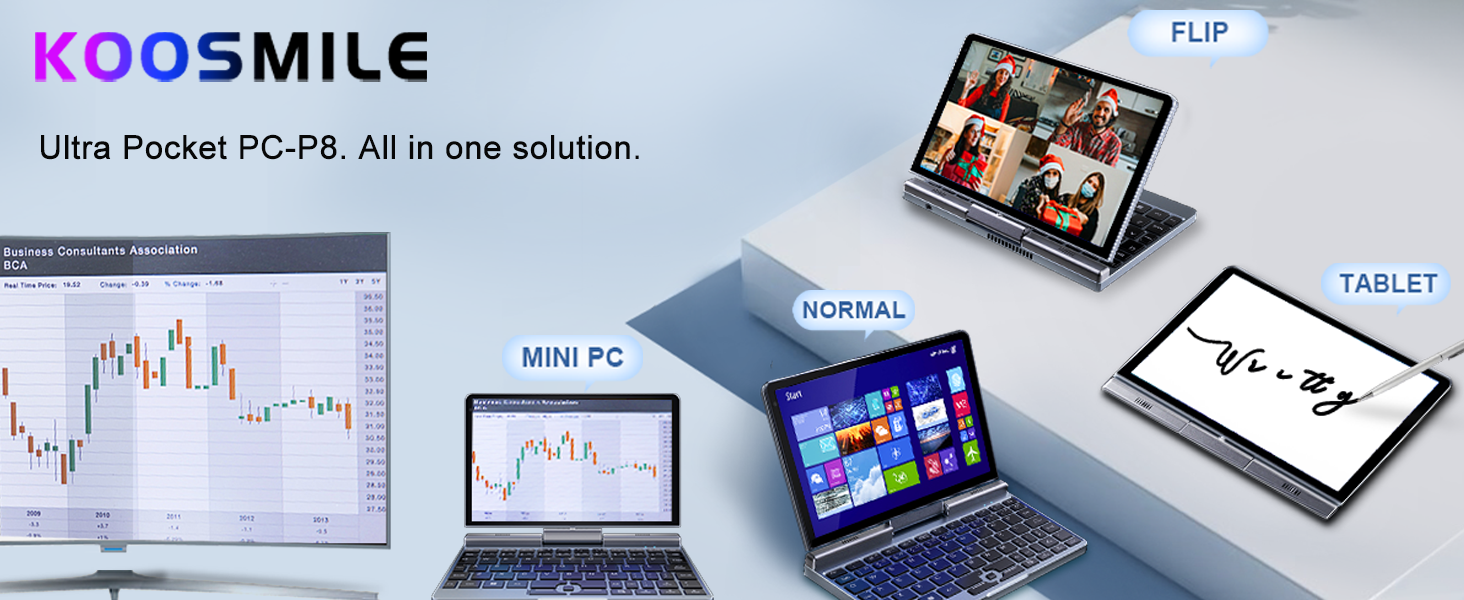
Image : Terminéview of the KOOSMILE P8 Mini Laptop highlighting its key features including Intel N150 CPU, 12GB LPDDR5 RAM, SSD storage, 0.78kg weight, 2MP camera, and 8-inch HD IPS screen.
3.2. Ports et boutons
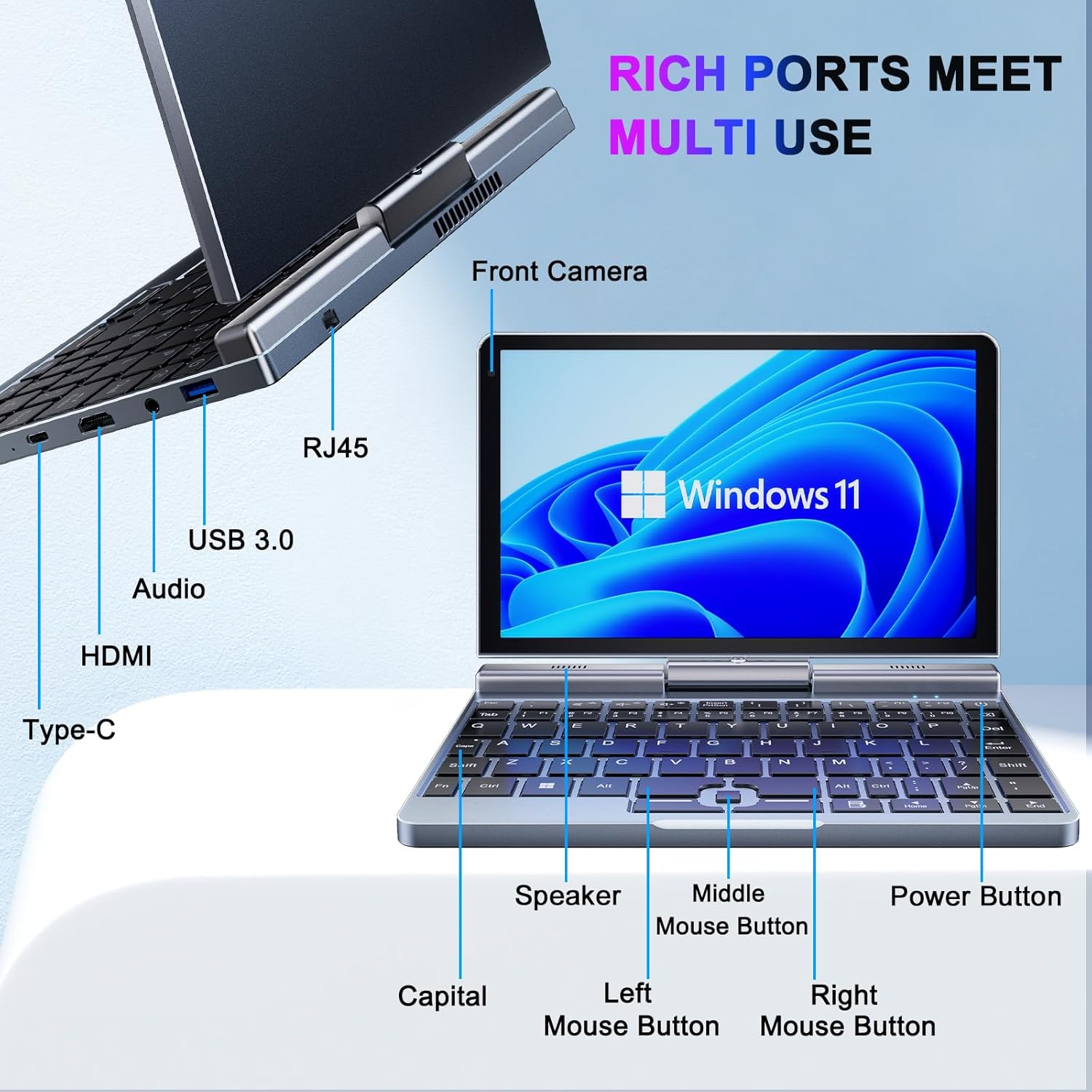
Image : détaillée view of the KOOSMILE P8 Mini Laptop's side ports and keyboard layout, labeling the RJ45 Ethernet port, USB 3.0, Audio jack, HDMI, Type-C port, Front Camera, Speaker, Middle Mouse Button, Left Mouse Button, Right Mouse Button, Power Button, and Capital key.
- Port USB 3.0: Pour connecter des périphériques USB.
- Port USB Type-C : For data transfer, charging, and DisplayPort (DP) video output.
- Port HDMI: Pour la connexion à des écrans externes.
- Prise audio: Pour des écouteurs ou des haut-parleurs externes.
- Port Ethernet RJ45 : Pour connexion réseau filaire.
- Bouton d'alimentation : Pour allumer/éteindre l'appareil ou le mettre en veille.
- Caméra frontale : 2MP camera for video calls and conferencing.
4. Installation
Follow these steps for initial setup of your KOOSMILE Mini Laptop P8.
- Chargez l'appareil : Connect the PD Adapter to the USB Type-C port on the laptop and plug it into a power outlet. Allow the device to charge fully before first use.
- Mise sous tension : Maintenez le bouton d'alimentation enfoncé jusqu'à ce que l'écran s'allume.
- Installation de Windows 11 Pro : Suivez les instructions à l'écran pour terminer la configuration initiale de Windows 11 Pro, notamment la sélection de la langue, la connexion réseau et la création du compte utilisateur.
- Connectez les périphériques : If desired, connect the included USB Hub, external mouse, or other peripherals to the available USB ports.
5. Mode d'emploi
This section covers basic operation and usage modes of your device.
5.1. Mode marche/arrêt et veille
- Mise sous tension : Appuyez sur le bouton d'alimentation.
- Mode veille: Appuyez brièvement sur le bouton Marche/Arrêt lorsque l'appareil est allumé. Appuyez de nouveau pour le sortir de veille.
- Fermer: Depuis le bureau Windows, cliquez sur le bouton Démarrer, puis sur Alimentation, et sélectionnez « Arrêter ».
- Redémarrage: Sur le bureau Windows, cliquez sur le bouton Démarrer, puis sur Marche/Arrêt, et sélectionnez « Redémarrer ».
5.2. Modes convertibles 2 en 1
The KOOSMILE P8 features a 180° rotating screen, allowing it to transform into multiple modes:
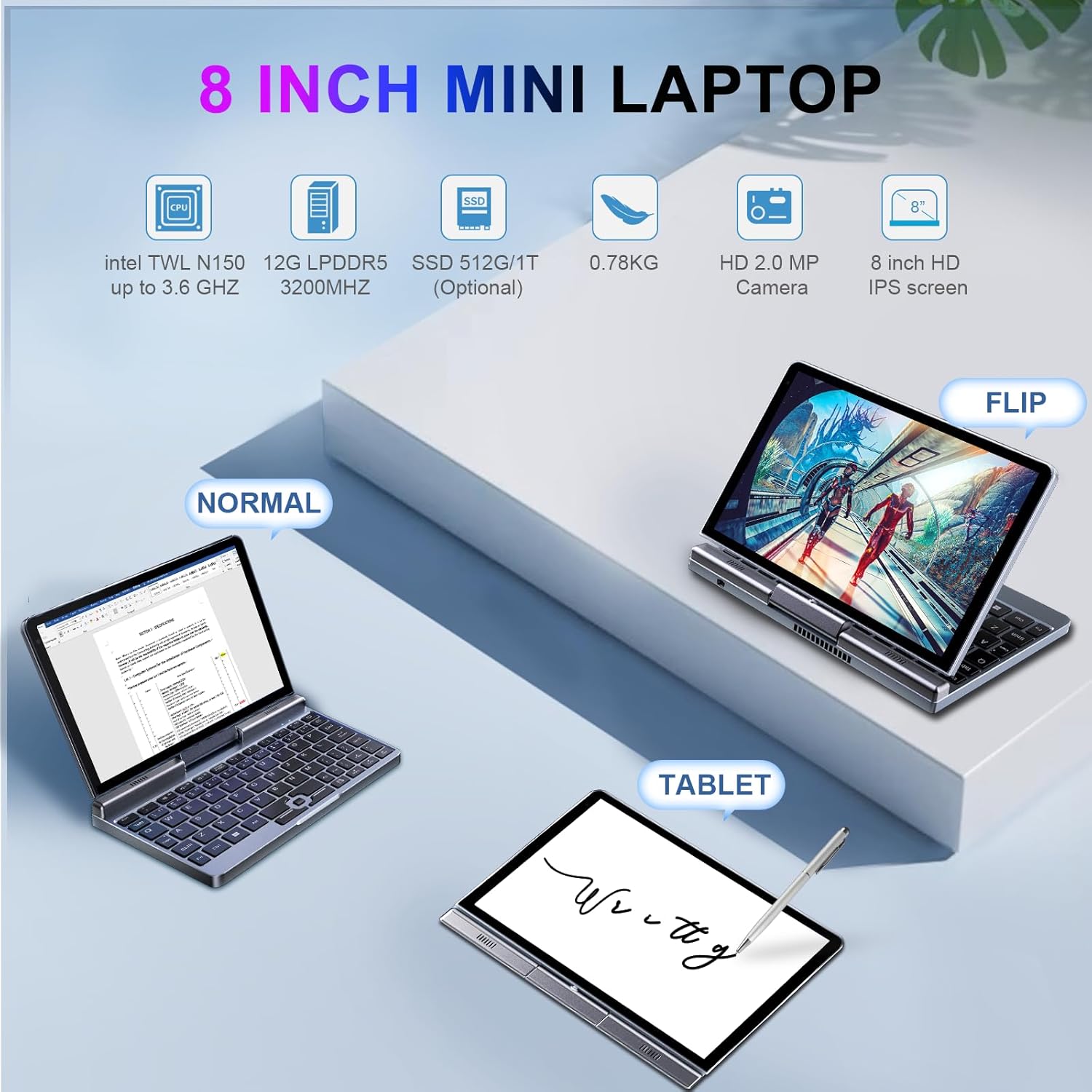
Image: The KOOSMILE P8 Mini Laptop shown in three different modes: Normal (laptop), Flip (tent/stand), and Tablet mode, demonstrating its 180-degree screen rotation capability.
- Mode ordinateur portable : Standard configuration for typing and traditional computing.
- Mode tablette : Rotate the screen 180° and fold it back against the keyboard for a full touchscreen experience. Windows will automatically switch to tablet interface.
- Tent/Stand Mode: Position the device in an inverted 'V' shape or with the keyboard facing down for media consumption or presentations.
5.3. Touchscreen and Stylus Use
The 8-inch HD touch screen supports multi-touch gestures and input from the included active stylus.
- Gestes tactiles : Utilisez les gestes tactiles standard de Windows pour la navigation, le zoom et le défilement.
- Stylet actif : The stylus allows for precise input, drawing, and note-taking. Ensure the stylus is charged if it requires power.
5.4. Connexion à un écran externe
Connect your laptop to an external monitor or TV using the HDMI or USB Type-C (DisplayPort Alt Mode) ports.

Image: The KOOSMILE P8 Mini Laptop connected to an external monitor via HDMI, illustrating its Type-C DisplayPort (DP) out and HDMI DisplayPort (DP) out capabilities for extended display.
- HDMI: Use the included HDMI cable to connect to an HDMI-compatible display.
- USB Type-C : If your external display supports DisplayPort over USB-C, you can use a compatible USB-C to DisplayPort cable.
- Paramètres d'affichage: After connecting, press Touche Windows + P to select your preferred display mode (Duplicate, Extend, Second screen only).
6. Connectivité
The KOOSMILE P8 offers various connectivity options.
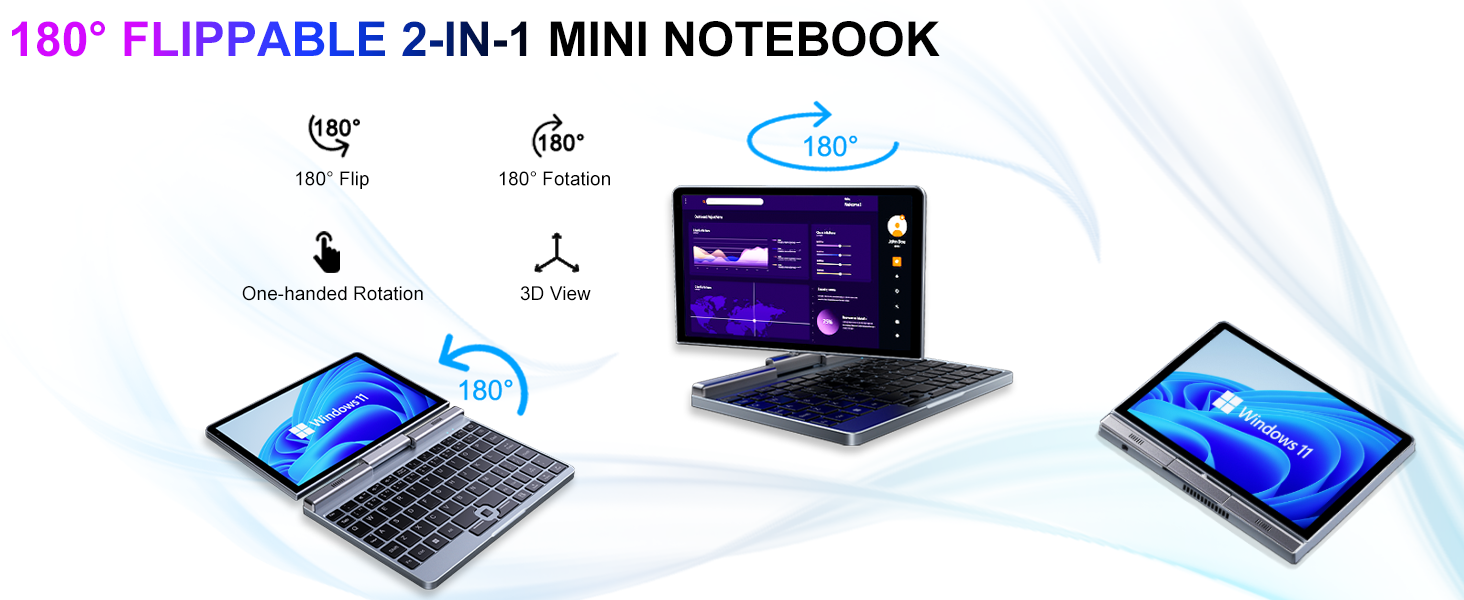
Image: Graphic illustrating the high-speed connectivity of the KOOSMILE P8 Mini Laptop, featuring Wi-Fi 6 and Bluetooth 5.2, with comparison bars showing improved speed, capacity, and reduced delay compared to Wi-Fi 5.
6.1. Connexion Wifi
- Cliquez sur l'icône Wi-Fi dans la barre des tâches.
- Sélectionnez le réseau souhaité et saisissez le mot de passe si vous y êtes invité.
- The device supports Wi-Fi 6 for faster and more stable wireless connections.
6.2. Couplage Bluetooth
- Aller à Settings > Bluetooth & devices > Bluetooth.
- Turn on Bluetooth and select 'Add device'.
- Choose the device you wish to pair and follow the on-screen instructions.
- The device supports Bluetooth 5.2 for efficient wireless accessory connections.
6.3. Wired Ethernet
- Connect an Ethernet cable to the RJ45 port on the laptop for a stable wired network connection.
7. Entretien
Un entretien approprié garantit la longévité et les performances de votre appareil.
- Nettoyage: Utilisez un chiffon doux non pelucheux pour nettoyer l'écran et le châssis. Pour les taches tenaces,ampHumidifiez légèrement le chiffon avec de l'eau ou un nettoyant adapté aux écrans. Évitez les produits chimiques agressifs.
- Ventilation: Assurez-vous que les ouvertures de ventilation ne sont pas obstruées pour éviter une surchauffe.
- Entretien de la batterie: For optimal battery life, avoid fully discharging the battery frequently. Store the device in a cool, dry place if not used for extended periods.
- Mises à jour logicielles : Mettez régulièrement à jour Windows et vos pilotes pour garantir la stabilité et la sécurité du système.
8. Dépannage
Cette section aborde les problèmes courants que vous pourriez rencontrer.
8.1. Screen Orientation Issues
- Rotation automatique : When switching between laptop and tablet modes, the screen should automatically adjust its orientation.
- Rotation manuelle : If the screen does not rotate automatically or is stuck in an incorrect orientation, press Windows Key + A to open the Quick Settings panel. Look for the 'Rotation lock' tile and ensure it is off. You can also go to Paramètres > Système > Affichage and manually change the 'Display orientation'.
8.2. L'appareil ne s'allume pas
- Vérifiez l'alimentation : Ensure the PD adapter is securely connected to the laptop and a working power outlet.
- Niveau de batterie : Si la batterie est complètement déchargée, il faudra peut-être quelques minutes de charge avant que l'appareil puisse s'allumer.
- Réinitialisation matérielle : Disconnect the charger, then press and hold the Power Button for 15-20 seconds. Reconnect the charger and attempt to power on again.
8.3. Problèmes de connexion Wi-Fi
- Activer/désactiver le Wi-Fi : Turn Wi-Fi off and on again from the Quick Settings or Windows Settings.
- Redémarrez le routeur : Redémarrez votre routeur Wi-Fi et votre modem.
- Oubliez le réseau : In Windows Settings, forget the problematic Wi-Fi network and reconnect.
9. Spécifications
Detailed technical specifications for the KOOSMILE Mini Laptop P8.
| Fonctionnalité | Spécification |
|---|---|
| Processeur | Intel N150 (4 Cores/4 Threads, up to 3.6 GHz) |
| BÉLIER | 12 Go LPDDR5 3200 MHz |
| Stockage | SSD de 512 Go (extensible jusqu'à 2 To) |
| Afficher | 8-inch HD Touch Screen, 1280x800 pixels |
| Système opérateur | Windows 11 Pro |
| Graphique | Carte graphique Intel UHD (intégrée) |
| Connectivité sans fil | Wi-Fi 6, Bluetooth 5.2 |
| Ports | 1x USB 3.0, 1x USB Type-C (DP Out), 1x HDMI (DP Out), 1x Headphone Jack, 1x RJ45 Ethernet |
| Caméra | Caméra frontale 2MP |
| Poids | 0.78 kg (1.72 livres) |
| Dimensions (L x l x H) | 7.87 x 5.51 x 0.79 pouces |
| Batterie | 36.5 WH, PD 30W Charging |
9.1. Performance surview
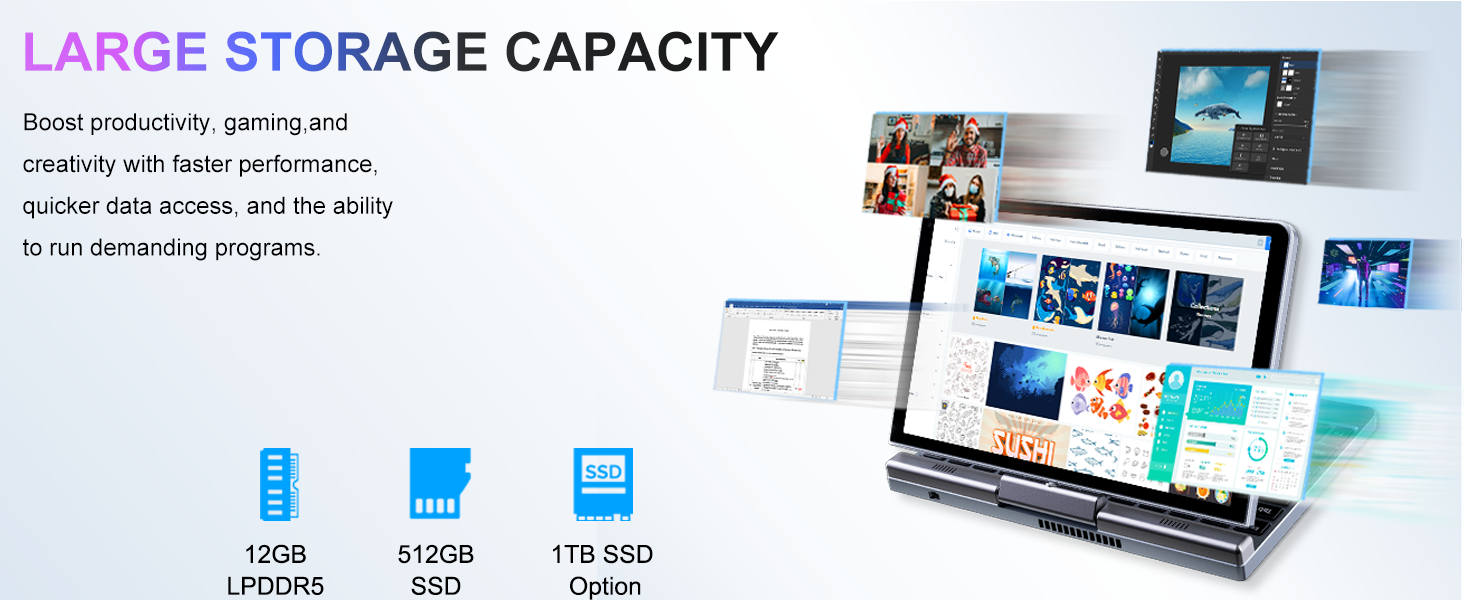
Image: Graphic detailing the performance aspects of the KOOSMILE P8 Mini Laptop, highlighting the Intel TwinLake N150 processor (4 cores, 4 threads, 3.6GHz turbo frequency, 10nm process) and Intel UHD Graphics for smooth content streaming and immersive experiences.
9.2. Capacité de stockage
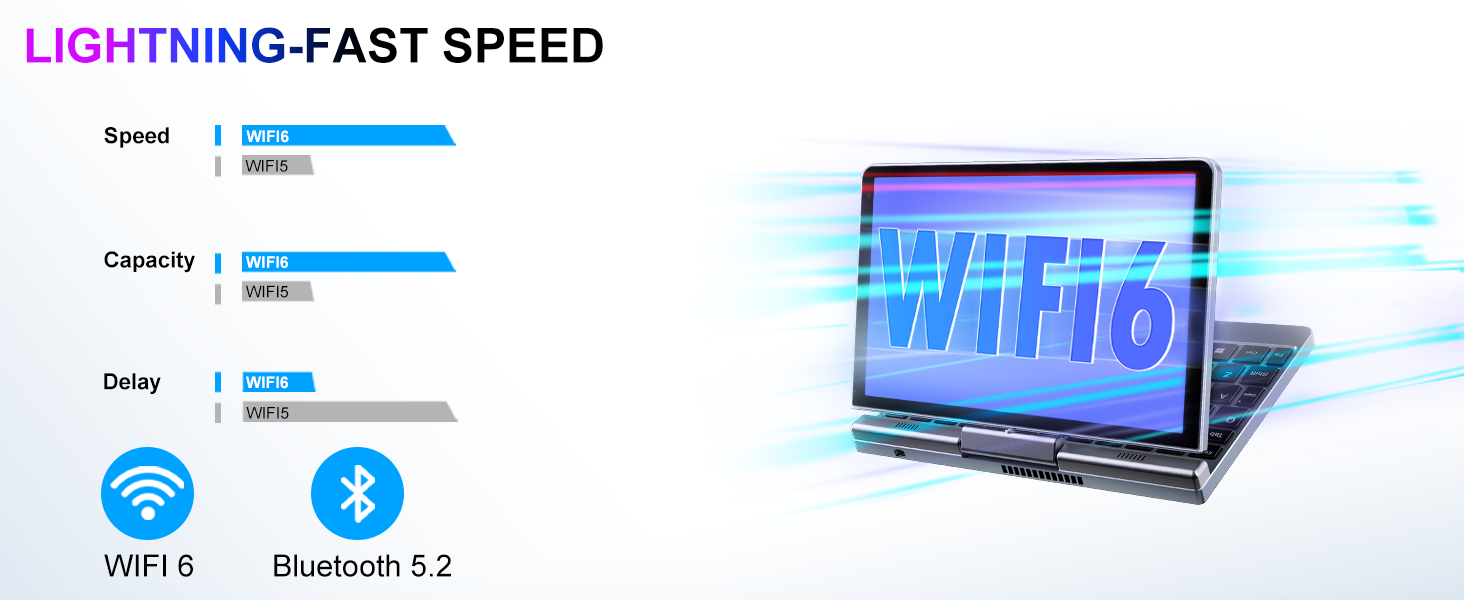
Image: Graphic illustrating the large storage capacity of the KOOSMILE P8 Mini Laptop, featuring 12GB LPDDR5 RAM, 512GB SSD, and an option for 1TB SSD, designed to boost productivity and handle demanding programs.
9.3. Compact Size and Weight
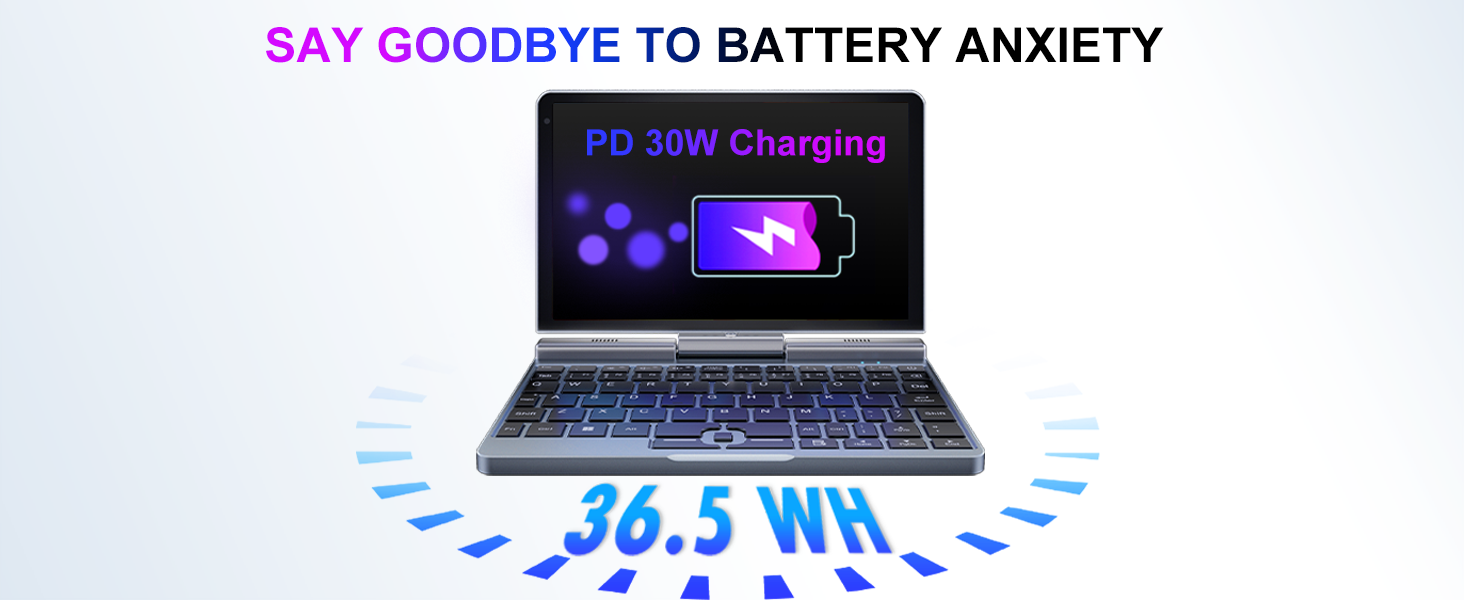
Image: Graphic demonstrating the ultra-compact size and light weight of the KOOSMILE P8 Mini Laptop, showing its 8.0-inch portable screen, 0.78-inch thin profile, and 0.78kg weight, compared to a smartphone for scale.
9.4. Informations sur la batterie
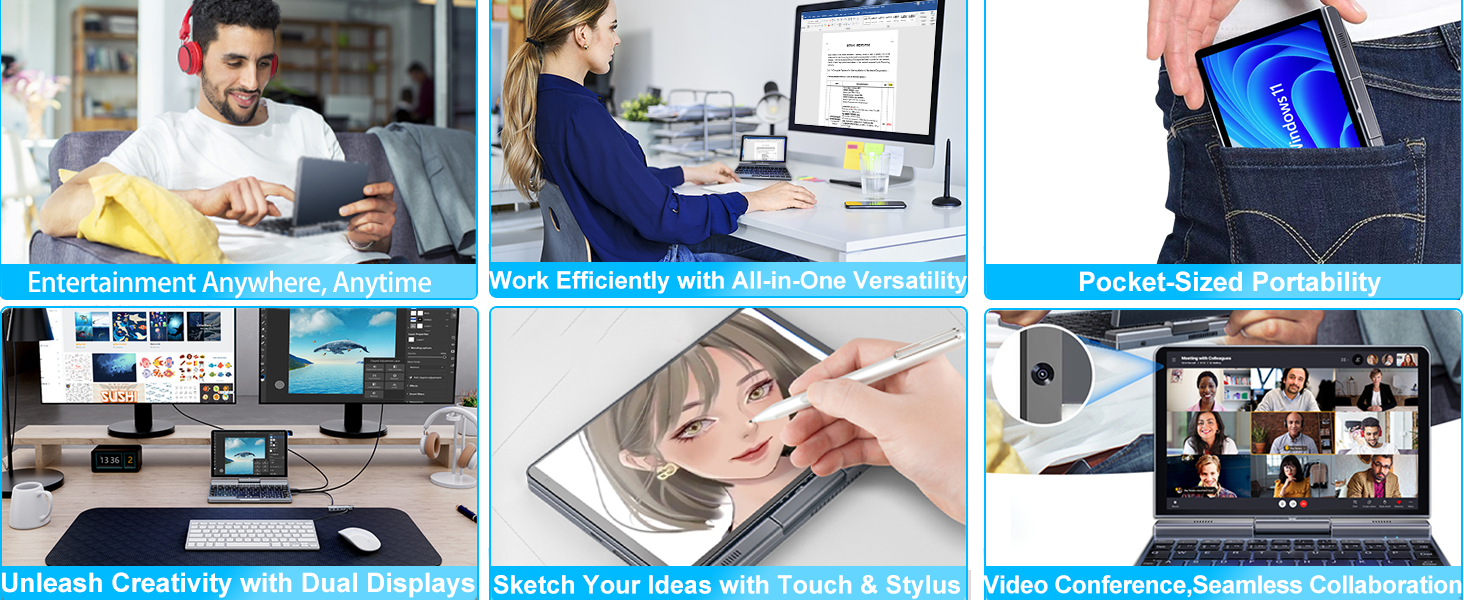
Image: Graphic highlighting the battery features of the KOOSMILE P8 Mini Laptop, indicating 36.5 WH battery capacity and PD 30W charging support to alleviate battery anxiety.
10. Garantie et assistance
Your KOOSMILE Mini Laptop P8 comes with a 1-year warranty. For technical assistance, troubleshooting, or warranty claims, please contact our customer support team. We provide 24-hour customer support to ensure a worry-free experience.
Please refer to the warranty card included in your package for detailed terms and conditions.


