Introduction
This manual provides essential information for setting up, operating, maintaining, and troubleshooting your Thunderobot Zero 18 Pro 5070 Ti Gaming Laptop. Please read this guide thoroughly to ensure optimal performance and longevity of your device.
Qu'y a-t-il dans la boîte
Lors du déballage, vérifiez que tous les éléments énumérés ci-dessous sont présents :
- Ordinateur portable THUNDEROBOT Zero
- Adaptateur secteur
- Manuel de l'utilisateur (ce document)
- Carte de garantie
If any items are missing or damaged, contact your retailer or Thunderobot customer support immediately.
Installation
Mise sous tension initiale
- Connect the power adapter to the laptop's power input port and then to a wall outlet.
- Ouvrez le couvercle de l'ordinateur portable.
- Appuyez sur le bouton d'alimentation pour allumer l'ordinateur portable.
- Suivez les instructions à l'écran pour terminer l'installation de Windows 11 Famille.
Connexion des périphériques
Utilize the available ports to connect external devices such as a mouse, keyboard, external display, or other accessories. Refer to the "Connectivity (Ports)" section for port details.
Mode d'emploi
Marche/Arrêt
- To power on: Press the power button located on the keyboard deck.
- To shut down: Click the Start button, then Power, and select "Shut down".
- To restart: Click the Start button, then Power, and select "Restart".
- To sleep: Close the laptop lid or click the Start button, then Power, and select "Sleep".
Keyboard and RGB Lighting
The laptop features a full-size keyboard with per-key customizable RGB backlighting and a dedicated numeric keypad.
- Per-Key RGB Backlight: Customize individual key lighting through the AI Intelligent Control Center software.
- Touches de fonction : Utilisez le Fn key in combination with other keys for various functions (e.g., volume control, screen brightness, keyboard backlight adjustment).
- Performance Mode Switching: Dedicated keys (Fn+Space) allow for quick toggling between performance profiles.
- One-Click Cooling: A dedicated key (often near the numeric keypad) can activate maximum cooling. Ensure cooling mode is exited before using the first three keys to switch modes.
Fonctionnalités d'affichage
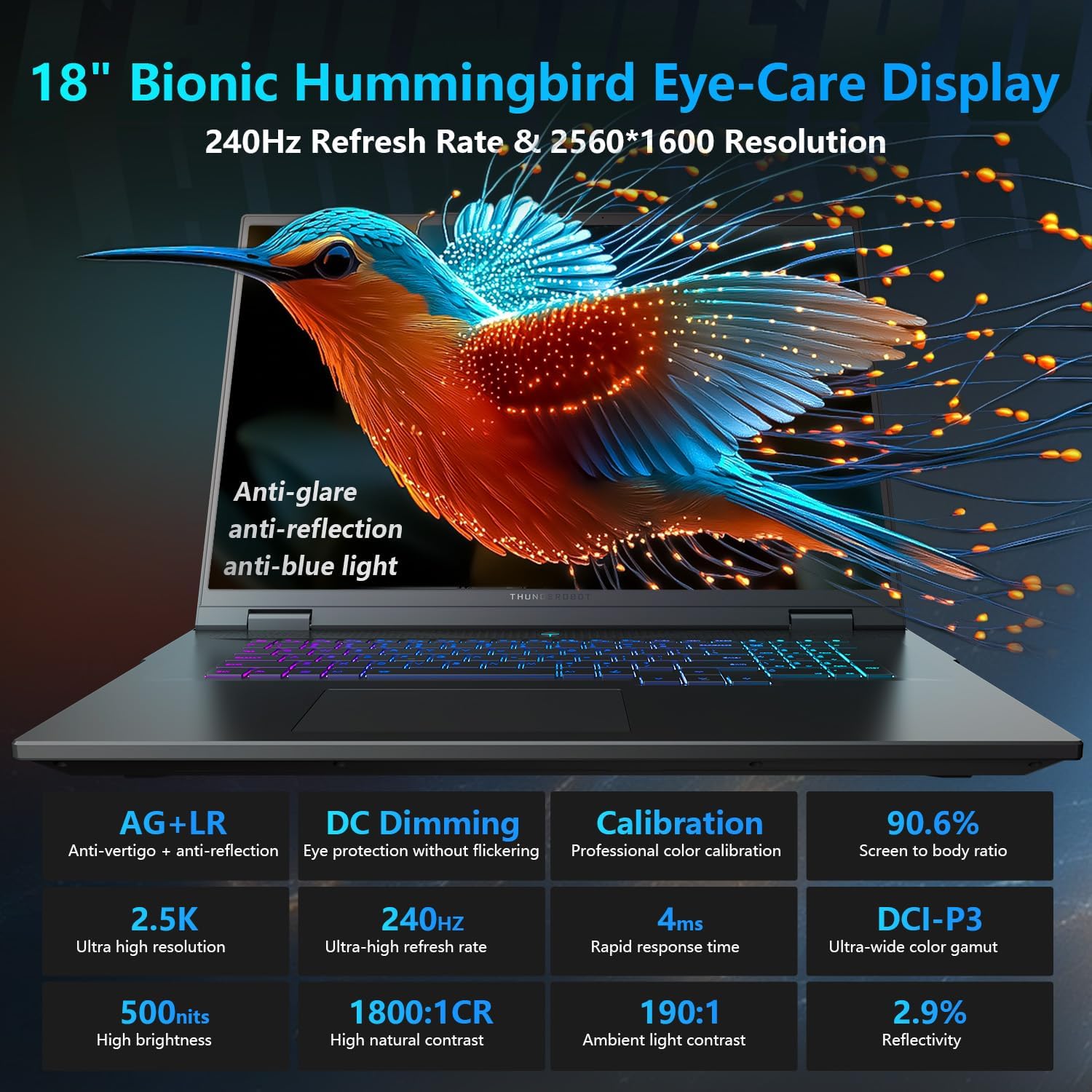
The 18-inch QHD+ (2560x1600) Bionic Hummingbird Eye-Care display offers a 240Hz refresh rate and 4ms response time for clear and fluid visuals. It includes anti-glare, anti-reflection, and anti-blue light technologies for eye comfort.

Connectivity (Ports)
The laptop is equipped with various ports for extensive connectivity:
- 3 ports USB Type-A ultrarapides
- 2 x Superspeed USB Type-C ports (including Thunderbolt 5 support)
- 1 x HDMI port (HDMI 2.1)
- 1 port Ethernet RJ-45
- 1 port audio (3.5 mm)
- Lecteur de carte SD UHS-II
- Wi-Fi 6E for high-speed wireless internet
- Bluetooth for wireless peripheral connections

Circuit de refroidissement
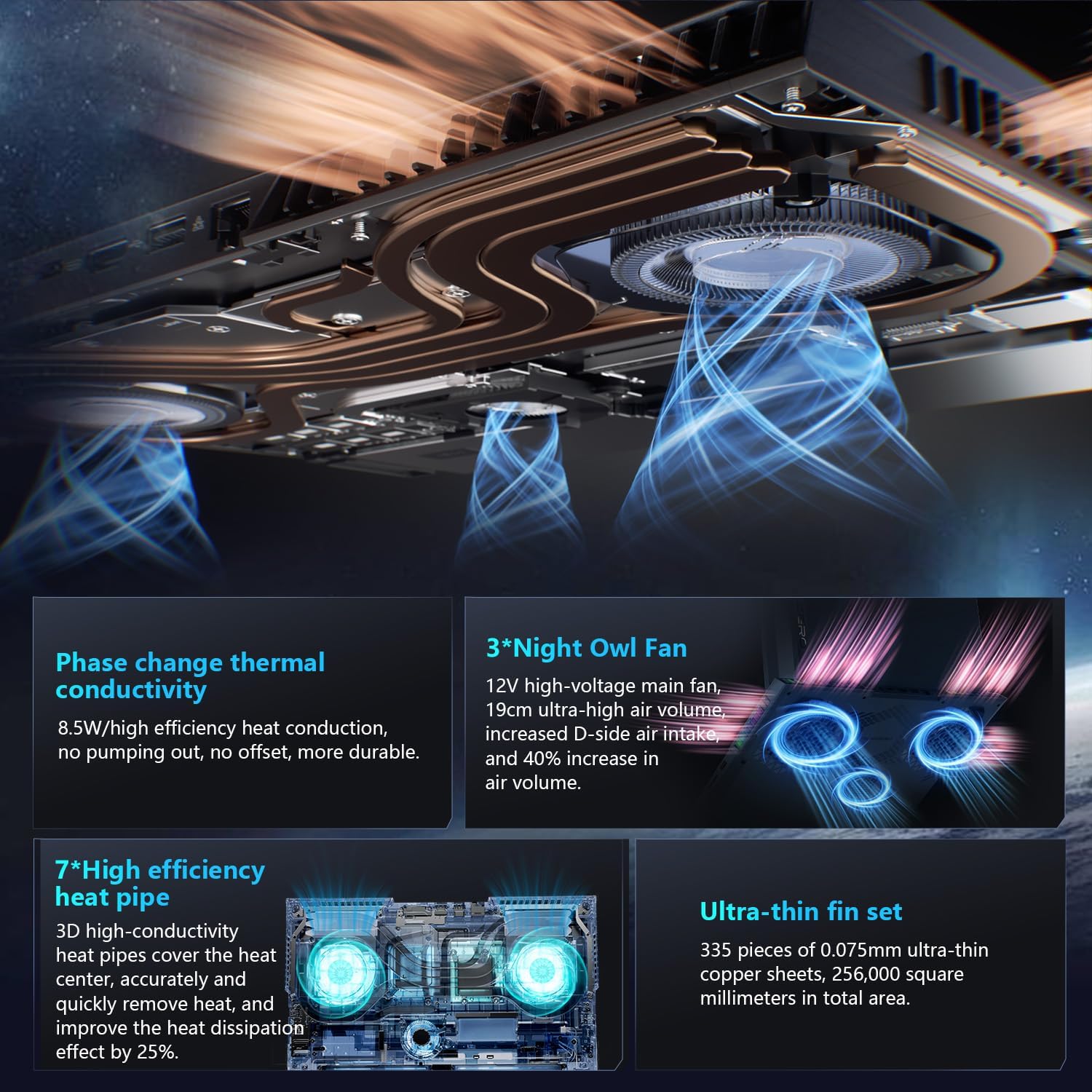
The advanced cooling system features 3 Night Owl fans, 7 high-efficiency heat pipes, and 338 ultra-thin copper fins to ensure optimal thermal management during intensive use, allowing for 270W super performance release.
AI Intelligent Control Center
The AI Intelligent Control Center software allows for comprehensive system management, including performance tuning, intelligent light adjustment, and personalized customization. This includes monitoring CPU/GPU temperatures and fan speeds.
- Réglage des performances : Adjust power settings for quiet, balanced, or turbo modes.
- Réglage intelligent de la lumière : Customize keyboard, strip, and logo RGB lighting effects.
- Surveillance du système : View real-time CPU and GPU status.
Remarque : Le changement de mode système dans le Centre de contrôle nécessite que l'appareil soit connecté à une source d'alimentation.
Entretien
Nettoyer votre ordinateur portable
- Écran: Utilisez légèrement un chiffon doux et non pelucheux.ampTerminez avec de l'eau ou un nettoyant pour écrans. Évitez les produits chimiques agressifs.
- Clavier et châssis : Utilisez un chiffon doux pour essuyer les surfaces. Pour la poussière dans les interstices, utilisez de l'air comprimé.
- Vents: Periodically clean the cooling vents with compressed air to prevent dust buildup, which can affect performance.
Entretien de la batterie
- Évitez de décharger complètement la batterie fréquemment.
- Rangez l'ordinateur portable dans un endroit frais et sec s'il n'est pas utilisé pendant une période prolongée.
- Pour une durée de vie optimale de la batterie, évitez les températures extrêmes.
Mises à jour logicielles
Regularly check for and install operating system updates (Windows Update) and driver updates (via Thunderobot's official website or the AI Intelligent Control Center) to ensure system stability and performance.
Dépannage
| Problème | Cause possible | Solution |
|---|---|---|
| L'ordinateur portable ne s'allume pas. | Aucun problème d'alimentation, de batterie déchargée ou de matériel. |
|
| L'écran est vide ou noir. | Display settings, external monitor connected, or hardware issue. |
|
| Surchauffe pendant l'utilisation. | Blocked vents, high performance settings, or dust buildup. |
|
| Problèmes de connexion Wi-Fi. | Wi-Fi disabled, driver issues, or router problems. |
|
For further assistance, please contact Thunderobot customer support.
Caractéristiques
| Fonctionnalité | Détail |
|---|---|
| Nom du modèle | Zero 18 Pro |
| Processeur | Intel Core Ultra 9 275HX (24 cœurs, 24 threads, jusqu'à 5.40 GHz) |
| Graphique | NVIDIA GeForce RTX 5070 Ti (8 GB GDDR6 Dedicated) |
| BÉLIER | 32 Go DDR5 (4800 MHz) |
| Stockage | SSD PCIe M.2 de 2 To |
| Afficher | Écran 18 pouces QHD+ (2560 x 1600) 240 Hz avec technologie Bionic Hummingbird Eye-Care |
| Système opérateur | Windows 11 Famille |
| Connectivité | Wi-Fi 6E, Bluetooth, 3x USB-A, 2x USB-C (Thunderbolt 5), HDMI 2.1, RJ-45, Audio Port |
| Clavier | Clavier numérique rétroéclairé RGB touche par touche |
| Dimensions (L x l x H) | 16.04 x 11.78 x 1.41 pouces |
| Poids de l'article | 15 livres |
| Source d'énergie | AC et batterie |
Garantie et assistance
Chaque ordinateur portable Thunderobot comprend un Garantie de 12 mois, offrant une assistance experte, des diagnostics approfondis et des pièces d'origine en cas de réparation nécessaire. De plus, un Garantie de 90 jours Un certificat d'authenticité est fourni pour toutes les pièces de rechange sous garantie, assurant ainsi des réparations sans tracas. Votre entière satisfaction est notre priorité.
Pour toute assistance technique, réclamation au titre de la garantie ou demande de service, veuillez consulter le site officiel de Thunderobot. website or contact their customer service department. Keep your purchase receipt and serial number handy for faster service.