1. Produit terminéview
The Amazon Basics Multi-Touch Trackpad is a wireless input device designed for Windows PCs, offering enhanced navigation and control through multi-touch gestures. It features dual device connectivity and a rechargeable battery for convenience.
Caractéristiques principales :
- Gestes multitouch : Supports up to four-finger gestures for intuitive control.
- Dual Device Control: Connects to two devices via Bluetooth with easy switching.
- Integrated Buttons: Built-in left and right mouse button functionality.
- Conception mince : Portable and sleek with colored indicator lights for enhanced functionality.
- Batterie rechargeable : Equipped with a lithium battery, rechargeable via USB-C.
- Compatibilité: Designed for Windows OS. Not compatible with macOS, Chrome OS, or Linux.

Image 1.1 : Haut view of the Amazon Basics Multi-Touch Trackpad.
2. Configuration et installation
2.1 Contenu du paquet
Vérifiez que tous les éléments sont présents :
- Amazon Basics Multi-Touch Trackpad
- Câble de chargement USB-C
- Manuel de l'utilisateur (ce document)
2.2 Charging the Trackpad
- Locate the USB-C port on the trackpad.
- Connect the provided USB-C cable to the trackpad and the other end to a USB power source (e.g., computer USB port, USB wall adapter).
- The indicator light will show charging status. A full charge typically takes [X] hours (Note: Specific charging time not provided in source data, user should refer to product packaging or quick start guide for exact duration).
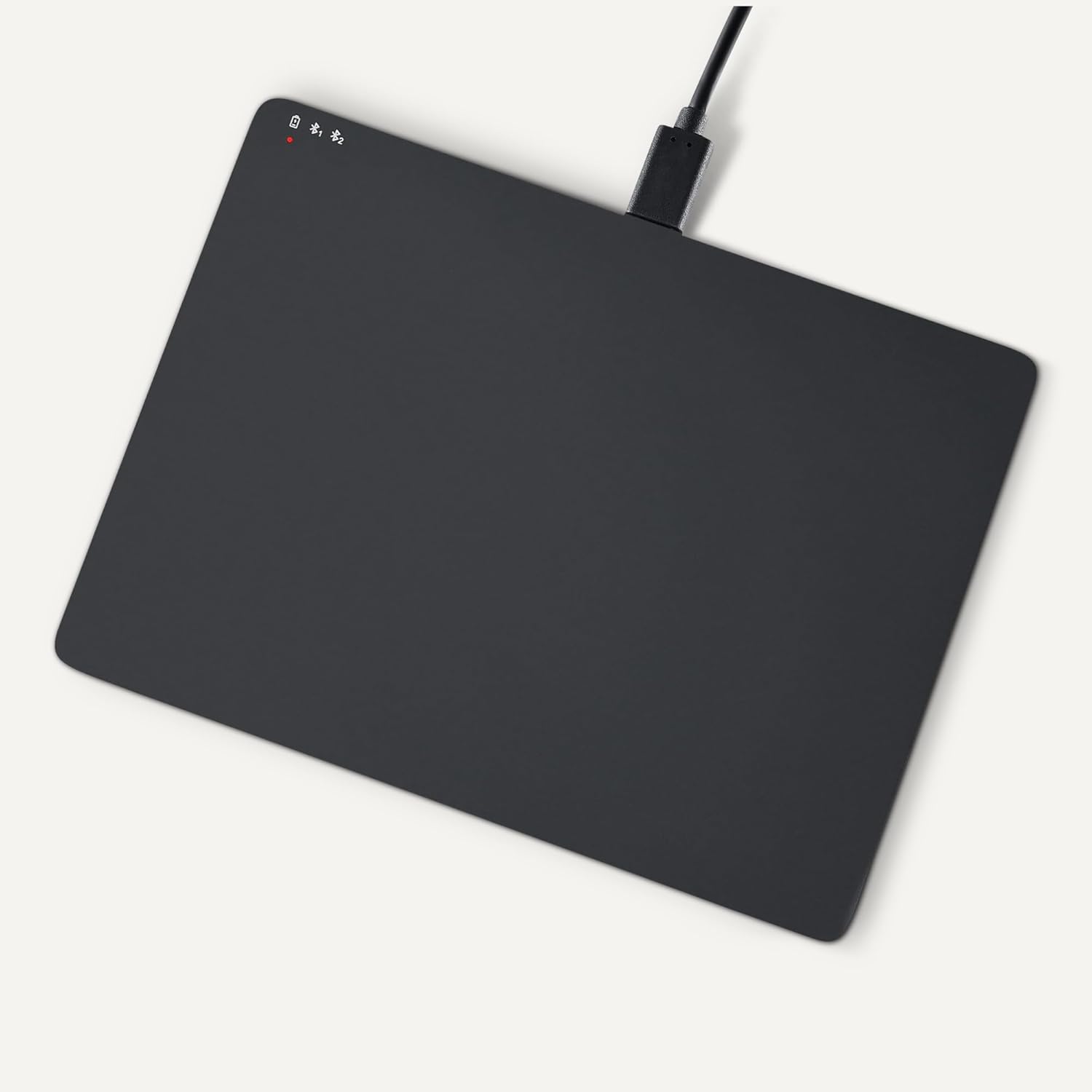
Image 2.1: Trackpad connected for charging via USB-C.
2.3 Mise sous/hors tension
Locate the power switch on the side of the trackpad. Slide it to the "ON" position to power on, and "OFF" to power off.

Image 2.2 : Côté view illustrating the power switch and USB-C port.
2.4 Couplage Bluetooth
- Ensure the trackpad is powered on.
- Sur votre PC Windows, accédez à Paramètres > Appareils > Bluetooth et autres appareils.
- Turn on Bluetooth and click "Add Bluetooth or other device".
- Select "Bluetooth" from the options.
- The trackpad should appear in the list of available devices (e.g., "Amazon Basics Trackpad"). Select it to pair.
- Follow any on-screen prompts to complete the pairing process. The indicator light on the trackpad will confirm successful connection.
3. Operating the Trackpad
3.1 Navigation de base
- Déplacer le curseur : Slide one finger across the trackpad surface.
- Click gauche: Press down on the lower-left area of the trackpad or tap with one finger.
- Clic-droit: Press down on the lower-right area of the trackpad or tap with two fingers (if configured in Windows settings).
3.2 Multi-Touch Gestures (Windows OS)
The trackpad supports various multi-touch gestures for enhanced productivity. These gestures are typically configured within Windows settings (Settings > Devices > Touchpad).
- Rouleau: Place two fingers on the trackpad and slide them up or down to scroll vertically, or left or right to scroll horizontally.
- Zoom avant/arrière : Place two fingers on the trackpad and pinch them together to zoom out, or spread them apart to zoom in.
- Show All Open Windows (Task View): Swipe three fingers upwards.
- Montrer bureau: Swipe three fingers downwards.
- Switch Between Open Windows: Swipe three fingers left or right.
- Centre d'action ouverte: Tap with four fingers.
- Switch Desktops: Swipe four fingers left or right.
Note: Gesture functionality may vary based on your Windows version and specific settings. Refer to your Windows documentation for detailed customization options.
3.3 Dual Device Control
The trackpad can be paired with two different devices. To switch between connected devices:
- Ensure both devices are paired with the trackpad.
- Press the mode switch button located on the trackpad (refer to Image 2.2 for location).
- The indicator light will change to show which device is currently active.
4. Maintenance et entretien
- Nettoyage: Use a soft, dry, lint-free cloth to clean the trackpad surface. For stubborn marks, slightly dampNettoyez le chiffon avec de l'eau. Évitez les produits chimiques agressifs et les matériaux abrasifs.
- Stockage: When not in use for extended periods, power off the trackpad to conserve battery life. Store in a cool, dry place.
- Entretien de la batterie: To prolong battery life, avoid fully discharging the trackpad frequently. Recharge when the low battery indicator appears.
- Évitez les liquides : Keep the trackpad away from liquids and excessive moisture.
5. Dépannage
| Problème | Cause possible | Solution |
|---|---|---|
| Trackpad does not power on. | La batterie est déchargée. | Charge the trackpad using the provided USB-C cable. |
| Trackpad does not connect via Bluetooth. |
|
|
| Gestures are not working or inconsistent. |
|
|
| Trackpad is unresponsive. |
|
|
Si le problème persiste après avoir essayé ces solutions, veuillez consulter la section Garantie et assistance.
6. Spécifications
| Fonctionnalité | Détail |
|---|---|
| Marque | Les bases d'Amazon |
| Numéro de modèle | TK053 |
| Connectivité | Bluetooth |
| Dimensions (L x l x H) | 6.39 x 4.78 x 0.42 pouces |
| Poids de l'article | 9.2 once (261.2 grammes) |
| Couleur | Noir |
| Batterie | 1 batterie lithium-ion (incluse) |
| Port de chargement | USB-C |
| Compatibilité | Windows OS (Not compatible with macOS, Chrome OS, or Linux) |
| Code UPC | 840324434217 |
7. Garantie et assistance
For warranty information and customer support, please refer to the official Amazon Basics website or the documentation included with your purchase. You can typically find support resources, FAQs, and contact information on the product's dedicated page on Amazon.com.
Support en ligne: Visit the Amazon Basics Store


