1. Introduction
This manual provides detailed instructions for the setup, operation, and maintenance of your Transformers GK01 Wireless Mechanical Keyboard. The GK01 is a versatile keyboard featuring tri-mode connectivity (Bluetooth 5.0, 2.4GHz wireless, and USB-C wired), a 101-key layout, RGB backlighting, and hot-swappable switches for a customizable typing experience.

Figure 1.1: Transformers GK01 Wireless Mechanical Keyboard.
2. Contenu du colis
Veuillez vérifier que tous les éléments énumérés ci-dessous sont inclus dans votre colis :
- Transformers GK01 Wireless Mechanical Keyboard
- Câble USB-C vers USB-A
- Clé USB sans fil 2.4 GHz
- Extracteur de touches et de commutateurs 2 en 1
- Manuel de l'utilisateur (ce document)
- Interrupteurs de rechange (2 pièces)
- Couverture de clavier
3. Configuration et connexion
3.1. Tri-Mode Connection Overview
The GK01 keyboard supports three connection modes: USB-C wired, 2.4GHz wireless, and Bluetooth 5.0. You can connect to up to five devices simultaneously and switch between them seamlessly.

Figure 3.1: Tri-Mode Connection Capabilities.
3.2. Connexion filaire USB-C
- Repérez le port USB-C sur le clavier.
- Connectez une extrémité du câble USB-C fourni au clavier.
- Connect the other end of the USB-C cable to an available USB-A port on your computer.
- Le clavier sera automatiquement reconnu et prêt à l'emploi.
3.3. Connexion sans fil 2.4 GHz
- Locate the 2.4GHz wireless USB dongle.
- Branchez le dongle sur un port USB-A disponible de votre ordinateur.
- On the keyboard, ensure the mode switch (usually on the side or back) is set to 2.4GHz mode.
- Le clavier devrait se connecter automatiquement. Si ce n'est pas le cas, appuyez sur Fn + R pour lancer le jumelage.

Figure 3.2: USB-C Port and 2.4GHz Dongle Location.
3.4. Connexion Bluetooth 5.0
The keyboard supports connecting to up to three Bluetooth devices (BT1, BT2, BT3).
- On the keyboard, set the mode switch to Bluetooth mode.
- Pour activer le mode de couplage pour un canal Bluetooth spécifique, appuyez longuement. Fn + Q (pour BT1), Fn + W (pour BT2), ou Fn + E (for BT3) for 3-5 seconds until the indicator light flashes rapidly.
- On your device (PC, tablet, smartphone), open Bluetooth settings and search for new devices.
- Select "Transformers GK01" from the list of available devices.
- Once connected, the indicator light on the keyboard will stop flashing.
- Pour basculer entre les appareils Bluetooth appairés, appuyez simplement sur Fn + Q, Fn + W, ou Fn + E.
4. Fonctionnement de base
4.1. Keyboard Layout and Anti-Ghosting
The GK01 features a 101-key layout, providing a full set of keys including a numeric keypad. All keys are equipped with anti-ghosting technology, ensuring that every keystroke is registered accurately, even when multiple keys are pressed simultaneously.
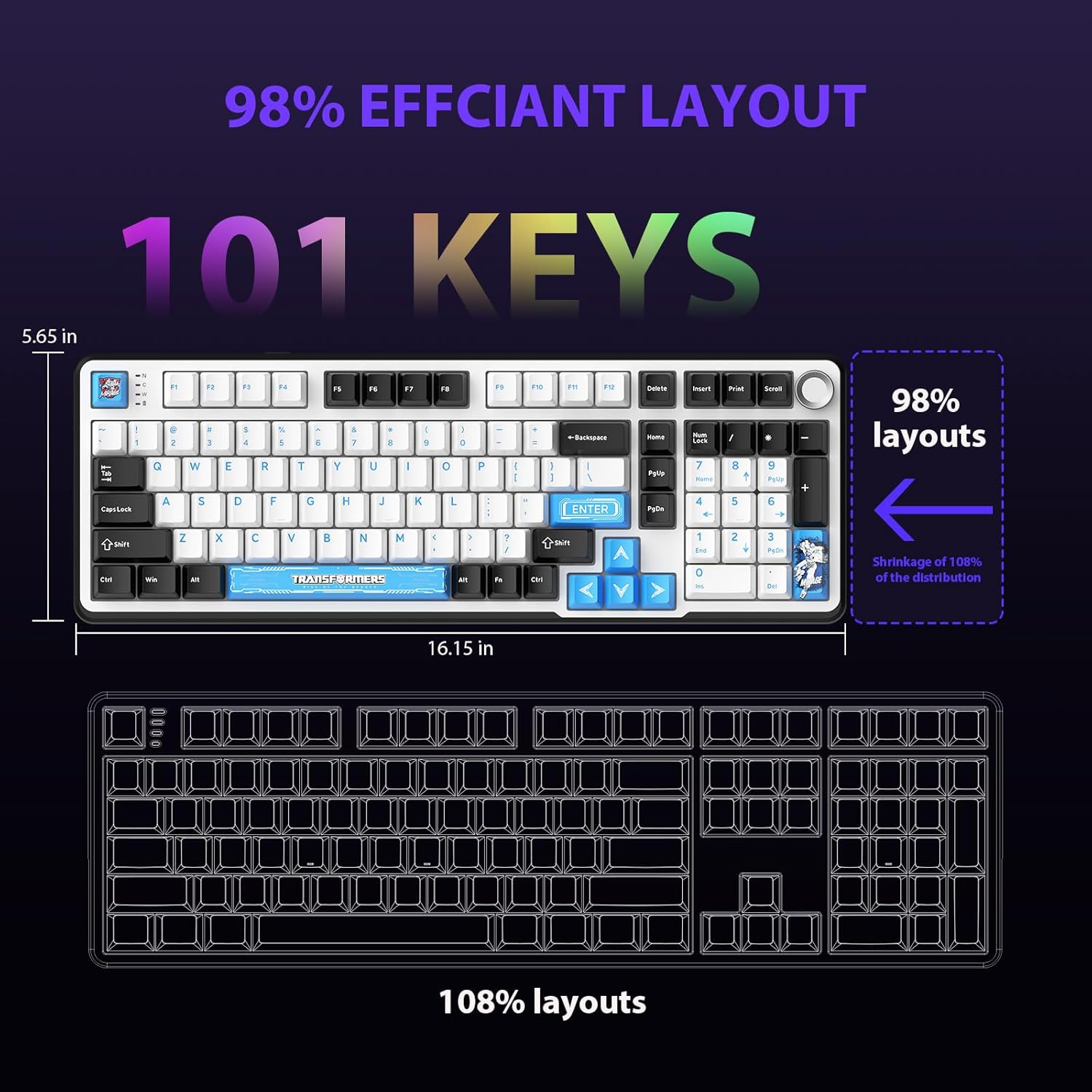
Figure 4.1: 101-Key Layout.
4.2. Bouton de commande multimédia
The dedicated knob located on the top right of the keyboard provides convenient multimedia control:
- Le sens des aiguilles d'une montre: Augmenter le volume.
- Rotation dans le sens antihoraire : Diminuer le volume.
- Appuyer: Couper/Réactiver le son.
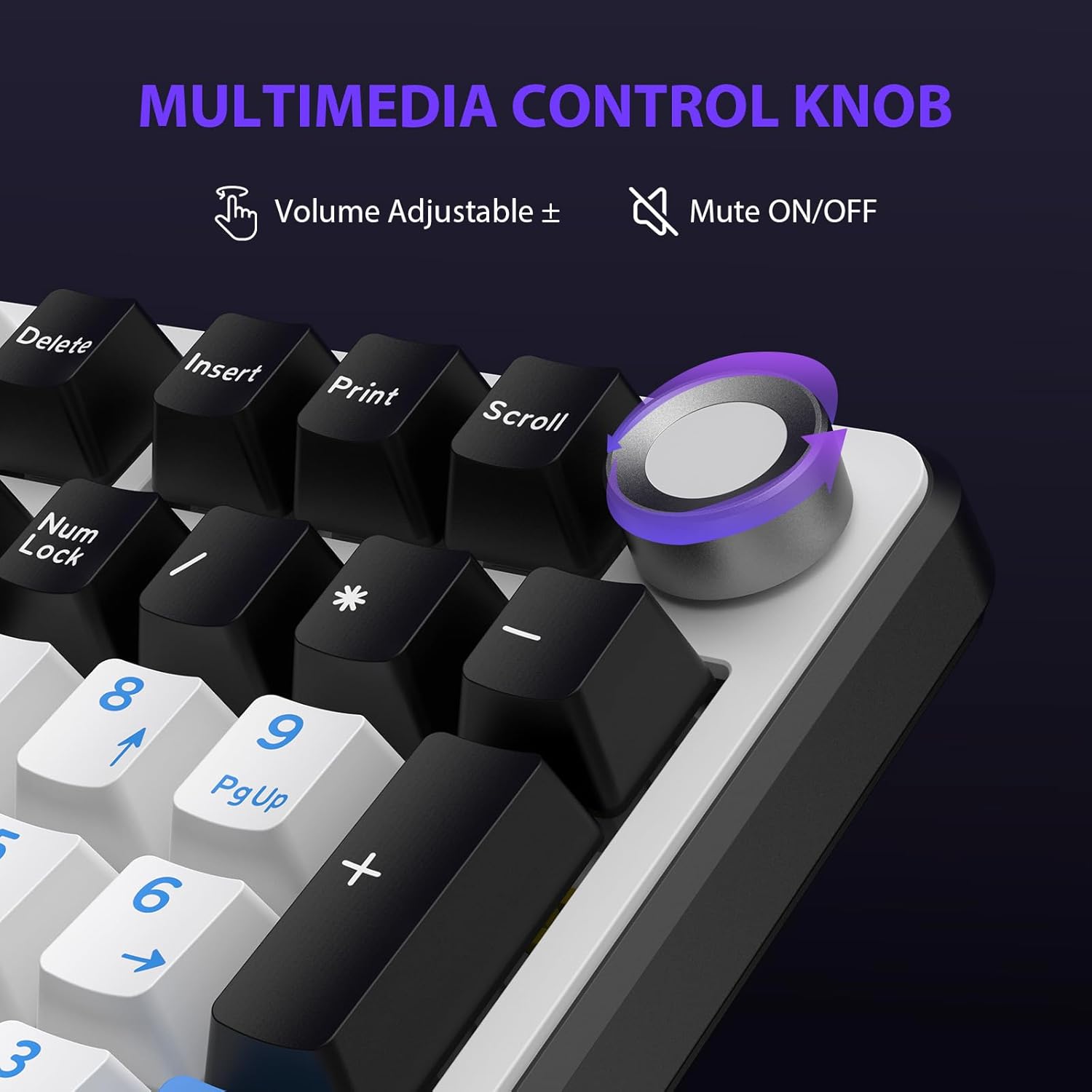
Figure 4.2: Multimedia Control Knob.
4.3. Contrôle du rétroéclairage RVB
The GK01 keyboard features 16.8 million color RGB backlighting with various effects.
- Fn + [Right Arrow]: Adjust 5 brightness levels.
- Fn + [Left Arrow]: Adjust 5 speed levels for dynamic effects.
- Fn + [Insérer]: Choisissez parmi 20 modes de rétroéclairage différents.
- Fn + [Entrer]: Switch color order within certain modes.
- Fn + [X]: Turn off light / activate power-saving mode.
- Fn + [Retour arrière]: Switch color order within certain modes.

Figure 4.3: RGB Backlight Controls.
5. Fonctionnalités avancées
5.1. Commutateurs remplaçables à chaud
The GK01 keyboard is equipped with pre-lubricated Cybertron linear switches and supports solder-free hot-swapping. This allows you to easily replace switches with compatible 3-pin or 5-pin mechanical switches without soldering.
Pour remplacer un interrupteur :
- Using the provided 2-in-1 keycap and switch puller, gently remove the keycap from the desired switch.
- Insert the switch puller onto the switch, ensuring it grips the top and bottom clips of the switch.
- Tirez délicatement l'interrupteur vers le haut pour le retirer du circuit imprimé.
- Alignez les broches du nouvel interrupteur avec les trous du circuit imprimé. Assurez-vous que les broches sont bien droites pour éviter qu'elles ne se plient.
- Enfoncez fermement le nouvel interrupteur jusqu'à ce qu'il s'enclenche.
- Remettez la touche en place.

Figure 5.1: Hot-Swappable Switch Replacement.
5.2. Programmable Software
The GK01 supports custom software for advanced customization, including key remapping, macro creation, and detailed RGB lighting effects.
- The software is compatible only with the Windows operating system.
- The keyboard must be connected via USB-C wired mode to use the software.
- For driver download, please visit the official Transformers Keyboard website or refer to the link provided in the product packaging.
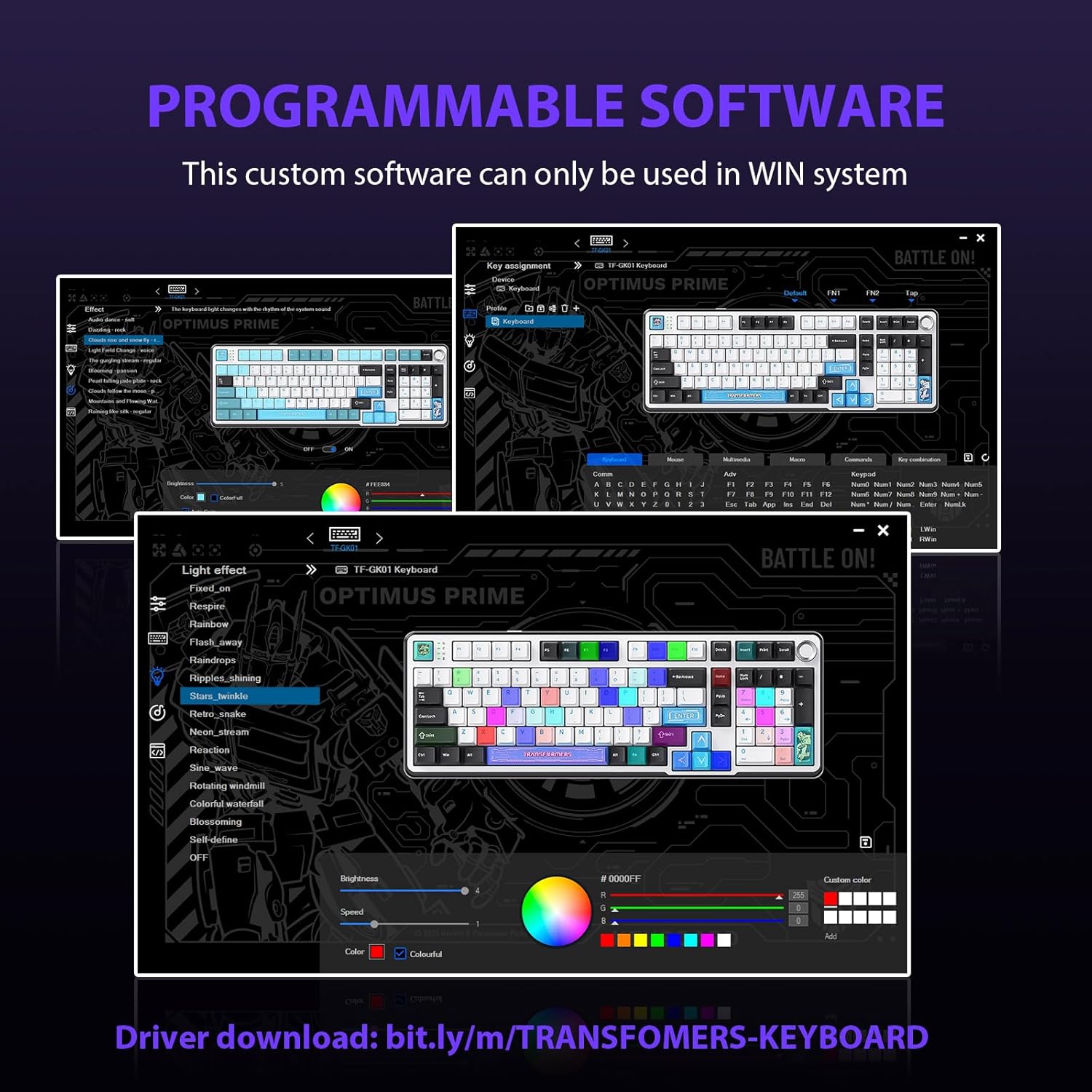
Figure 5.2: Programmable Software Interface.
5.3. Gasket Mounted Structure
The keyboard features a five-layer sound-absorbing and shock-absorbing gasket mounted structure. This design effectively reduces hollow noise and provides a softer, more consistent typing feel by isolating the plate from the case.
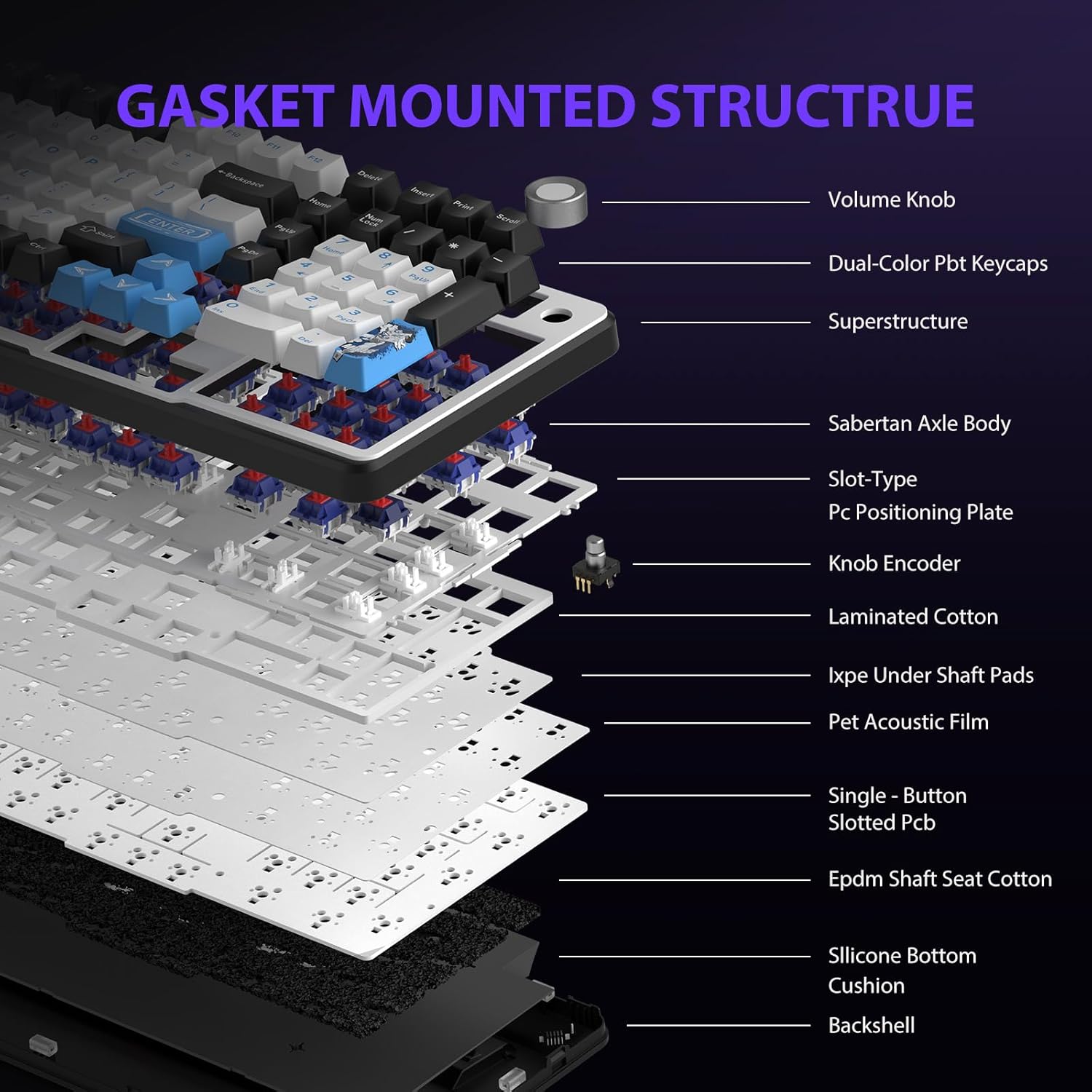
Figure 5.3: Gasket Mounted Structure Components.
6. Gestion de la batterie
The GK01 keyboard is equipped with a 4000mAh rechargeable battery.
- Chargement : Connect the keyboard to a USB power source using the provided USB-C cable. The indicator light will show charging status.
- Autonomie de la batterie : A fully charged battery provides extended usage time. Actual battery life may vary based on usage patterns and RGB lighting intensity.
- Economie d'énergie: The keyboard will enter a power-saving sleep mode after a period of inactivity to conserve battery. Press any key to wake it up.
7. Entretien
7.1. Nettoyage du clavier
- Débranchez le clavier de toutes les sources d'alimentation avant de le nettoyer.
- Utilisez un chiffon doux et non pelucheux légèrement dampTerminer par un rinçage à l'eau ou avec une solution nettoyante douce pour essuyer les touches et le châssis.
- Pour enlever la poussière et les débris entre les touches, utilisez de l'air comprimé ou une petite brosse.
- Évitez d’utiliser des produits chimiques agressifs ou des matériaux abrasifs.
7.2. Keycap and Switch Care
- The PBT keycaps are designed for durability and fade resistance.
- Refer to Section 5.1 for instructions on safely removing and replacing keycaps and switches.
- Ensure the keyboard feet are clean and free of debris for stable placement.

Figure 7.1: Adjustable Keyboard Feet.
8. Dépannage
| Problème | Cause possible | Solution |
|---|---|---|
| Le clavier ne répond pas en mode sans fil. | Low battery, incorrect mode selected, dongle not connected, Bluetooth not paired. | Charge the keyboard. Ensure the mode switch is set correctly (2.4GHz or BT). Re-insert the 2.4GHz dongle. Re-pair Bluetooth connection. Try wired mode to confirm keyboard functionality. |
| Les touches ne sont pas enregistrées ou une double saisie est effectuée. | Loose switch, software issue, debris under keycap. | Ensure switches are fully seated. Clean under keycaps. If using programmable software, ensure it's updated or try resetting keyboard settings. |
| Le rétroéclairage RGB ne fonctionne pas ou est bloqué. | Rétroéclairage désactivé, conflit logiciel. | Presse Fn + X to toggle backlight. Check programmable software settings. |
| Impossible de se connecter via Bluetooth. | Clavier non en mode appariement, Bluetooth de l'appareil désactivé, interférences. | Ensure keyboard is in Bluetooth pairing mode (Fn + Q/W/E long press). Ensure device Bluetooth is on and discoverable. Move closer to the device. |
9. Spécifications
| Fonctionnalité | Détail |
|---|---|
| Numéro de modèle | TF-GK01 |
| Connectivité | Bluetooth 5.0, sans fil 2.4 GHz, USB-C filaire |
| Type de clavier | Mécanique |
| Mise en page | 101 touches (taille standard) |
| Interrupteurs | Pre-lubed Cybertron Linear Switches, Hot-Swappable (3-pin/5-pin compatible) |
| Keycaps | Heat-sublimated PBT |
| Rétroéclairage | RGB (16.8 Million Colors, 20 modes, music rhythm effects via driver) |
| Capacité de la batterie | 4000mAh |
| Dimensions du produit | 16.15 x 5.65 x 1.63 pouces (41.02 x 14.35 x 4.14 cm) |
| Poids de l'article | 2.24 livres (1.02 kg) |
| Appareils compatibles | Ordinateur portable, PC, smartphone, tablette |
| Caractéristiques spéciales | Anti-Ghosting (all keys), Multimedia Control Knob, Programmable Keys (via software), Rechargeable |
10. Garantie et assistance
For information regarding warranty coverage, technical support, or service inquiries, please refer to the warranty card included with your product or visit the official Transformers Keyboard website.
Fabricant: Transformateurs


