Introduction
Thank you for choosing the MIKIBY Nano 68 Rapid Trigger Custom Mechanical Keyboard. This manual provides detailed instructions for setting up, operating, maintaining, and troubleshooting your new keyboard. The Nano 68 is designed for high-performance gaming and efficient typing, featuring Hall Effect magnetic switches, rapid trigger technology, and customizable RGB lighting.
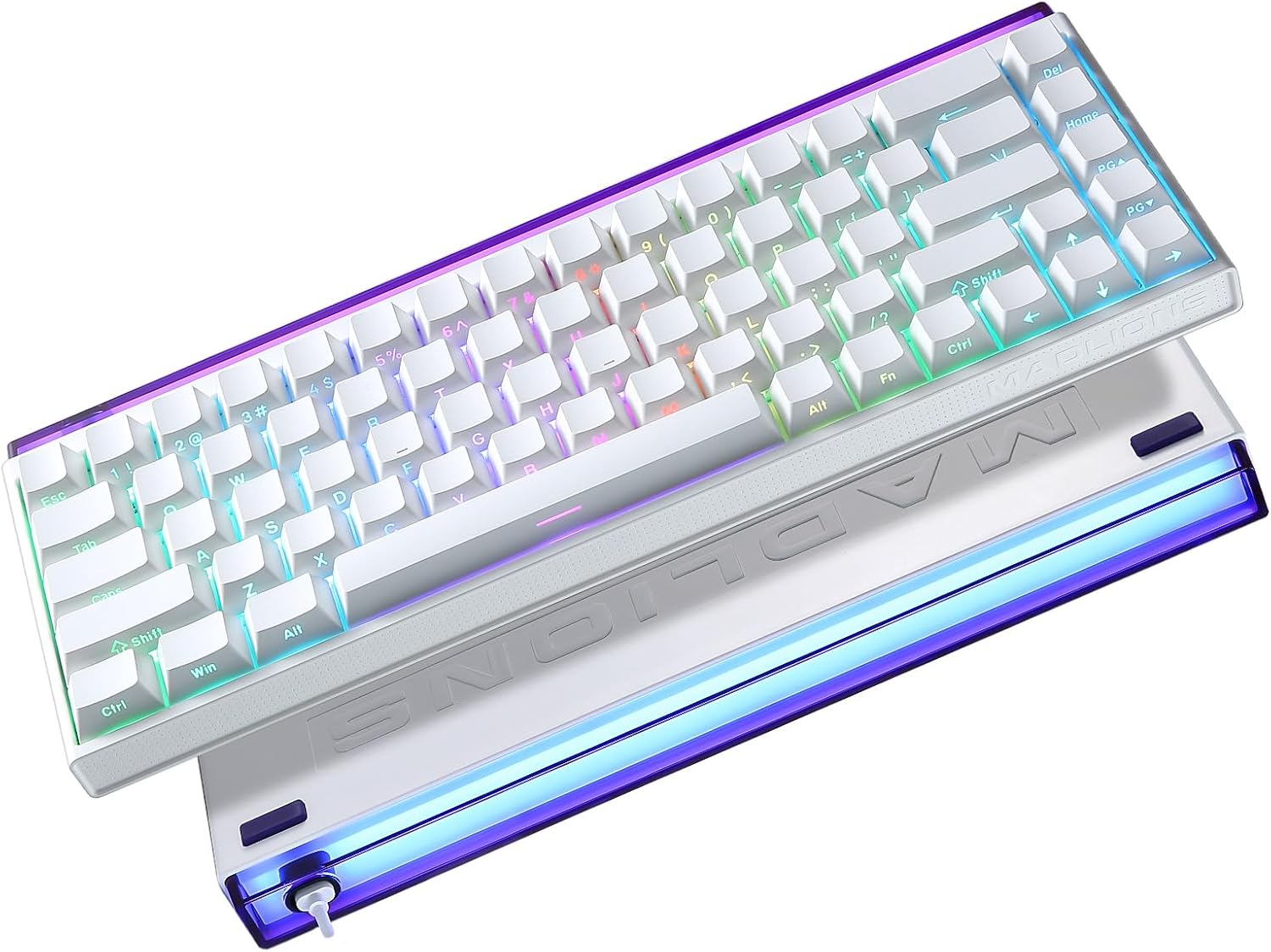
Image: The MIKIBY Nano 68 keyboard showcasinson format compact à 60 % et son rétroéclairage RGB éclatant.
1. Installation
1.1 Contenu du paquet
Avant de commencer, veuillez vous assurer que tous les articles sont présents dans le colis :
- MIKIBY Nano 68 Keyboard x1
- Câble USB Type-C x1
- Extracteur de touches x1
- Manuel d'utilisation x1

Image: A visual representation of the MIKIBY Nano 68 keyboard and its included accessories: USB-C cable, keycap puller, and user manual.
1.2 Connexion du clavier
- Locate the USB Type-C port on the back of the Nano 68 keyboard.
- Connectez une extrémité du câble USB Type-C fourni au clavier.
- Connect the other end of the USB cable to an available USB-A port on your computer (PC, Laptop, Mac) or compatible gaming console/tablet.
- Le clavier sera automatiquement reconnu par votre système d'exploitation. Aucun pilote supplémentaire n'est généralement requis pour les fonctionnalités de base.

Image: The MIKIBY Nano 68 keyboard connected via its USB-C cable to a computer, illustrating its wired connectivity for various devices.
2. Mode d'emploi
2.1 Interrupteurs magnétiques à effet Hall et déclenchement rapide
The Nano 68 features Hall Effect magnetic switches with Rapid Trigger technology, offering precise and customizable actuation.
- Point d'actionnement réglable : The actuation point can be adjusted from 0.02mm to 3.3mm to suit your typing or gaming style.
- Déclenchement rapide : This feature eliminates reset delays, allowing for extremely fast, repeated keystrokes. Keys react instantly upon release, providing a competitive edge in fast-paced applications.
- Fréquence d'interrogation de 8 kHz : Ensures every keystroke is registered with minimal delay, providing high responsiveness.

Image: A detailed diagram explaining the Hall Effect Magnetic Switch specifications and a comparison between traditional switch actuation and Rapid Trigger functionality.
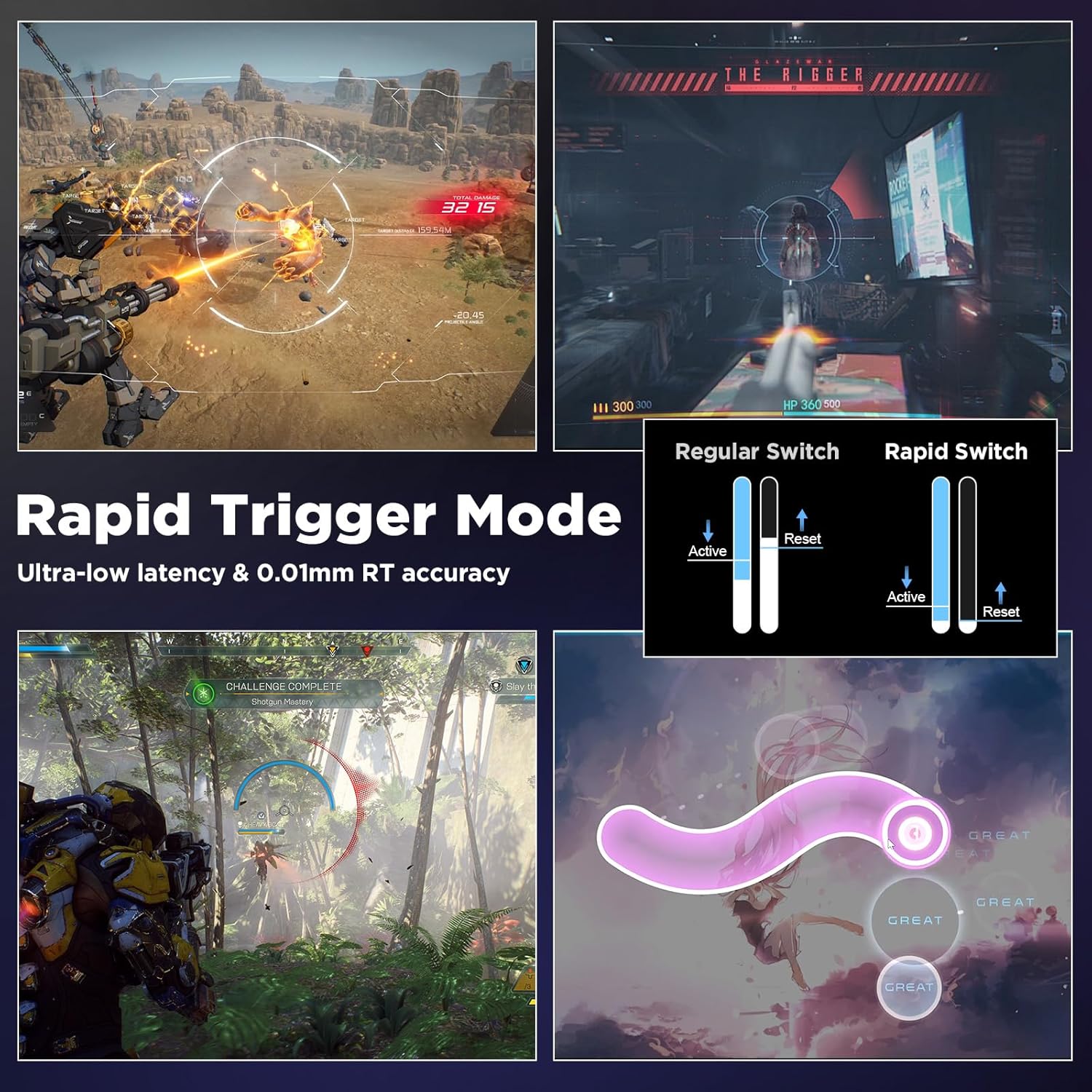
Image: Visual explanation of Rapid Trigger Mode, highlighting ultra-low latency and 0.01mm accuracy, with examples from gaming scenarios.
Système d'éclairage RVB 2.2
The keyboard features a 16.8 million color RGB lighting system with south-facing LEDs and a high-transparency light box. You can customize lighting effects using FN key combinations:
| Combinaison de touches de fonction | Description |
|---|---|
| FN + onglet | RGB Lighting On/Off |
| FN + Q / A | RGB Brightness +/- |
| FN + W / S | RGB Effect +/- |
| FN + E / D | RGB Color +/- |
| FN + R / F | RGB Speed +/- |
| FN + T / G | Light Box Effect +/- |
| FN + Y / H | Light Box Brightness +/- |
| FN + U / J | Light Box Speed +/- |
| FN + I / K | Light Box Color +/- |

Image: A visual guide to the FN key combinations for controlling the 16.8 million RGB lighting effects and the removable side bar light box.
2.3 Personnalisable Web Logiciel pilote
The Nano 68 keyboard supports a professional web-based driver for advanced customization. This software allows you to:
- Customize DKS/MT/TGL functions.
- Perform key mapping.
- Modifier les macros.
- Adjust RGB lighting settings.
- Set actuation points and rapid trigger sensitivity.
Ce web driver is compatible with Windows and Mac systems and does not require any downloads.

Image : Capture d'écran de web-based customization software interface, showing options for basic settings, RGB effects, key redefinition, and macro definition.
2.4 N-Key Rollover
The Nano 68 supports N-Key Rollover (NKRO), which means all keys pressed simultaneously will be registered accurately without conflict or ghosting. This is crucial for complex key combinations in gaming and fast typing.

Image: An illustration demonstrating N-Key Rollover, showing multiple keys being pressed simultaneously and accurately recognized by the keyboard.
2.5 Commutateurs remplaçables à chaud
The keyboard is designed with hot-swappable sockets, allowing you to easily change the magnetic switches without soldering. This provides flexibility for customization and maintenance.
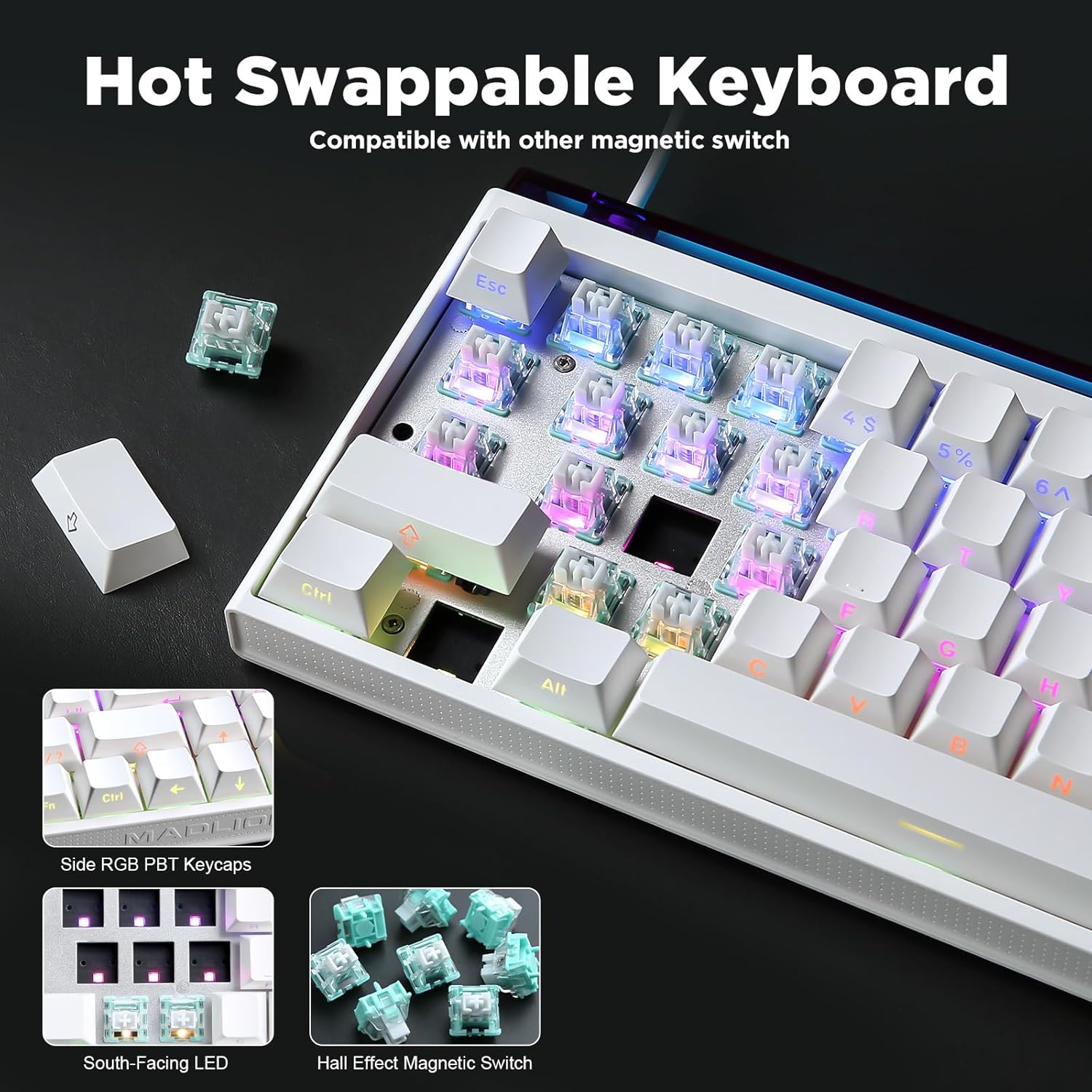
Image : Gros plan view of the MIKIBY Nano 68 keyboard demonstrating its hot-swappable feature, with magnetic switches being removed and inserted.
3. Entretien
3.1 Nettoyage du clavier
Un nettoyage régulier permet de préserver les performances et l'apparence du clavier.
- Touches : Use the provided keycap puller to carefully remove keycaps. Clean them with a soft cloth dampNettoyer à l'eau et au savon doux, puis sécher soigneusement avant de remettre en place.
- Corps du clavier : Wipe the keyboard surface with a soft, lint-free cloth. For stubborn dirt, a slightly damp Un chiffon peut être utilisé. Évitez l'humidité excessive.
- Entre les touches : Utilisez de l'air comprimé pour enlever la poussière et les débris entre les interrupteurs.
3.2 Entretien général
- Évitez d'exposer le clavier à des températures extrêmes, à l'humidité ou à la lumière directe du soleil.
- Ne renversez aucun liquide sur le clavier. En cas de renversement, débranchez immédiatement le clavier et laissez-le sécher complètement avant de le rebrancher.
- Manipulez le câble USB avec précaution afin d'éviter d'endommager le connecteur ou le câble.
4. Dépannage
4.1 Clavier ne répondant pas
- Assurez-vous que le câble USB Type-C est correctement connecté à la fois au clavier et à votre ordinateur.
- Essayez de connecter le clavier à un autre port USB de votre ordinateur.
- Testez le clavier sur un autre ordinateur pour déterminer si le problème vient du clavier ou de la configuration de l'ordinateur d'origine.
- Redémarrez votre ordinateur.
4.2 L'éclairage RVB ne fonctionne pas ou est incorrect
- Ensure RGB lighting is turned on using the FN + Tab key combination.
- Adjust brightness using FN + Q / A.
- Si vous utilisez le web driver, check your lighting settings there.
- Déconnectez et reconnectez le clavier.
4.3 Touches non enregistrées ou double saisie
- Check for any debris under the affected keycap. Use compressed air to clear it.
- If the issue persists, consider hot-swapping the problematic switch with a known working one (if you have spare switches).
- Verify actuation settings in the web driver software; ensure they are not set too low or too high for your preference.
5. Spécifications
| Fonctionnalité | Détail |
|---|---|
| Modèle | NANO68 |
| Type de commutateur | Hall Effect Magnetic Switches (Magnetic Amber Pro) |
| Point d'activation | Réglable 0.02-3.3mm |
| Taux de sondage | 8 K Hz |
| Roulement de clé | Roulement de N-Key (NKRO) |
| Keycaps | Touches PBT imprimées sur le côté |
| Rétroéclairage | 16.8 Million Color RGB, South-facing LED |
| Connectivité | Câble USB Type-C |
| Appareils compatibles | PC, Laptop, Mac, Gaming Console, Tablet, Smartphone |
| Dimensions | 12.28 x 4.72 x 1.06 pouces (environ) |
| Poids | 2.2 livres |
| Composants inclus | Keyboard, USB Cable, Keycap Puller |
6. Informations sur la garantie
MIKIBY products are covered by a limited warranty against manufacturing defects. Please refer to the warranty card included in your package or visit the official MIKIBY webConsultez le site pour connaître les conditions générales de garantie détaillées. Conservez votre preuve d'achat pour toute réclamation au titre de la garantie.
7. Assistance clientèle
For technical assistance, troubleshooting, or any questions regarding your MIKIBY Nano 68 keyboard, please contact MIKIBY customer support through the official website or the contact information provided in your product packaging. Our support team is available to help you.


