Manuel d'utilisation du clavier mécanique sans fil ATTACK SHARK X98
Modèle : X98 | Marque : ATTACK SHARK
Introduction
The ATTACK SHARK X98 is a versatile wireless mechanical keyboard designed for a superior typing and gaming experience. Featuring tri-mode connectivity, hot-swappable switches, PBT keycaps, and vibrant RGB backlighting, this manual provides essential information for setup, operation, and maintenance to ensure optimal performance.
1. Installation
1.1 Contenu du paquet
Avant de commencer, assurez-vous que tous les éléments sont présents dans l'emballage :
- Clavier mécanique sans fil ATTACK SHARK X98
- Câble USB-C
- Récepteur USB 2.4 GHz
- Extracteur de capuchon
- Extracteur de commutateur
- Extra Switches (2)
- Manuel de l'utilisateur (ce document)

Figure 1: Package Contents of the ATTACK SHARK X98 Keyboard.
1.2 Options de connectivité
The X98 keyboard supports three connection modes:
- Câble USB-C : For a stable, direct connection and charging.
- Sans fil 2.4 GHz : Utilise un récepteur USB dédié pour des performances sans fil à faible latence.
- Bluetooth 5.0: Se connecte à trois appareils simultanément.

Figure 2 : Connexion en mode tripleview.
1.3 Connexion de votre clavier
- Locate the mode switch on the back edge of the keyboard.
- Select your desired connection mode:
- Wired: Connect the USB-C cable to the keyboard and your device.
- 2.4 GHz : Remove the 2.4GHz USB receiver from its storage slot on the keyboard and plug it into your device. Switch the keyboard to 2.4G mode.
- Bluetooth : Switch the keyboard to BT mode. On your device, search for 'ATTACK SHARK X98' in Bluetooth settings and pair. The keyboard can store up to three Bluetooth profiles (BT1, BT2, BT3).
- Ensure the operating system switch (Win/Mac) is set correctly for your device.

Figure 3: Connectivity Switches.
1.4 Frais initiaux
For optimal performance, fully charge the keyboard before first use. Connect the USB-C cable to the keyboard and a power source. The battery indicator will show charging status.
Video 1: ATTACK SHARK X98 Wireless Mechanical Keyboard Overview. This video demonstrates the keyboard's features and connectivity options.
2. Mode d'emploi
2.1 Rétroéclairage RVB
The X98 keyboard features 16.8 million RGB colors and 21 lighting effects. Use the following key combinations to control the lighting:
- Fn + \|: Switch between different lighting effects.
- Fn + Entrée : Switch between different lighting colors.
- Brightness and speed can also be adjusted via the dedicated software.

Figure 4: RGB Lighting Customization Software.
2.2 touches macro programmables
Customize your workflow or gaming experience with programmable macro keys. Use the dedicated software to assign complex sequences or functions to individual keys.

Figure 5: Programmable Macro Keys Interface.
2.3 Vérification du niveau de la batterie
Pour vérifier le niveau de la batterie en mode sans fil, appuyez sur Fn + Retour arrière. The indicator lights will display the current charge:
- Red light: 20% or less
- Yellow light: 50%
- Green light: 60%
- Full green light: 100%

Figure 6: Battery Level Indicators.
2.4 Gasket Mount Design
The X98 features a gasket mount design with 5 layers of foam (PORON Foam, IXPE Switch Pad, PET Noise Cancellation Pad, EPDM Dampening Pad, Silicone Pad). This construction provides a softer, quieter, and more satisfying 'thocky' typing sound, ideal for both office and gaming environments.
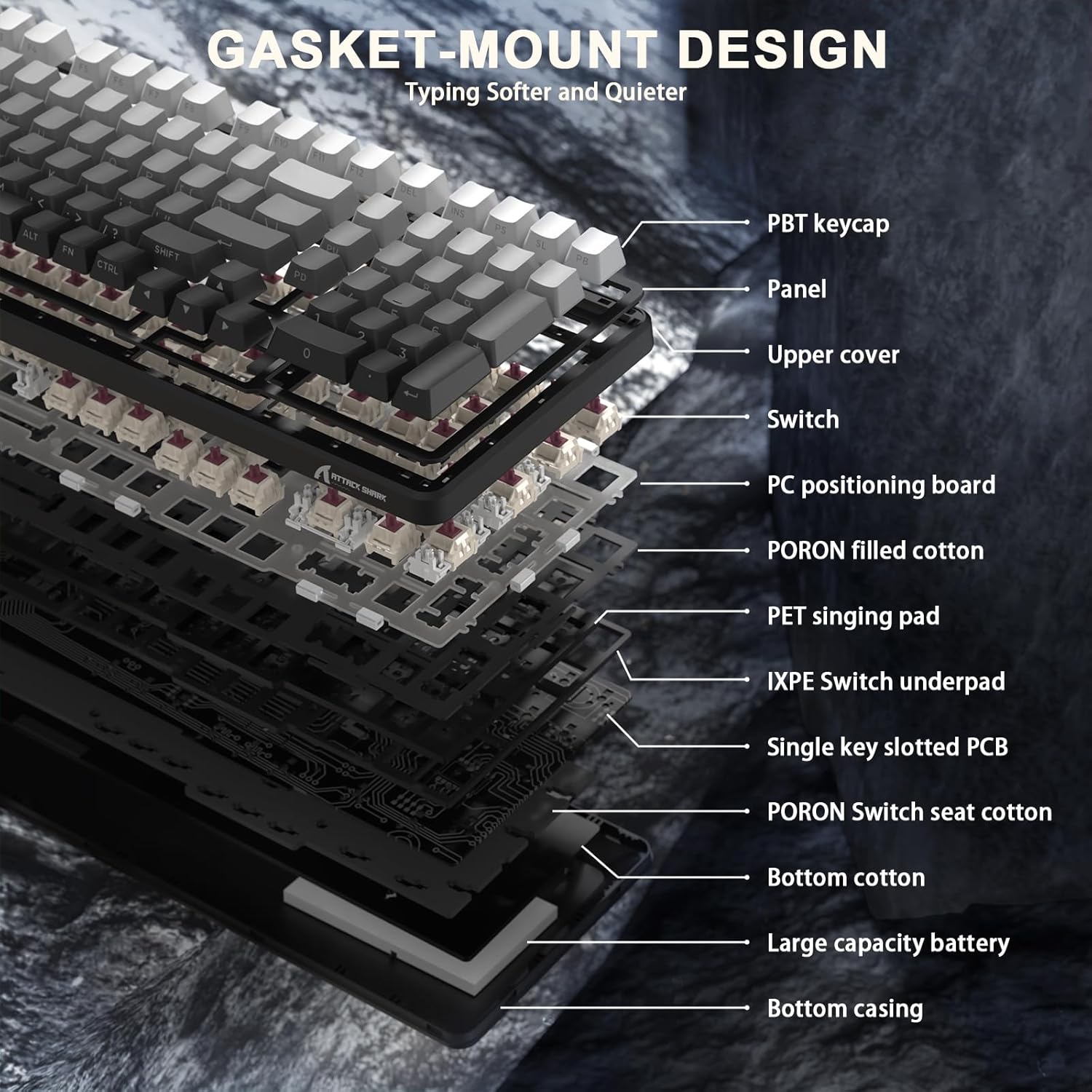
Figure 7: Gasket Mount Design Layers.
2.5 Commutateurs remplaçables à chaud
The keyboard is equipped with hot-swappable sockets, allowing you to easily change switches without soldering. This enables customization of your typing feel and sound. The pre-lubed Blueberry linear switches offer a creamy, tactile, yet quiet experience.

Figure 8 : Commutateurs remplaçables à chaud.
Video 2: X98PRO 98 Keys Mechanical Keyboard with TFT Display. This video highlights various features of the X98PRO keyboard, including its display and lighting effects.
Video 3: ATTACK SHARK X98PRO Wireless Keyboard. A short demonstration of the X98PRO's wireless capabilities and design.
3. Entretien
3.1 Nettoyage
- Utilisez un chiffon doux et sec pour essuyer la surface du clavier.
- Pour un nettoyage plus approfondi, utilisez l'extracteur de touches fourni pour retirer les touches et nettoyez en dessous avec de l'air comprimé ou une petite brosse.
- Évitez d’utiliser des produits chimiques agressifs ou des matériaux abrasifs.
3.2 Remplacement des touches et des interrupteurs
The X98 features durable PBT keycaps that resist shine and fading. If replacement is needed, use the provided keycap puller to gently remove keycaps. For switches, use the switch puller to carefully extract and insert new compatible 3/5-pin mechanical switches.
4. Dépannage
- Le clavier ne répond pas : Ensure the keyboard is charged and the correct connection mode (Wired, 2.4GHz, or Bluetooth) is selected. For 2.4GHz, verify the USB receiver is properly inserted. For Bluetooth, ensure it's paired correctly.
- Les lumières RGB ne fonctionnent pas : Check if the keyboard is powered on. Use Fn + \| and Fn + Enter to cycle through lighting effects and colors. Adjust brightness via software or keyboard shortcuts.
- Décalage ou déconnexion en mode sans fil : Ensure the keyboard is within range of the receiver/device. Minimize interference from other wireless devices.
- Clés non enregistrées : If specific keys are not working, try replacing the switch using the provided switch puller and spare switches.
5. Spécifications
| Fonctionnalité | Détail |
|---|---|
| Numéro de modèle | X98 |
| Dimensions du produit | 16 x 5.6 x 1.5 pouces |
| Poids de l'article | 2.7 livres |
| Technologie de connectivité | 2.4G Wireless, Bluetooth 5.0, USB-C |
| Description du clavier | Gaming/Office/Programming |
| Appareils compatibles | Console de jeux, ordinateur portable, PC, smartphone, tablette |
| Caractéristiques spéciales | Backlit, Customized Linear Blueberry Switch, Ergonomic, Hot-Swappable, Web Cloud Driver |
| Rétro-éclairage du clavier | RGB (16.8 millions de couleurs, 21 effets) |
| Keycaps | Touches PBT durables |
| Capacité de la batterie | 4000mAh |
6. Garantie et assistance
For warranty information and technical support, please refer to the product packaging or contact ATTACK SHARK customer service directly. Keep your purchase receipt for warranty claims.