1. Introduction
This manual provides comprehensive instructions for the DAREU EK87PROTKL Wireless Mechanical Gaming Keyboard and the DAREU A950 4K Polling Rate Wireless Gaming Mouse. Please read this manual carefully before using the products to ensure proper setup and operation. Keep this manual for future reference.
2. Keyboard Features Overview (EK87PROTKL)
- Gasket Mount & PCB Single Key Slotting: Features a gasket structure with a 1.2mm thick FR4 PCB and single key slotted design for enhanced resilience, stability, and a softer, more responsive feel. Six-layer padding reduces noise and provides a focused, crisp sound.
- Connexion tri-mode : Supports Bluetooth 5.1, 2.4GHz wireless, and USB-C wired connections. Connects to up to five devices simultaneously.
- Échangeable à chaud : Equipped with a hot-swappable PCB supporting almost all 3-pin or 5-pin mechanical switches on the market. Comes with pre-lubed Cloud linear switches.
- Éclairage RVB orienté au sud : Offers up to 26 backlight modes and 16.8 million colors. Brightness and speed are adjustable via the driver software.
- Longue durée de vie de la batterie : Features a 4000mAh battery, providing up to 45 days of playtime in lights-off mode.

Figure 2.1: Keyboard Gasket Structure Diagram. This image details the layered construction of the keyboard, highlighting components that contribute to its sound and feel.

Figure 2.2: Keyboard Tri-Mode Connection. This image illustrates the three available connection methods and how to switch between them using Fn key combinations.

Figure 2.3: Keyboard RGB Lighting Controls. This image shows various RGB lighting modes and the Fn key combinations for adjusting brightness and color.
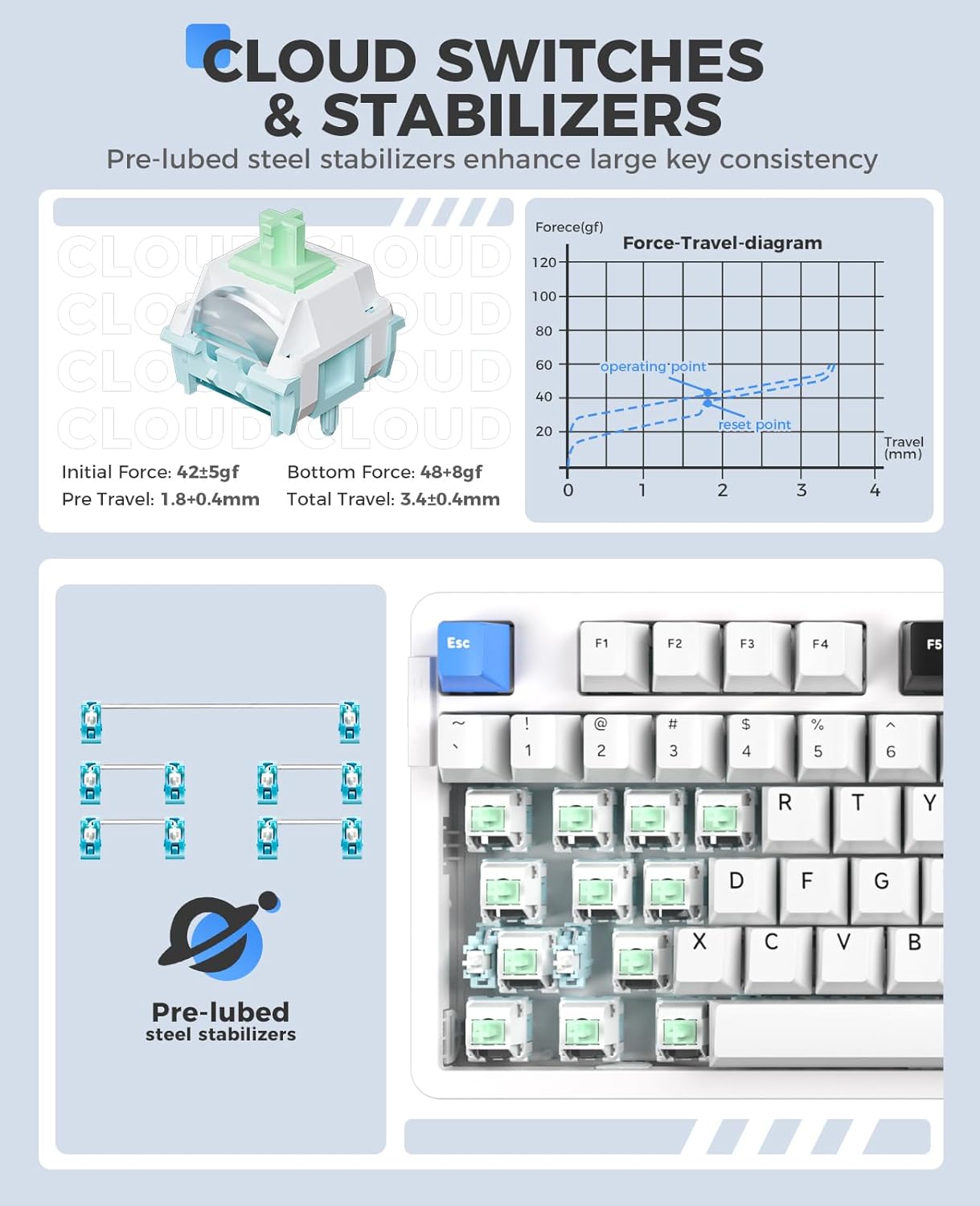
Figure 2.4: Cloud Switches and Stabilizers. This image details the characteristics of the pre-lubed Cloud linear switches and steel stabilizers.

Figure 2.5: Hot-Swappable PCB Socket. This image illustrates the hot-swappable design, allowing users to easily change switches.
3. Mouse Features Overview (A950)
- Taux de sondage 4K : Equipped with a 4KHz receiver, sending signals to the computer in 0.25ms, which is four times faster than standard gaming mice.
- Capteur optique PAW 3395 : Features a high-precision PAW 3395 sensor with up to 26000 DPI, 650 IPS tracking speed, and 50G acceleration for accurate tracking.
- Kailh Black GM8.0 Switches: Utilizes durable Kailh black GM8.0 mouse switches, rated for 80 million clicks.
- Tri-Mode Connection & Programmable: Supports multiple connection methods and offers programmable buttons via software.
- Conception légère : Weighs 54g for comfortable and agile use.
- Charge rapide : 300mAh battery with 30-minute fast charging to reach 90% power. Provides approximately 37 days of use in BT5.1 mode and 6 days in 2.4G mode (based on 4 hours of connection per day).

Figure 3.1: Mouse 4K Report Rate. This image shows the mouse and its 4K receiver, emphasizing the high report rate for responsiveness.

Figure 3.2: Mouse PAW3395 Optical Sensor. This image focuses on the mouse's sensor capabilities, including its high DPI and tracking speed.

Figure 3.3: Mouse Fast Charging Technology. This image provides details on the mouse's battery life and quick charging feature.
4. Instructions de configuration
4.1 Keyboard (EK87PROTKL)
- Connexion filaire : Connectez le clavier à votre ordinateur à l'aide du câble USB-C fourni. Le clavier sera automatiquement reconnu.
- Connexion sans fil 2.4 GHz :
- Repérez le récepteur USB 2.4 GHz.
- Branchez le récepteur sur un port USB disponible de votre ordinateur.
- Turn on the keyboard and switch it to 2.4GHz mode (refer to the keyboard's mode switch or Fn key combination). The keyboard should connect automatically.
- Connexion Bluetooth 5.1 :
- Ensure the keyboard is in Bluetooth mode (refer to the keyboard's mode switch or Fn key combination, typically Fn + 1/2/3).
- Sur votre ordinateur ou appareil, accédez aux paramètres Bluetooth et recherchez de nouveaux appareils.
- Select "DAREU EK87PROTKL" from the list of available devices to pair.
- The keyboard can store up to three Bluetooth connections. Switch between them using Fn + 1, Fn + 2, ou Fn + 3.
4.2 Mouse (A950)
- Connexion filaire : Connect the mouse to your computer using the provided USB-C cable. The mouse will function immediately.
- Connexion sans fil 2.4 GHz :
- Plug the 4K USB receiver into an available USB port on your computer.
- Turn on the mouse and switch it to 2.4GHz mode. The mouse should connect automatically.
- Connexion Bluetooth:
- Assurez-vous que la souris est en mode Bluetooth.
- Sur votre ordinateur ou appareil, accédez aux paramètres Bluetooth et recherchez de nouveaux appareils.
- Select "DAREU A950" from the list of available devices to pair.
- Chargement : Connect the mouse to a computer USB port using the USB-C cable for charging. The mouse supports fast charging.
5. Mode d'emploi
5.1 Keyboard (EK87PROTKL)
- Contrôle de l'éclairage RVB :
- Fn + Flèche haut : Augmenter la luminosité.
- Fn + Flèche bas : Diminuer la luminosité.
- Fn + { : Changez la couleur du rétroéclairage.
- Fn + } : Changer le mode de rétroéclairage.
- Changement de système d'exploitation : Utiliser Fn + 1 (pour Windows) ou Fn + 2 (for Mac) to switch between operating system layouts.
- Logiciel pilote : For advanced customization of RGB lighting, macros, and key assignments, download and install the official DAREU driver software from the DAREU website.
5.2 Mouse (A950)
- Ajustement PPP : The mouse typically has a dedicated DPI button or can be adjusted via software. Refer to the DAREU driver software for precise DPI settings.
- Boutons programmables : Utilize the DAREU driver software to customize button functions, create macros, and adjust other performance settings.
6. Entretien
6.1 Nettoyage général
- Débranchez le clavier et la souris de votre ordinateur avant de les nettoyer.
- Utilisez un chiffon doux et non pelucheux légèrement dampterminer par un rinçage à l'eau ou avec une solution nettoyante douce pour essuyer les surfaces.
- Pour le clavier, utilisez de l'air comprimé pour enlever la poussière et les débris entre les touches.
- Évitez d'utiliser des produits chimiques agressifs, des nettoyants abrasifs ou de vaporiser des liquides directement sur les appareils.
6.2 Keyboard Switch Replacement
- Assurez-vous que le clavier est débranché de l'alimentation.
- Utilisez un extracteur de touches pour retirer délicatement la touche souhaitée.
- Use a switch puller to gently grip and pull the switch vertically out of the PCB.
- Alignez les broches du nouvel interrupteur mécanique à 3 ou 5 broches avec les trous du circuit imprimé.
- Enfoncez fermement le nouvel interrupteur jusqu'à entendre un clic. Assurez-vous qu'il est bien en place et non tordu.
- Remplacez la touche.
7. Dépannage
7.1 Problèmes de clavier
| Problème | Solution possible |
|---|---|
| Clavier ne répond pas (filaire) | Check USB-C cable connection. Try a different USB port or cable. |
| Clavier non connecté (2.4 GHz) | Ensure the keyboard is in 2.4GHz mode. Re-insert the USB receiver. Try a different USB port. Ensure the keyboard battery is charged. |
| Le clavier ne se connecte pas (Bluetooth) | Ensure the keyboard is in Bluetooth pairing mode (Fn + 1/2/3). Forget the device on your computer and re-pair. Ensure the keyboard battery is charged. |
| L'éclairage RGB ne fonctionne pas/est incorrect | Adjust brightness/mode using Fn key combinations. Check settings in the DAREU driver software. Ensure the keyboard battery is charged. |
| Les clés ne sont pas enregistrées | Check if the switch is properly seated. If hot-swappable, try re-seating or replacing the switch. |
7.2 Mouse Issues
| Problème | Solution possible |
|---|---|
| Souris ne répondant pas (filaire) | Check USB-C cable connection. Try a different USB port or cable. |
| Mouse not connecting (2.4GHz) | Ensure the mouse is in 2.4GHz mode. Re-insert the 4K USB receiver. Try a different USB port. Ensure the mouse battery is charged. |
| La souris ne se connecte pas (Bluetooth) | Ensure the mouse is in Bluetooth pairing mode. Forget the device on your computer and re-pair. Ensure the mouse battery is charged. |
| Le curseur de la souris est instable ou immobile. | Clean the optical sensor. Ensure the mouse pad or surface is clean and suitable. Check DPI settings. |
| Souris ne chargeant pas | Ensure the USB-C cable is properly connected. Try a different USB port or charging cable. Use a computer USB port for charging, not a wall adapter. |
8. Spécifications
8.1 DAREU EK87PROTKL Keyboard
- Structure: Gasket Mount, PCB Single Key Slotting
- PCB: FR4 material, 1.2mm thick, hot-swappable (3/5 pin switches)
- Interrupteurs : Pre-lubed Cloud Linear Switch
- Stabilisateurs : Pre-lubed Steel Stabilizers
- Connexion: Bluetooth 5.1 / 2.4GHz Wireless / USB-C Wired (Tri-Mode)
- Batterie: 4000mAh
- Éclairage: South-Facing RGB, 26 modes, 16.8 million colors
- Touches: 87 keys, N-key rollover (all keys conflict-free)
8.2 DAREU A950 Mouse
- Capteur: Capteur optique PAW 3395
- Taux de sondage : 4 kHz (avec récepteur 4 kHz)
- DPI: Jusqu'à 26000 DPI
- Vitesse de suivi : 650 IPS
- Accélération: 50 G
- Interrupteurs : Kailh Black GM8.0 (80 million clicks)
- Poids: 54g
- Connexion: Bluetooth / 2.4GHz Wireless / USB-C Wired (Tri-Mode)
- Batterie: 300mAh, 30-minute fast charging (90% power)
9. Garantie et assistance
DAREU products come with a standard manufacturer's warranty. For specific warranty terms and conditions, please refer to the warranty card included with your product or visit the official DAREU website. For technical support, troubleshooting assistance, or driver downloads, please visit the DAREU official support page or contact DAREU customer service.
Official DAREU Website: www.dareu.com


