1. Introduction
Thank you for choosing the EvoFox Deathray V2 Gaming Keyboard and Mouse Combo. This manual will guide you through the setup, operation, and maintenance of your new gaming peripherals. Designed for precision and comfort, this combo enhances your gaming and productivity experience.

Image: The EvoFox Deathray V2 Gaming Keyboard and Mouse Combo, showcasing both devices connected via their braided cables.
2. Contenu du colis
- EvoFox Deathray V2 Gaming Keyboard
- EvoFox Deathray V2 Gaming Mouse
- Manuel de l'utilisateur (ce document)
3. Instructions de configuration
- Connectez le clavier : Plug the USB connector of the EvoFox Deathray V2 Keyboard into an available USB port on your computer.
- Connecter la souris : Plug the USB connector of the EvoFox Deathray V2 Mouse into another available USB port on your computer.
- Installation du pilote : Votre système d'exploitation devrait détecter et installer automatiquement les pilotes nécessaires. Aucune installation de logiciel supplémentaire n'est généralement requise pour les fonctionnalités de base.
- Placement: Place the keyboard and mouse on a flat, stable surface for optimal performance.
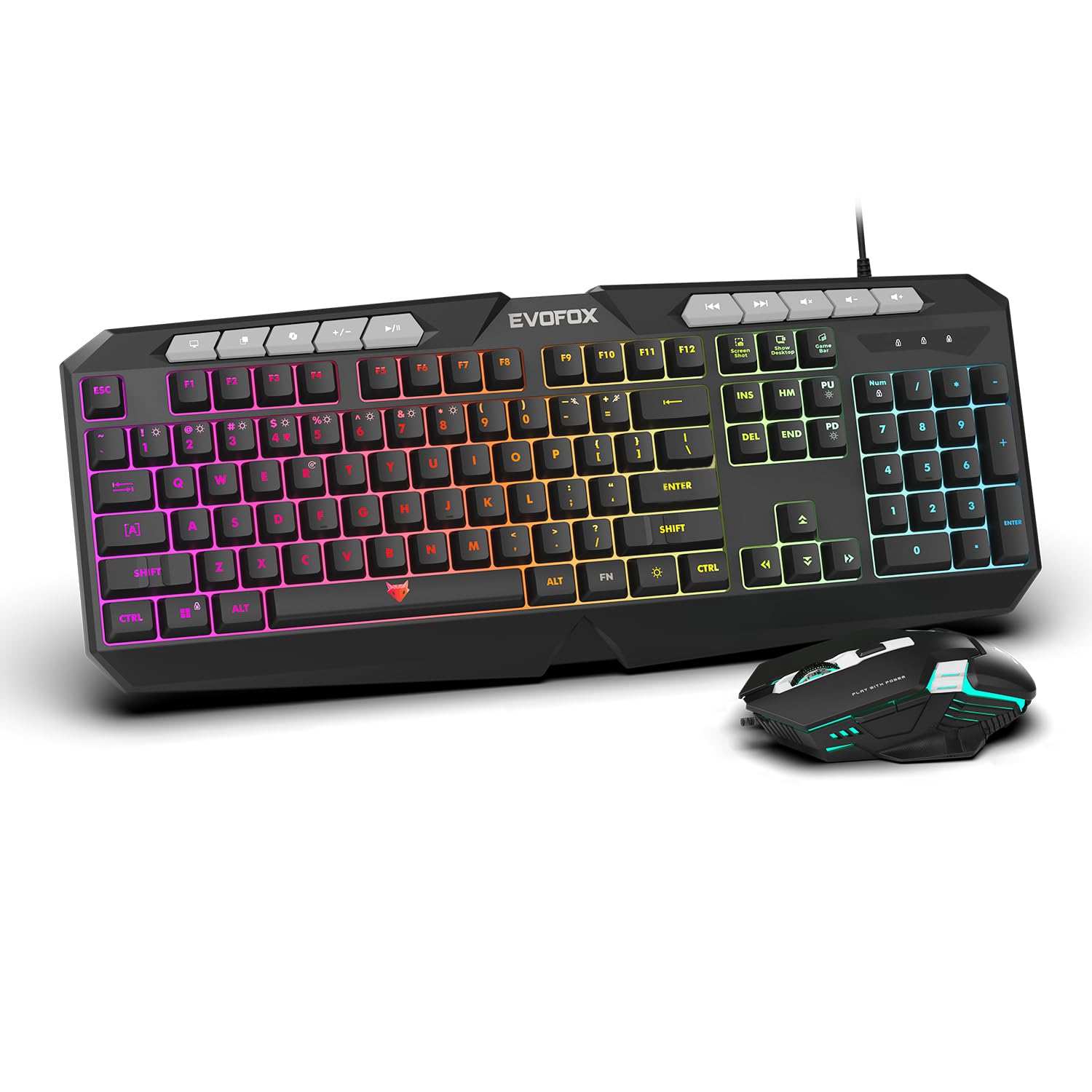
Image : Un gros plan view of the EvoFox Deathray V2 Keyboard and Mouse, illustrating their wired connection readiness.
4. Utilisation du clavier
4.1. Fonctions de base
The EvoFox Deathray V2 Keyboard features a full-size layout with standard QWERTY keys, a numeric keypad, and function keys (F1-F12).
4.2. Touches multimédias
Dedicated multimedia keys are located above the function keys for quick access to media controls:
- Augmenter/Diminuer le volume/Couper le son : Contrôler les niveaux audio.
- Play/Pause, Previous/Next Track: Gérer la lecture multimédia.
4.3. Touches de fonction spéciales
The keyboard includes special shortcut keys for enhanced productivity and gaming:
- Capture d'écran : Capture une capture d'écran de votre écran.
- Montrer bureau: Minimizes all open windows to show the desktop.
- Xbox Game Bar: Opens the Xbox Game Bar for gaming features.
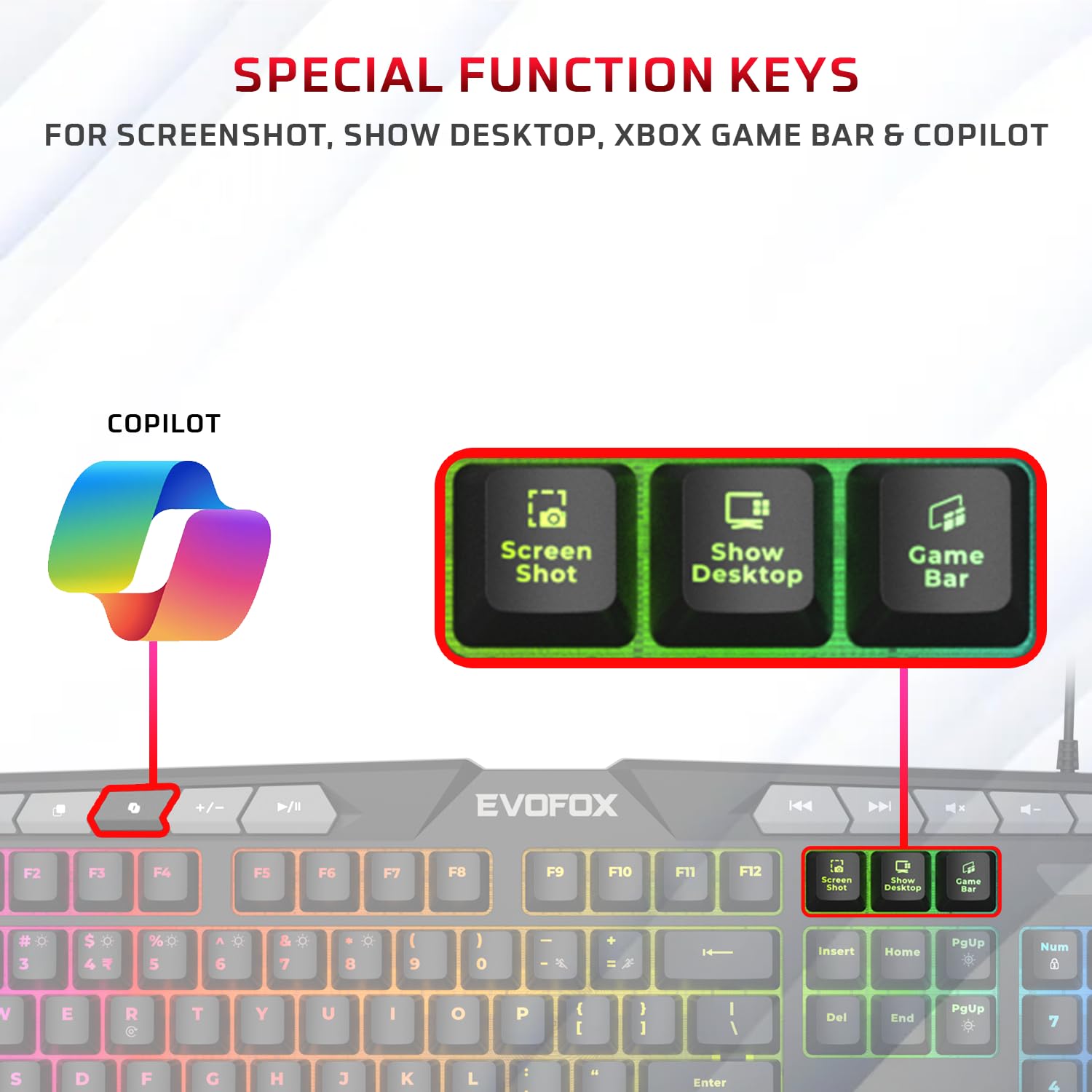
Image : Une image détaillée view of the EvoFox Deathray V2 Keyboard highlighting the dedicated Screenshot, Show Desktop, and Game Bar keys.
4.4. Touches anti-ghosting
The keyboard features 19 anti-ghosting keys, ensuring that multiple simultaneous key presses are registered accurately, which is crucial for gaming.

Image: The EvoFox Deathray V2 Keyboard, visually indicating the 19 anti-ghosting key zones for precise input.
5. Utilisation de la souris
5.1. Boutons et fonctions
The EvoFox Deathray V2 Mouse features 6 buttons for versatile control:
- Clic gauche
- Clic droit
- Molette de défilement (cliquable)
- Bouton de réglage PPP
- Bouton Suivant
- Bouton de retour en arrière
5.2. Réglage DPI
The mouse offers adjustable DPI (Dots Per Inch) settings to change cursor sensitivity. Press the DPI button located behind the scroll wheel to cycle through the available DPI levels:
- 1200 DPI
- 1800 DPI
- 2400 DPI
- 3600 DPI
Each DPI level may be indicated by a specific LED light pattern or color change on the mouse.

Image: The EvoFox Deathray V2 Mouse, illustrating its ergonomic design and the DPI adjustment button.

Image: A close-up of the EvoFox Deathray V2 Mouse, highlighting its 6-button design, rugged braided cable, and magnetic ring for data transmission.
6. Lighting Customization
6.1. Keyboard RGB Backlighting
The EvoFox Deathray V2 Keyboard features 6-zone RGB backlighting with multiple lighting modes. Use the dedicated lighting control keys (often marked with a light bulb icon or specific function key combinations) to cycle through different effects and adjust brightness.
- 8 modes d'éclairage: Cycle through various preset lighting effects.
- Éclairage personnalisé : Some modes may allow for custom color assignments or patterns.

Image: The EvoFox Deathray V2 Keyboard displaying its vibrant 6-zone customizable RGB backlighting.
6.2. Mouse LED Lighting
The EvoFox Deathray V2 Mouse features 7-color LED lighting, often with a breathing effect, which changes automatically. There are typically no user-adjustable settings for the mouse lighting beyond its default cycling pattern.

Image: The EvoFox Deathray V2 Mouse illuminated with its 7-color rainbow LED lighting, featuring a breathing effect.
7. Entretien
Proper maintenance ensures the longevity and optimal performance of your EvoFox Deathray V2 combo.
- Nettoyage: Utilisez un chiffon doux et sec pour essuyer le clavier et la souris. Pour les saletés tenaces, un chiffon légèrement plus sec peut être utile.amp cloth can be used, ensuring no liquid enters the devices. Avoid harsh chemicals or abrasive materials.
- Élimination de la poussière : Utilisez de l'air comprimé pour enlever la poussière et les débris entre les touches du clavier et autour du capteur de la souris.
- Entretien des câbles : Évitez les coudes brusques ou les tractions excessives sur les câbles tressés afin de prévenir tout dommage.
- Stockage: Lorsqu'ils ne sont pas utilisés pendant une période prolongée, rangez les appareils dans un endroit propre et sec, à l'abri de la lumière directe du soleil et des températures extrêmes.

Image: A close-up of the EvoFox Deathray V2 Keyboard, highlighting its durable design with a 1.8m braided cable and soft membrane keys.
8. Dépannage
| Problème | Cause possible | Solution |
|---|---|---|
| Clavier/souris ne répond pas | Connexion USB défectueuse, port USB défectueux, problème de pilote. |
|
| Clés non reconnues ou fantômes | Software conflict, physical obstruction, hardware issue. |
|
| Le curseur de la souris est instable ou immobile. | Dirty sensor, unsuitable surface, faulty sensor. |
|
| L'éclairage RVB ne fonctionne pas | Lighting mode off, brightness too low, software issue. |
|
9. Spécifications
| Fonctionnalité | Détail |
|---|---|
| Modèle de produit | V2 - 2 in 1 |
| Connectivité | USB filaire |
| Type de clavier | Membrane, taille réelle |
| Rétro-éclairage du clavier | 6-Zone RGB with 8 modes |
| Anti-ghosting | 19 touches |
| Boutons de la souris | 6 Buttons (Left, Right, Scroll Click, DPI, Forward, Backward) |
| Paramètres PPP de la souris | 1200 / 1800 / 2400 / 3600 DPI |
| Éclairage de la souris | 7-Color LED Lighting (Breathing Effect) |
| Type de câble | Braided Cable (1.8m for keyboard) |
| Interrupteurs de souris | Huano switches, rated for 10 million clicks |
| Dimensions du produit (clavier) | 50 x 18 x 4 cm |
| Poids de l'article | 800 g |
| Pays d'origine | Chine |
10. Garantie et assistance
EvoFox products are designed for durability and performance. For warranty information, technical support, or service inquiries, please refer to the official EvoFox webconsultez le site ou contactez directement leur service client.
Fabricant: Allied Electronics & Magnetics Private Limited
Adresse: C-64/4, Okhla Phase - 2, New Delhi - 110020, India
Veuillez conserver votre preuve d'achat pour les réclamations au titre de la garantie.
11. Consignes de sécurité
- Do not expose the devices to liquid or excessive moisture.
- Évitez les températures extrêmes.
- N’essayez pas de démonter ou de réparer vous-même les appareils. Cela annulera la garantie.
- Tenir hors de portée des enfants.


