1. Introduction
Thank you for choosing the EvoFox Deathray v2 Pro Gaming Keyboard. This manual provides detailed instructions for setting up, operating, and maintaining your new gaming keyboard. Please read this manual carefully to ensure optimal performance and longevity of your device.
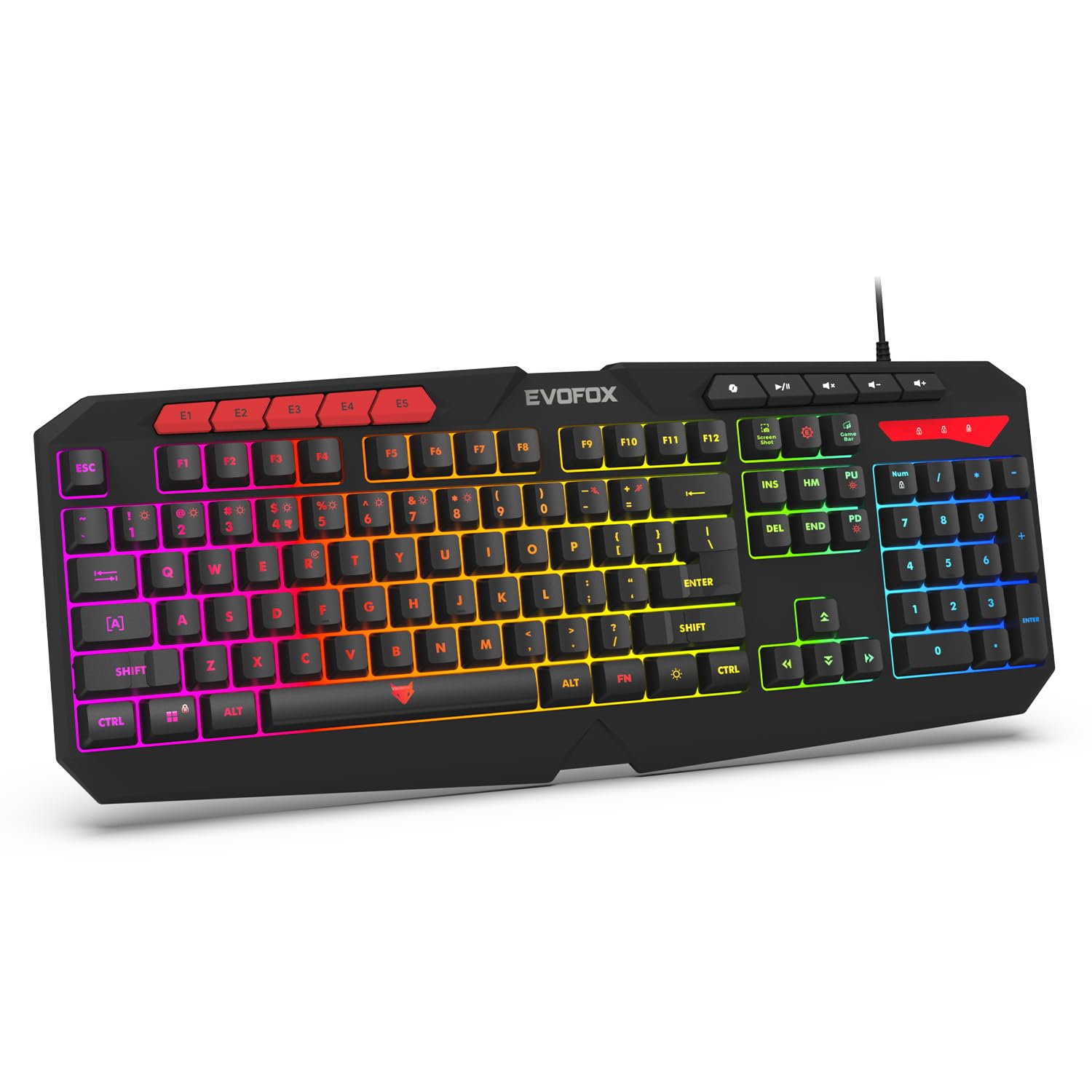
Image 1.1: EvoFox Deathray v2 Pro Gaming Keyboard overview.
2. Contenu du colis
- EvoFox Deathray v2 Pro Gaming Keyboard
- Manuel d'utilisation
3. Instructions de configuration
3.1 Connexion du clavier
- Unpack the EvoFox Deathray v2 Pro Gaming Keyboard from its packaging.
- Repérez un port USB disponible sur votre ordinateur (PC ou portable).
- Branchez le connecteur USB du clavier dans le port USB.
- The keyboard will automatically install the necessary drivers. This process may take a few moments.
- Once installed, the RGB backlighting will illuminate, indicating the keyboard is ready for use.
The keyboard features a durable 1.8m braided cable for reliable connectivity.

Image 3.1: Keyboard with durable braided cable and soft membrane keys.
4. Mode d'emploi
Personnalisation du rétroéclairage RVB 4.1
The EvoFox Deathray v2 Pro features 6-zone customizable RGB backlighting with 8 dynamic lighting modes. You can personalize your gaming setup for an immersive experience.
- Changement de modes d'éclairage : Use the dedicated lighting control keys (often indicated by a sun or lightbulb icon, or through a combination with the Fn key) to cycle through the 8 available dynamic lighting modes.
- Éclairage personnalisé : Refer to the keyboard's software (if available, check the official EvoFox website) for advanced custom lighting profiles and per-key RGB customization.

Image 4.1 : Présentation du clavierasing 6-zone RGB backlighting with 7 lighting presets and 1 custom lighting option.

Image 4.2: Comparison illustrating the difference between RGB lighting with full color customization per zone and standard rainbow lighting with fixed color zones.
4.2 touches macro programmables
The keyboard includes 5 programmable macro keys (E1-E5) to streamline your gameplay with customizable macros for lightning-fast responses. These keys allow you to record and assign complex sequences of commands to a single key press.
- Enregistrement macro : Typically, macro recording is initiated by a dedicated macro recording key (often labeled 'MR' or similar, or accessed via Fn key combination). Follow the on-screen prompts or software instructions to record your desired key sequence.
- Attribution de macros : Once recorded, assign the macro to one of the programmable macro keys (E1-E5) using the keyboard's software.

Image 4.3: Highlight of the 5 programmable macro keys (E1-E5) for executing complex commands.
4.3 Touches de fonction spéciales
Access essential tools quickly with dedicated shortcuts for Screenshot, Macro Recording, and Xbox Game Bar. These functions are typically accessed via specific keys or Fn key combinations.
- Légende de la capture d'écran : Capture une capture d'écran de votre écran.
- Macro Recording Key: Initiates macro recording.
- Xbox Game Bar Key: Opens the Xbox Game Bar interface for gaming features.
- Clé du copilote : Activates the Copilot feature (if supported by your operating system).

Image 4.4: Illustration of special function keys for Screenshot, Macro Recording, Xbox Game Bar, and Copilot.
4.4 Touches anti-ghosting
The keyboard features 19 anti-ghosting keys, ensuring flawless input during high-stakes moments. This technology allows multiple key presses to be registered simultaneously and accurately, preventing missed commands.

Image 4.5: Keyboard layout highlighting the 19 anti-ghosting keys for precise, uninterrupted gameplay.
4.5 Ergonomic Full-Size Layout
Designed for comfort during extended gaming sessions, the keyboard features an ergonomic full-size layout with soft and silent membrane keys. This design aims to provide precision without sacrificing ease of use.
5. Entretien
5.1 Nettoyage du clavier
- Débranchez le clavier de votre ordinateur avant de le nettoyer.
- Utilisez un chiffon doux et non pelucheux légèrement dampTerminer par un rinçage à l'eau ou avec une solution nettoyante douce pour essuyer la surface du clavier.
- Pour la poussière et les débris entre les touches, utilisez de l'air comprimé.
- Avoid using harsh chemicals, abrasive cleaners, or solvents, as these can damage the keyboard's finish and key legends.
- Assurez-vous que le clavier soit parfaitement sec avant de le reconnecter à votre ordinateur.
6. Dépannage
6.1 Clavier ne répondant pas
- Vérifiez la connexion USB : Vérifiez que le câble USB est bien branché à un port USB fonctionnel de votre ordinateur. Essayez un autre port USB.
- Redémarrer l'ordinateur: Parfois, un simple redémarrage suffit à résoudre les problèmes de connectivité.
- Réinstallation du pilote : If the issue persists, try uninstalling the keyboard drivers from your computer's Device Manager and then reconnecting the keyboard to allow for automatic reinstallation.
6.2 RGB Backlighting Not Working
- Vérifiez les paramètres de luminosité : Ensure the brightness level is not set to minimum or off. Use the dedicated lighting control keys to adjust brightness.
- Modes de cycle : Cycle through different RGB modes to see if any mode activates.
- Vérification du logiciel : Si vous utilisez une version personnaliséefiles, ensure the keyboard software is running and configured correctly.
6.3 Macro Keys Not Functioning
- Configuration du logiciel: Verify that macros are correctly recorded and assigned to the desired keys within the keyboard's software.
- Logiciel en cours d'exécution : Ensure the keyboard's macro software (if applicable) is running in the background.
7. Spécifications
| Fonctionnalité | Spécification |
|---|---|
| Marque | EvoFox |
| Modèle | 498 |
| Dimensions du produit | 44.7 x 17.2 x 2.6 cm |
| Poids de l'article | 565 g |
| Plateforme matérielle | Fenêtres |
| Appareils compatibles | Ordinateur portable, PC |
| Caractéristiques spéciales | Compact Design, Silent Membrane Keyboard, True Prims RGB |
| Description du clavier | Jeux |
| Type de connecteur | USB |
| Matériel | Plastique ABS |
| Pays d'origine | Chine |
8. Garantie et assistance
8.1 Informations sur la garantie
The EvoFox Deathray v2 Pro Gaming Keyboard typically comes with a Garantie limitée de 1 ans À compter de la date d'achat, cette garantie couvre les défauts de fabrication et assure le bon fonctionnement du produit dans des conditions normales d'utilisation. Veuillez conserver votre preuve d'achat pour toute réclamation au titre de la garantie.
8.2 Assistance clientèle
For technical assistance, warranty claims, or any product-related inquiries, please contact EvoFox customer support through their official website or the contact information provided with your product packaging. You may also refer to the Amkette helpline mentioned in some product documentation.


