1. Introduction
This manual provides essential information for the safe and efficient operation of your Next YE-65GFSG8-QLED 65-inch UHD 4K Google QLED TV. Please read this manual thoroughly before using the television and retain it for future reference. Your new television combines QLED display technology with the Google TV operating system, offering a high-quality viewing experience and smart features.
2. Informations importantes sur la sécurité
Always follow these basic safety precautions when operating your television:
- Source d'alimentation : Assurez-vous que le téléviseur est branché sur une alimentation électrique dont le volume est inférieur ou égal à celui spécifié.tage gamme.
- Ventilation: Ne bloquez pas les ouvertures de ventilation. Laissez suffisamment d'espace autour du téléviseur pour une bonne circulation de l'air.
- Eau et humidité : N’exposez pas le téléviseur à la pluie ou à l’humidité. Ne placez pas d’objets remplis de liquide, comme des vases, sur le téléviseur.
- Nettoyage: Débranchez le téléviseur avant de le nettoyer. Utilisez un chiffon doux et sec. N’utilisez pas de nettoyants liquides ni d’aérosols.
- Placement: Placez le téléviseur sur une surface stable et plane. Évitez de l'exposer directement au soleil ou à proximité de sources de chaleur.
- Foudre: During lightning storms or when unused for long periods, unplug the TV from the power outlet and disconnect the antenna.
- Entretien: N'essayez pas de réparer vous-même ce produit. Confiez tous les travaux d'entretien à du personnel de service qualifié.
3. Contenu du colis
Verify that all items are present in your TV package:
- Next YE-65GFSG8-QLED 65-inch UHD 4K Google QLED TV
- Télécommande
- Câble d'alimentation
- Support TV (2 pièces) et vis
- Manuel de l'utilisateur (ce document)
- Guide de démarrage rapide
4. Installation
4.1 Installation physique
You can install your TV on a stand or mount it on a wall. Ensure the TV is placed on a stable surface or securely mounted.

Image: TV Dimensions. This image illustrates the physical dimensions of the 65-inch television, including its width, height, and diagonal screen size of 164 cm (65 inches).
Installation du support :
- Placez délicatement le téléviseur face contre une surface douce et plane afin d'éviter d'endommager l'écran.
- Attach the two stand pieces to the designated slots on the bottom of the TV.
- Fixez les supports avec les vis fournies.
- Soulevez délicatement le téléviseur et placez-le en position verticale sur une surface stable.
Montage mural :
For wall mounting, use a VESA-compatible wall mount kit (sold separately) that matches the TV's VESA pattern. Follow the instructions provided with your wall mount kit. It is recommended to have professional assistance for wall mounting.
4.2 Connexion de périphériques
Connect your external devices to the appropriate ports on the back of your TV.
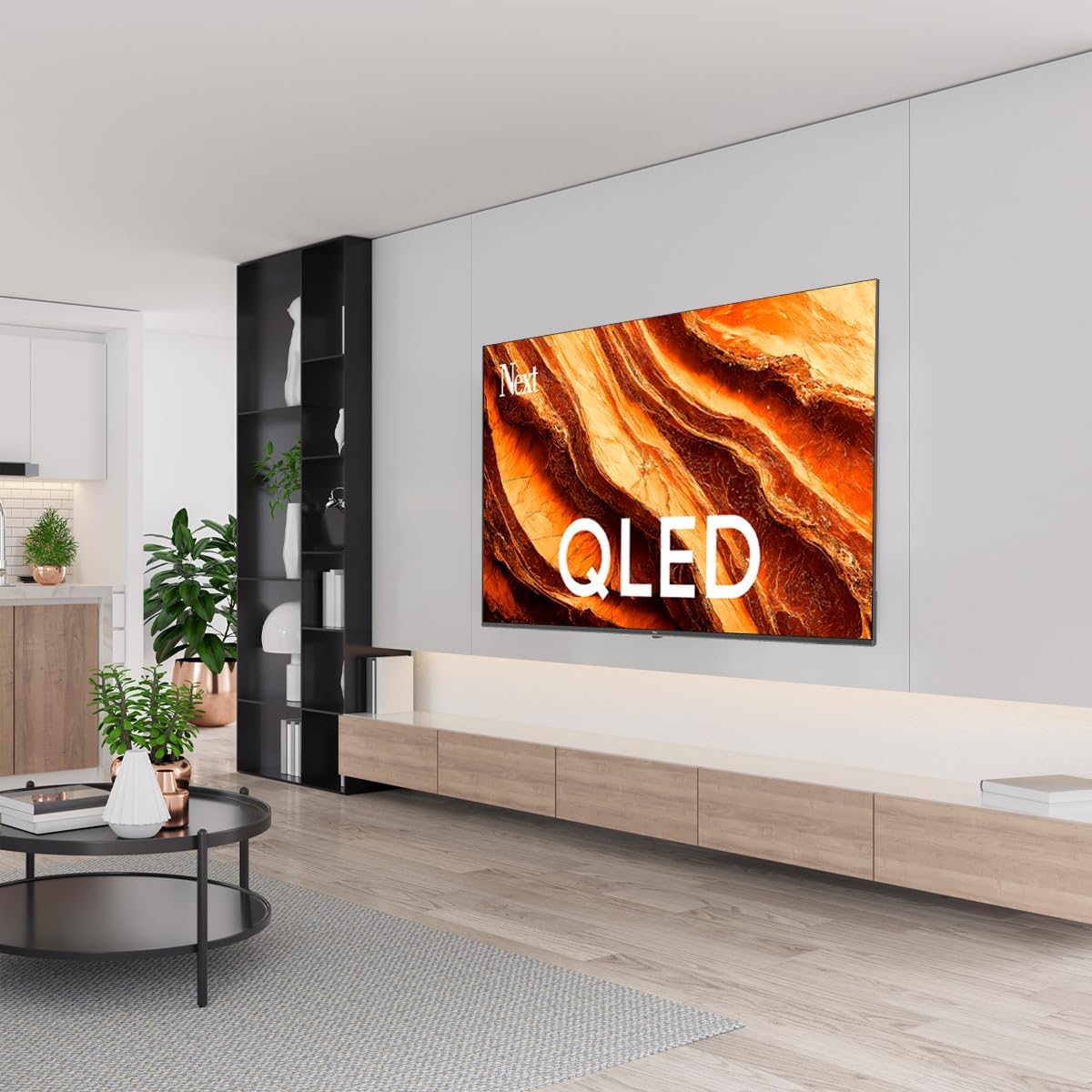
Image: Rear Panel Connections. This image displays the various input and output ports located on the back of the television, including HDMI, USB, DVB-S, DVB-T, CI Module, Mini AV-IN, Optical Out, and Ethernet.
- HDMI (ARC) : Connect Blu-ray players, game consoles, or other HDMI devices. HDMI 1 supports Audio Return Channel (ARC).
- USB (2x) : Connectez des périphériques de stockage USB pour la lecture multimédia.
- DVB-S / DVB-T: Connect satellite (DVB-S) or terrestrial (DVB-T) antenna cables.
- CI Module: Insert a Common Interface (CI) module for encrypted digital channels.
- Mini entrée AV : Connect older devices using an AV adapter cable.
- Sortie optique : Connectez-vous à un système audio externe pour la sortie audio numérique.
- Ethernet : Branchez un câble Ethernet pour une connexion Internet filaire.
- Pouvoir: Branchez le câble d'alimentation au téléviseur, puis à une prise murale.
4.3 Mise sous tension initiale et configuration initiale
- After connecting all cables, plug the power cord into an electrical outlet.
- Appuyez sur le bouton marche/arrêt de la télécommande ou du téléviseur.
- The TV will guide you through the initial setup process, which includes:
- Sélection de la langue
- Connexion au Wi-Fi ou Ethernet
- Signing in with your Google Account (required for Google TV features)
- Acceptation des conditions générales
- Channel scanning (for DVB-S/T)
- Suivez les instructions à l’écran pour terminer la configuration.
5. Utilisation de votre téléviseur
5.1 Fonctions de la télécommande
The remote control allows you to navigate the TV's features. Familiarize yourself with its buttons:
- Pouvoir: Allume ou éteint le téléviseur.
- Assistant Google : Active les commandes vocales.
- Pavé de navigation (Haut/Bas/Gauche/Droite/OK) : Permet de naviguer dans les menus et de sélectionner les options.
- Dos: Revient à l'écran précédent.
- Maison: Permet d'accéder à l'écran d'accueil de Google TV.
- Volume +/- : Règle le niveau de volume.
- Canal +/- : Change de chaîne de télévision.
- Saisir: Sélectionne les sources d'entrée (HDMI, AV, etc.).
- Boutons de l'application : Accès direct aux applications de streaming populaires.
5.2 Navigating Google TV Interface
Google TV organizes your entertainment with a personalized home screen. Content from your apps is brought together and organized for easy discovery.

Image: Google TV Interface. This image shows the main Google TV home screen with various streaming app icons and content recommendations, demonstrating the user interface.
- Écran d'accueil : Affiche des recommandations personnalisées, les applications installées et un accès rapide au contenu.
- Onglet Pour vous : Provides tailored content suggestions based on your viewhabitudes de vie.
- Onglet Live : Accesses live TV channels from integrated services.
- Onglet Applications : Shows all installed applications. You can download more from the Google Play Store.
- Onglet Bibliothèque : Accesses your purchased or rented content from Google Play.
5.3 Paramètres d'image et de son
Pour régler les paramètres d'image et de son :
- Appuyez sur le Paramètres button (usually a gear icon) on your remote.
- Accéder à Affichage et son.
- Paramètres d'image : Adjust brightness, contrast, color, sharpness, and select picture modes (e.g., Standard, Vivid, Movie, Game). Your QLED TV offers enhanced color saturation.
- Paramètres sonores : Adjust bass, treble, balance, and select sound modes (e.g., Standard, Music, Movie, Speech).

Image: QLED Color Saturation. This image visually demonstrates the high color saturation achieved with QLED technology, showing a vibrant and rich color display.

Image: HDR (High Dynamic Range). This image illustrates the visual impact of HDR, showcasing improved contrast and color detail in a scene when HDR is enabled versus when it is off.
5.4 Paramètres réseau
To connect your TV to the internet:
- Appuyez sur le Paramètres bouton de votre télécommande.
- Accéder à Réseau et Internet.
- Sélectionner Wifi to connect to a wireless network or ensure Ethernet is connected for a wired connection.
- For Wi-Fi, select your network from the list and enter the password.
6. Entretien
6.1 Nettoyage du téléviseur
- Débranchez toujours le téléviseur avant de le nettoyer.
- Utilisez un chiffon doux, sec et non pelucheux pour essuyer délicatement l'écran et le boîtier du téléviseur.
- Pour les marques tenaces, frottez légèrementampen the cloth with water or a specialized screen cleaner (ensure it's safe for TV screens). Never spray cleaner directly onto the screen.
- Évitez d’utiliser des nettoyants abrasifs, des cires ou des solvants.
6.2 Mises à jour logicielles
Your TV may receive software updates to improve performance and add new features. It is recommended to keep your TV's software updated.
- Assurez-vous que votre téléviseur est connecté à Internet.
- Appuyez sur le Paramètres bouton de votre télécommande.
- Accéder à Système > À propos > Mise à jour du système.
- Sélectionner Vérifier les mises à jour.
- Suivez les instructions à l'écran pour télécharger et installer les mises à jour disponibles.
7. Dépannage
Si vous rencontrez des problèmes avec votre téléviseur, consultez les problèmes courants et leurs solutions ci-dessous :
| Problème | Cause/solution possible |
|---|---|
| Pas de courant | Vérifiez que le cordon d'alimentation est bien branché au téléviseur et à la prise murale. Assurez-vous que la prise fonctionne. |
| Pas d'image, mais le son est présent. | Vérifiez la source d'entrée. Assurez-vous que l'appareil connecté est allumé et fonctionne correctement. |
| Pas de son, mais l'image est présente. | Check the volume level and mute status. Verify audio cable connections for external devices. Check TV sound settings. |
| La télécommande ne fonctionne pas | Remplacez les piles. Assurez-vous qu'il n'y a aucun obstacle entre la télécommande et le capteur infrarouge du téléviseur. |
| Impossible de se connecter au Wi-Fi | Ensure your Wi-Fi router is on and within range. Re-enter the Wi-Fi password carefully. Try restarting the TV and router. |
| Les applications sont lentes ou se bloquent. | Close unused apps. Clear app cache (Settings > Apps > See all apps > [App Name] > Clear cache). Ensure a stable internet connection. |
Si le problème persiste après avoir essayé ces solutions, veuillez contacter le support client.
8. Spécifications
Technical specifications for the Next YE-65GFSG8-QLED 65-inch UHD 4K Google QLED TV:
- Marque: Suivant
- Année modèle : 2025
- Résolution: 4K (3840x2160)
- Technologie d'affichage : QLED
- Taille de l'écran : 65 pouces (165 cm)
- Rapport hauteur/largeur : 16:9
- Taux de rafraîchissement : 60 Hz
- Caractéristiques principales : Conception sans cadre
- Connectivité : Bluetooth, Ethernet, HDMI (ARC), USB (2x), Wi-Fi
- Dimensions du produit : 27.8 P x 144.6 L x 88.9 H cm
- Poids: 16.3 kilogrammes
- Système opérateur: Google TV
- Composants inclus : Télécommande
- Pays d'origine : Turquie
9. Garantie et assistance
Your Next YE-65GFSG8-QLED TV comes with a manufacturer's warranty. Please refer to the warranty card included in your package for specific terms and conditions, including the warranty period and coverage details.
For technical support, service requests, or further assistance, please contact Next customer service. Contact information can typically be found on the manufacturer's websur le site ou dans la documentation de garantie.
- Support en ligne: Visit the official Next website for FAQs, troubleshooting guides, and support contact details.
- Centres de services : For hardware issues, locate an authorized service center near you.


