1. Introduction
This manual provides comprehensive instructions for the installation, operation, maintenance, and troubleshooting of your NIVIAN Professional WiFi SuperHD Surveillance Camera Kit. This system is designed to provide reliable and efficient security monitoring for your home or business.
Please read this manual carefully before using the product to ensure proper setup and optimal performance. Keep this manual for future reference.
2. Produit terminéview
The NIVIAN CCTV Kit is a professional 2K SuperHD WiFi surveillance system featuring 6 IP cameras and a 10-channel Network Video Recorder (NVR) with a pre-installed 1TB hard drive. Key features include:
- 2K SuperHD Image Resolution: Fournit des vidéos claires et détailléestage (3MP).
- Détection humaine par IA : Intelligent motion detection to reduce false alarms.
- Audio bidirectionnel: Microphone et haut-parleur intégrés pour une communication en temps réel.
- Double vision nocturne : Infrared mode for discreet monitoring and white LED mode for full-color night vision activated by motion.
- WiFi-6 Long Range Connectivity: Stable wireless connection up to 250 meters with repeater function.
- Caméras résistantes aux intempéries IP66 : métal durable casing suitable for outdoor use.
- Enregistrement professionnel : Continuous or event-based recording to the included 1TB hard drive.
- Sortie HDMI : Connect to a monitor or TV for live viewing.
- Application EseeCloud : Remote access and control from mobile devices.
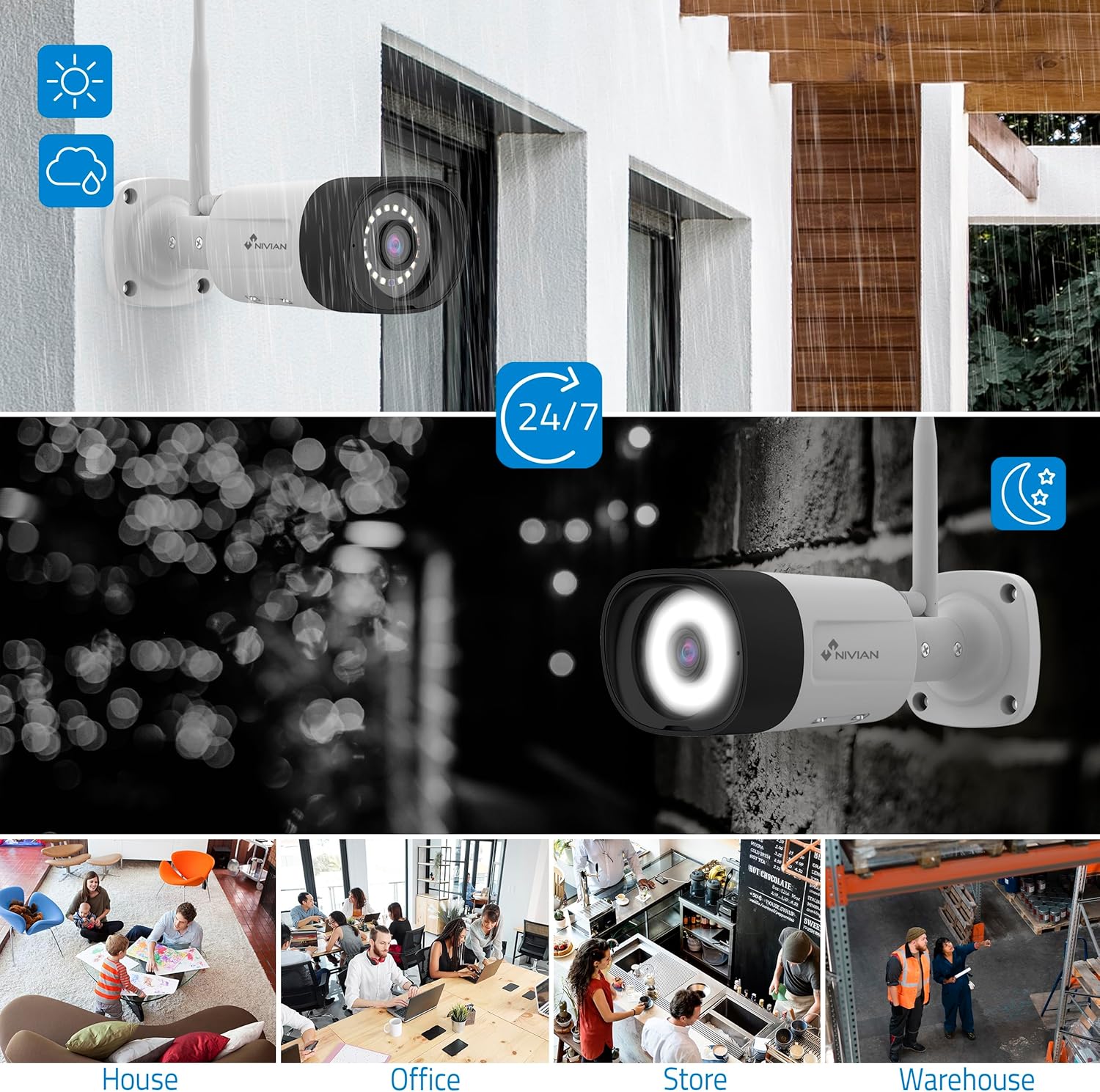
Image: NIVIAN CCTV Camera with day and night vision capabilities, showing weatherproof design and application in various environments like house, office, store, and warehouse.

Image: Comparison of 1080p Full HD video quality versus 2K Super HD video quality, demonstrating enhanced detail with 2K resolution.
3. Contenu du colis
Vérifiez que tous les éléments sont présents dans votre colis :
- 1x 10-Channel NVR (Network Video Recorder) with 1TB Hard Drive
- 6x NIVIAN 2K SuperHD WiFi IP Cameras
- Adaptateurs secteur pour NVR et caméras
- Souris USB
- Câble Ethernet
- Vis et chevilles de fixation
- Guide de démarrage rapide (reportez-vous à ce manuel pour des instructions détaillées)
4. Installation
4.1. Installation du NVR
- Connectez le NVR :
- Branchez le NVR à une prise de courant à l'aide de l'adaptateur secteur fourni.
- Connectez le NVR à un moniteur ou à un téléviseur via le port HDMI pour une utilisation locale. viewing.
- Connectez la souris USB au port USB du NVR.
- For internet access, connect the NVR to your router using the Ethernet cable.
- Mise sous tension : Turn on the NVR. Follow the on-screen prompts for initial setup, including language selection and network configuration.
4.2. Installation de la caméra
- Emplacement de montage : Choisissez des emplacements appropriés pour vos caméras, en veillant à ce qu'elles aient un champ de vision dégagé. view and are within range of the NVR's WiFi signal. The IP66 rating allows for outdoor installation.
- Alimentez les caméras : Connect each camera to a power outlet using its dedicated power adapter.
- Appariement (automatique) : The cameras are pre-paired with the NVR. Once powered on, they should automatically connect to the NVR's WiFi network. You will see the camera feeds appear on the connected monitor.
- Signal Repetition Function: If a camera is too far from the NVR, you can use another camera as a repeater to extend the WiFi range up to 250m. Refer to the NVR's on-screen menu for configuring this feature.

Image: Diagram illustrating various connection options for the NIVIAN CCTV system, including direct WiFi-6 connection to NVR, HDMI output to a monitor, and NVR connection to a router via LAN for remote access via Eseecloud app. Also shows signal repetition function.
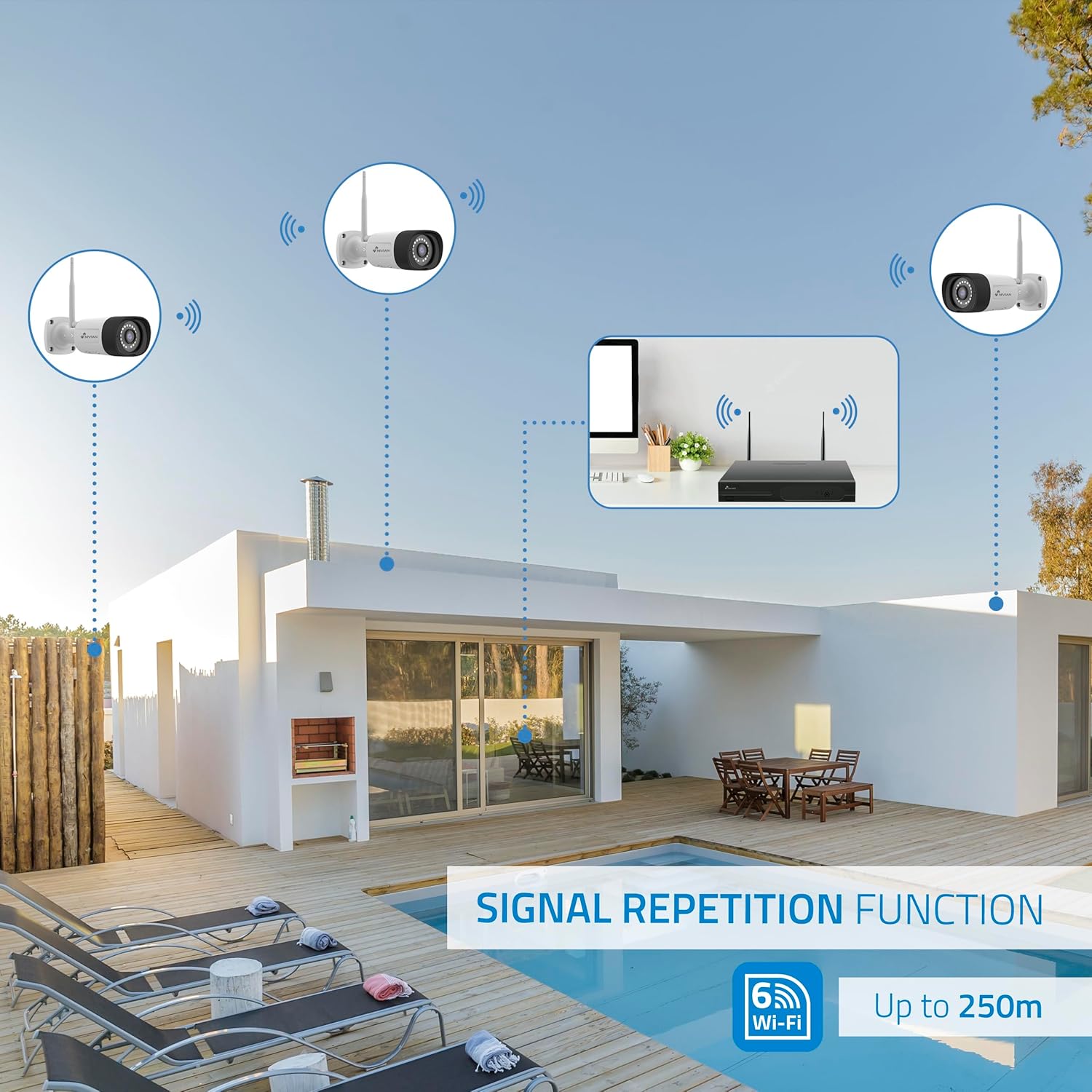
Image: Diagram showing the signal repetition function of the NIVIAN WiFi CCTV system, where cameras can extend the WiFi range up to 250 meters from the NVR.
4.3. Configuration de l'application EseeCloud
- Téléchargez l'application: Download the "EseeCloud" app from your mobile device's app store (available for iOS, Android).
- Créer un compte: Ouvrez l'application et créez un nouveau compte ou connectez-vous si vous en avez déjà un.
- Ajouter un appareil : Suivez les instructions de l'application pour ajouter votre système NVR. Cela implique généralement de scanner un code QR affiché sur l'écran du NVR ou de saisir manuellement l'identifiant de l'appareil.
- Télécommande Viewment: Une fois ajouté, vous pouvez view live feeds, access recordings, and configure settings remotely.

Image: Smartphone screen displaying the EseeCloud app interface for managing the security system, showing live camera feeds and control options, with NIVIAN cameras and a laptop in the background.
5. Mode d'emploi
5.1. Vivre View
Access live camera feeds through the NVR connected to a monitor or via the EseeCloud mobile app. The NVR interface allows you to switch between single-camera view et grille multicaméra view.
5.2. enregistrement
- Enregistrement continu: The system is configured for continuous recording by default to the 1TB hard drive.
- Enregistrement de détection de mouvement : Configure cameras to record only when motion is detected. This can be scheduled via the NVR settings or EseeCloud app.
- H.265+ Codec: The system uses H.265+ video compression to optimize storage space while maintaining video quality.
5.3. Lecture
Accéder aux photos enregistréestage through the NVR's playback menu or the EseeCloud app. You can search recordings by date, time, and event type (e.g., motion detection).
5.4. Détection humaine par IA
The cameras feature advanced AI human detection to differentiate human movement from other objects, significantly reducing false alarms. When human motion is detected, the system can trigger recordings, send notifications, and activate the white LED night vision for color footage.

Image: NIVIAN camera detecting a person at night, with the white LED light activated for color night vision, and a mobile notification indicating motion detection.
5.5. Audio bidirectionnel
Use the EseeCloud app to utilize the two-way audio feature. This allows you to listen to audio from the camera's location and speak through the camera's built-in speaker.
5.6. Modes de vision nocturne
- Mode infrarouge (IR) : Provides black and white video in low-light conditions for discreet surveillance.
- Mode LED blanche : When motion is detected in low light, the camera's white LEDs activate, providing full-color video and acting as a deterrent.
6. Entretien
- Nettoyage de l'appareil photo : Nettoyez régulièrement les objectifs de l'appareil photo avec un chiffon doux et sec.amp Utiliser un chiffon pour garantir une image nette. Ne pas utiliser de produits chimiques agressifs.
- Mises à jour du micrologiciel : Check for firmware updates for the NVR and cameras through the EseeCloud app or NVR settings. Keep your system updated for optimal performance and security.
- Gestion du disque dur : The 1TB hard drive will automatically overwrite the oldest recordings when full. If you need to preserve specific footage, back it up to an external device.
- Vérification de l'alimentation électrique : Vérifiez que tous les adaptateurs secteur sont correctement branchés et en bon état.
7. Dépannage
7.1. No Camera Feed
- Vérifiez l'alimentation : Ensure the camera is powered on and its adapter is working.
- Signal Wi-Fi : Verify the camera is within the NVR's WiFi range. Use the signal repetition function if necessary.
- Re-pair Camera: If issues persist, try re-pairing the camera with the NVR through the NVR's menu.
7.2. Mauvaise qualité d'image
- Nettoyer la lentille : Nettoyez l'objectif de l'appareil photo pour enlever toute saleté ou trace de doigt.
- Éclairage: Assurez un éclairage adéquat pour une qualité d'image optimale, surtout la nuit.
- Interférences Wi-Fi : Reduce potential WiFi interference by moving the camera or NVR, or by using the signal repetition function.
7.3. Remote Access Issues (EseeCloud App)
- Connexion Internet: Ensure both your NVR and mobile device have a stable internet connection.
- NVR Network Settings: Verify the NVR is correctly connected to your router and has internet access.
- Version de l'application: Ensure your EseeCloud app is updated to the latest version.
7.4. Hard Drive Full / Recording Issues
- Vérifier le stockage : Verify the hard drive status in the NVR settings.
- Calendrier d'enregistrement : Vérifiez que les calendriers d'enregistrement sont correctement configurés.
- État du disque dur : If issues persist, the hard drive may need to be checked or replaced.
8. Spécifications
| Marque | NIVIEN |
| Numéro de modèle | NV-KIT830W-8CAM |
| Dimensions du produit (L x l x H) | 23 x 12 x 8 cm ; 6.2 kilogramme |
| Technologie de connectivité | Sans fil (WiFi-6) |
| Résolution d'enregistrement vidéo | 2K (3MP) |
| Nombre de canaux | 10 (NVR) |
| Nombre de caméras | 6 |
| Capacité de stockage | 1 TB Hard Drive (included) |
| Caractéristiques de l'appareil photo | IP Cameras SuperHD with PTZ, Night Vision, AI Human Detection, Two-Way Audio |
| Fréquence d'images | 15 ips, 24 ips, 30 ips |
| Appareils compatibles | Television (via HDMI) |
| Power Plug Type de | Support mural |
| Pays d'origine | Chine |
9. Garantie et assistance
NIVIAN offers technical support to all customers. If you have any questions, suggestions, or encounter any issues with your WiFi surveillance camera kit, please do not hesitate to contact us.
You can reach us through Amazon messages or via any official NIVIAN brand channel. Please refer to your purchase documentation for specific warranty terms and contact details.


