1. Introduction
Thank you for choosing the Hama WK-300 Multi-Device Wireless Keyboard. This compact office keyboard is designed for wireless control of computers, smartphones, and tablets, offering versatile connectivity via Bluetooth or a 2.4 GHz radio connection with a USB-A receiver. It allows simultaneous connection to up to three devices, providing a seamless experience for various tasks.
2. Consignes de sécurité
- N'ouvrez pas l'appareil et ne continuez pas à l'utiliser s'il est endommagé.
- N'essayez pas d'entretenir ou de réparer le produit vous-même. Confiez tout travail d’entretien à des experts qualifiés.
- Protégez le produit de la saleté, de l'humidité et de la surchauffe, et utilisez-le uniquement dans des environnements secs.
- Gardez ce produit, comme tous les produits électriques, hors de portée des enfants.
- N’utilisez pas le produit dans des zones où l’utilisation d’appareils électroniques n’est pas autorisée.
- Éliminer immédiatement le matériel d’emballage conformément aux réglementations locales en vigueur.
3. Contenu du colis
Veuillez vérifier que le colis contient les éléments suivants :
- 1 Hama WK-300 Multi-Device Wireless Keyboard
- 1 USB-A Receiver (typically stored in the battery compartment)
- 1 Manuel d'instructions
Note: Des piles AAA sont nécessaires à son fonctionnement et ne sont pas incluses dans l'emballage.
4. Installation
4.1 Installation de la batterie
- Repérez le compartiment des piles sous le clavier.
- Ouvrez le couvercle du compartiment à piles.
- Insérez une pile AAA en respectant la polarité (+/-).
- Fermez soigneusement le couvercle du compartiment à piles.
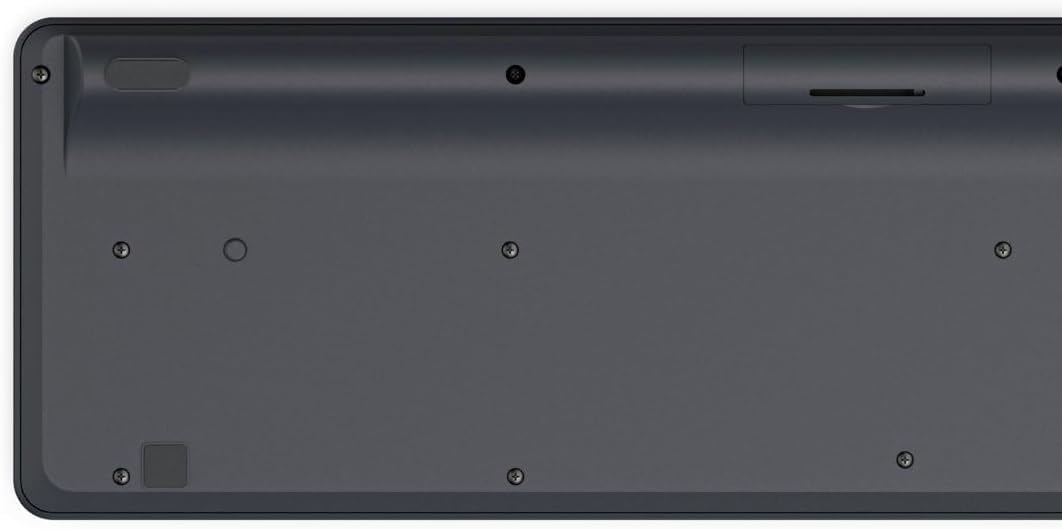
Image: Underside of the Hama WK-300 keyboard, illustrating the battery compartment and the storage slot for the USB receiver.
4.2 Connexion aux appareils
The Hama WK-300 keyboard supports connection to up to three devices simultaneously via 2.4 GHz radio (channel 1) and Bluetooth (channels 2 and 3).
4.2.1 2.4 GHz Radio Connection (Channel 1)
- Retirez le récepteur USB-A de son emplacement de rangement dans le compartiment de la batterie.
- Plug the USB-A receiver into a free USB port on your computer.
- Switch the keyboard to channel 1 (usually indicated by a switch or button on the keyboard). The keyboard should automatically connect to your computer.
4.2.2 Bluetooth Connection (Channels 2 & 3)
- Switch the keyboard to either channel 2 or channel 3.
- Press and hold the pairing button (refer to keyboard layout for exact location, often combined with the channel switch) until the indicator light flashes, signifying pairing mode.
- On your device (smartphone, tablet, computer), go to Bluetooth settings and search for new devices.
- Select "Hama WK-300" from the list of available devices to complete the pairing process.
4.3 Basculement entre les appareils
To switch between connected devices, simply press the corresponding channel button (1, 2, or 3) on the keyboard. The keyboard will instantly connect to the selected device.
5. Utilisation du clavier
5.1 Basic Typing Functions
The Hama WK-300 features a QWERTY layout with quiet keys, ensuring a comfortable and undisturbed typing experience. Simply begin typing after connecting to your device.

Image : Vue de dessus view of the Hama WK-300 keyboard, highlighting its 90% layout and key functions, including the Fn key for multimedia controls.
5.2 Multimedia Functions (Fn Keys)
The F keys (F1-F12) have secondary assignments for multimedia control. To activate these functions, press and hold the Fn key simultaneously with the desired F key. This allows for quick control of media playback, volume, and other system functions without navigating through system settings.
5.3 AI Assist Button
The dedicated Assist button activates a cross-program AI assistant, enhancing productivity by providing quick access to intelligent features.
5.4 Économie d'énergie
The keyboard is battery-operated and designed for efficiency, making it ideal for mobile use. It will enter a low-power state after a period of inactivity to conserve battery life.
6. Entretien
6.1 Nettoyage du clavier
To clean your keyboard, ensure it is turned off and disconnected from any devices. Use a soft, lint-free cloth slightly dampened with water or a mild cleaning solution. Avoid excessive moisture and abrasive cleaners. Do not immerse the keyboard in water.
6.2 Remplacement de la batterie
When the keyboard's performance diminishes or it stops responding, it may be time to replace the AAA battery. Follow the battery installation steps outlined in Section 4.1.
7. Dépannage
- Le clavier ne se connecte pas : Ensure the keyboard has fresh batteries and is switched to the correct channel (1 for 2.4 GHz, 2 or 3 for Bluetooth). For Bluetooth, ensure the keyboard is in pairing mode and your device's Bluetooth is enabled. For 2.4 GHz, ensure the USB receiver is properly inserted into your device.
- Les touches ne répondent pas : Check battery level. If using 2.4 GHz, try plugging the USB receiver into a different USB port. If using Bluetooth, try re-pairing the keyboard with your device.
- Connexion intermittente : Ensure there are no strong interference sources nearby (e.g., other wireless devices, large metal objects). Try moving closer to your device.
- Les touches multimédia ne fonctionnent pas : Assurez-vous d'appuyer sur le bouton Fn key simultaneously with the desired F key.
8. Spécifications
| Marque | Hama |
| Numéro de modèle | 182641 |
| Couleur | Noir |
| Connectivité | 2.4 GHz Radio (USB-A receiver), Bluetooth (2 channels) |
| Nombre d'appareils | Up to 3 simultaneous devices |
| Disposition du clavier | QWERTY |
| Dimensions du produit (L x l x H) | 16 x 43.8 x 2.6 centimètres |
| Poids de l'article | 447 g |
| Piles requises | Batterie 1 AAA (non incluse) |
9. Garantie
The Hama WK-300 Multi-Device Wireless Keyboard comes with a Garantie de 5 ans. Please retain your proof of purchase for warranty claims. For detailed warranty terms and conditions, refer to the official Hama website ou contacter le support client.
10. Assistance
For further assistance, technical support, or to inquire about spare parts, please contact Hama customer service. You can find contact information on the official Hama website (www.hama.com) or through your local retailer.


