1. Introduction
Welcome to the user manual for the TOWODE 5MP 8-Channel Security Camera DVR System. This system is designed to provide comprehensive surveillance for your property, featuring high-definition cameras, efficient video compression, and remote access capabilities. Please read this manual thoroughly before installation and operation to ensure proper use and optimal performance.
2. Contenu du colis
Vérifiez que tous les éléments énumérés ci-dessous sont inclus dans votre colis :
- 1x 8-Channel DVR Recorder
- 4x 5MP HD Surveillance Cameras
- 1x 1TB Hard Disk Drive (Pre-installed)
- 4x 15-meter Integrated Video/Power Cables
- 4x 12V2A Power Supplies (for cameras)
- 1 adaptateur secteur pour enregistreur vidéo numérique (DVR)
- 1x souris USB
- 1x Manuel d'utilisation

Image : Terminéview of the TOWODE 8-Channel DVR System components, including the DVR unit, four 5MP cameras, and a 1TB hard drive.
3. Système terminéview et fonctionnalités clés
The TOWODE 5MP 8-Channel Security Camera DVR System offers advanced surveillance capabilities. Key features include:
- 8-Channel DVR: Supports up to 8 cameras with AHD/TVI/CVI/CVBS/IP camera 5-in-1 access mode.
- 5MP Ultra HD Cameras: Capture video at 25fps with 2592*1944 HD resolution, featuring a 3.6mm lens and 80-foot infrared night vision.
- Caméras résistantes aux intempéries IP66 : Durable metal aluminum construction suitable for both indoor and outdoor use in various weather conditions.
- Compression vidéo H.265+ : Efficiently saves storage space (up to 80% compared to H.264) and improves image quality.
- Système d'alarme intelligent : Mobile detection triggers alarms and sends notifications via email or mobile phone.
- Accès à distance: View real-time surveillance and video playback via mobile phones, computers, and other devices.
- Disque dur de 1 To préinstallé : For immediate recording, expandable up to 14TB with an external HDD.
- 24/7 Non-stop Recording: Continuous recording for comprehensive security.

Image: Detailed diagram illustrating the connections and features of the TOWODE 5MP Hybrid 5-IN-1 Security Camera System, including DVR ports and camera specifications.
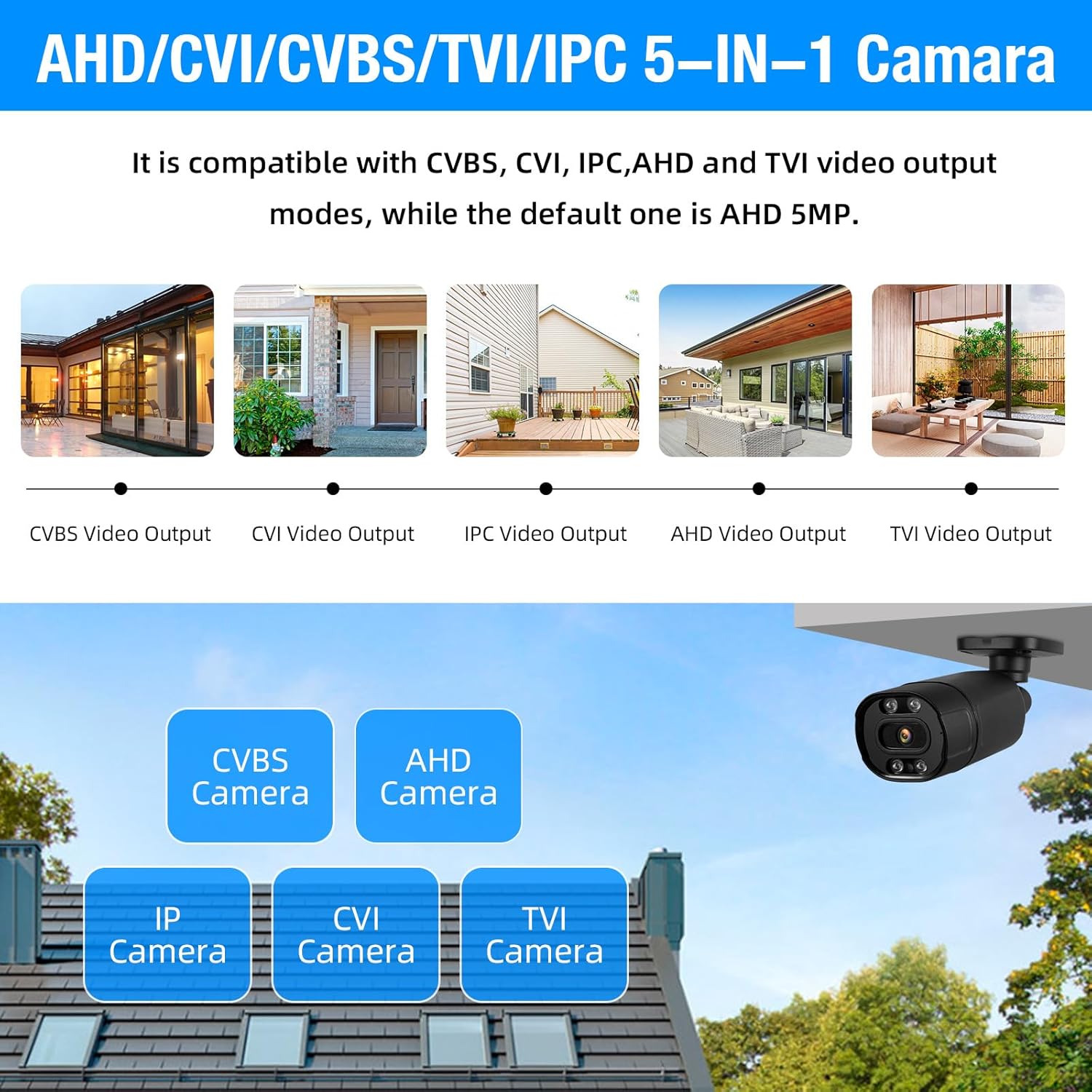
Image: Visual representation of the DVR's compatibility with multiple camera types: CVBS, CVI, IPC, AHD, and TVI, highlighting its 5-in-1 capability.
4. Guide de configuration
4.1 Déballage et inspection initiale
Carefully unpack all components and verify them against the package contents list. Inspect for any visible damage to the DVR or cameras.
4.2 Connecting the Hard Drive (if not pre-installed)
The 1TB hard drive is typically pre-installed in your DVR. If it is not, open the DVR casing, connect the SATA data and power cables to the HDD, and secure the HDD within the DVR chassis using the provided screws.

Image: The DVR unit highlighting the pre-installed 1TB hard drive and its capability to support up to 14TB of external storage.
4.3 Connecting Cameras to the DVR
Connect each 5MP camera to the DVR using the provided 15-meter integrated cables. These cables transmit both video signals and power. Connect the BNC connector to the 'VIDEO IN' ports on the back of the DVR and the power connector to the camera's power input.
4.4 Connecting the DVR to a Monitor
Connect the DVR to a monitor using either the VGA or HDMI (HD-port) output. Ensure the monitor is powered on and set to the correct input source.
4.5 Raccordement à l'alimentation et au réseau
Connect the DVR to a power outlet using the provided power adapter. Connect an Ethernet cable from the DVR's 'NET' port to your router or network switch for remote access functionality.
4.6 Mise sous tension et configuration initiales
Power on the DVR. Follow the on-screen prompts for initial setup, including setting up an administrator password, date/time, and network settings. It is recommended to format the hard drive during the initial setup if prompted.
5. Mode d'emploi
5.1 En direct View
After initial setup, the system will display a live view depuis toutes les caméras connectées sur le moniteur. Vous pouvez basculer entre les vues d'une seule caméra. view et grille multicaméra view using the DVR controls or a connected USB mouse.

Image: An 8-channel live view displayed on a monitor, demonstrating continuous recording and simultaneous monitoring of multiple areas.
5.2 Enregistrement
The system is configured for 24/7 continuous recording by default. You can adjust recording schedules, enable motion-triggered recording, or initiate manual recording through the DVR's menu interface. The H.265+ video compression technology optimizes storage usage.
5.3 Accès à distance (application mobile)
To access your system remotely, download the XMEye or ICSee app from the App Store or Google Play. Register an account, add your DVR device by scanning the QR code or entering the device ID, and configure network settings on the DVR to enable remote viewing.

Image: A smartphone screen showing the XMEye application, demonstrating remote monitoring capabilities for checking home or business security from anywhere.
5.4 Lecture intelligente
Access the playback function through the DVR menu or mobile app. You can search for recorded footage by date, time, or event (e.g., motion detection). The H.265+ compression ensures efficient storage and smooth playback of recorded events.

Image: An illustration of the smart playback feature, allowing users to easily navigate through recorded footage on a timeline to review événements spécifiques.
5.5 Détection de mouvement et alarmes
Configure motion detection zones and sensitivity settings in the DVR menu. When motion is detected, the system can trigger an alarm, record footage, and send push notifications or email alerts to your registered devices.

Image: Depiction of the AI motion detection system, showing how it identifies human movement and sends instant notifications to a mobile device via the XMEye app.
6. Entretien
- Nettoyage régulier : Periodically clean camera lenses and DVR vents to ensure optimal performance and prevent overheating. Use a soft, dry cloth.
- Mises à jour du micrologiciel : Vérifiez le fabricant website for firmware updates for your DVR. Keeping the firmware updated can improve system stability and add new features.
- État du disque dur : Monitor the health of the pre-installed 1TB HDD through the DVR's system information. Back up important footage régulièrement.
- Inspection des câbles : Periodically inspect all cables for wear and tear, especially outdoor cables, to ensure secure connections and prevent signal loss.
- Sécurité du mot de passe : Regularly change your DVR and remote access app passwords to maintain system security.
7. Dépannage
- No Video Display on Monitor:
- Check power connections for both the DVR and the monitor.
- Verify the VGA/HDMI cable connection between the DVR and monitor.
- Ensure the monitor input source is correctly selected (e.g., HDMI1, VGA).
- Try a different monitor or video cable to rule out hardware issues.
- Aucune image de l'appareil photo :
- Check camera power supply and cable connections to the DVR.
- Ensure the camera is compatible with the DVR's input mode (AHD/TVI/CVI/CVBS/IP).
- Test the camera on a different channel or with a known working cable.
- L'accès à distance ne fonctionne pas :
- Verify the DVR is connected to the internet (check network cable and router status).
- Ensure network settings (DHCP, port forwarding if necessary) are correctly configured on the DVR.
- Vérifiez si l'application mobile est mise à jour avec la dernière version.
- Confirm the correct device ID/QR code is used for adding the device to the app.
- Problèmes d'enregistrement :
- Check if the hard drive is properly installed and formatted.
- Verify hard drive status in DVR settings; it might be full or faulty.
- Vérifiez que les calendriers d'enregistrement sont correctement configurés.
- Détection de mouvement non déclenchée :
- Adjust motion detection sensitivity and detection zones in the DVR settings.
- Assurez-vous que la caméra view n'est pas obstrué.
- Check if alarm actions (recording, notification) are enabled.
8. Spécifications
| Fonctionnalité | Détail |
|---|---|
| Marque | TOWODE |
| Numéro de modèle | A6508L2 |
| Technologie de connectivité | Câblé |
| Résolution de capture vidéo | 5 MP (2592 * 1944) |
| Caractéristiques spéciales | App Control, Audio Recording, Human Detection, Motion Sensor |
| Nombre de canaux | 8 |
| Capacité de stockage de la mémoire | 1 TB (Pre-installed), expandable up to 14 TB |
| Source d'énergie | Électrique avec fil |
| Dimensions de l'article (L x l x H) | 7 x 7 x 1.5 pouces |
| Fréquence d'images | 25 images par seconde |
| Interface matérielle | Ethernet, VGA, HDMI, USB |
| Video Input Modes | AHD, TVI, CVI, CVBS, IP (5-in-1) |
| Objectif de l'appareil photo | 3.6 mm |
| Gamme de vision nocturne | Jusqu'à 80 mètres (infrarouge) |
| Indice résistant aux intempéries | IP66 |
9. Garantie et assistance
9.1 Informations sur la garantie
TOWODE products are covered by a limited warranty. Please refer to the warranty card included with your product or visit the official TOWODE webConsultez le site pour connaître les conditions générales de garantie détaillées. Conservez votre reçu d'achat comme preuve d'achat pour toute réclamation au titre de la garantie.
9.2 Assistance clientèle
For technical assistance, troubleshooting, or any questions regarding your TOWODE Security Camera DVR System, please contact TOWODE customer support. Contact information can typically be found on the product packaging, the official TOWODE websur le site ou au sein de l'application mobile.
When contacting support, please have your product model number (A6508L2) and purchase details readily available.


