1. Introduction
The TobenONE USB-C Docking Station (Model: XYY-PD100CL) is a versatile 16-in-1 solution designed to expand the connectivity of your USB-C enabled laptop. It provides comprehensive port expansion, multi-monitor support, high-speed data transfer, and power delivery, enhancing productivity for both professionals and students.

Image: The TobenONE USB-C Docking Station, showcasing its compact design alongside a laptop and the included 100W GaN III charger.
2. Principales caractéristiques
- Compatibilité universelle: Seamlessly works with Windows 10+ and Chromebook devices featuring USB-C DisplayPort Alt Mode, Thunderbolt 4/3, and USB4. Compatible with HP, Dell, and Lenovo laptops. (Note: Not recommended for Mac users.)
- Connectivité 16 en 1 : Offers extensive port options including dual HDMI, one DisplayPort, multiple USB-C and USB-A ports, 2.5Gbps Ethernet, 100W Power Delivery, and SD/TF card slots.
- Blazing-Fast Data Transfer: Equipped with 10Gbps USB-C and USB-A ports, enabling data transfers up to 20 times faster than traditional USB 2.0.
- 2.5Gbps Ethernet: Provides stable and high-speed internet connectivity, ideal for video calls, streaming, and large file téléchargements.
- Chargement PD 100 W : Features a robust 100W GaN power supply to keep your laptop charged during intensive work sessions, eliminating the need for a separate charger.
- Des visuels époustouflants : Supports up to 4K@60Hz resolution for dual or triple monitor setups. A single display can achieve 8K@30Hz or 4K@120Hz for razor-sharp clarity.
- Sleek Cooling Stand Design: Ergonomically designed to elevate your laptop, promoting better airflow and heat dissipation.
3. Contenu du colis
Veuillez vérifier que tous les articles sont présents dans votre colis :
- TobenONE USB-C Docking Station (Model: XYY-PD100CL)
- Adaptateur secteur 100W
- 60CM (1.96 Feet) USB-C Cable

Image: The package includes the UDS041W Laptop Dock Stand, a 100W Power Adapter, and a 60CM USB-C Cable.
4. Guide de configuration
Follow these steps to set up your TobenONE USB-C Docking Station:
- Connecter l'alimentation : Plug the 100W power adapter into the DC-IN port on the docking station, then connect the adapter to a wall outlet.
- Se connecter à l'ordinateur portable : Use the provided 60CM USB-C cable to connect the "HOST" USB-C port on the docking station to your laptop's USB-C port. Ensure your laptop supports USB-C DisplayPort Alt Mode, Thunderbolt 4/3, or USB4.
- Connecter les écrans :
- For single display: Connect your monitor to either HDMI 1, HDMI 2, or DisplayPort.
- For dual or triple displays: Connect your monitors to the available HDMI 1, HDMI 2, and DisplayPort outputs.

Image: A laptop connected to two external 4K monitors, demonstrating a dual display setup for enhanced productivity.
- Connectez les périphériques : Plug your USB devices (keyboard, mouse, external drives, etc.) into the available USB 3.0, USB 3.2 (10Gbps), or USB-C (10Gbps) ports.

Image : Une image détaillée view of the docking station's rear and side ports, including Ethernet, HDMI, DisplayPort, various USB types, SD/MicroSD slots, audio, and power button.

Image: An external hard drive connected to one of the 10Gbps USB ports, highlighting the high-speed data transfer capabilities.
- Connexion Ethernet : For a stable wired internet connection, plug an Ethernet cable into the 2.5Gbps Ethernet port on the docking station.
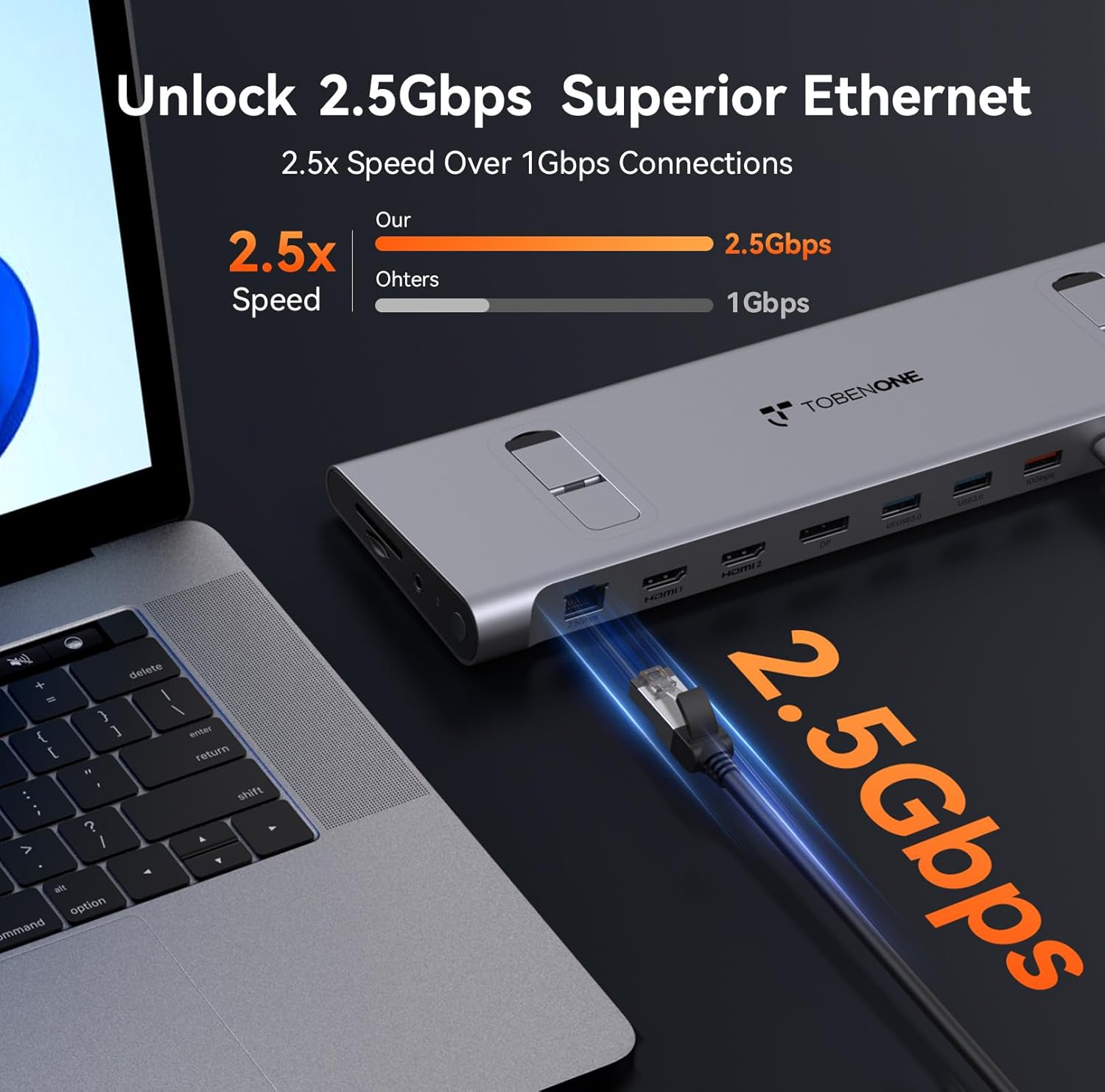
Image: An Ethernet cable connected to the 2.5Gbps Ethernet port on the docking station, ensuring a fast and reliable network connection.
- Insérer les cartes SD/TF : If needed, insert your SD or MicroSD cards into the dedicated slots on the side of the docking station.
- Connexion audio : Connect headphones or speakers to the 3.5mm audio port for audio output.
- Mise sous tension : Press the power button on the side of the docking station to turn it on.
5. Mode d'emploi
Display Configuration (Windows/Chromebook)
The docking station supports various display configurations. Your laptop's capabilities (e.g., Thunderbolt 4/DP 1.4 with DSC vs. DP 1.2) will determine the maximum resolution and refresh rates.
| Norme d'interface | Thunderbolt 4/DP 1.4 (support DSC) | DP 1.2 | ||||
|---|---|---|---|---|---|---|
| HDMI1 | HDMI2 | DP | HDMI1 | HDMI2 | DP | |
| Affichage unique | 8K à 30 Hz | 8K à 30 Hz | 8K à 30 Hz | 4K à 30 Hz | 4K à 30 Hz | 4K à 30 Hz |
| 4K à 60 Hz | 4K à 60 Hz | 4K à 60 Hz | 1080P @ 60Hz | 1080P @ 60Hz | 1080P @ 60Hz | |
| Double affichage | 4K à 60 Hz | 1080P @ 60Hz | ||||
| 4K à 60 Hz | 4K à 60 Hz | 1080P @ 60Hz | 1080P @ 60Hz | |||
| Triple affichage | 4K à 60 Hz | 1080P @ 60Hz | ||||
Table: This table outlines the supported display resolutions and refresh rates for single, dual, and triple monitor setups, depending on your laptop's DisplayPort interface standard.
Laptop Placement and Cooling
The docking station is designed to function as a sleek cooling stand. Place your laptop directly on top of the docking station, aligning it with the integrated supports. This ergonomic design helps improve airflow and prevent overheating during extended use.

Image: A laptop positioned on the docking station, illustrating how the design facilitates airflow for efficient cooling.
6. Entretien
- Keep the docking station clean by wiping it with a soft, dry cloth. Avoid using abrasive cleaners or solvents.
- Assurez une ventilation adéquate autour de l’appareil pour éviter toute surchauffe.
- Rangez la station d'accueil dans un endroit frais et sec lorsqu'elle n'est pas utilisée.
- Manipulez les câbles et les connecteurs avec précaution afin d'éviter tout dommage.
7. Dépannage
Problèmes courants et solutions :
- Aucune sortie d'affichage :
- Ensure the docking station is powered on and properly connected to your laptop's USB-C port.
- Verify that your laptop's USB-C port supports DisplayPort Alt Mode, Thunderbolt 3/4, or USB4.
- Check all display cables (HDMI, DisplayPort) for secure connections.
- Essayez de mettre à jour les pilotes graphiques de votre ordinateur portable.
- Confirm your laptop supports Display Stream Compression (DSC) for higher resolutions (e.g., 8K@30Hz or 4K@120Hz single display).
- L'ordinateur portable n'est pas alimenté :
- Assurez-vous que l'adaptateur secteur de 100 W est correctement connecté à la station d'accueil et à une prise de courant fonctionnelle.
- Verify the USB-C cable connecting the dock to your laptop is capable of power delivery.
- Périphériques USB non reconnus :
- Rebranchez le périphérique USB à un autre port de la station d'accueil.
- Assurez-vous que la station d'accueil est sous tension.
- Essayez de connecter l'appareil directement à votre ordinateur portable pour vérifier qu'il fonctionne de manière indépendante.
- Problèmes de connexion Ethernet :
- Vérifiez la connexion du câble Ethernet à la fois à la station d'accueil et à votre routeur/modem.
- Vérifiez les paramètres réseau de votre ordinateur portable.
8. Spécifications
| Attribut | Détail |
|---|---|
| Numéro de modèle | XYY-PD100CL |
| Dimensions du produit | 11.81"L x 3.14"l x 0.86"H |
| Poids de l'article | 2.27 livres |
| Nombre total de ports USB | 6 (including 10Gbps USB-A and USB-C) |
| Nombre total de ports HDMI | 2 |
| DisplayPort | 1 |
| Port Ethernet | 2.5 Gbit/s |
| Distribution d'énergie | 100W (Input), 87W (Output) |
| Lecteur de cartes | Emplacements SD/TF |
| Port Audio | Audio 3.5 mm |
| Appareils compatibles | Supports full-featured USB-C, USB4, and Thunderbolt 3 / Thunderbolt 4 systems running Windows 10 / 11 & ChromeOS 100 or newer (e.g., HP ProBook/EliteBook/Spectre x360, Dell XPS/Latitude, Lenovo ThinkPad/IdeaPad/Yoga, Microsoft Surface Pro/Go/Book/Laptop, LG Gram). |
9. Garantie et assistance
TobenONE is committed to providing professional office connectivity solutions. For any questions, technical support, or warranty inquiries regarding your docking station, please refer to the official TobenONE webou contactez directement leur service client. Conservez votre reçu d'achat pour toute réclamation sous garantie.
Visit the official TobenONE Store: Boutique Amazon TobenONE


