Introduction
This manual provides essential information for the setup, operation, maintenance, and troubleshooting of your Onn 22 inch 1080P 100 Hz FHD LED Monitor. Please read this guide thoroughly before using the product to ensure optimal performance and safety.
The Onn 22 inch FHD LED Monitor is designed for a variety of applications, offering a vivid 1920x1080 resolution, a 100Hz refresh rate, and a 6.5ms response time for efficient performance. Its slim profile and T-shaped base are ideal for saving desk space.
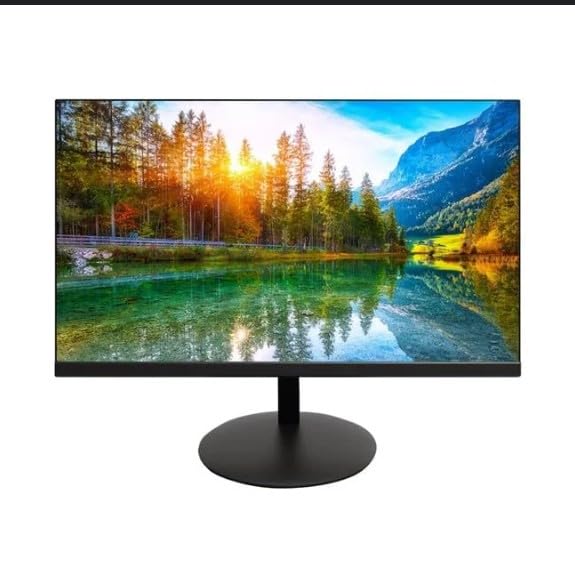
The image shows the Onn 22 inch FHD LED Monitor, highlighting its 100Hz refresh rate and 1080p resolution. The monitor features a slim design and a T-shaped base.
Instructions d'installation
- Déballage: Carefully remove the monitor and all accessories from the packaging. Ensure all components are present: monitor, T-shaped base, HDMI cable, and power adapter.
- Assemblage du support : Attach the T-shaped base to the monitor. The design is screw-less for easy assembly. Ensure it is securely fastened.
- Connexion à un appareil :
The monitor supports both HDMI and VGA inputs. Connect the provided HDMI cable from your computer's HDMI output to the HDMI IN port on the monitor. Alternatively, use a VGA cable for VGA input.

This image displays the rear panel of the Onn monitor, illustrating the available input ports: HDMI IN, VGA IN, and the DC 12V power input. These ports are essential for connecting the monitor to a computer or other devices.
- Connexion électrique : Branchez l'adaptateur secteur au port d'entrée CC 12 V du moniteur, puis branchez l'adaptateur à une prise de courant.
- Réglage du moniteur : The monitor is capable of swivel, tilt, rotation, and height adjustment. Adjust the screen to your preferred viewangle d'inclinaison pour un confort ergonomique.
- Configuration double moniteur : This monitor is suitable for a fully functioning dual monitor setup. Connect a second monitor using the appropriate cables and configure your operating system's display settings.
Mode d'emploi
- Marche/Arrêt : Appuyez sur le bouton d'alimentation, généralement situé en bas ou à l'arrière du moniteur, pour l'allumer ou l'éteindre.
- Sélection d'entrée : If the monitor does not automatically detect the input source, use the On-Screen Display (OSD) menu buttons to manually select between HDMI and VGA inputs.
- Navigation dans les menus OSD : Use the physical buttons on the monitor (typically on the back or bottom edge) to navigate the OSD menu. This allows you to adjust settings such as brightness, contrast, color temperature, and input source.
- Résolution et fréquence de rafraîchissement : The monitor supports a native resolution of 1920x1080 at a 100Hz refresh rate. Ensure your computer's display settings are configured to these specifications for the best visual experience.
- Synchronisation adaptative : The monitor features Adaptive Sync for gaming, which helps to reduce screen tearing and stuttering. Ensure this feature is enabled in your graphics card settings if supported.
Entretien
- Nettoyage de l'écran : Essuyez délicatement l'écran avec un chiffon doux non pelucheux. Pour les taches tenaces, frottez légèrement.ampen the cloth with water or a non-abrasive, monitor-specific cleaning solution. Avoid spraying liquids directly onto the screen.
- Nettoyage du Casing: Utilisez un chiffon doux et sec pour nettoyer le moniteur.asing. Do not use strong detergents or solvents, as they may damage the finish.
- Ventilation: Veillez à ce que les ouvertures de ventilation du moniteur ne soient pas obstruées afin d'éviter toute surchauffe.
- Stockage: Lorsqu'il n'est pas utilisé pendant une période prolongée, rangez le moniteur dans un endroit frais et sec, à l'abri de la lumière directe du soleil et des températures extrêmes.
Dépannage
- Pas d'alimentation :
- Vérifiez si le câble d'alimentation est correctement connecté au moniteur et à la prise de courant.
- Vérifiez que la prise de courant fonctionne correctement.
- Pas de signal:
- Assurez-vous que le câble vidéo (HDMI ou VGA) est bien connecté à la fois au moniteur et à l'ordinateur.
- Sélectionnez la source d'entrée appropriée à l'aide du menu OSD du moniteur.
- Vérifiez que votre ordinateur est allumé et non en mode veille.
- Flickering Screen or Poor Image Quality:
- Vérifiez que le câble vidéo n'est pas endommagé ou que les connexions ne sont pas desserrées.
- Adjust the resolution and refresh rate settings on your computer to match the monitor's specifications (1920x1080, 100Hz).
- Réinitialisez les paramètres du moniteur aux valeurs d'usine par le menu OSD.
- Les boutons ne répondent pas :
- Unplug the monitor from the power outlet, wait for 30 seconds, and then plug it back in.
If problems persist, please refer to the support information provided in the "Support and Warranty" section.
Caractéristiques
| Marque | Onn |
| Numéro de modèle | 100140681 |
| Nom du modèle | OTTO |
| Taille de l'écran | 21.5 pouces |
| Type d'affichage | LED, LCD |
| Résolution | 1920 x 1080 (FHD 1080p) |
| Taux de rafraîchissement | 100 Hz |
| Temps de réponse | 6.5 millisecondes |
| Interface matérielle | HDMI, VGA |
| Caractéristiques spéciales | Réglage de la hauteur |
| ViewAngle d'attaque | 160 degrés |
| Rapport hauteur/largeur | 16:9 |
| Dimensions du produit | 49.2 x 20 x 37.2 cm ; 3.24 kg |
Assistance et garantie
For technical support, product inquiries, or warranty information, please visit the official Onn support website ou contactez leur service client.
- Assistance officielle Website: onnsupport.ca
- Garantie: Specific warranty details may vary by region and purchase date. Please refer to the documentation included with your product or visit the support website pour obtenir les informations les plus récentes sur la garantie.


