1. Introduction
This manual provides detailed instructions for the setup, operation, maintenance, and troubleshooting of your Transformers TF-Crystal 85 Keys Mechanical Keyboard. Please read this manual thoroughly before using the product to ensure proper functionality and longevity.
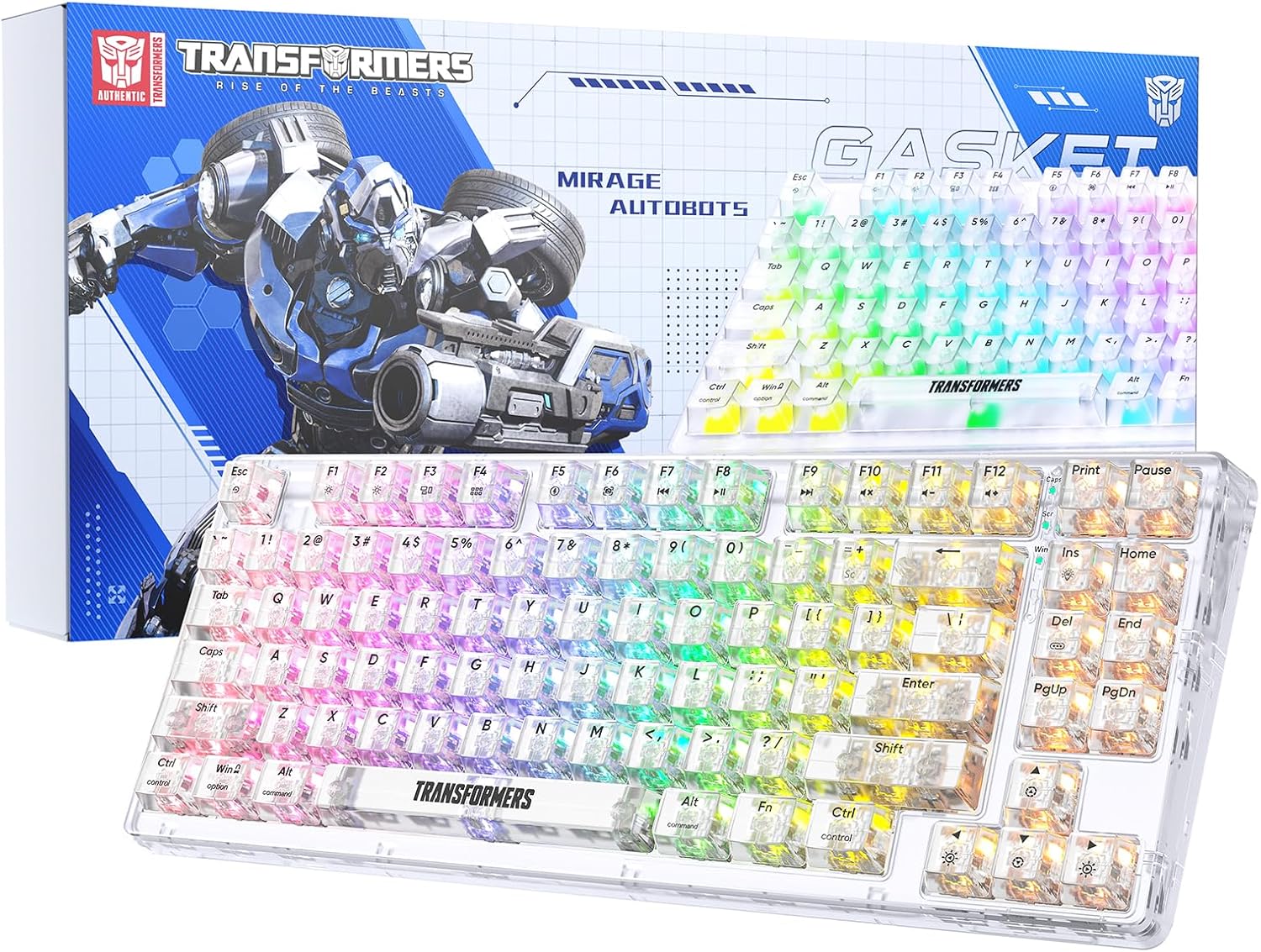
Image 1.1: Transformers TF-Crystal 85 Keys Mechanical Keyboard with its packaging, showcasing the transparent design and RGB lighting.
2. Produit terminéview
2.1 Principales caractéristiques
- Configuration à 85 touches : Compact 75% design retaining essential functions, arrow, and navigation keys.
- Connectivité tri-mode : Prend en charge les connexions Bluetooth 5.0, sans fil 2.4 GHz et filaires USB-C.
- Circuit imprimé remplaçable à chaud : Compatible with most 3-pin and 5-pin mechanical switches, allowing for easy customization and replacement.
- Linear Switches: Pre-lubricated switches with a 50 million keystroke lifespan for durability and smooth operation.
- Structure du joint : Incorporates high-quality gasket materials and a silicone pad to absorb vibrations and reduce typing noise.
- Rétroéclairage RVB personnalisable : Features 20 built-in backlight modes, 16.8 million color options, and dynamic music rhythm effects.
- Programmable Driver: Enables macro customization, key function remapping, and advanced lighting control.
- Longue durée de vie de la batterie : Equipped with a 4000mAh battery, providing up to 240 hours of continuous use in 2.4GHz mode without backlighting.
- Large compatibilité : Supports Mac, Windows, iOS, Android, PC, Laptop, Smartphone, Tablet, Switch, Xbox, and PlayStation.
- Conception transparente : Features transparent keycaps and base for enhanced aesthetic appeal.
3. Installation
3.1 Chargement du clavier
Before initial use, fully charge the keyboard. Connect the provided USB-C cable to the keyboard's USB-C port and the other end to a powered USB port (e.g., computer, wall adapter). The charging indicator will show the charging status.
3.2 Connexion via le mode sans fil 2.4 GHz
- Repérez le récepteur USB 2.4 GHz, généralement rangé dans un compartiment du clavier.
- Branchez le récepteur USB dans un port USB disponible sur votre ordinateur.
- Toggle the mode switch on the keyboard to the 2.4 G position.
- The keyboard will automatically connect to your device.
3.3 Connecting via Bluetooth 5.0 Mode
- Toggle the mode switch on the keyboard to the BT position.
- Appuyez et maintenez Fn + 1 (ou Fn + 2, Fn + 3) pendant 3 à 5 secondes jusqu'à ce que le voyant clignote rapidement, indiquant le mode d'appairage.
- Sur votre appareil (ordinateur, tablette, smartphone), activez le Bluetooth et recherchez de nouveaux appareils.
- Select "TF-Crystal 85" from the list of available devices to pair.
- Once paired, the indicator light will stop flashing and remain solid. You can pair up to three Bluetooth devices using Fn + 1, Fn + 2, et Fn + 3.
3.4 Connecting via USB-C Wired Mode
- Connectez le câble USB-C fourni au port USB-C du clavier.
- Connectez l'autre extrémité du câble USB-C à un port USB disponible sur votre ordinateur.
- The keyboard will automatically switch to wired mode and function without battery power.

Image 3.1: Diagram illustrating the three connection modes: Bluetooth 5.0, 2.4GHz wireless, and USB-C wired, compatible with various devices.
4. Mode d'emploi
4.1 Changement de mode
Use the physical switch located on the keyboard to select between BT (Bluetooth), 2.4 G (2.4GHz wireless), and USB-C (wired) modes.
4.2 Contrôle du rétroéclairage RVB
Le clavier est doté d'un rétroéclairage RVB personnalisable. Utilisez les combinaisons de touches suivantes pour le régler :
- Fn + Ins : Cycle through 20 different backlight effects.
- Fn + Suppr : Switch backlight colors within certain modes.
- Fn + ↑ / ↓ : Régler la luminosité du rétroéclairage (5 niveaux).
- Fn + ← / → : Adjust backlight effect speed (5 levels).
- Fn + Esc (hold for 3s): Reset backlight settings to default.

Image 4.1: Visual guide for controlling RGB backlight effects, brightness, and speed using Fn key combinations.
4.3 Programmable Driver Usage
The keyboard includes a programmable driver for advanced customization. This driver allows you to:
- Édition de macros : Record and edit complex key sequences.
- Key Redefinition: Customize the function of individual keys.
- RGB Effect Customization: Fine-tune lighting modes, colors, and speeds, including music rhythm lighting effects.
Refer to the software's dedicated user interface for detailed instructions on using these features.

Image 4.2: Screenshot of the programmable driver interface, showing options for macro editing, RGB effects, and key redefinition.
4.4 Commutateurs remplaçables à chaud
The TF-Crystal 85 keyboard features a hot-swappable PCB, allowing you to change mechanical switches without soldering. This supports most 3-pin and 5-pin mechanical switches.
- Éteignez le clavier ou déconnectez-le de votre appareil.
- Utilisez l'extracteur de touches fourni pour retirer délicatement la touche souhaitée.
- Use the provided switch puller to gently grip the switch from its top and bottom clips, then pull it straight up to remove it.
- Alignez les broches du nouvel interrupteur avec les trous du circuit imprimé. Assurez-vous que les broches sont bien droites.
- Enfoncez délicatement le nouvel interrupteur jusqu'à ce qu'il s'enclenche fermement. Ne forcez pas.
- Remplacez la touche.

Image 4.3: Illustration of the hot-swappable feature, showing how to remove and insert 3-pin/5-pin switches and the linear switch specifications.
5. Entretien
5.1 Nettoyage du clavier
- Débranchez le clavier de toutes les sources d'alimentation avant de le nettoyer.
- Utilisez un chiffon doux et non pelucheux légèrement dampTerminer par un rinçage à l'eau ou avec une solution nettoyante douce pour essuyer les touches et le châssis.
- Pour enlever la poussière et les débris entre les touches, utilisez de l'air comprimé ou une petite brosse.
- Avoid using harsh chemicals or abrasive materials that could damage the keyboard's surface.
5.2 Entretien de la batterie
- Évitez de décharger complètement la batterie fréquemment.
- Rangez le clavier dans un endroit frais et sec lorsqu'il n'est pas utilisé pendant de longues périodes.
- If the keyboard will not be used for a long time, charge it to about 50% before storage.
6. Dépannage
| Problème | Cause possible | Solution |
|---|---|---|
| Le clavier ne répond pas en mode sans fil. | Low battery, incorrect mode selected, receiver not connected, Bluetooth not paired. | Charge the keyboard. Ensure the mode switch is set correctly (2.4G or BT). Re-insert the 2.4G receiver. Re-pair Bluetooth. |
| Les touches ne sont pas enregistrées ou une double saisie est effectuée. | Interrupteur défectueux, débris sous la touche, problème logiciel. | Clean under the keycap. Try hot-swapping the switch with a known working one. Restart your computer. |
| RGB backlight not working or incorrect. | Backlight turned off, incorrect settings, software conflict. | Réglez la luminosité à l'aide de Fn + ↑. Cycle modes with Fn + Entrée. Reset backlight with Fn + Esc (hold 3s). Check programmable driver settings. |
| Le clavier ne charge pas. | Faulty USB-C cable, power source issue, keyboard port damage. | Try a different USB-C cable. Use a different USB port or power adapter. Ensure the cable is fully inserted. |
7. Spécifications
| Fonctionnalité | Détail |
|---|---|
| Numéro de modèle | TF-Crystal 85 |
| Disposition des touches | 85 touches (75 % compact) |
| Connectivité | Bluetooth 5.0, sans fil 2.4 GHz, USB-C filaire |
| Type de commutateur | Pre-lubricated Linear Mechanical Switches |
| Durée de vie du commutateur | 50 millions de frappes |
| Remplaçables à chaud | Oui (compatible 3 broches/5 broches) |
| Rétroéclairage | RGB (20 modes, 16.8 millions de couleurs) |
| Capacité de la batterie | 4000mAh |
| Battery Life (2.4G, no light) | Jusqu'à 240 XNUMX heures |
| Autonomie de la batterie (rétroéclairage activé) | Environ 22 heures |
| Dimensions (L x l x H) | 34.7 cm x 14 cm x 4.5 cm |
| Compatibilité | Mac, Windows, iOS, Android, PC, Laptop, Smartphone, Tablet, Switch, Xbox, PlayStation |

Image 7.1: Visual representation of the keyboard's battery life: 240 hours with backlight off, 22 hours with backlight on, powered by a 4000mAh battery.
8. Garantie et assistance
Transformers is committed to providing exceptional customer service. If you encounter any problems with your TF-Crystal 85 Keys Mechanical Keyboard, our after-sales support team is available to assist you. This includes technical support, exchanges, or installation guidance.
Please contact our customer service for assistance. We guarantee a hassle-free service experience.


