1. Introduction
The Vretti K2 is a portable thermal label printer designed for various labeling needs in home, office, and business environments. It offers inkless printing, Bluetooth connectivity for mobile devices (Android and iOS), and a compact design for ease of use. This manual provides detailed instructions for setup, operation, maintenance, and troubleshooting to ensure optimal performance of your device.
2. Contenu du colis
Avant de commencer, veuillez vérifier que tous les articles sont présents dans le colis :
- Vretti K2 Label Maker x1
- Câble de type C x1
- 50x30mm Paper Rolls x1 (pre-installed inside the machine)
- Manuel d'utilisation x1
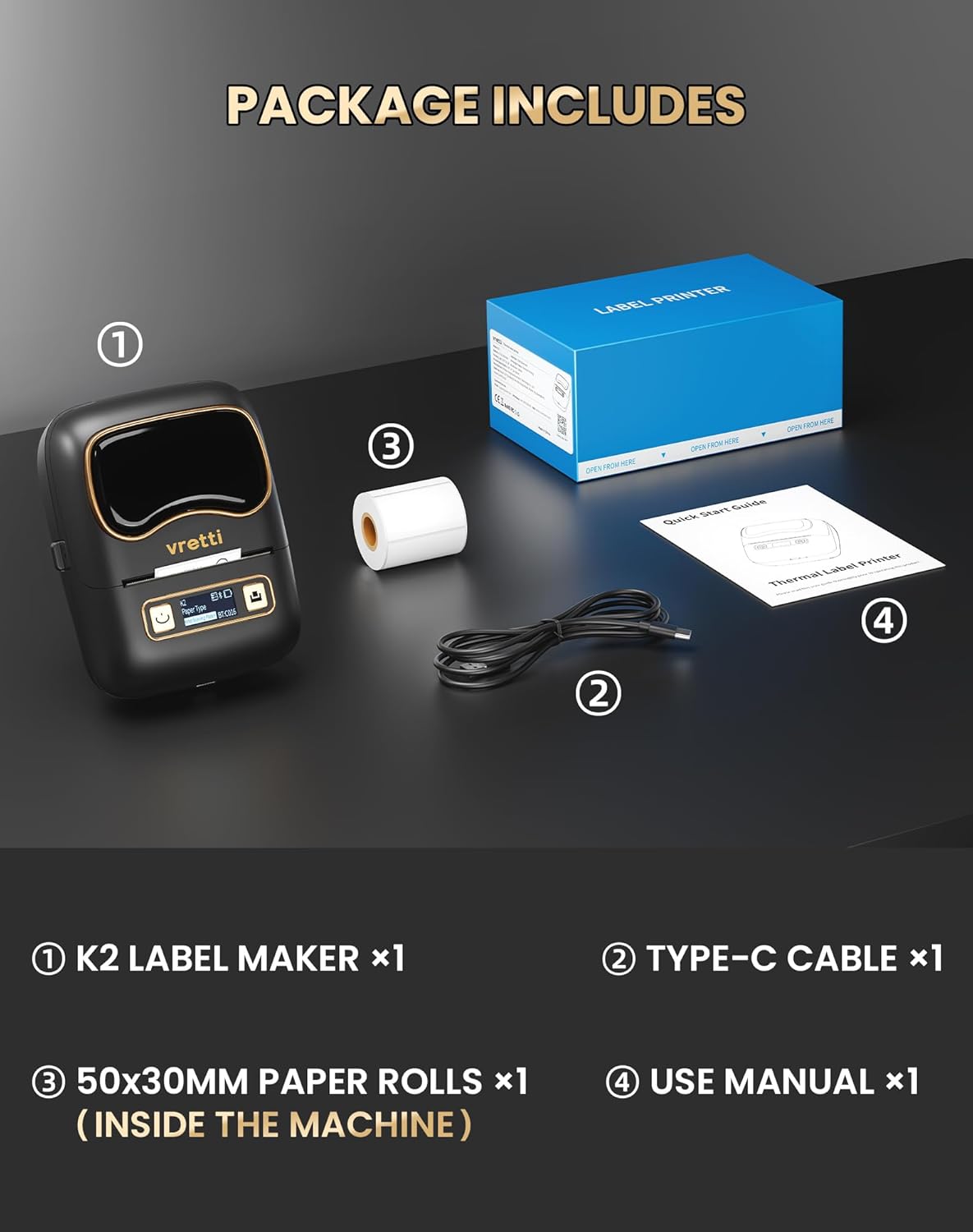
Image: Contents of the Vretti K2 label printer package, including the printer, USB-C cable, a roll of labels, and the user manual.
3. Spécifications
| Fonctionnalité | Spécification |
|---|---|
| Nom du modèle | K2 |
| Technologie d'impression | Thermique |
| Technologie de connectivité | Bluetooth, USB |
| Appareils compatibles | Ordinateur portable, PC, smartphone, tablette |
| Max Print Resolution (DPI) | 203 ppp |
| Vitesse d'impression | 9 mm/s |
| Capacité maximale des feuilles | 100 |
| Largeur d'étiquette prise en charge | 20-50 mm |
| Capacité de la batterie | 1500mAh |
| Interface de chargement | USB Type-C |
| Dimensions (L x l x H) | 15.7 x 9.5 x 6.4 cm (4.53 x 3.54 x 2.44 pouces) |
| Poids | 0.49 livres |

Image : Terminéview of Vretti K2 features including no ink needed, Bluetooth connectivity, lightweight, 1500mAh battery, wireless printing, high resolution, 9mm/s fast printing, and USB Type-C.
4. Installation
4.1 Chargement de l'imprimante
Before first use, fully charge the Vretti K2 printer using the provided Type-C cable. Connect the cable to the printer's charging port and a compatible USB power adapter (not included). The charging indicator light will show the charging status.
4.2 Chargement des étiquettes
- Open the printer cover by gently pressing the release button or sliding the cover open, depending on the model.
- Insert the label roll into the paper compartment, ensuring the labels face upwards and the roll is properly aligned.
- Tirez une petite partie du papier étiquette au-delà de la tête d'impression.
- Fermez correctement le capot de l'imprimante.
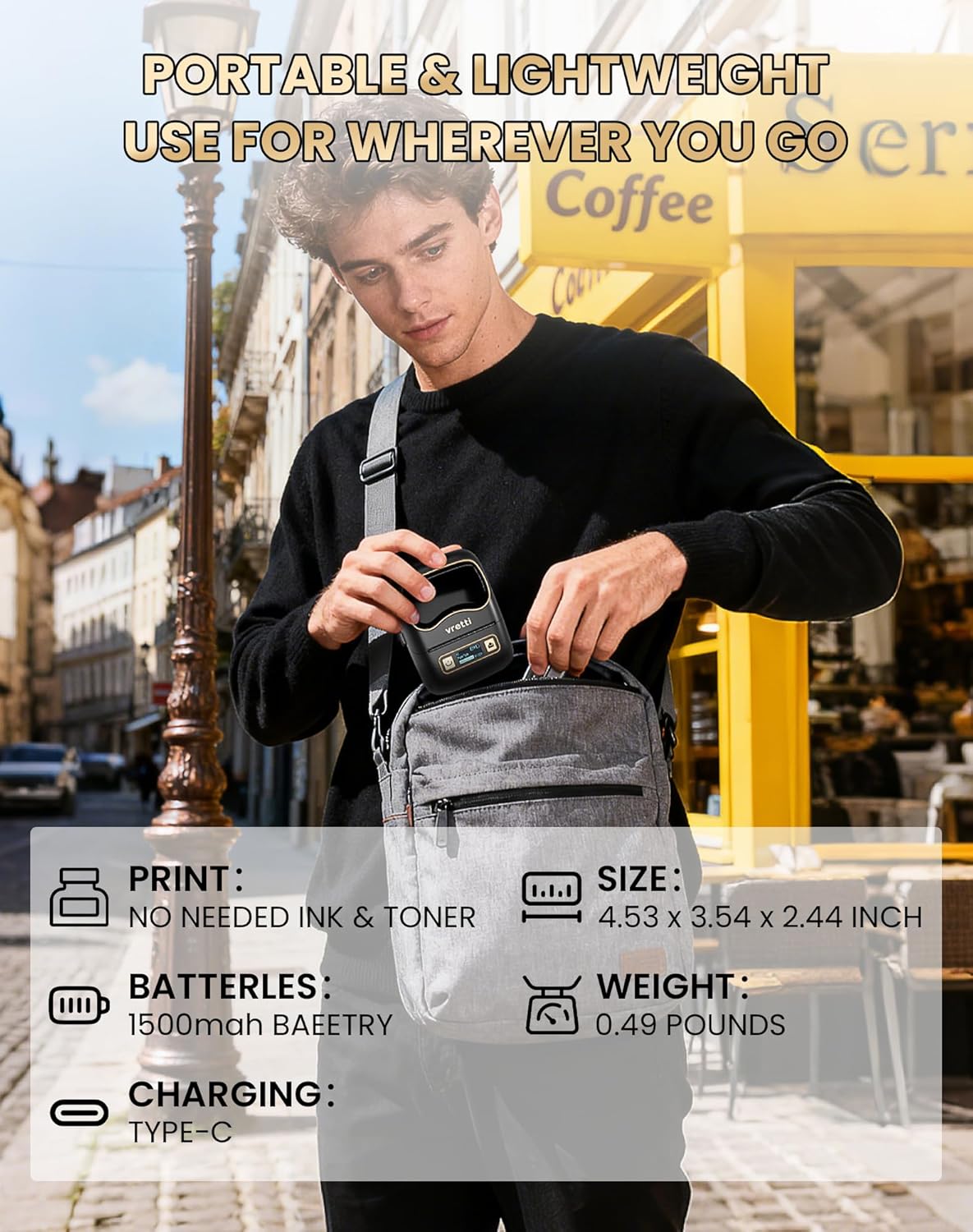
Image: The Vretti K2 printer with various label sizes (20-50mm width) shown, demonstrating how different label rolls fit into the printer.
4.3 Téléchargement et installation de l'application
The Vretti K2 printer operates with the XeasyLabel mobile application. Download the app from your device's app store:
- Pour les appareils Android : Rechercher "XeasyLabel" on the Google Play Store.
- Pour les appareils iOS : Rechercher "XeasyLabel" on the Apple App Store.
Installez l'application sur votre smartphone ou tablette.

Image: The Vretti K2 printer next to a smartphone displaying the XEasyLabel app interface, highlighting Bluetooth 5.0 connectivity and app download options for Android and iOS.
4.4 Connexion Bluetooth
- Ensure your Vretti K2 printer is powered on.
- Activez le Bluetooth sur votre appareil mobile.
- Open the XeasyLabel application.
- Within the app, navigate to the device connection section.
- Select your Vretti K2 printer (usually identified as "K2" or a similar name) from the list of available devices to establish a Bluetooth connection.

Image: A three-step guide showing how to connect the Vretti K2 printer via Bluetooth and begin editing and printing labels using the XEasyLabel app on a smartphone.
5. Mode d'emploi
5.1 Création et impression d'étiquettes
- After connecting your printer via Bluetooth, open the XeasyLabel app.
- Select a template or create a new label design. The app offers various fonts, icons, frames, and intelligent features like scanning and image recognition.
- Customize your label with text, images, barcodes, or serial numbers.
- Préview your label to ensure it appears as desired.
- Tap the print button in the app. The printer will automatically detect the label size and print without requiring ink or toner.
5.2 Scénarios d'application
The Vretti K2 printer is versatile and suitable for a wide range of applications:
- Bureau: File labels, lamp labels, memo labels, visitor labels.
- Entreprise: Address labels, product labels, price labels, gift labels.
- Maison: Toy labels, food labels, drug labels, general organization labels.
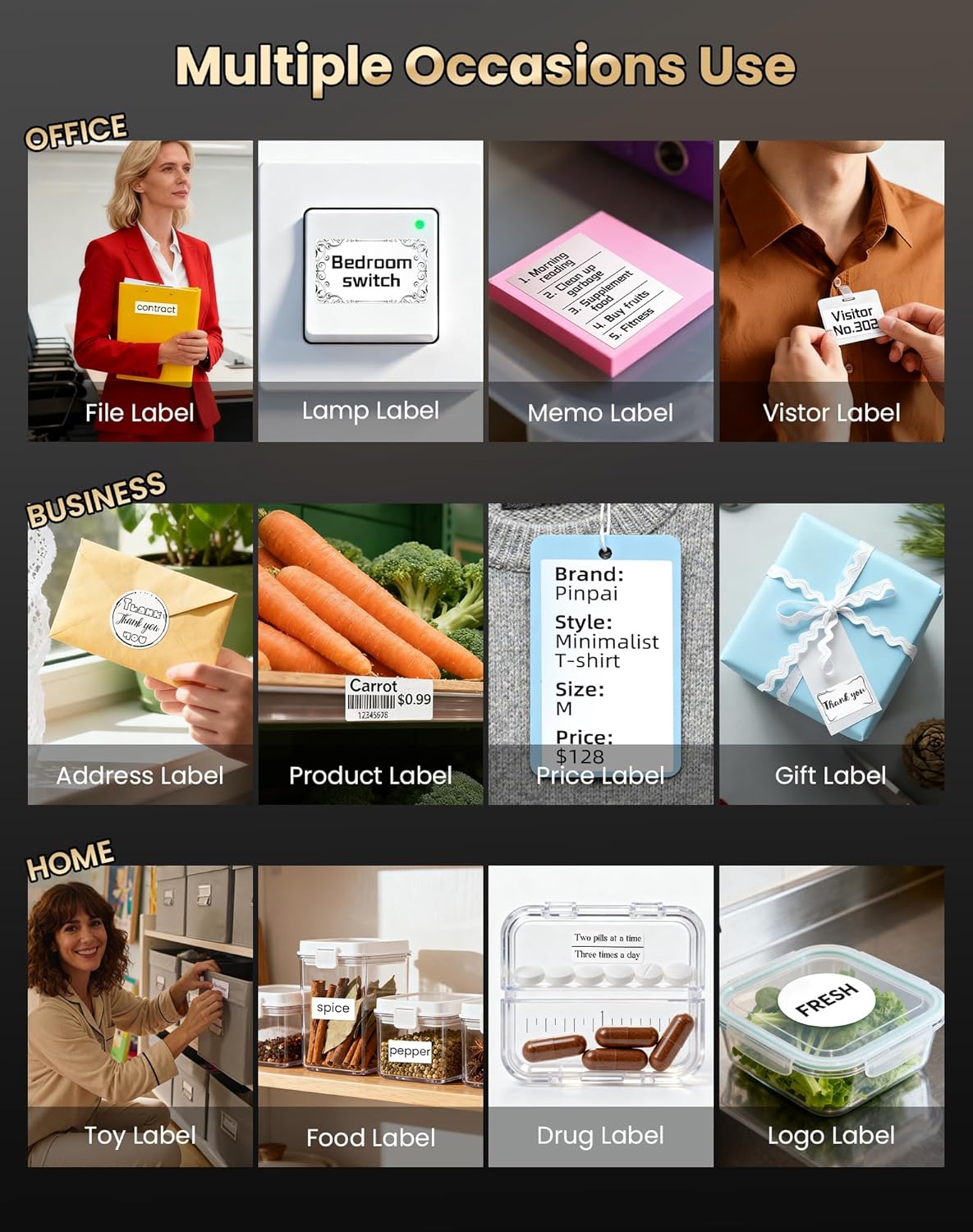
Image : Examples of Vretti K2 label printer use in office, business, and home settings, showing various label types like file, product, and food labels.

Image : Plus loin examples of Vretti K2 label printer applications, including clothing tags, food containers, and cable labeling, demonstrating its versatility.
6. Entretien
6.1 Nettoyage de la tête d'impression
To maintain print quality, regularly clean the print head. Use a cotton swab lightly dampNettoyez la surface de la tête d'impression avec de l'alcool isopropylique. Essuyez délicatement. Assurez-vous que l'imprimante est éteinte et parfaitement sèche avant utilisation.
6.2 Entretien de la batterie
- Évitez de décharger complètement la batterie fréquemment.
- Charge the printer regularly, even if not in use, to prolong battery life.
- Rangez l'imprimante dans un endroit frais et sec lorsqu'elle n'est pas utilisée pendant une période prolongée.
7. Dépannage
If you encounter issues with your Vretti K2 printer, refer to the following common problems and solutions:
- L'imprimante ne se connecte pas via Bluetooth :
- Assurez-vous que l'imprimante est allumée et à portée de votre appareil mobile.
- Vérifiez que Bluetooth est activé sur votre appareil.
- Redémarrez l'imprimante et votre appareil mobile.
- Check if the XeasyLabel app has Bluetooth permissions enabled.
- Mauvaise qualité d'impression :
- Nettoyez la tête d'impression comme décrit dans la section Maintenance.
- Veillez à utiliser des étiquettes thermiques de haute qualité.
- Check the label roll for proper installation and ensure it is not damaged.
- Étiquettes ne s'alimentant pas correctement :
- Ensure the label roll is inserted correctly and aligned.
- Vérifiez qu'aucun obstacle ne se trouve sur le trajet du papier.
- Make sure the label type selected in the app matches the physical labels.
- L'imprimante ne s'allume pas :
- Charge the printer for at least 30 minutes.
- Essayez un autre câble USB-C et un autre adaptateur secteur.
For further assistance, consult the XeasyLabel app's help section or contact customer support.
8. Garantie et assistance
8.1 Informations sur la garantie
The Vretti K2 Thermal Label Printer comes with a standard manufacturer's warranty. Please refer to the warranty card included in your package or contact Vretti customer service for specific details regarding warranty duration and coverage.
8.2 Assistance clientèle
If you require technical support, have questions about your product, or need assistance with warranty claims, please contact Vretti customer support through their official website ou les coordonnées fournies dans la documentation de votre produit.


