Produit terminéview
The AINAVITO 13.5" Android 13 Car Headrest Monitor is designed to provide a premium entertainment experience for rear-seat passengers. Featuring a 4K video decoding IPS touch screen, robust Android 13 operating system, and versatile connectivity options, this monitor transforms your vehicle's back seat into a personal theater.

Image: The 13.5-inch IPS touch screen monitor displaying vibrant colors and high resolution.
Caractéristiques principales :
- 13.5-inch Ultra HD IPS Screen with 1920x1280 resolution and 4K video decoding.
- Android 13 OS with 4GB RAM and 64GB ROM.
- Wireless Phone Mirroring (AirPlay for iOS, Miracast for Android).
- "MyCar Link" app for remote control from the driver's seat.
- HDMI Input/Output for multi-screen synchronization and external device connection.
- USB and Micro SD ports supporting up to 1TB storage.
- Multiple audio playback methods: built-in speakers, Bluetooth, wired headset, FM transmitter.
- Universal installation with adjustable metal bracket.
- Smart Over-The-Air (OTA) updates.
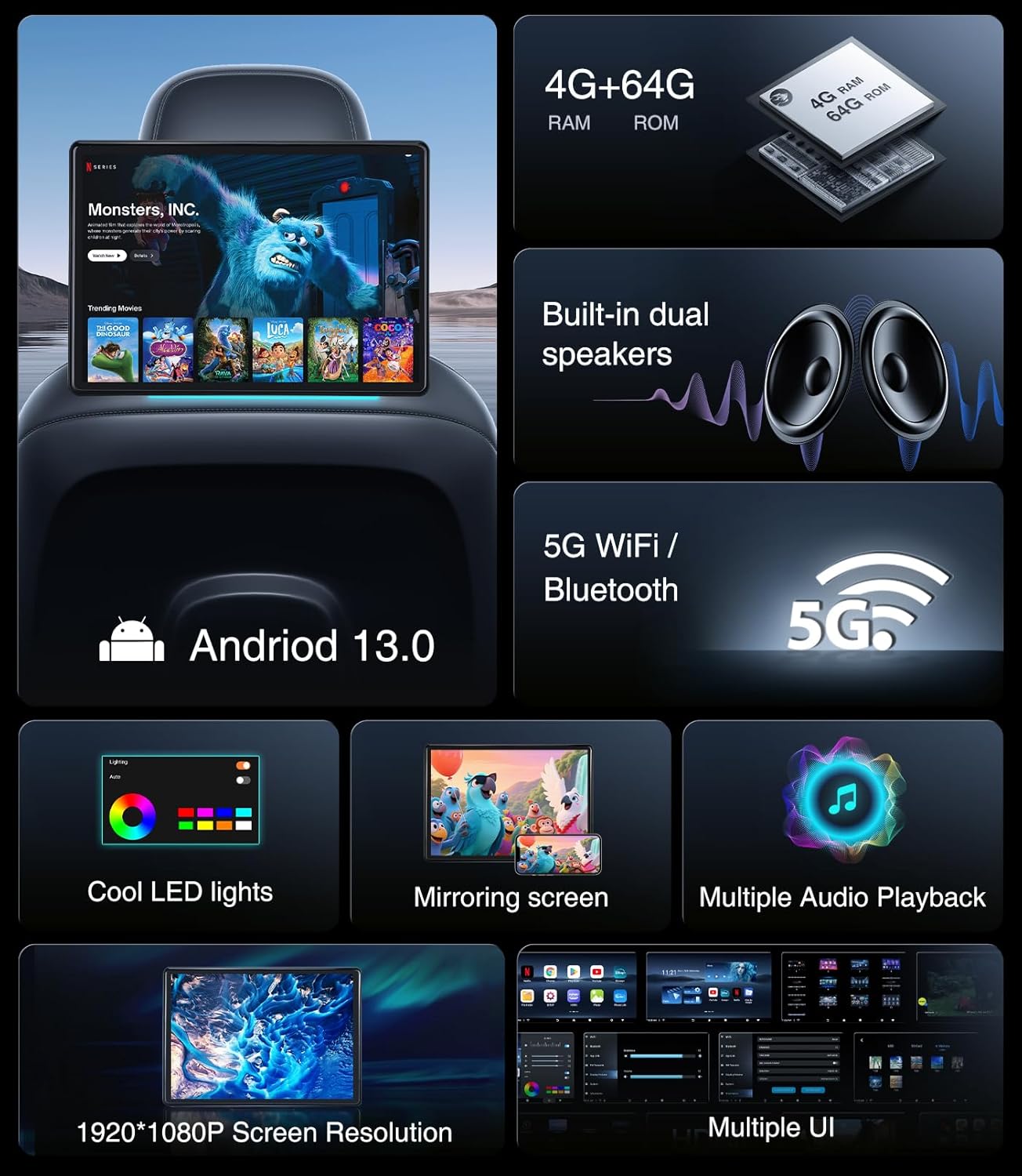
Image: A visual summary of the monitor's core features, including its operating system, memory, connectivity, and display resolution.
Configuration et installation
Contenu du colis :
Avant l'installation, assurez-vous que tous les composants sont présents :
- 1x Headrest Monitor
- 1x support de montage
- 1x DC 12V Adapter (for home use)
- 1x câble HDMI
- 1x Car Battery Power Cable
- 1x Cigarette Power Cable
- 1x Product Operation Manual

Image: A clear display of all items included in the product package.
Montage du moniteur :
- Identify the headrest rods in your vehicle. The adjustable metal bracket is designed for round rods with sizes between 5.12-7.87 inches.
- Attach the mounting bracket securely to the headrest rods. Ensure it is tightened to prevent movement during travel.
- Faites glisser le moniteur sur le support jusqu'à ce qu'il s'enclenche.
Note: This monitor is compatible with over 98% of car installations using round rods. It is not suitable for square rods or seats without rods.
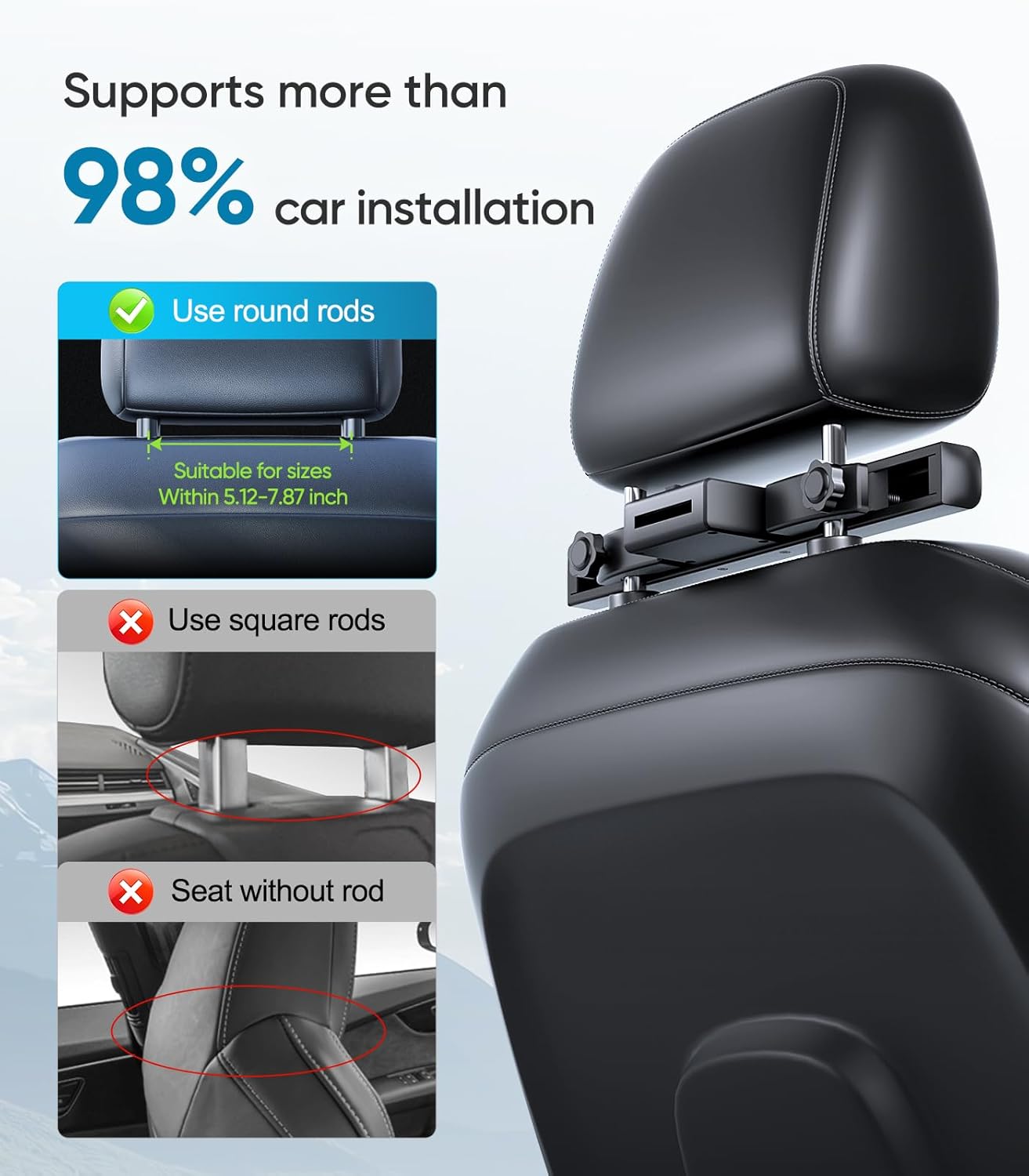
Image: Visual guide for headrest installation, highlighting compatible and incompatible headrest types.
Alimentation du moniteur :
Le moniteur peut être alimenté de deux manières :
- Utilisation en voiture : Use the provided car cigarette lighter cable or the car battery fuse cable to connect the monitor to your vehicle's power supply.
- Utilisation à domicile : Use the included DC 12V adapter to power the monitor from a standard wall outlet.

Image: Illustration of power options for the monitor, both in-car and at home.
Mode d'emploi
Configuration initiale et connexion Wi-Fi :
- Allumez le moniteur.
- Accédez au menu « Paramètres ».
- Select "Wi-Fi" and connect to an available network. Ensure your phone is connected to the same Wi-Fi network for mirroring functions.
Using Android 13 OS and Apps:
The monitor runs on Android 13 OS, providing access to a wide range of applications via the Google Play Store. You can download and install apps such as Netflix, YouTube, Disney+, and more.
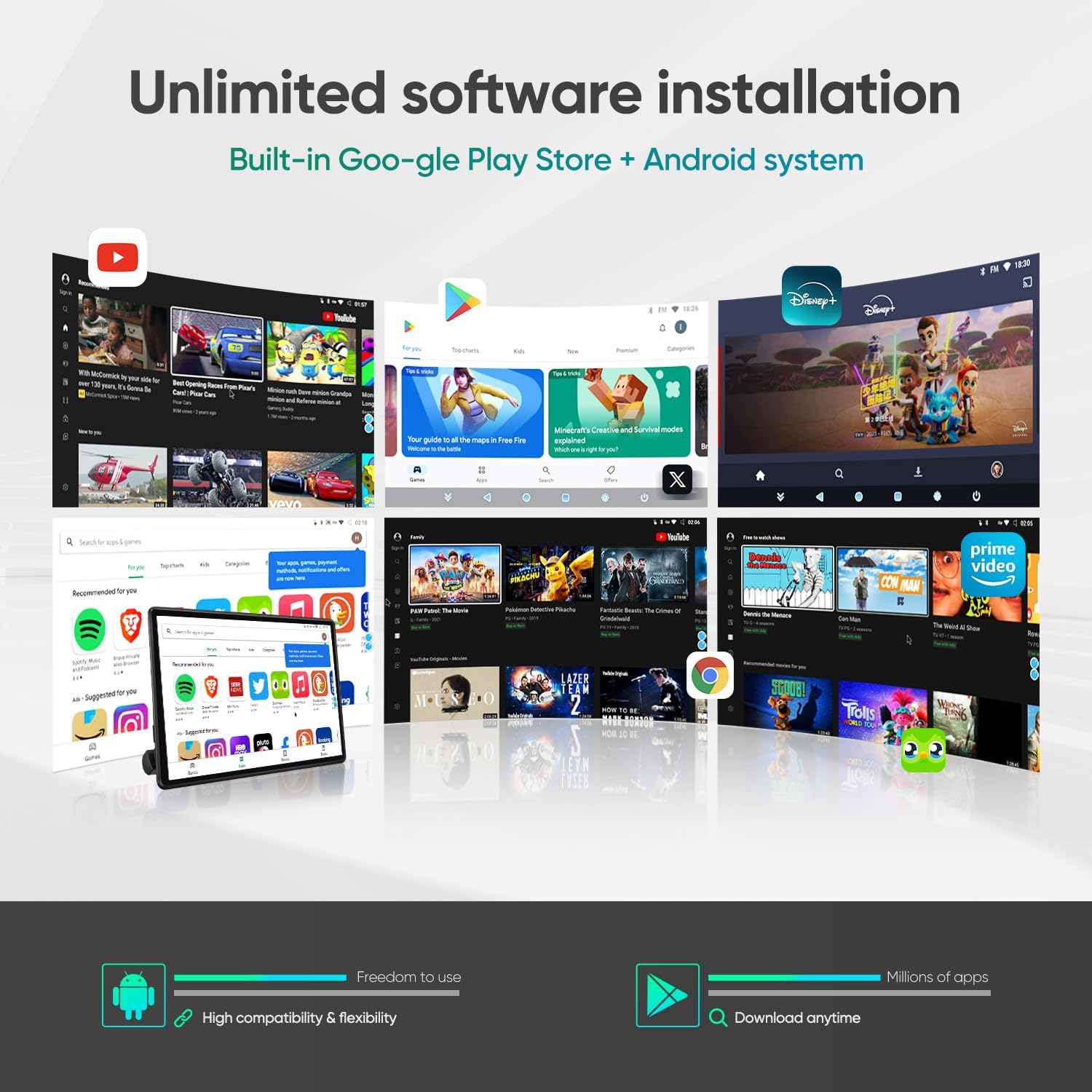
Image: The monitor's interface showing available applications and the Google Play Store.
Wireless Phone Mirroring (AirPlay/Miracast):
Mirror your smartphone screen to the monitor for seamless content sharing.
- Assurez-vous que votre téléphone et le moniteur sont connectés au même réseau Wi-Fi.
- Download and open the "MyCar Link" app on your smartphone.
- On the monitor, open the "Phone Link" app.
- For Android phones, select "Android System" in the "Phone Link" app on the monitor. Then, on your Android phone, find the screen mirroring feature (e.g., Smart View, Cast) and select the monitor's device name (e.g., "ANORSE_XXXX").
- For iPhones, select "Apple System" in the "Phone Link" app on the monitor. Then, on your iPhone, open the Control Center, tap "Screen Mirroring," and select the monitor's device name (e.g., "LT-Link_XXXX").

Image: A smartphone connected to the monitor via screen mirroring, displaying content.
Connecting External Devices (HDMI, USB, Micro SD):
The monitor offers various ports for expanded entertainment options:
- Entrée/sortie HDMI : Connect gaming consoles (PS4/PS5, X-BOX), TV boxes, Fire TV sticks, PCs, or projectors. Use HDMI output to link two monitors for synchronized playback.
- Port USB : Connectez des périphériques USB pour la lecture multimédia ou le chargement.
- Emplacement pour carte micro SD : Insert Micro SD cards up to 1TB for additional storage and media playback.

Image : Terminéview of monitor ports and compatible external devices for enhanced entertainment.
Options de lecture audio :
Choose your preferred audio output method:
- Haut-parleurs intégrés : Enjoy audio directly from the monitor.
- Oreillette Bluetooth: Pair a wireless Bluetooth headset for private listening.
- Wired Headset: Connect a wired headset via the 3.5mm headphone port.
- Transmetteur FM: Transmit audio to your car's speakers by tuning your car radio to the selected FM frequency on the monitor.
Paramètres du moniteur :
Access the monitor settings to customize your experience:
- Tap the "Settings" icon on the home screen.
- Here you can adjust Wi-Fi and Bluetooth connections, manage app links, and configure FM transmission.
- In the "System" menu, you can change the preferred theme. To access this, you will need to input the password: HR8888.
- Tap the gear icon (usually located at the bottom right) to adjust screen brightness, volume, and ambient light color.
Entretien
Smart OTA Updates:
The monitor supports Smart Over-The-Air (OTA) updates. The system and installed applications will automatically upgrade when connected to the internet, ensuring you always have the latest features and security patches.

Image: Visual representation of the OTA Cloud Update feature.
Dépannage
Problèmes courants et solutions :
- Pas d'alimentation :
Ensure the power cable is securely connected to both the monitor and the power source (car cigarette lighter, car battery, or home adapter). Check the vehicle's fuse if using car power.
- Problèmes de connexion Wi-Fi :
Verify that the Wi-Fi network is active and the password is correct. Try restarting both the monitor and your Wi-Fi router/hotspot.
- Phone Mirroring Not Working:
Confirm both devices are on the same Wi-Fi network. Ensure the "MyCar Link" app is open on your phone and the "Phone Link" app is open on the monitor. Double-check that you have selected the correct device name for mirroring. For Android, ensure Miracast/Smart View is enabled. For iPhone, ensure Screen Mirroring is selected from the Control Center.
- Aucun son ne sort des haut-parleurs :
Check the volume settings on the monitor. If FM transmitter is enabled, the built-in speakers will be muted; disable FM transmitter or ensure your car radio is tuned to the correct frequency.
- L'écran ne répond pas :
Try restarting the monitor. If the issue persists, perform a factory reset (refer to the "System" settings, advanced options, if available, or contact support).
Caractéristiques
| Fonctionnalité | Détail |
|---|---|
| Taille de l'écran | 13.5 pouces |
| Type d'affichage | Écran tactile IPS |
| Résolution | 1920x1280 (4K Video Decoding Support) |
| Système opérateur | Android 13 |
| BÉLIER | 4 Go |
| ROM (Stockage interne) | 64GB (Expandable up to 1TB via Micro SD) |
| Connectivité | 5G Wi-Fi, Bluetooth, HDMI In/Out, USB, Micro SD |
| Sortie audio | Built-in Speakers, 3.5mm Headphone Jack, FM Transmitter |
| Dimensions du produit | 13.5 x 13.5 x 13.5 pouces |
| Poids de l'article | 4.53 livres |

Image: Internal hardware details, emphasizing the processor, RAM, and ROM.
Garantie et assistance
Informations sur la garantie :
This AINAVITO Car Headrest Monitor comes with a Garantie de 1 ans à compter de la date d'achat, couvrant les défauts de fabrication et les dysfonctionnements dans des conditions normales d'utilisation.
Assistance clientèle :
Pour toute question, assistance technique ou réclamation au titre de la garantie, veuillez contacter notre équipe d'assistance :
- Ligne d'assistance téléphonique : +1 888 502 7557
- Horaires d'ouverture: 3:00 PM - 3:00 AM PDT
- E-mail: info@ainavito.com
You can also seek help via your order center on Amazon by clicking on "Sold By - APEXNAV" and then "ASK a Question". Our engineers provide 24-hour after-sale service.

Image : Un représentant du service clientèle prêt à répondre aux questions sur les produits.


