1. Introduction
Thank you for choosing the MEETION BTM011 Ergonomic Wireless Bluetooth Vertical Mouse. This device is designed to provide a comfortable and efficient computing experience by promoting a natural hand position, reducing wrist strain. It offers versatile connectivity options for multiple devices and adjustable precision to suit various tasks.

The ergonomic design of the MEETION vertical mouse helps maintain a natural hand and wrist posture, reducing discomfort compared to traditional mice.
2. Contenu du colis
- MEETION BTM011 Ergonomic Wireless Bluetooth Vertical Mouse
- USB 2.4G Receiver (stored in the mouse battery compartment)
- Adaptateur USB-A vers USB-C
- Manuel d'utilisation
3. Produit terminéview
Familiarize yourself with the various components and buttons of your MEETION BTM011 mouse.

Détaillé view of the mouse components, including the Mode Switching Button, Power Switch (ON/OFF), Low Battery Indicator, Charging Indicator, DPI Speed Switch Button, 2.4G Connection Indicator, Bluetooth 1 Connection Indicator, and Bluetooth 2 Connection Indicator.
- Bouton gauche : Fonction standard de clic gauche.
- Bouton droit : Fonction standard de clic droit.
- Molette: Pour faire défiler vers le haut et vers le bas.
- Bouton avant : Navigue vers l'avant dans web navigateurs ou file explorateurs.
- Bouton Retour : Navigue en arrière dans web navigateurs ou file explorateurs.
- Bouton de changement de DPI : Ajuste la sensibilité du curseur.
- Bouton de changement de mode : Switches between 2.4G, Bluetooth 1, and Bluetooth 2 modes.
- Interrupteur d'alimentation (ON/OFF) : Active ou désactive la souris.
- Compartiment à piles : Located at the bottom, for 1x AA battery and USB receiver storage.
4. Instructions de configuration
4.1 Installation de la batterie
La souris nécessite une pile AA (non fournie).
- Repérez le couvercle du compartiment à piles sous la souris.
- Faites glisser le couvercle pour l'ouvrir.
- Insérez une pile AA en respectant la polarité (+/-).
- Fermez soigneusement le couvercle du compartiment à piles.

Insert one AA battery into the compartment. The USB receiver is also stored here.
4.2 Mise sous/hors tension
Slide the power switch located on the bottom of the mouse to the "ON" position to turn it on. Slide to "OFF" to conserve battery when not in use.
4.3 Modes de connectivité
The MEETION BTM011 mouse supports three connection modes: 2.4GHz wireless (via USB receiver) and two independent Bluetooth 5.3 channels (BT1 and BT2). You can connect to up to three devices simultaneously and switch between them.

The mouse supports 2.4G wireless and two Bluetooth 5.3 connections for seamless switching between devices.
4.4 Connexion USB 2.4 GHz
- Retirez le récepteur USB du compartiment à piles de la souris.
- Insert the USB receiver into an available USB-A port on your computer. If your computer only has USB-C ports, use the provided USB-A to USB-C adapter.
- Allumez la souris à l'aide de l'interrupteur d'alimentation.
- Press the Mode Switching Button until the 2.4G Connection Indicator (green light) lights up. The mouse should now be connected.
4.5 Connexion Bluetooth (BT1 / BT2)
- Allumez la souris à l'aide de l'interrupteur d'alimentation.
- Press the Mode Switching Button to select either Bluetooth 1 (BT1) or Bluetooth 2 (BT2). The corresponding blue indicator light will blink, indicating pairing mode.
- Sur votre appareil (ordinateur, ordinateur portable, tablette, smartphone), accédez aux paramètres Bluetooth.
- Rechercher new devices. You should find "Meetion_MS_BT1" or "Meetion_MS_BT2".
- Select the device to pair. Once paired, the blue indicator light will stop blinking and remain solid for a few seconds.

Visual guide for connecting the mouse via 2.4G USB receiver and Bluetooth modes.
5. Mode d'emploi
5.1 Ajustement PPP
The mouse features 4 adjustable DPI levels: 1200, 1600, 2400, and 3200. Press the DPI Switch Button (located behind the scroll wheel) to cycle through these settings. Each press changes the cursor speed, allowing you to select the precision suitable for your task.
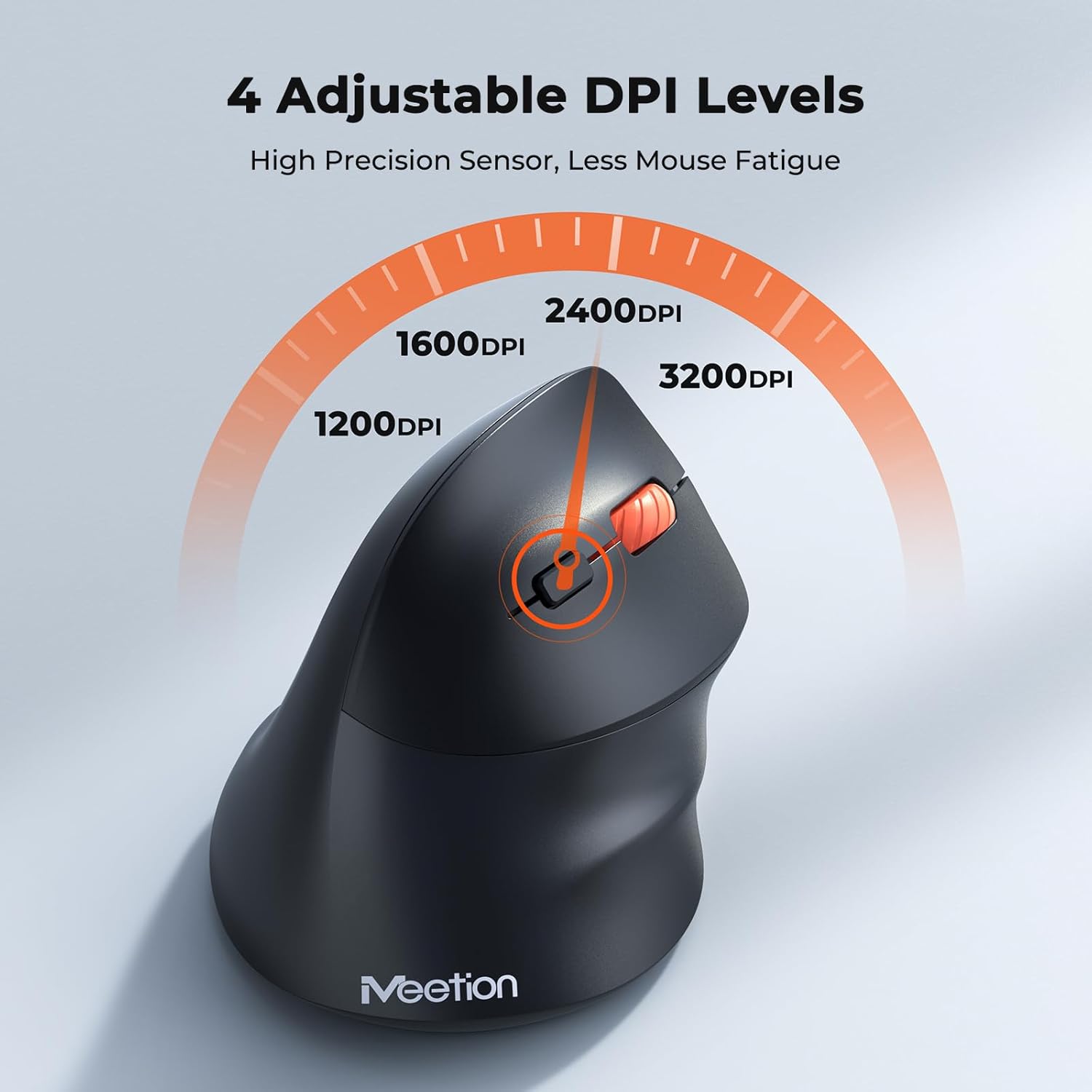
Adjust the DPI to match your preference for cursor speed and precision.
5.2 Commutation multi-appareils
To switch between connected devices, simply press the Mode Switching Button located on the bottom of the mouse. The corresponding indicator light (green for 2.4G, blue for BT1/BT2) will illuminate to show the active connection.
5.3 Boutons Suivant/Précédent
Use the Forward and Back buttons, conveniently located on the side of the mouse, for quick navigation in web navigateurs, file explorateurs et autres applications prenant en charge ces fonctions.
6. Gestion de l'alimentation
6.1 Mode veille automatique
To conserve battery life, the mouse will automatically enter sleep mode after 20 minutes of inactivity. This intelligent feature helps extend the battery's operational time.
6.2 Waking the Mouse
To wake the mouse from sleep mode, simply press any button. It will instantly reconnect to the last active device.
6.3 Autonomie de la batterie
With typical usage, a single AA battery can power the mouse for up to 3 months. Actual battery life may vary based on usage patterns and battery quality.
7. Entretien
To ensure optimal performance and longevity of your mouse, follow these maintenance guidelines:
- Nettoyage: Utilisez un chiffon doux et sec pour essuyer la surface de la souris. Pour les saletés tenaces, un chiffon légèrement plus sec peut être utile.amp Un chiffon peut être utilisé, mais veillez à ce qu'aucune humidité ne pénètre dans l'appareil. Évitez les produits chimiques agressifs et les nettoyants abrasifs.
- Remplacement de la batterie : Replace the AA battery when the low battery indicator lights up or when mouse performance degrades. Always dispose of used batteries responsibly.
- Stockage: When not in use for extended periods, turn off the mouse and store it in a dry, cool place.
8. Dépannage
If you encounter issues with your MEETION BTM011 mouse, refer to the following solutions:
| Problème | Solution |
|---|---|
| La souris ne répond pas |
|
| Le mouvement du curseur est erratique ou lent. |
|
| Impossible de se connecter via Bluetooth |
|
| Forward/Back buttons not working |
|
9. Spécifications
| Fonctionnalité | Détail |
|---|---|
| Modèle | BTM011 |
| Connectivité | Sans fil 2.4 GHz, Bluetooth 5.3 (BT1, BT2) |
| Niveaux de PPP | 1200 / 1600 / 2400 / 3200 |
| Boutons | 7 (Left, Right, Scroll Wheel, Forward, Back, DPI Switch, Mode Switch) |
| Source d'énergie | 1 pile AA (non fournie) |
| Veille automatique | Après 20 minutes d'inactivité |
| Compatibilité | Windows, Mac OS, Linux, Android, iOS (for iPad/iPhone) |
| Matériel | Plastique |
| Dimensions (environ) | 4.4 x 3.29 x 2.74 pouces (11.18 x 8.36 x 6.96 cm) |
10. Garantie et assistance
10.1 Informations sur la garantie
MEETION products are designed and manufactured to the highest quality standards. This product is covered by a limited warranty against defects in materials and workmanship. Please retain your proof of purchase for warranty claims. Specific warranty terms may vary by region; refer to your local retailer or the official MEETION website pour plus de détails.
10.2 Assistance clientèle
For technical assistance, troubleshooting, or general inquiries, please contact MEETION customer support:
- E-mail: service@meetion.com
- Website: Visit the official MEETION webSite de FAQ et de ressources supplémentaires.


