1. Produit terminéview
The MOBAPAD N1 HD is a versatile wireless controller designed for an enhanced gaming experience across multiple platforms. It features advanced technologies such as Hall Effect Joysticks for precise control, ALPS Dual-Axis Motors for immersive HD vibration, and six-axis motion control. This controller is compatible with Nintendo Switch, PC, iOS, and Android devices, offering seamless connectivity and responsive performance.

Image : Avant view of the MOBAPAD N1 HD Wireless Controller, showcasing son design ergonomique et la disposition de ses boutons.
2. Principales caractéristiques
- Compatibilité multi-plateforme : Fully compatible with Nintendo Switch, PC, iOS, and Android devices, ensuring broad usability.
- Manettes de jeu à effet Hall : Provides smooth, precise, and durable control with minimal wear, ideal for accurate gaming.
- ALPS Dual-Axis Motors with HD Vibration: Delivers realistic and immersive haptic feedback for enhanced gameplay.
- Contrôle de mouvement à six axes : Built-in gyroscope enables enhanced motion control for compatible games.
- NFC for Amiibo Scanning: Supports NFC technology for scanning Amiibo figures on Nintendo Switch.

Image: The controller illustrating its immersive motion control capabilities with swirling lines around it.

Image: The controller positioned in front of a collection of Amiibo figures, highlighting its NFC scanning function.

Image: The controller shown alongside icons for Switch, Android/iOS, and PC, demonstrating its multi-device compatibility.
3. Configuration et connexion
Follow these steps to connect your MOBAPAD N1 HD controller to your desired device.
3.1. Connexion à la Nintendo Switch
- Dans le menu HOME, sélectionnez Contrôleurs, alors Changer la prise/l'ordre.
- While the screen is displaying "Press L + R on the controller", press and hold the Bouton d'accueil on the MOBAPAD N1 HD controller for 3-5 seconds until the player LEDs begin to flash.
- Une fois la connexion établie, la ou les LED du joueur correspondant au numéro de la manette resteront allumées.
3.2. Connexion à un PC (Windows)
- Connect the controller to your PC using a USB-C cable. The controller will be recognized as a wired controller.
- For wireless connection, ensure your PC has Bluetooth enabled. Go to Bluetooth & other devices settings.
- Sélectionnez « Ajouter un appareil Bluetooth ou autre » et choisissez « Bluetooth ».
- Appuyez et maintenez enfoncé le Bouton d'accueil on the controller until the LEDs flash rapidly, indicating pairing mode.
- Select "MOBAPAD N1 HD" from the list of available devices.
3.3. Connexion aux appareils iOS/Android
- Activez Bluetooth sur votre appareil iOS ou Android.
- Accédez aux paramètres Bluetooth et recherchez de nouveaux appareils.
- Appuyez et maintenez enfoncé le Bouton d'accueil on the controller until the LEDs flash rapidly.
- Select "MOBAPAD N1 HD" from the list of available devices to pair.
4. Utilisation du contrôleur
Familiarize yourself with the controller's layout and functions for optimal gameplay.
4.1. Disposition des boutons
- Joystick analogique gauche : For movement and camera control. Features Hall Effect technology.
- Joystick analogique droit : For camera control and aiming. Features Hall Effect technology.
- Croix directionnelle: Commandes directionnelles pour la navigation dans les menus et certaines actions du jeu.
- Boutons A/B/X/Y : Boutons d'action standard.
- Boutons L/R : Boutons d'épaule.
- Boutons ZL/ZR : Boutons de déclenchement.
- Bouton moins (-) : Typically for opening in-game menus or specific functions.
- Bouton Plus (+) : Typically for opening in-game menus or specific functions.
- Bouton d'accueil: Returns to the system's home screen. Also used for pairing and NFC scanning.
- Bouton de capture : Takes screenshots or video clips (Nintendo Switch).
- Boutons M1/M2 : Programmable back buttons for custom macros or remapping.
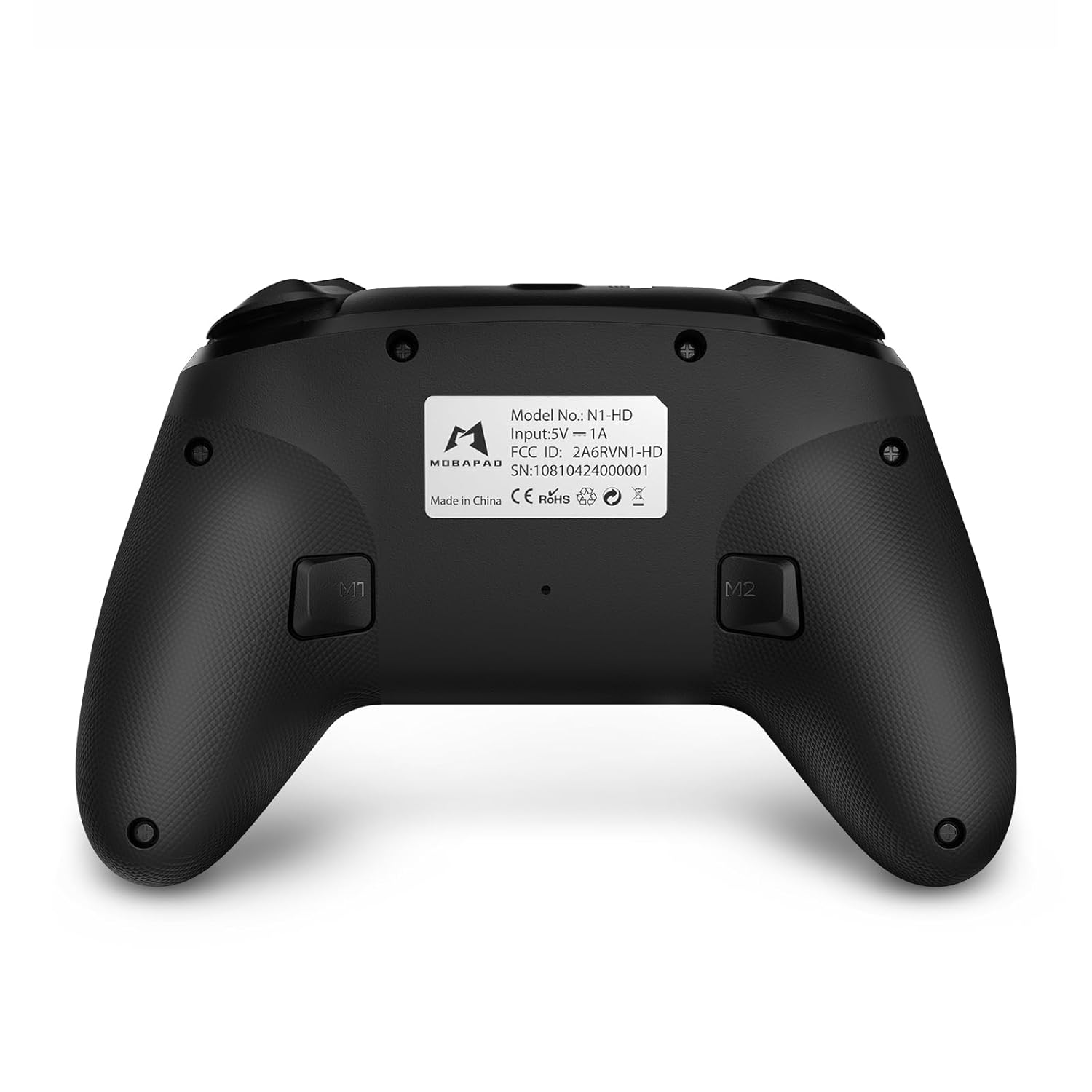
Image : Vue de face détaillée view of the MOBAPAD N1 HD controller, showing all buttons and joysticks.

Image : Dos view of the MOBAPAD N1 HD controller, highlighting the M1 and M2 programmable buttons and product label.
4.2. NFC Functionality (Amiibo Scanning)
To use the NFC function for Amiibo scanning on Nintendo Switch:
- Ensure your controller is connected to the Nintendo Switch.
- In a compatible game, when prompted to scan an Amiibo, place the Amiibo figure directly over the Bouton d'accueil area on the controller.
- Hold the Amiibo in place until the game registers the scan.
5. Maintenance et entretien
Un entretien approprié garantit la longévité et les performances optimales de votre contrôleur.
- Nettoyage: Utilisez un chiffon doux et sec pour essuyer la manette. Pour les saletés tenaces, frottez légèrement avec un chiffon doux et sec.ampNettoyez le chiffon avec de l'eau. Évitez les produits chimiques agressifs et les matériaux abrasifs.
- Stockage: Rangez la manette dans un endroit frais et sec, à l'abri de la lumière directe du soleil et des températures extrêmes.
- Entretien de la batterie: The controller contains a Lithium Ion battery. Avoid fully discharging the battery frequently. If storing for extended periods, charge the battery to about 50% to prolong its lifespan. Do not expose the battery to fire or extreme heat.
- Manutention: Évitez de faire tomber la manette ou de la soumettre à des chocs violents, car cela pourrait endommager ses composants internes.
6. Dépannage
If you encounter issues with your MOBAPAD N1 HD controller, refer to the following common solutions.
| Problème | Cause possible | Solution |
|---|---|---|
| La manette ne se connecte pas. | Batterie faible, hors de portée, mode d'appairage incorrect, interférences. | Charge the controller fully. Ensure it is within range of the device. Re-enter pairing mode (hold Home button). Move closer to the device or away from other wireless devices. |
| Les boutons ou les joysticks ne répondent pas. | Software glitch, physical obstruction, damage. | Restart the controller and the connected device. Check for any debris around the buttons/joysticks. If issues persist, contact customer support. |
| Vibration is weak or absent. | Vibration setting off, game does not support vibration, motor issue. | Check in-game settings and system settings to ensure vibration is enabled. Verify if the game supports vibration feedback. |
| NFC scanning fails. | Incorrect placement, game not prompting scan, controller not connected. | Ensure the Amiibo is placed directly over the Home button area. Confirm the game is prompting for an Amiibo scan. Verify controller is properly connected to the Switch. |
7. Spécifications
| Fonctionnalité | Détail |
|---|---|
| Numéro de modèle | Mobapad N1 HD Black |
| Dimensions (L x l x H) | 5.91 x 2.36 x 3.94 pouces |
| Poids | 7.05 onces |
| Type de batterie | 1 batterie lithium-ion (incluse) |
| Connectivité | Sans fil (Bluetooth), USB-C (filaire) |
| Compatibilité | Nintendo Switch, PC, iOS, Android |
| Caractéristiques spéciales | Hall Effect Joysticks, ALPS Dual-Axis Motors, HD Vibration, Six-Axis Gyroscope, NFC |
8. Garantie et assistance
For warranty information or technical support, please contact MOBAPAD customer service. Refer to the official MOBAPAD webConsultez le site ou votre documentation d'achat pour connaître les conditions de garantie spécifiques et les coordonnées de contact.
You can visit the official MOBAPAD store on Amazon for more information: MOBAPAD Store


