1. Installation
1.1 Contenu de la boîte
The ProtoArc XKM01 CaseUp combo includes a foldable keyboard, an ultra-thin mouse, an adjustable laptop stand, and a charging cable, all housed within a premium travel case.

1.2 Mise sous/hors tension
- Clavier: Unfold the keyboard to power it ON. Fold it back to power it OFF.
- Souris: Use the physical ON/OFF switch located on the underside of the mouse.
1.3 Connexion à votre appareil
The XKM01 CaseUp supports both 2.4G wireless and Bluetooth connectivity.
Connexion sans fil 2.4 G :
- Locate and remove the USB receiver from its storage slot on the underside of the mouse.
- Insérez le récepteur USB dans un port USB disponible de votre ordinateur ou de votre ordinateur portable.
- Turn on both the keyboard (by unfolding) and the mouse (using the physical switch).
- On the keyboard, press the channel button for 2.4G mode (indicated by a specific icon or number, typically orange).
- On the mouse, press the channel button to select 2.4G mode (indicated by a specific icon or number). Both devices should now be connected.
Connexion Bluetooth:
- Turn on both the keyboard and the mouse.
- On the keyboard, press and hold the desired Bluetooth channel button (BT1 or BT2, typically orange) for 3 seconds until its indicator light blinks rapidly. This puts the keyboard into pairing mode.
- On the mouse, press and hold the corresponding Bluetooth channel button (BT1 or BT2) for 3 seconds until its indicator light blinks rapidly. This puts the mouse into pairing mode.
- On your device (laptop, PC, MacBook, Windows, Mac OS, smartphone, tablet), navigate to Bluetooth settings.
- Select "XKM01 CaseUp" from the list of available devices and confirm pairing.
1.4 Setting Up the Laptop Stand
The adjustable laptop stand helps improve posture and reduce strain.
- Unfold the stand and adjust its width to accommodate your device.
- Flip up the small retaining flaps on the stand to secure your laptop or tablet.
- Place your device on the stand at a comfortable viewangle de vue.

2. Mode d'emploi
2.1 Fonctions du clavier
The tri-fold keyboard offers a full standard layout with 105 keys, including a number pad and dedicated shortcut keys.
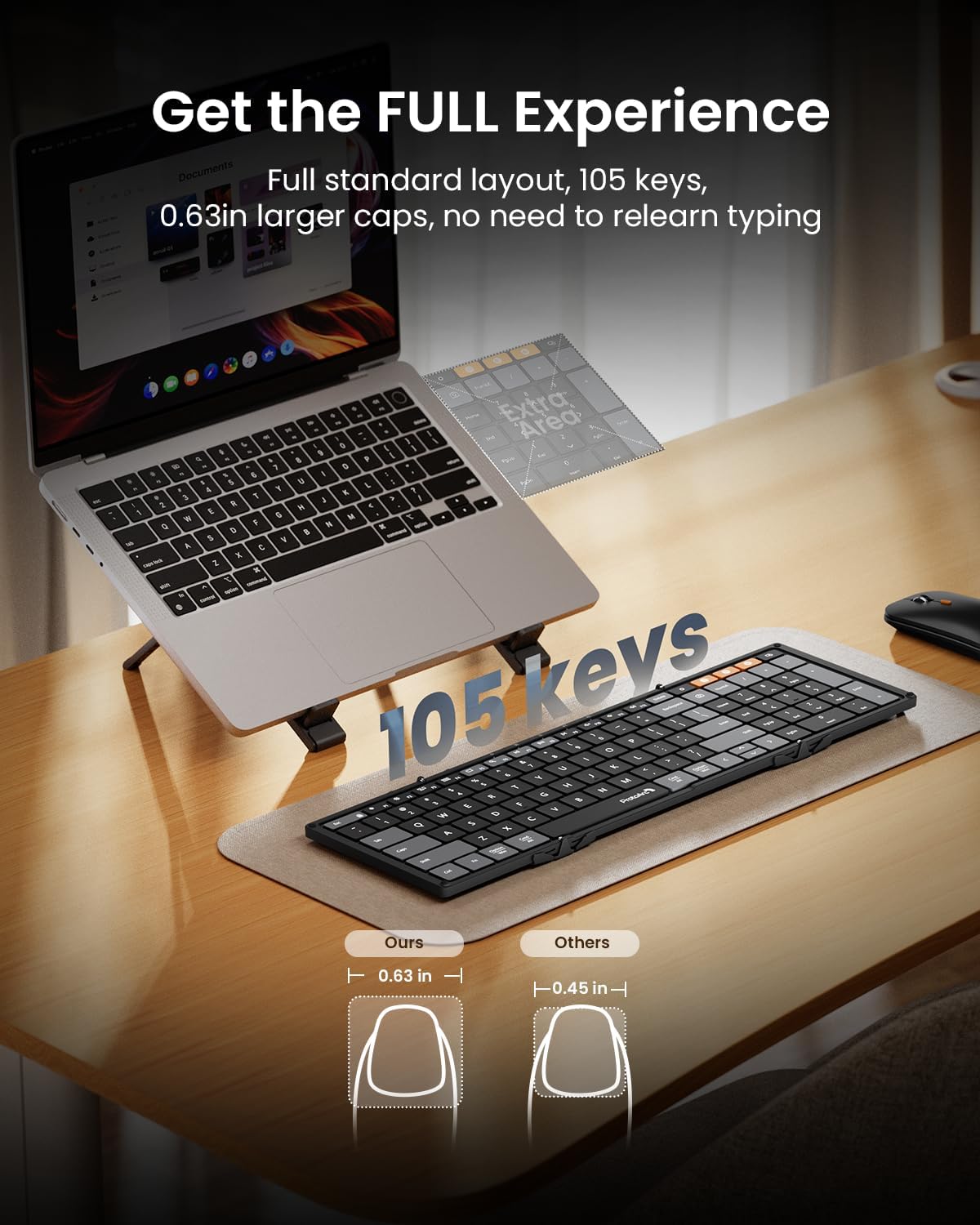
F-Keys (Function Keys) and Multimedia Controls:
- By default, the F1-F12 keys control media functions (e.g., brightness, play/pause, mute).
- To switch F1-F12 to standard function keys (e.g., F5 to refresh), press Fn + Échap.
- To switch back to multimedia controls, press Fn + Échap encore.
2.2 Fonctions de la souris
The ultra-thin mouse offers precise navigation and adjustable cursor speed.
- Ajustement PPP : Press the orange button on the top of the mouse to cycle through different DPI settings, adjusting cursor speed to your preference.
- Changement de mode : Use the channel buttons on the underside of the mouse to switch between 2.4G wireless and Bluetooth modes.
2.3 Multi-Device Workflow
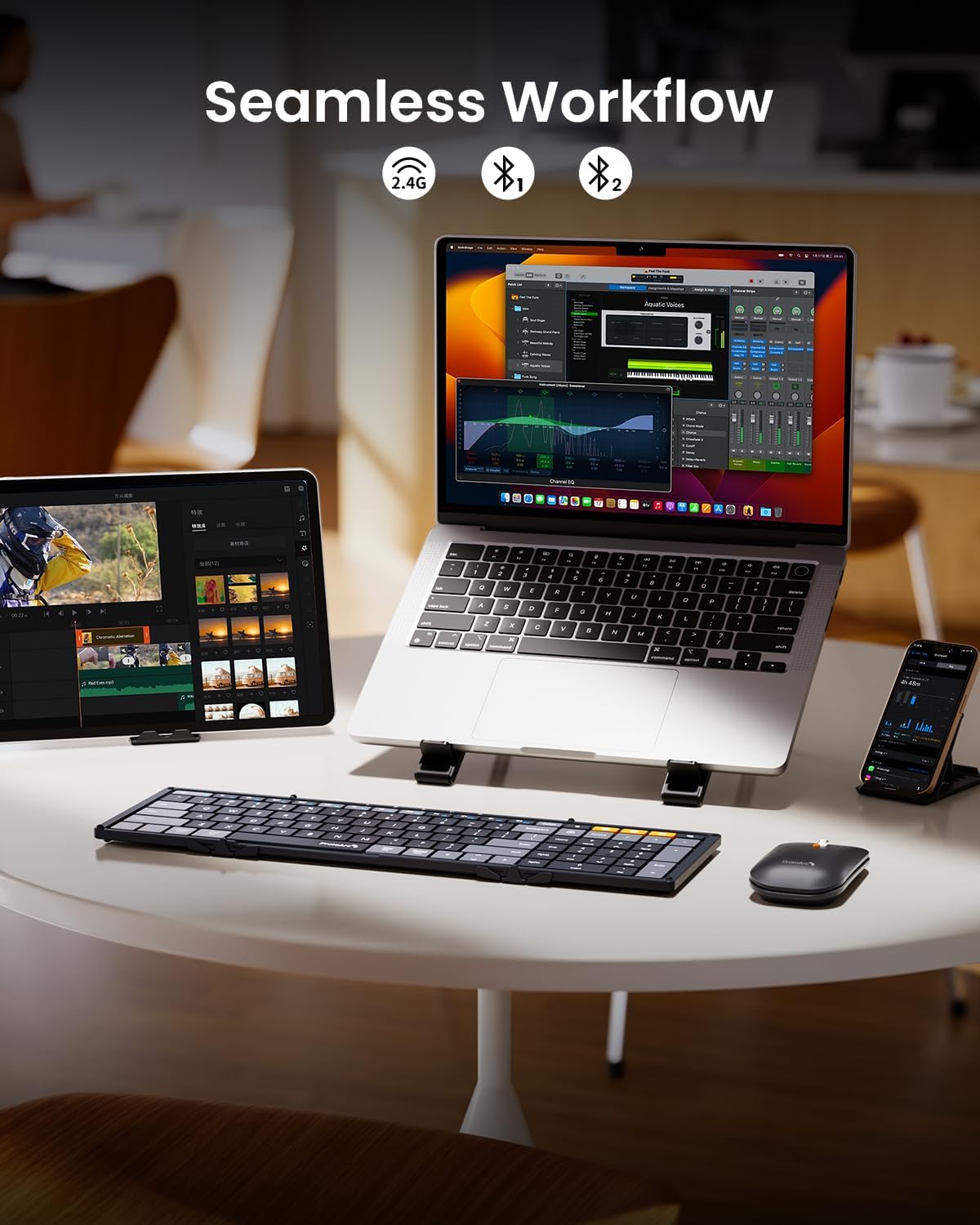
Seamlessly switch between up to three devices (one 2.4G, two Bluetooth) using the dedicated channel buttons on both the keyboard and mouse.
2.4 Official User Guide Video
For a visual demonstration of setup and operation, please refer to the official user guide video below:
3. Entretien
3.1 Chargement
Both the keyboard and mouse feature built-in rechargeable batteries and are charged via the included Type-C cable.
- A red blinking light indicates low battery.
- A solid red light indicates charging is in progress.
- A green light indicates the device is fully charged.

3.2 Battery Life and Auto-Sleep
The keyboard offers an impressive 150 days of standby time, and the mouse provides 200 days. An auto-sleep feature conserves battery when not in use.
3.3 Nettoyage
To clean your devices, use a soft, dry, lint-free cloth. Avoid using harsh chemicals or abrasive materials.
4. Dépannage
4.1 Problèmes de connexion
- Ensure both the keyboard and mouse are powered ON.
- Verify that the correct 2.4G or Bluetooth channel is selected on both devices.
- For Bluetooth, ensure your device's Bluetooth is enabled and the devices are in pairing mode.
- Try re-pairing the devices if connection is lost.
- Pour la bande 2.4 GHz, assurez-vous que le récepteur USB est correctement branché à votre appareil.
4.2 Keyboard/Mouse Not Responding
- Vérifiez les niveaux de la batterie et rechargez-la si nécessaire.
- Ensure the devices are within the effective operating range of your computer.
- Restart your computer and try reconnecting.
5. Spécifications
| Marque | ProtoArc |
| Numéro de modèle | Étui XKM01 |
| Technologie de connectivité | Bluetooth, USB (2.4G) |
| Caractéristiques spéciales | Ergonomic, Lightweight, Portable, Rechargeable, Tri-Fold |
| Appareils compatibles | Ordinateur portable, ordinateur personnel, smartphone, tablette |
| Poids de l'article | 2.68 livres |
| Dimensions du colis | 13.19 x 6.46 x 2.64 pouces |
6. Garantie et assistance
For warranty information, technical support, or further assistance, please visit the official ProtoArc website or contact customer service through your retailer. Keep your purchase receipt for warranty claims.
Vous pouvez également visiter le Boutique ProtoArc sur Amazon pour plus de produits et de ressources d'assistance.


