Introduction
This manual provides essential information for setting up, operating, maintaining, and troubleshooting your HP Envy 17-DA000 Laptop. Please read this guide thoroughly to ensure proper use and to maximize the performance and longevity of your device.

Image: The HP Envy 17-DA000 Laptop with its 17.3-inch display open, showing the Windows 11 operating system desktop.
Installation
1. Déballage et inspection initiale
Carefully remove the laptop and all accessories from the packaging. Inspect the laptop for any physical damage. The manufacturer box may have been opened for professional customization and testing.
2. Connexion à l'alimentation
- Branchez l'adaptateur secteur au connecteur d'alimentation de l'ordinateur portable.
- Branchez le cordon d’alimentation sur une prise électrique.
- Laissez la batterie se charger pendant au moins 30 minutes avant la première utilisation, ou jusqu'à ce que l'indicateur de batterie affiche une charge suffisante.
3. Mise sous tension initiale et configuration de Windows 11
- Appuyez sur le bouton d'alimentation pour allumer l'ordinateur portable.
- Suivez les instructions à l'écran pour terminer l'installation de Windows 11 Famille. Cela comprend le choix de votre région et de votre langue, la connexion à un réseau Wi-Fi et la création d'un compte utilisateur.
4. Connexion de périphériques
Connect external devices such as a mouse, external keyboard, or monitor to the available ports on your laptop. Refer to the 'Ports and Connectors' section for port identification.
Mode d'emploi
1. Keyboard and Touchscreen
- Clavier rétroéclairé : The keyboard features backlighting for use in low-light conditions. Adjust brightness settings through the function keys or Windows settings.
- Pavé numérique : Un clavier numérique dédié est intégré pour une saisie de données efficace.
- Écran tactile : The 17.3-inch FHD display supports touch input. Use gestures for navigation and interaction within Windows 11.
2. Ports et connecteurs
Your HP Envy 17-DA000 laptop is equipped with various ports for connectivity:
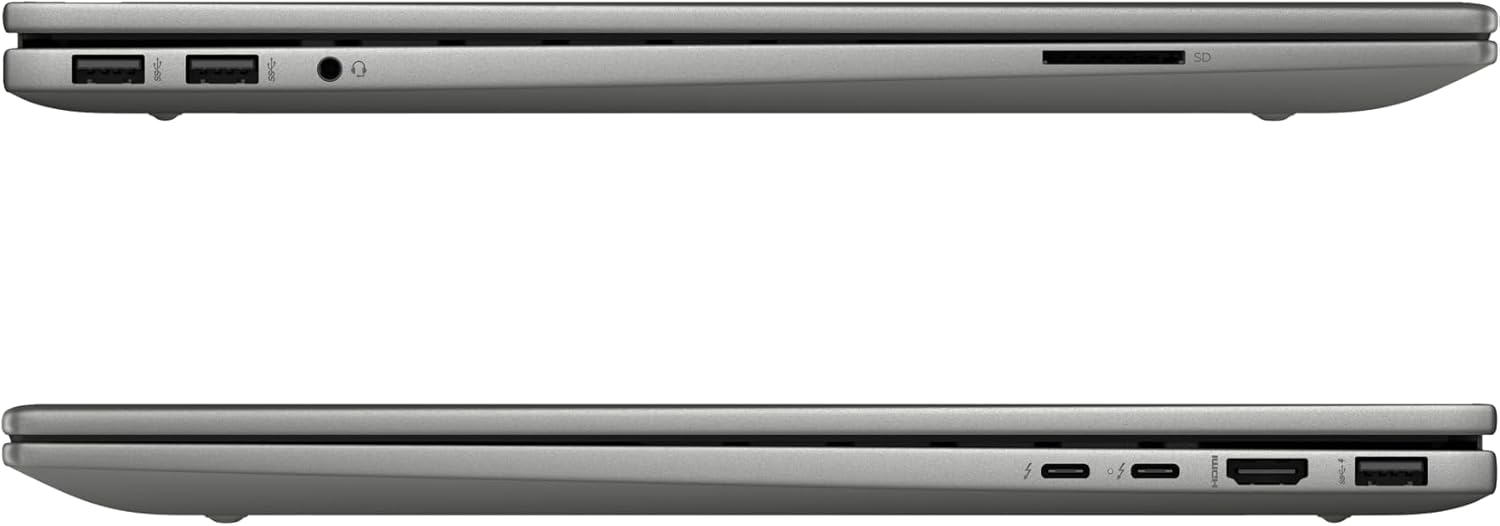
Image: Left side of the laptop, featuring two USB 3.2 Gen 2 ports, a headphone/microphone combo jack, and an SD card reader.
- Côté gauche :
- 2x USB 3.2 Gen 2 (10 Gbit/s)
- 1 prise combo casque/microphone
- 1 lecteur de carte SD

Image: Right side of the laptop, featuring two USB-C Thunderbolt 4 ports, an HDMI 2.1 port, and one USB 3.2 Gen 2 port.
- Côté droit :
- 2x USB-C Thunderbolt 4 / USB4 40Gbps (with Power Delivery and DisplayPort 1.4, Power-off Charging)
- 1x USB 3.2 Gen 2 (10Gbps, with Power-off Charging)
- 1x HDMI v2.1
3. Connectivité sans fil
- Wi-Fi 6E AX211 (2x2): Connectez-vous aux réseaux sans fil pour accéder à Internet.
- Bluetooth 5.3: Pair with compatible Bluetooth devices such as headphones, speakers, or mice.
4. Webcame
The HP Wide Vision 5MP IR camera includes a privacy shutter. Slide the shutter to cover the camera lens when not in use to ensure privacy.
Entretien
1. Nettoyage de l'ordinateur portable
- Utilisez un chiffon doux et non pelucheux dampTerminer avec de l'eau ou un nettoyant pour écrans pour nettoyer l'écran.
- Pour le clavier et le châssis, utilisez un chiffon doux et sec. Évitez les produits chimiques agressifs et les matériaux abrasifs.
- Utilisez périodiquement de l'air comprimé pour dépoussiérer les orifices et les conduits d'aération.
2. Mises à jour logicielles
Regularly check for and install updates for Windows 11 and HP drivers to ensure optimal performance and security. Access Windows Update through the Settings menu.
3. Entretien de la batterie
- Évitez de décharger complètement la batterie fréquemment.
- Rangez l'ordinateur portable dans un endroit frais et sec s'il n'est pas utilisé pendant une période prolongée.
- Use only the provided 100W AC adapter for charging.
4. Gestion du stockage
The 1TB NVMe M.2 SSD provides fast storage. Regularly back up important data and manage files to maintain sufficient free space for system performance.
Dépannage
Problèmes courants et solutions
- L'ordinateur portable ne s'allume pas : Ensure the AC adapter is securely connected and the battery has sufficient charge. Try a different power outlet.
- Problèmes d'affichage : Si l'écran reste noir, essayez de connecter un moniteur externe pour vérifier si le problème provient de l'écran de l'ordinateur portable. Ajustez les paramètres d'affichage dans Windows.
- Pas de connexion Wi-Fi : Check if Wi-Fi is enabled in Windows settings. Restart the laptop and your wireless router. Ensure drivers are up to date.
- Performances lentes : Fermez les applications inutiles, vérifiez la présence de logiciels malveillants, assurez-vous d'avoir suffisamment d'espace de stockage libre et mettez à jour vos pilotes.
Pour les problèmes plus complexes, veuillez consulter le support HP. website ou contacter le support client.
Caractéristiques
| Fonctionnalité | Détail |
|---|---|
| Modèle | HP Envy 17-DA000 |
| Processeur | Intel Core Ultra 7 155U (Up to 4.8 GHz, 12 Cores, 14 Threads) |
| Afficher | 17.3-inch FHD (1920 x 1080) LED-backlit Touchscreen, 60Hz, 300 nits, 45% NTSC |
| Graphique | NVIDIA GeForce RTX 3050 4 Go GDDR6 |
| Mémoire | 32 Go de mémoire vive DDR5 SDRAM à 5600 MHz |
| Stockage | 1TB SSD NVMe M.2 |
| Système opérateur | Windows 11 Famille |
| Clavier | Clavier rétroéclairé avec pavé numérique |
| Connectivité sans fil | Intel Wi-Fi 6E AX211 (2x2), Bluetooth 5.3 |
| Ports | 2x USB-C Thunderbolt 4, 3x USB 3.2 Gen 2, 1x HDMI v2.1, 1x Headphone/microphone combo, 1x SD Card Reader |
| Webcame | HP Wide Vision 5MP IR camera with Privacy Shutter |
| Batterie | Batterie Lithium-Ion 55Wh |
| Dimensions (L x l x H) | 15.59 x 10.18 x 0.77 pouces |
| Poids | 5.55 livres |
| Couleur | Argent Platine |
Informations sur la garantie
Ce produit est livré avec un Garantie de 12 mois. This warranty covers manufacturing defects and issues arising from normal use. Please retain your proof of purchase for warranty claims. The warranty does not cover damage caused by misuse, accidents, or unauthorized modifications.
Soutien
If you require technical assistance, have questions about your laptop, or need to make a warranty claim, please contact our support team. You can find contact information on the official HP support websur le site ou via la documentation fournie avec votre produit.
Pour accéder aux ressources en ligne, consultez le site web. Assistance HP Website.