1. Introduction
Bienvenue dans le Noirview Tab60WiFi user manual. This guide provides essential information for setting up, operating, and maintaining your new 10-inch Android 14 tablet. Please read this manual thoroughly to ensure proper usage and to maximize your device's potential.

Le Noirview Tab60WiFi, a 10.1-inch tablet running on the latest Android 14 operating system.
2. Contenu de la boîte
En ouvrant votre Blackview Tab60WiFi package, you should find the following items:
- Noirview Tab60WiFi Tablet
- Adaptateur secteur 10W
- Câble USB-C
- Manuel d'utilisation

Illustration du Noirview Tab60WiFi tablet and its included accessories.
3. Produit terminéview
Le Noirview Tab60WiFi features a sleek and lightweight metal body, designed for portability and comfort.

The tablet is available in stylish colors and weighs approximately 520.5g.
4. Configuration initiale
4.1 Chargement de la tablette
Before first use, fully charge your tablet using the provided 10W power adapter and USB-C cable. Connect the USB-C cable to the tablet's Type-C port and the adapter to a power outlet.
4.2 Mise sous/hors tension
- Pour allumer : Maintenez le bouton d'alimentation enfoncé jusqu'à ce que le noir s'affiche.view Le logo apparaît.
- Pour éteindre : Maintenez le bouton d'alimentation enfoncé, puis sélectionnez « Éteindre » parmi les options.
- Recommencer: Maintenez le bouton d'alimentation enfoncé, puis sélectionnez « Redémarrer » parmi les options.
5. Mode d'emploi
5.1 Fonctionnalités d'Android 14
Ton Noirview Tab60WiFi runs on Doke OS_P 4.0, based on Android 14, offering enhanced performance, privacy, and security features.

Key Android 14 features include split screen, privacy protection, parental controls, and three-finger screenshot functionality.
5.2 Mode PC 2.0
The tablet supports PC Mode 2.0, allowing for a desktop-like experience ideal for productivity tasks such as using office applications like Excel. This mode enhances multitasking and workflow efficiency.
This video demonstrates how to activate and use the PC Mode feature on a Blackview tablet, showcasing its desktop-like interface and multitasking capabilities.
5.3 Fonctionnalité d'écran partagé
Utilize Split View 2.0 to enhance productivity by running two applications side-by-side on a single screen. This is useful for multitasking, such as watching a video while chatting with friends or comparing documents.

The Split View 2.0 feature allows for efficient multitasking by displaying two apps simultaneously.
5.4 Workspace App
The Workspace app helps you separate your work and personal environments, ensuring business data security and maintaining clear boundaries between professional and private use.

The Workspace app provides distinct environments for personal and work-related activities.
5.5 WPS Office Suite
The tablet comes with the WPS Office suite pre-installed, allowing you to start working on documents, spreadsheets, and presentations immediately without additional setup.

WPS Office is pre-installed for immediate productivity.
5.6 Atomized Memory 2.0
Atomized Memory 2.0 intelligently allocates RAM, improving performance and freeing up 5-9% of idle memory from other processes and background applications.

Atomized Memory 2.0 optimizes RAM for smoother performance.
5.7 Fonctionnalités de confidentialité
Android 14-based Doke OS 4.0 enhances privacy settings, allowing you to manage data sharing and access permissions seamlessly. Features include automatic clipboard history deletion after a specified time to protect sensitive information.

Manage app permissions and clipboard history for enhanced privacy.
5.8 Modes d'affichage
The tablet offers various display modes to suit your needs:
- Mode de lecture : Optimise l'écran pour une lecture confortable.
- Mode de protection des yeux (mode nuit) : Reduces blue light to protect your eyes, especially in low light.
- Mode sombre : Changes the interface to a darker theme, reducing eye strain and saving battery.

Different display modes for various usage scenarios.
6. Affichage et multimédia
6.1 Qualité d'affichage
The 10.1-inch Incell IPS display (1280x800 resolution) delivers vibrant colors and wide viewing angles. With Widevine L1 certification, you can enjoy 1080P high-quality streaming from services like Netflix, Amazon Prime Video, and Disney+.

The 10.1-inch Incell IPS display offers a 1280x800 HD resolution with a 16:10 aspect ratio and 300 nits brightness.

Widevine L1 certification enables high-definition streaming from popular platforms.
6.2 Expérience audio
Enjoy stereo sound quality with the dual smart box speakers. The tablet also includes a 3.5mm headphone jack for private listening.

The tablet features dual smart BOX stereo speakers for an immersive audio experience.

Dual box speakers and a 3.5mm headphone jack provide versatile audio options.
7. Caméra
Le Noirview Tab60WiFi is equipped with an 8MP rear camera and a 5MP front camera, allowing you to capture photos and videos of your important moments.

Capture life's beautiful moments with the 8MP rear and 5MP front cameras.

Détaillé view of the tablet's 8MP rear camera with flashlight and 5MP front camera.
8. Performances et stockage
The tablet features a powerful Octa-core Allwinner A523 CPU with Mali-G57 GPU, ensuring smooth performance for videos and games. It comes with 12GB RAM (4GB physical + 8GB virtual) and 128GB internal storage, expandable up to 1TB with an SD card.
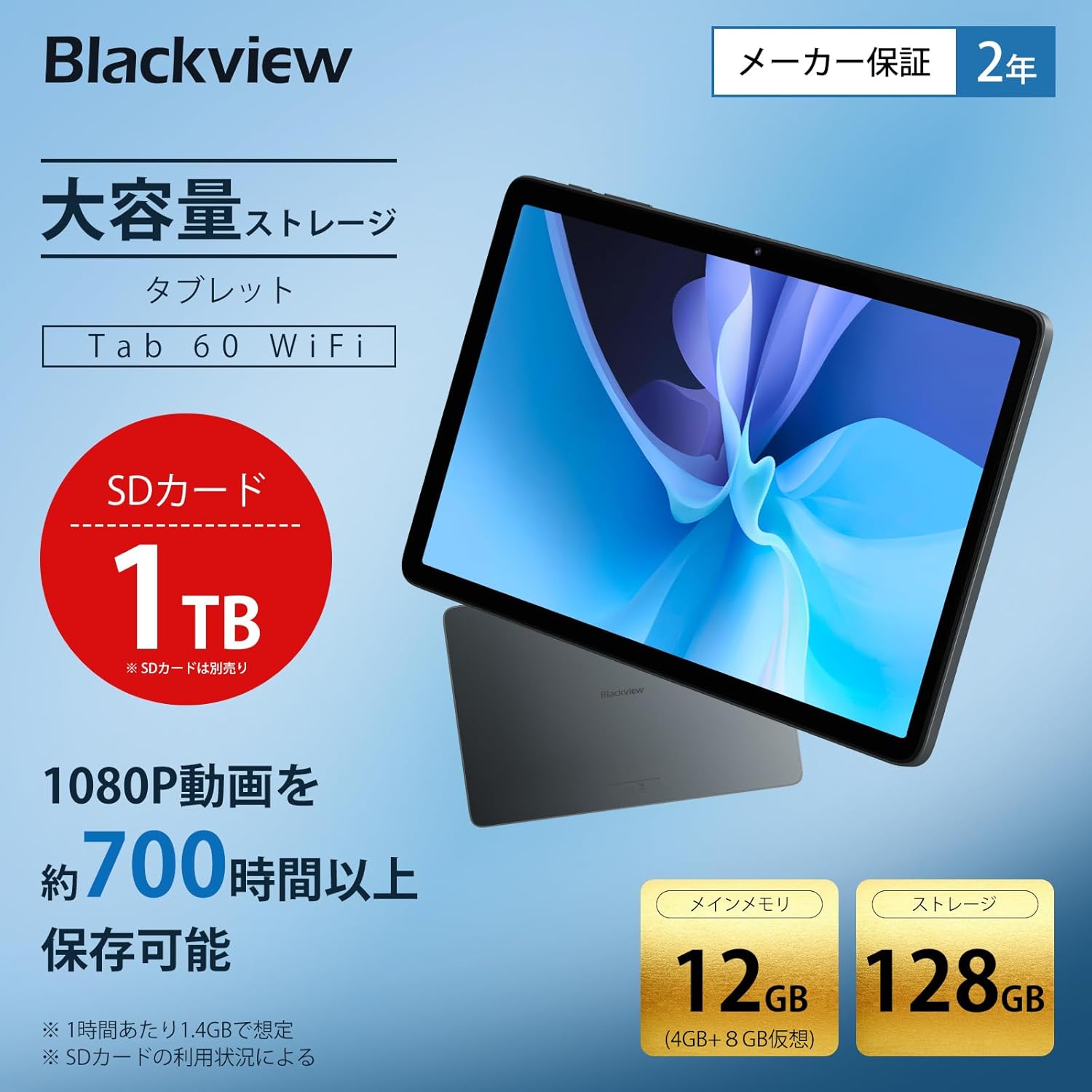
The tablet offers 12GB RAM (4GB + 8GB virtual) and 128GB storage, expandable up to 1TB with an SD card.

Generous RAM and storage capacity for all your needs.

Powered by an Octa-core Allwinner A523 processor for smooth operation.
9. Connectivité
The Tab60WiFi supports the latest Wi-Fi 6 standard for ultra-high-speed communication, along with Bluetooth 5.2 for seamless peripheral connections. It also features wireless projection for sharing your screen during meetings or classes.

Enjoy high-speed connectivity with Wi-Fi 6 and Bluetooth 5.2.

Wirelessly cast your screen to a larger display for shared viewing.
10. Autonomie de la batterie
The tablet is equipped with a 5100mAh large-capacity battery, providing long hours of continuous use. It supports 10W fast charging to quickly replenish power.

The 5100mAh battery supports 10W fast charging via Type-C.

Extended battery life for gaming, video playback, web navigation et mise en veille.
11. Entretien
11.1 Entretien général
- Évitez d'exposer la tablette à des températures extrêmes, à la lumière directe du soleil ou à une forte humidité.
- Ne pas laisser tomber la tablette ni la soumettre à des chocs violents.
- Conserver le comprimé à l'écart de l'eau et des autres liquides.
11.2 Nettoyage
- Utilisez un chiffon doux non pelucheux pour nettoyer l'écran et le boîtier de la tablette.
- N'utilisez pas de produits chimiques agressifs ou de nettoyants abrasifs.
12. Dépannage
12.1 La tablette ne s'allume pas
- Assurez-vous que la batterie est chargée. Branchez le chargeur et attendez quelques minutes avant d'essayer de l'allumer.
- Maintenez le bouton d'alimentation enfoncé pendant au moins 10 à 15 secondes pour forcer un redémarrage.
12.2 Écran non réactif
- Redémarrez la tablette.
- If the issue persists, perform a factory reset (note: this will erase all data).
12.3 Problèmes de connexion Wi-Fi
- Assurez-vous que le Wi-Fi est activé dans les paramètres.
- Redémarrez votre routeur Wi-Fi.
- Oubliez le réseau et reconnectez-vous.
12.4 Plantages/blocages d'applications
- Videz le cache et les données de l'application dans Paramètres > Applications.
- Mettez à jour l'application vers la dernière version.
- Désinstaller et réinstaller l'application.
13. Spécifications
| Fonctionnalité | Spécification |
|---|---|
| Marque | Noirview |
| Nom du modèle | Tab60 WiFi |
| Système opérateur | Doke OS_P 4.0 (Android 14 based) |
| Taille de l'écran | 10.1 pouces |
| Résolution d'affichage | 1280x800 pixels (Incell IPS) |
| Marque de CPU | Gagnant de tous les temps |
| Vitesse du processeur | 2 GHz |
| GPU | Mali-G57 |
| BÉLIER | 12 Go (4 Go physiques + 8 Go virtuels) |
| Capacité de stockage de la mémoire | 128 Go (extensible jusqu'à 1 To) |
| Résolution de la caméra arrière | 8 MP |
| Résolution de la caméra frontale | 5 MP |
| Capacité de la batterie | 5100mAh |
| Connectivité | Wi-Fi 6, Bluetooth 5.2 |
| Poids | 950 g (package weight) / 520.5 g (device weight) |
| Dimensions | 32.7 x 20 x 4 cm (dimensions de l'emballage) |
14. Garantie et assistance
Ton Noirview Tab60WiFi tablet comes with a 2-year quality guarantee. Blackview is committed to providing excellent products and customer service.
14.1 Contacter le service client
If you encounter any issues or have questions, please contact Blackview customer support. Our support team is available 24 hours online.
- Par Amazon : Navigate to the product page, click on the seller's name below the "Add to Cart" button, then click "Ask a Question" in the top right.
- E-mail: You can also contact us via email. The link is available on your Amazon account under "Order History" > "Problem with Order" > "Contact Seller".

Noirview offers a 24-month warranty and 24-hour online customer support.


