1. Introduction
The PeriPage PB40 Bluetooth Thermal Shipping Label Printer is designed for efficient and convenient label printing for various platforms. Utilizing thermal printing technology, it eliminates the need for ink, offering fast and clear output. This manual provides detailed instructions to help you maximize the functionality of your printer.

Image 1.1: The PeriPage PB40 Bluetooth Thermal Shipping Label Printer, shown with a smartphone connected via Bluetooth, printing a shipping label.
Caractéristiques principales :
- Impression Bluetooth : Seamlessly connect and print from your phone or tablet using the 'PeriPage' app (available on Google Play and Apple Store).
- Impression USB : Connect to Windows and Mac computers via USB for batch and complex printing operations, with drivers provided on a USB stick.
- Multi-Size Compatibility: Supports label widths from 1.41 inches to 4.13 inches (36-105mm), including customized sizes.
- Compatibilité étendue de la plate-forme : Compatible with major shipping platforms such as Amazon, Etsy, Temu, eBay, USPS, Shopify, UPS, PayPal, Poshmark, and Walmart.
- Efficient Thermal Printing: High-speed printing up to 150 mm/sec, capable of printing 72 4x6 labels per minute, without the need for ink.
2. Guide de configuration
2.1. Contenu du colis
Avant de commencer, assurez-vous que tous les éléments sont présents dans le colis :
- PeriPage PB40 Label Printer
- USB Stick (containing Windows and Mac drivers, and installation instructions)
- Adaptateur secteur
- Câble USB
- Guide de démarrage rapide (ou documentation similaire)
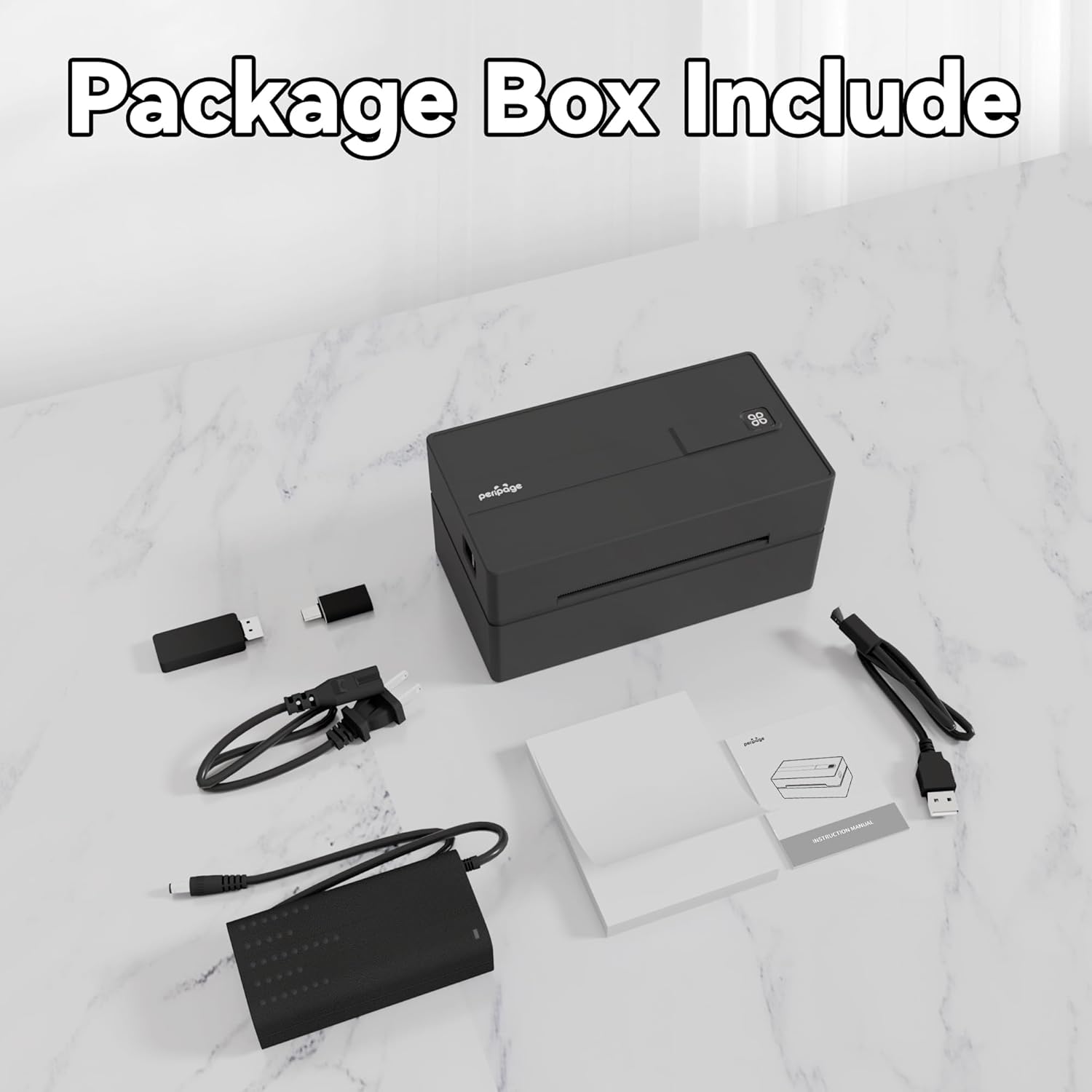
Image 2.1: Contents of the PeriPage PB40 printer package, including the printer, USB stick, and cables.
2.2. Chargement des étiquettes
- Ouvrez le capot supérieur de l'imprimante.
- Insert the thermal labels into the paper slot, ensuring the printable side is facing up.
- Adjust the paper guides to fit the label width snugly, without creasing the labels.
- Close the top cover. The printer will automatically calibrate and feed a small portion of the label.

Image 2.2: Illustration of supported label sizes (4"x6", 2"x3", 2.25"x1.25") and the printer's label loading mechanism, emphasizing no waste of paper or jams.
2.3. Connexion électrique
Connect the power adapter to the printer's power port and then plug it into a wall outlet. Turn on the printer using the power button.
2.4. Connexion aux appareils
The PeriPage PB40 offers both Bluetooth and USB connectivity.
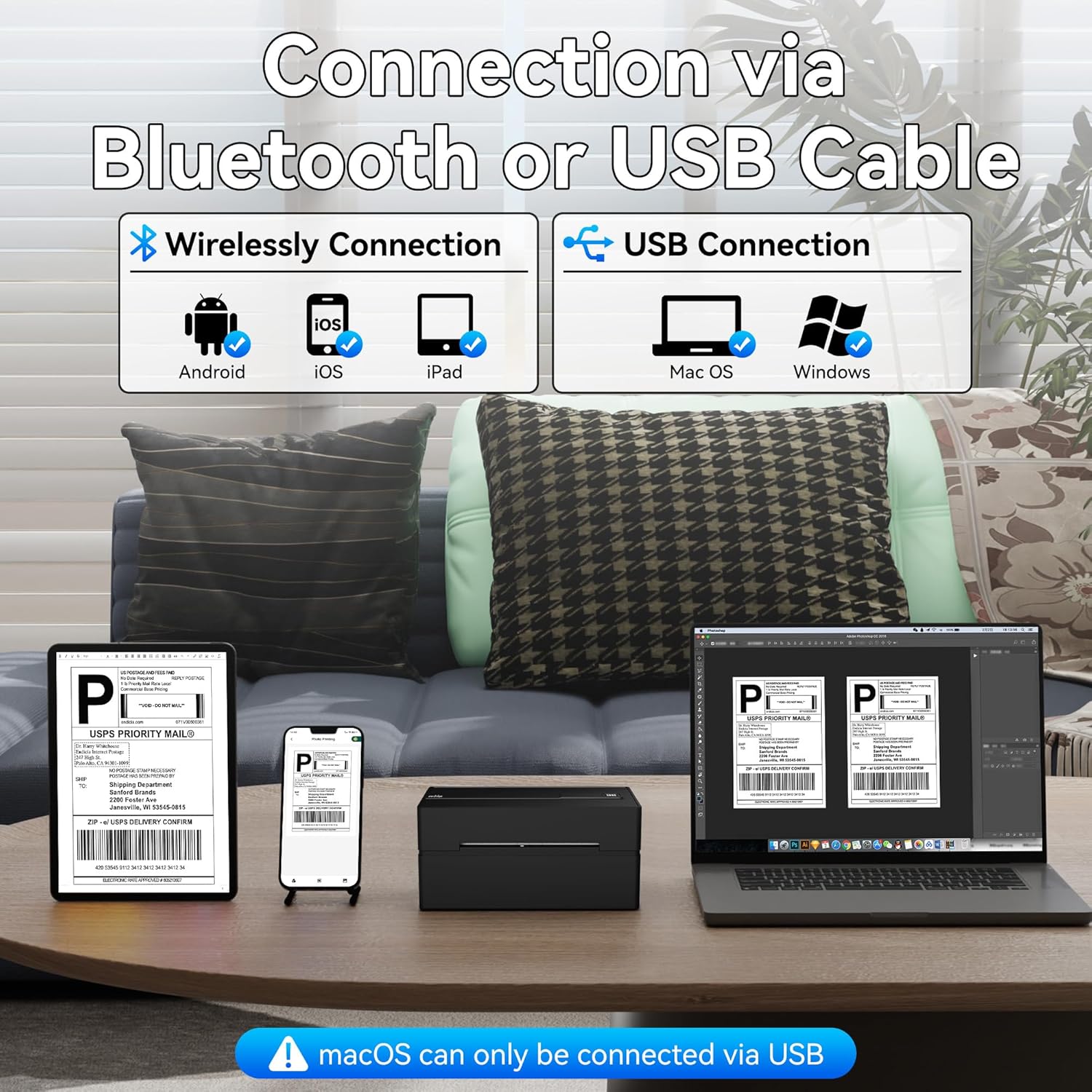
Image 2.3: Visual representation of connecting the printer via Bluetooth to Android/iOS/iPad devices and via USB to Mac OS/Windows computers. Note: macOS can only be connected via USB.
2.4.1. Bluetooth Connection (for Phones/Tablets)
- Download the 'PeriPage' app from Google Play Store (for Android) or Apple App Store (for iOS/iPad).
- Ensure Bluetooth is enabled on your phone or tablet.
- Open the PeriPage app and follow the in-app instructions to search for and connect to your printer. The printer's Bluetooth name typically includes "PeriPage" or "PB40".
- Once connected, the Bluetooth indicator on the printer will illuminate or change status.
2.4.2. USB Connection (for Windows/Mac Computers)
- Insert the provided USB stick into your computer.
- Localisez et exécutez l'installation du pilote file for your operating system (Windows or Mac).
- Suivez les instructions à l’écran pour terminer l’installation du pilote.
- Connectez l'imprimante à votre ordinateur à l'aide du câble USB fourni.
- Your computer should recognize the printer. You may need to select it as the default printer for label printing.
Note: For macOS, USB connection is the primary method for computer printing.
3. Mode d'emploi
3.1. Impression depuis des appareils mobiles (Bluetooth)
- Ensure your printer is powered on and connected via Bluetooth to your mobile device through the PeriPage app.
- Within the PeriPage app, navigate to the document or image you wish to print. This could be a shipping label PDF, barcode, or other printable content.
- Select the print option within the app. You may be able to adjust print settings such as label size or density.
- Confirm the print job. The printer will begin printing the label.

Image 3.1: Comparison of printing methods: via Bluetooth for Android, iOS, and iPad devices, and via USB cable for Mac and Windows computers.
3.2. Impression depuis un ordinateur (USB)
- Ensure your printer is powered on and connected via USB to your Windows or Mac computer, and drivers are installed.
- Open the document (e.g., PDF shipping label) you wish to print using your preferred application.
- Allez à "File" > "Imprimer" (ou appuyez sur Ctrl+P/Cmd+P).
- Select the PeriPage PB40 printer from the list of available printers.
- Adjust print settings as needed, such as paper size (e.g., 4x6 inches for shipping labels) and orientation.
- Cliquez sur « Imprimer ».

Image 3.2: Depiction of the printer's fast printing speed (150 mm/s) and clear output quality (203 DPI), with labels being printed rapidly.
3.3. Label Compatibility and Supported Platforms
The printer supports a wide range of label sizes and is compatible with numerous e-commerce and shipping platforms.
- Largeur de l'étiquette: From 1.41 inches to 4.13 inches (36-105mm). This includes standard 4x6 inch shipping labels.
- Plateformes prises en charge : Amazon, Etsy, Temu, eBay, USPS, Shopify, UPS, PayPal, Poshmark, Walmart, Stamps.com, ShipWire, Flash Express, ShipWorks, Shippo, XPS Ship, Descartes, DHL, FedEx, J&T Express, Endicia, Kerry Logistics, EasyPost, Ninjavan, Ordoro, ShipStation, Shipwire, Easyship, Shipping Easy.

Image 3.3: A visual display of various e-commerce and shipping platform logos, indicating the printer's broad compatibility.
4. Entretien
4.1. Nettoyage de la tête d'impression
Regular cleaning of the print head ensures optimal print quality and extends the printer's lifespan. Use a lint-free cloth lightly dampenrichi avec de l'alcool isopropylique.
- Éteignez l'imprimante et débranchez-la de la source d'alimentation.
- Ouvrez le capot supérieur pour accéder à la tête d'impression.
- Essuyez délicatement la surface de la tête d'impression avec le dampTissu fini. Évitez de toucher la tête d'impression à mains nues.
- Laissez la tête d'impression sécher complètement avant de fermer le capot et de mettre l'imprimante sous tension.
4.2. Replacing Labels
When the printer runs out of labels, simply follow the "Loading Labels" instructions in Section 2.2 to replace the roll.
4.3. Soins généraux
- Conservez l'imprimante dans un environnement propre et exempt de poussière.
- Évitez d'exposer l'imprimante à la lumière directe du soleil, aux températures élevées ou à une humidité excessive.
- N’utilisez pas de nettoyants abrasifs ni de solvants sur l’extérieur de l’imprimante.
- Assurez une ventilation adéquate autour de l'imprimante pendant son fonctionnement.
5. Dépannage
This section addresses common issues you might encounter with your PeriPage PB40 printer.
5.1. Printer Not Responding / No Power
- Check if the power adapter is securely connected to both the printer and the wall outlet.
- Ensure the power button is pressed and the power indicator light is on.
- Try plugging the printer into a different power outlet.
5.2. Bluetooth Disconnection / Cannot Connect
- Assurez-vous que le Bluetooth est activé sur votre appareil mobile et que l'imprimante se trouve à portée.
- Redémarrez l'imprimante et votre appareil mobile.
- Forget the printer from your device's Bluetooth settings and try pairing again through the PeriPage app.
- Ensure the PeriPage app is updated to the latest version.
5.3. Print Quality Issues (Faint, Streaky, or Blank Prints)
- Check if you are using thermal labels. This printer requires thermal labels and does not use ink.
- Ensure the labels are loaded correctly with the printable side facing up.
- Nettoyez la tête d'impression comme décrit dans la section 4.1.
- Adjust print density settings within the PeriPage app or printer driver settings on your computer.
5.4. Bourrages papier
- Turn off the printer and carefully open the top cover.
- Gently pull out any jammed labels. Avoid tearing them inside the printer.
- Ensure the label roll is properly seated and the paper guides are adjusted correctly to the label width.
- Close the cover and restart the printer.
5.5. Driver Installation Issues (Windows/Mac)
- Ensure you are running the correct driver for your operating system (Windows or Mac).
- Désactivez temporairement votre logiciel antivirus pendant l'installation s'il interfère avec celle-ci.
- Try installing the driver in compatibility mode (Windows) or check security settings (Mac) if the installation is blocked.
- Refer to the installation instructions on the provided USB stick for detailed steps.
6. Spécifications du produit
| Fonctionnalité | Spécification |
|---|---|
| Marque | PériPage |
| Nom du modèle | Imprimante d'étiquettes d'expédition |
| Numéro de modèle de l'article | Shipping Label Printer-PB40 |
| Technologie de connectivité | Bluetooth, USB |
| Technologie d'impression | Thermique |
| Sortie de l'imprimante | Monochrome |
| Vitesse d'impression maximale (monochrome) | 60 ppm (72 4x6 labels/min) |
| Résolution d'impression maximale en noir et blanc | 300 ppp |
| Taille maximale du support | 4.13 pouces |
| Compatibilité des formats de feuilles | 1.41 à 4.13 pouces (36 à 105 mm) |
| Capacité maximale d'entrée de feuilles | 50 |
| Poids de l'article | 3.14 livres |
| Dimensions du produit | 8 x 7 x 4.7 pouces |
| Composants inclus | Printer, USB Stick |
| Dossier spécial | Portable |
| Couleur | Noir |
| Type de garantie | Garantie limitée |
7. Garantie et assistance
7.1. Garantie du produit
The PeriPage PB40 Bluetooth Thermal Shipping Label Printer comes with a limited warranty. Please refer to the warranty information provided in your product packaging or contact PeriPage customer service for details regarding warranty terms and conditions.
7.2. Assistance clientèle
For technical assistance, troubleshooting beyond this manual, or warranty claims, please contact PeriPage customer support. Contact information can typically be found on the manufacturer's official website ou sur l'emballage du produit.
You may also visit the official PeriPage store on Amazon for additional resources and product information: PeriPage Amazon Store