Introduction
This manual provides detailed instructions for the setup, operation, and maintenance of your FEELWORLD T10 10.1-Inch Camera Field Monitor. Please read this manual thoroughly before using the product to ensure proper function and to prevent damage.

Image: FEELWORLD T10 10.1-Inch Camera Field Monitor, front view.
Caractéristiques principales
- IPS 10.1-inch Touchscreen: Offers precise control via finger gestures.
- Images nettes : Features 500nit brightness, 1920x1200 resolution, 1500:1 contrast ratio, and a 16:10 aspect ratio for accurate image representation.
- Custom 3D LUT/Full Assist: Supports SD card loading of up to 32 LUTs for on-location color effects. Includes waveform, histogram, and vector range tools.
- 4K HDMI Transmission: Supports signals up to 4096x2160/60p with HDMI input and output, ensuring real-time audio and video synchronization.
- Plaque de batterie F970 : Compatible with NP-F series batteries (not included) to power the monitor and external accessories like wireless transmitters or lighting.
- Conception durable : Constructed with a sturdy aluminum alloy shell and resilient rubber corner guards for shock protection.
Qu'y a-t-il dans la boîte
Lors du déballage, veuillez vérifier que tous les composants sont présents :
- FEELWORLD T10 Camera Monitor
- F970 Battery Clasp Plate (pre-installed)
- Câble micro HDMI
- Câble HDMI standard
- Support en U
- Parasol
- Manuel d'instructions
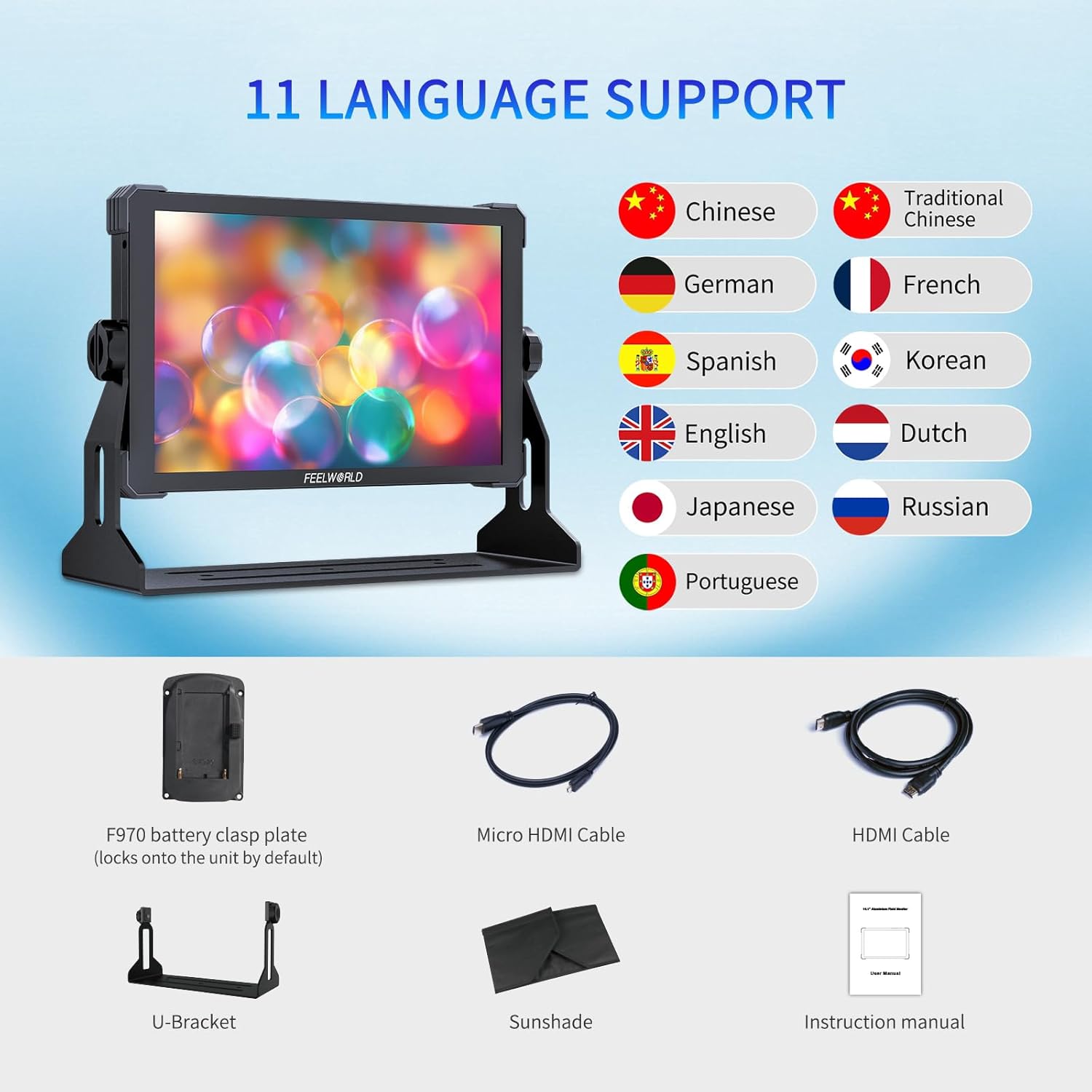
Image: Included accessories for the FEELWORLD T10 monitor, including cables, bracket, and sunshade.
Guide d'installation
1. Mise sous tension du moniteur
The T10 monitor can be powered via a DC 12V input or an NP-F series battery.
- Using DC 12V: Connect the provided power adapter to the "DC IN 12V" port on the side of the monitor and plug it into a power outlet.
- Utilisation de la batterie NP-F : Attach a compatible NP-F series battery (e.g., NP-F970, NP-F750, NP-F550) to the F970 battery plate on the back of the monitor. Ensure it clicks securely into place.

Image : Arrière view of the FEELWORLD T10 showing the F970 battery plate and external power supply kit.
2. Connexion à une caméra (HDMI)
The T10 supports 4K HDMI input and output.
- Connect one end of the HDMI cable (Micro HDMI to HDMI or Standard HDMI to HDMI, depending on your camera's port) to your camera's HDMI output.
- Connect the other end of the HDMI cable to the "HDMI IN" port on the side of the T10 monitor.
- If you need to loop out the signal to another device, use another HDMI cable to connect the "HDMI OUT" port on the T10 to your desired device.

Image : Côté view of the FEELWORLD T10 highlighting the HDMI input and output ports.
3. Montage du moniteur
The monitor features multiple 1/4-inch screw mounting points for versatile attachment.
- Attach the U-Bracket to the bottom of the monitor using the screw mount.
- Secure the monitor to a camera rig, tripod, or other support using the U-Bracket or any of the 1/4-inch screw mounting points located on the sides and bottom.
4. Attaching the Sunshade
For outdoor use or in bright conditions, attach the sunshade to improve visibility.
- Align the sunshade with the edges of the monitor screen.
- Secure the sunshade using the Velcro straps or integrated attachment points.
Mode d'emploi
1. Marche/Arrêt
Press and hold the power button located on the top edge of the monitor to turn it on or off.
2. Navigation tactile
The T10 features an intuitive touchscreen interface. Swipe and tap to navigate menus and adjust settings.

Image: FEELWORLD T10 demonstrating multiple operation methods, including touchscreen and physical buttons.
3. Menu System Overview
The main menu is accessed via the touchscreen. It is organized into several categories:
- Assister: Contains various monitoring tools like Waveform, Vector, Histogram, Focus Assist, Embedded Audio, Over Exposure, Check Field, and False Colors.
- Marqueur: Allows selection of Grids, Safe Frames, Center Marker, and Ratio Marker.
- Image: Adjusts Scan Mode, Aspect Ratio, Anamorphic Mode, Image Flip, Zoom Mode, Image Freeze, and P2P (Pixel-to-Pixel).
- Option utilisateur : Manages LUTs (import/selection), HDR settings, Display Adjustment (backlight, brightness, contrast, saturation), Color Adjustment (color temp, RGB gain), and Shortcut Key customization.
- Système: Includes User Switch, Language, OSD Option, EDID Settings, Volume, Reset, and Firmware Update.
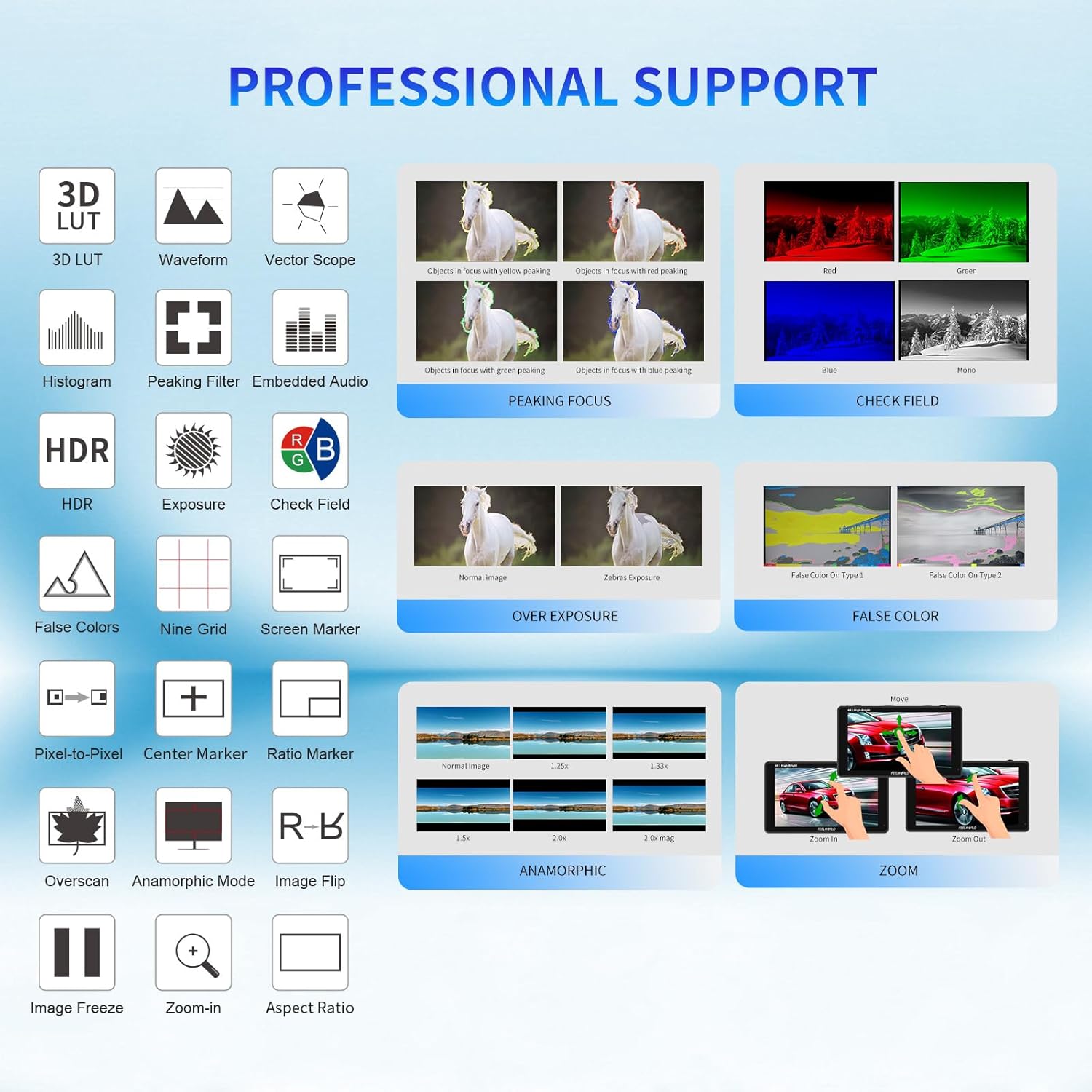
Image: Visual representation of the professional support features available on the FEELWORLD T10 monitor.
4. Using 3D LUTs
The T10 supports custom 3D LUTs for on-set color grading previews.
- Charger LUT files (.cube format) onto an SD card.
- Insert the SD card into the monitor's USB port (via an adapter if necessary).
- Accéder à User Option > LUT > LUT Import to load your custom LUTs.
- Select the desired LUT from the list to apply it to your video feed.

Image: The 3D-LUT output feature of the FEELWORLD T10, showing before and after color grading effects.
5. HDR Monitoring
Enable HDR mode for enhanced dynamic range viewing.
- Aller à User Option > HDR.
- Toggle HDR to "On" and select the appropriate HDR mode (HLG1, HLG2, HLG3) if available.

Image: The 10.1-inch touchscreen of the FEELWORLD T10 displaying Full HD HDR monitoring capabilities.
6. Personnalisation des raccourcis clavier
The monitor features customizable function buttons (F1, F2, F3) for quick access to frequently used features.
- Accéder à User Option > Shortcut Key.
- Assign desired functions (e.g., Waveform, Focus Assist, Grids) to F1, F2, or F3.
7. Mise à jour du micrologiciel
To ensure optimal performance and access new features, regularly check for and install firmware updates.
- Download the latest firmware from the official FEELWORLD website to a USB drive.
- Connect the USB drive to the monitor's USB port.
- Aller à System > Firmware Update et suivez les instructions à l'écran.
Entretien
- Nettoyage: Utilisez un chiffon doux et sec pour nettoyer l'écran et le boîtier du moniteur. Pour les taches tenaces, frottez légèrement avec un chiffon doux et sec.ampNettoyez le chiffon avec de l'eau ou une solution nettoyante adaptée aux écrans. Évitez les produits chimiques agressifs.
- Stockage: When not in use, store the monitor in a cool, dry place, away from direct sunlight and extreme temperatures. Use a protective case to prevent scratches and impacts.
- Entretien de la batterie: If using NP-F batteries, ensure they are charged regularly and stored properly to prolong their lifespan. Remove batteries if the monitor will not be used for an extended period.
- Gestion des câbles: Avoid bending or crimping cables excessively to prevent damage to the internal wires and connectors.
Dépannage
| Problème | Cause possible | Solution |
|---|---|---|
| Le moniteur ne s'allume pas. | No power, low battery, or faulty power connection. | Check DC power adapter connection or ensure NP-F battery is charged and correctly installed. |
| Aucun signal vidéo. | Incorrect HDMI connection, camera output settings, or incompatible signal. | Verify HDMI cable is securely connected to "HDMI IN". Check camera's HDMI output settings (resolution, frame rate). Ensure signal is within supported range (up to 4K 60Hz). |
| L'écran tactile ne répond plus. | Temporary software glitch or screen calibration issue. | Restart the monitor. If the issue persists, perform a factory reset via the System menu. |
| Image appears distorted or incorrect aspect ratio. | Incorrect aspect ratio setting or anamorphic mode. | Adjust "Aspect Ratio" or "Anamorphic Mode" settings in the Image menu to match your source. |
Caractéristiques
| Fonctionnalité | Détail |
|---|---|
| Taille de l'écran | 10.1 pouces |
| Résolution | 1920x1200 |
| Luminosité | 500 XNUMX nits |
| Rapport de contraste | 1500:1 |
| Rapport hauteur/largeur | 16:10 |
| Entrée vidéo | HDMI (up to 4096x2160/60p) |
| Sortie vidéo | HDMI |
| Source d'énergie | DC 12V, NP-F Battery |
| Protocole de connectivité | Wi-Fi (for firmware updates via USB) |
| Poids de l'article | 2.64 livres |
| Dimensions | 10.63 x 8.27 x 4.33 pouces (Emballage) |
| Matériau de la coque | Alliage d'aluminium |
Produit terminéview et démonstration des fonctionnalités
Regardez cette vidéo pour une présentation détaillée.view of the FEELWORLD T10 monitor, including unboxing, physical features, and a demonstration of its various monitoring tools and settings.
Vidéo : Revue détailléeview and feature demonstration of the FEELWORLD T10 10.1-Inch Camera Field Monitor.
Garantie et assistance
Pour toute information concernant la garantie, l'assistance technique ou les demandes de service, veuillez consulter le site officiel de FEELWORLD. webConsultez leur site web ou contactez directement leur service client. Conservez votre reçu d'achat comme preuve d'achat pour toute réclamation au titre de la garantie.
- Support en ligne: Visitez le FEELWORLD Store on Amazon pour obtenir des informations sur les produits et des ressources d'assistance.
- Plans de protection : Des plans de protection prolongée peuvent être offerts. Consultez votre détaillant pour plus de détails.


