1. Introduction
This manual provides detailed instructions for setting up, operating, and maintaining your Womier SK80 PRO 75% Wireless Mechanical Keyboard. Please read this guide thoroughly to ensure proper usage and to maximize your keyboard's features.

Image 1.1: Womier SK80 PRO keyboard, wrist rest, and mouse pad setup.
2. Contenu du colis
Vérifiez que tous les éléments sont présents dans votre colis :
- Womier SK80 PRO 75% Wireless Mechanical Keyboard
- Matching Wrist Rest
- Matching Mouse Pad
- Câble USB-C
- 2.4G USB Receiver (stored magnetically in the keyboard)
- Extracteur de capuchon
- Extracteur de commutateur
- Manuel de l'utilisateur (ce document)
3. Installation
3.1 Configuration physique
- Placez le clavier sur une surface stable.
- Position the wrist rest in front of the keyboard for ergonomic support.
- Place the mouse pad next to your keyboard.
- Adjust the keyboard's feet for your preferred typing angle.

Image 3.1: Ergonomic design and dimensions of the keyboard and wrist rest.
3.2 Modes de connectivité
The Womier SK80 PRO supports three connection modes: 2.4G Wireless, Bluetooth, and USB-C Wired.
- Mode sans fil 2.4G :
- Locate the 2.4G USB receiver stored magnetically on the underside of the keyboard.
- Branchez le récepteur sur un port USB disponible de votre ordinateur.
- Switch the mode selector on the keyboard's underside to '2.4G'.
- Le clavier devrait se connecter automatiquement.
- Mode Bluetooth:
- Switch the mode selector on the keyboard's underside to 'BT'.
- Sur votre appareil (ordinateur, tablette, téléphone), activez le Bluetooth et recherchez de nouveaux appareils.
- Select 'Womier SK80 PRO' from the list of available devices to pair.
- The keyboard can connect to up to 3 Bluetooth devices. Use Fn + Q/W/E to switch between paired devices.
- Mode filaire USB-C :
- Connectez le câble USB-C fourni au port USB-C du clavier.
- Connectez l'autre extrémité du câble à un port USB disponible sur votre ordinateur.
- Switch the mode selector on the keyboard's underside to 'USB'.
- Le clavier fonctionnera comme un périphérique filaire et se rechargera simultanément.

Image 3.2: The keyboard supports three versatile connection modes.
3.3 Driver/Software Installation
For advanced customization, including key remapping, macro settings, RGB lighting effects, and custom GIF images on the multimedia screen, download the official Womier SK80 PRO software from the Womier website. The software is compatible with Windows systems.
Video 3.3: Demonstration of the Womier SK80 PRO programming software.
4. Mode d'emploi
4.1 Fonctions de base du clavier
The keyboard features a 75% layout with standard keys. Refer to the keycap legends for primary and secondary functions. Use the Fn key in combination with other keys to access secondary functions (e.g., media controls, F-keys).
4.2 Multimedia Screen Functions
The built-in color multimedia smart display screen can show various information and custom content:
- Afficher l'information: Time, connection status, and battery level.
- Images GIF personnalisées : Upload custom GIF images via the software for a personalized display.

Image 4.1: Multimedia screen displaying various functions and custom GIFs.
Video 4.2: Demonstration of the multimedia display features.
4.3 Personnalisation de l'éclairage RVB
The keyboard features 16.8 million RGB backlight colors with south-facing LEDs for enhanced illumination. Customize lighting effects, brightness, and speed using the dedicated software or onboard controls (refer to the keyboard's quick guide for specific key combinations).

Image 4.3: RGB customization options via software.
4.4 Commutateurs remplaçables à chaud
The PCB supports 3-pin/5-pin hot-swappable switches, allowing you to easily replace the pre-lubed linear cream switches with other compatible mechanical switches without soldering.
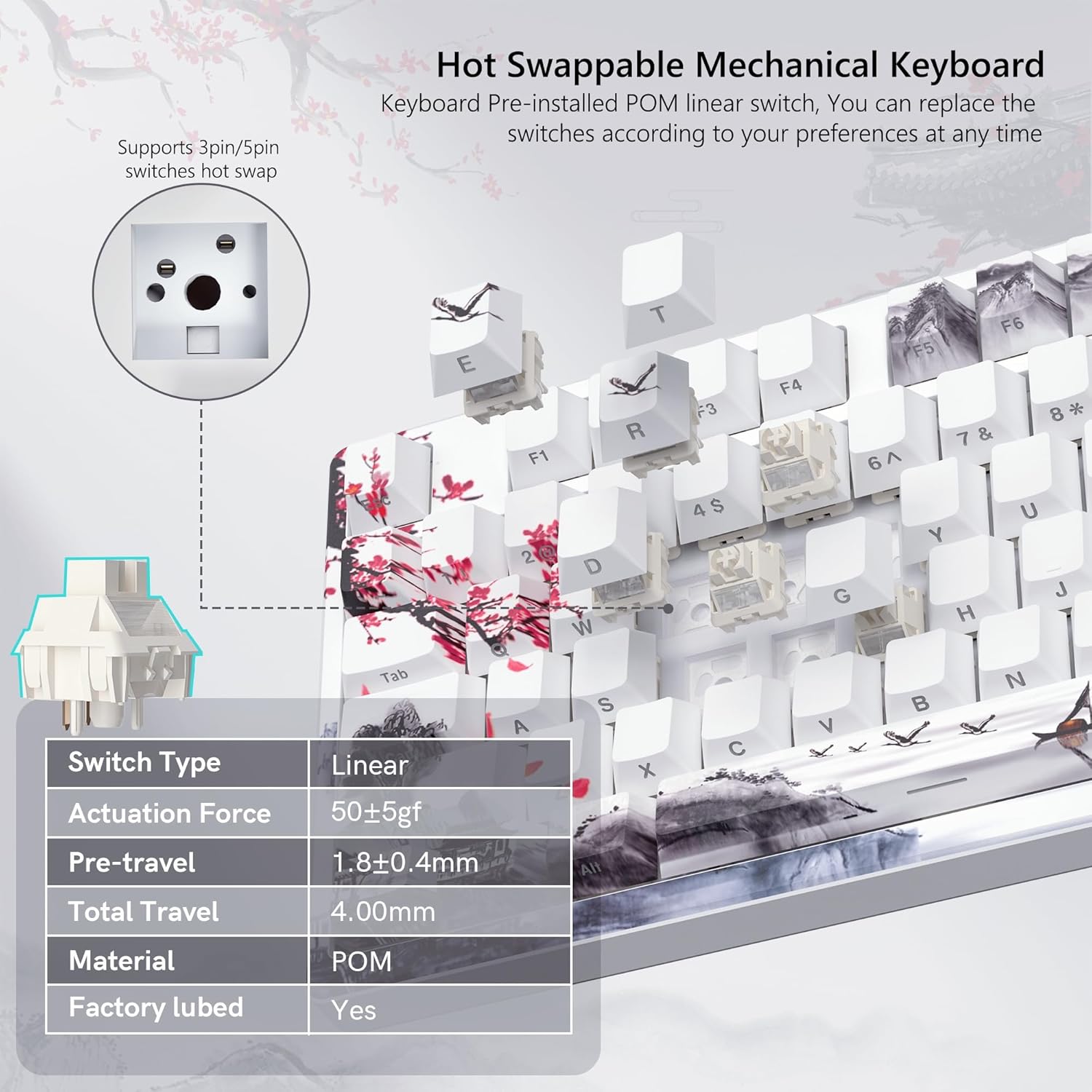
Image 4.4: Hot-swappable switch mechanism.
Video 4.5: Demonstration of hot-swappable switches and connectivity modes.
4.5 Key Remapping and Macro Settings
Utilize the Womier SK80 PRO software to redefine key functions and set up custom macros, enhancing your productivity and gaming experience.
5. Entretien
5.1 Nettoyage
- Débranchez le clavier de votre appareil avant de le nettoyer.
- Use a keycap puller to carefully remove keycaps for thorough cleaning.
- Essuyez la surface du clavier avec un chiffon doux et sec.amp tissu. Éviter l'humidité excessive.
- Utilisez de l'air comprimé pour enlever la poussière et les débris entre les touches.
5.2 Entretien de la batterie
The keyboard is equipped with a 4000mAh battery. To prolong battery life:
- Chargez complètement le clavier avant la première utilisation.
- Évitez de décharger complètement la batterie fréquemment.
- Rangez le clavier dans un endroit frais et sec lorsqu'il n'est pas utilisé pendant de longues périodes.
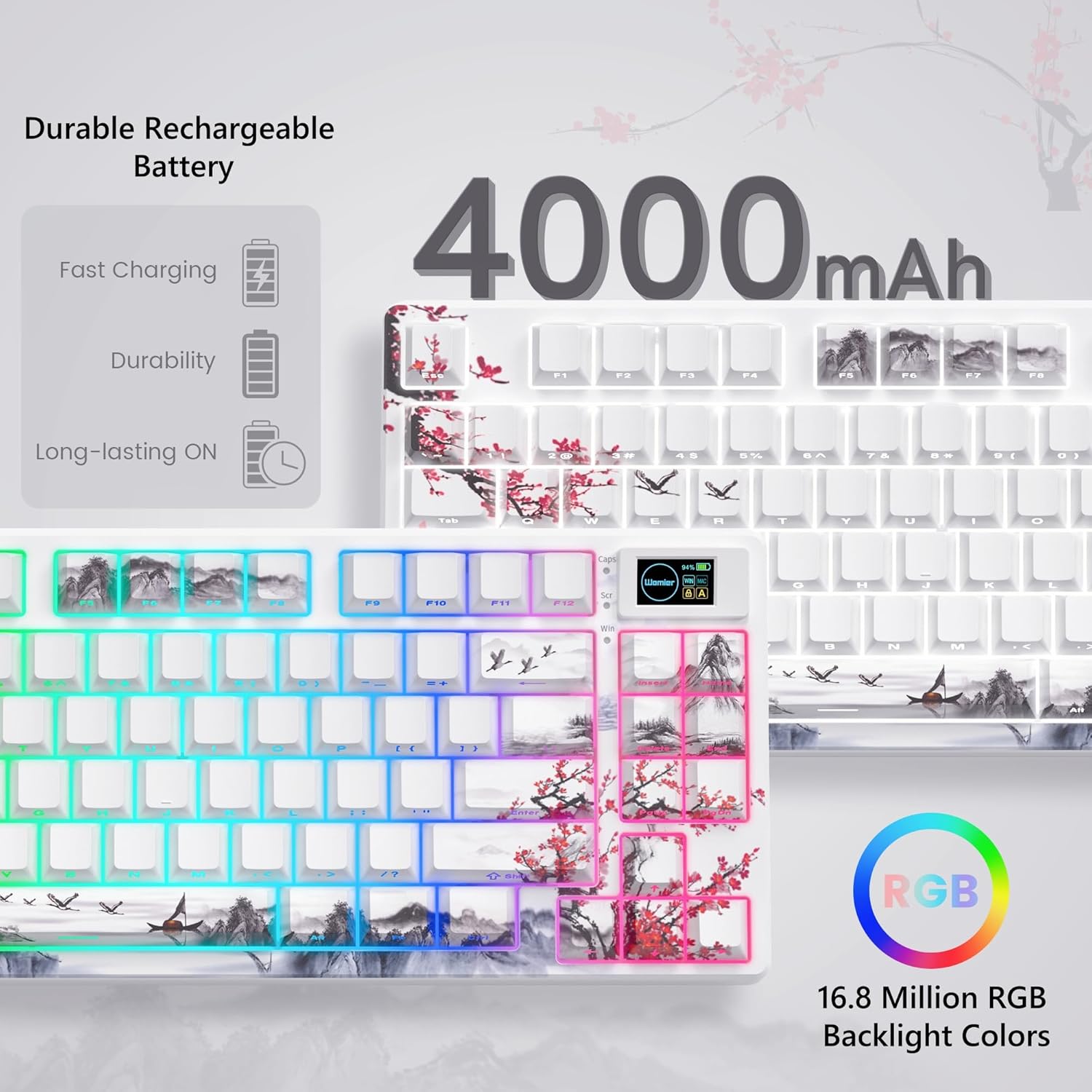
Image 5.1: Battery and RGB features.
5.3 Remplacement de l'interrupteur
Pour remplacer les interrupteurs :
- Use the provided keycap puller to remove the desired keycap.
- Use the switch puller to gently grasp and pull the switch upwards until it detaches from the PCB.
- Alignez les broches du nouvel interrupteur avec les trous du circuit imprimé.
- Press the new switch firmly until it clicks into place. Ensure pins are not bent.
- Remettez la touche en place.
6. Dépannage
- Le clavier ne répond pas :
- Check the connection mode switch (2.4G, BT, USB) on the underside of the keyboard.
- Ensure the USB-C cable or 2.4G receiver is securely connected.
- Pour le Bluetooth, assurez-vous que le clavier est appairé et sélectionné sur votre appareil.
- Vérifiez le niveau de la batterie ; rechargez-la si elle est faible.
- RGB lighting not working/customizing:
- Assurez-vous que le clavier est sous tension.
- Install and use the Womier SK80 PRO software for full customization.
- Refer to the quick guide for onboard RGB control shortcuts.
- Multimedia screen not displaying correctly:
- Ensure the keyboard is connected and powered.
- Use the Womier SK80 PRO software to upload or reset custom GIFs.
- Les touches ne sont pas enregistrées ou sont saisies deux fois :
- This may indicate a faulty switch. Use the switch puller to replace the affected switch.
- Assurez-vous que l'interrupteur est bien inséré dans le circuit imprimé.
7. Spécifications
| Fonctionnalité | Détail |
|---|---|
| Numéro de modèle | JM-AZ-129 |
| Mise en page | 75% |
| Connectivité | Sans fil 2.4 GHz, Bluetooth, filaire USB-C |
| Appareils compatibles | PC (Windows, Mac, Android, iOS) |
| Interrupteurs | Womier Customized Pre-lubed Linear Cream Switches (Hot-swappable 3-pin/5-pin) |
| Keycaps | Theme Art Keycaps (Shine-through) |
| Rétroéclairage | 16.8 Million RGB (South-facing LED) |
| Capacité de la batterie | Polymère de lithium 4000mAh |
| Caractéristiques spéciales | Color Multimedia Smart Display Screen, Gasket Mount Design, EVA Positioning Plate, Bottom Filling |
| Dimensions du produit | 13.39 x 6.69 x 1.38 pouces |
| Poids de l'article | 2.97 livres |
8. Garantie et assistance
Womier products are designed for reliability and performance. For warranty information, technical support, or service inquiries, please visit the official Womier webConsultez notre site web ou contactez directement le service client. Conservez votre reçu d'achat pour toute réclamation au titre de la garantie.


