1. Produit terminéview
The Brother DCP-L2680DW is a versatile multi-function mono laser printer designed for efficient printing, scanning, and copying. This device offers high-speed monochrome printing, automatic duplex printing, and various connectivity options including Ethernet, USB, and Wi-Fi.
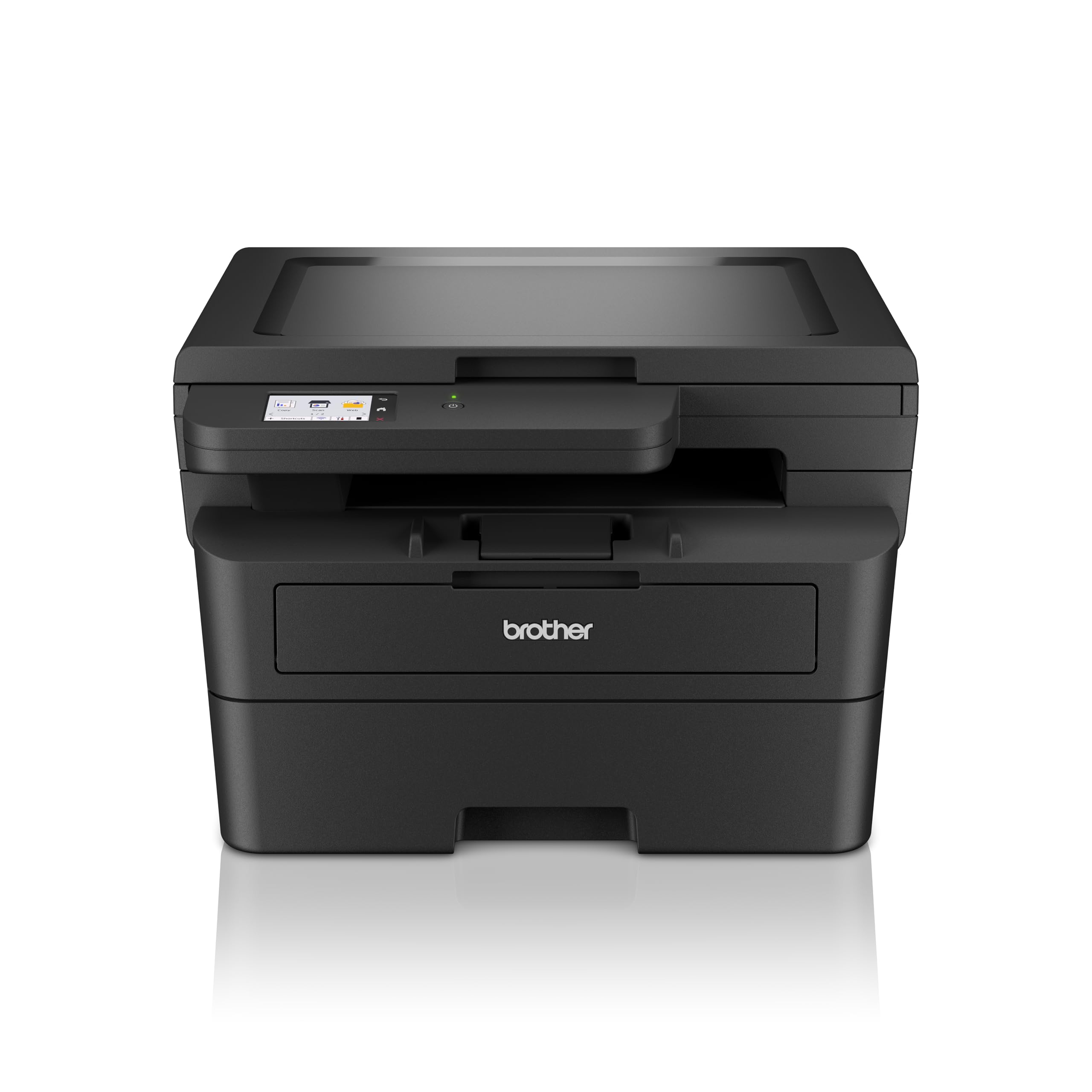
Illustration 1.1 : Avant view of the Brother DCP-L2680DW printer.
Caractéristiques principales :
- Print, Scan, Copy: Integrated functionality for diverse office tasks.
- Up to 36 ppm: Fast monochrome printing speed.
- Automatic 2-sided (Duplex) Print: Saves paper and time.
- Impression mobile : Print directly from compatible mobile devices.
- Connectivité : Supports Ethernet, USB, and Wi-Fi connections.
- 2.7" Touchscreen Colour LCD Display: Intuitive control panel for easy navigation.
2. Configuration initiale
Follow these steps to set up your Brother DCP-L2680DW printer for the first time.
2.1 Déballage de l'imprimante
- Retirez soigneusement l’imprimante de son emballage.
- Retirez tous les rubans adhésifs de protection et les matériaux d'emballage de l'extérieur et de l'intérieur de l'imprimante.
- Placez l'imprimante sur une surface stable et plane, bien ventilée.
2.2 Installing the Toner Cartridge and Drum Unit
- Ouvrez le capot avant de l'imprimante.
- Retirez l'ensemble tambour et cartouche de toner de son sachet protecteur.
- Insérez fermement la cartouche de toner dans l'unité de tambour jusqu'à ce qu'elle se verrouille en place.
- Slide the drum unit and toner cartridge assembly back into the printer until it clicks.
- Fermez le capot avant.
2.3 Chargement du papier
- Retirez complètement le bac à papier.
- Ajustez les guides papier en fonction du format du papier que vous chargez.
- Chargez le papier dans le bac en veillant à ce qu'il soit bien à plat et en dessous du repère de hauteur maximale.
- Repoussez délicatement le bac à papier dans l'imprimante.
2.4 Branchement de l'alimentation et mise sous tension initiale
- Branchez le cordon d'alimentation à l'imprimante, puis à une prise électrique mise à la terre.
- Appuyez sur le bouton d'alimentation pour allumer l'imprimante.
- Follow the on-screen instructions on the LCD display to select your language and region.
2.5 Connexion à un ordinateur/réseau
The DCP-L2680DW supports USB, Ethernet, and Wi-Fi connectivity.
- Connexion USB : Connectez un câble USB de l'imprimante à votre ordinateur.
- Connexion Ethernet : Connectez un câble Ethernet de l'imprimante à votre routeur ou commutateur réseau.
- Connexion Wi-Fi : On the printer's control panel, navigate to Network settings, then WLAN, and follow the instructions to connect to your wireless network.
After connecting, install the printer drivers from the official Brother support website (www.frère.com) or the included installation CD (if applicable).
3. Mode d'emploi
This section covers basic operations of your multi-function printer.
3.1 Impression de documents
- Assurez-vous que l'imprimante est allumée et connectée à votre appareil.
- Ouvrez le document que vous souhaitez imprimer sur votre ordinateur ou votre appareil mobile.
- Sélectionnez l'option d'impression dans votre application.
- Choose the Brother DCP-L2680DW from the list of available printers.
- Ajustez les paramètres d'impression (par exemple, le nombre de copies, le format du papier, l'impression recto verso) selon vos besoins.
- Cliquez sur « Imprimer ».
3.2 Numérisation de documents
- Placez le document face vers le bas sur la vitre du scanner.
- Sur le panneau de commande de l'imprimante, sélectionnez « Numériser ».
- Choose your desired scan destination (e.g., PC, Email, USB).
- Ajustez les paramètres de numérisation tels que la résolution, le mode couleur et file format.
- Press "Start" to begin scanning.
3.3 Copie de documents
- Placez le document face vers le bas sur la vitre du scanner.
- Sur le panneau de commande de l'imprimante, sélectionnez « Copie ».
- Enter the number of copies required using the numeric keypad or arrow buttons.
- Adjust copy settings (e.g., reduce/enlarge, quality) if necessary.
- Press "Start" to begin copying.
4. Entretien
Un entretien régulier garantit des performances optimales et une longue durée de vie à votre imprimante.
4.1 Remplacement de la cartouche de toner
When the "Toner Low" or "Replace Toner" message appears on the display:
- Ouvrez le capot avant.
- Retirez l'ensemble tambour et cartouche de toner.
- Press the green lock lever and pull the toner cartridge out of the drum unit.
- Unpack a new toner cartridge and shake it gently side to side several times.
- Insert the new toner cartridge firmly into the drum unit until it locks.
- Réinsérez l'ensemble tambour et nouvelle cartouche de toner dans l'imprimante.
- Fermez le capot avant.
4.2 Remplacement de l'unité de tambour
The drum unit is a consumable item that needs replacement after a certain number of pages. The printer will indicate when replacement is due.
- Follow steps 1-3 from "Replacing the Toner Cartridge" to remove the old toner and drum unit.
- Unpack a new drum unit.
- Insert the existing toner cartridge into the new drum unit until it locks.
- Slide the new drum unit and toner cartridge assembly back into the printer.
- Fermez le capot avant.
- Reset the drum counter via the printer's menu (refer to the on-screen instructions or full manual for specific steps).
4.3 Nettoyage de l'imprimante
- Extérieur: Essuyez l'extérieur de l'imprimante avec un chiffon doux non pelucheux. N'utilisez pas de nettoyants abrasifs ni de solvants.
- Vitre du scanner : Use a soft, dry cloth or a cloth dampened with glass cleaner (non-ammonia based) to clean the scanner glass.
5. Dépannage
Cette section aborde les problèmes courants que vous pourriez rencontrer avec votre imprimante.
5.1 Bourrages papier
If a paper jam occurs, the printer's display will show an error message and indicate the location of the jam.
- Mettez l'imprimante hors tension et débranchez le cordon d'alimentation.
- Open the indicated cover or tray.
- Retirez délicatement le papier coincé en suivant le sens d'insertion du papier. Veillez à ne pas le déchirer.
- Veillez à retirer tous les fragments de papier.
- Close all covers and plug in the power cord, then turn on the printer.
5.2 Problèmes de qualité d'impression
- Imprimés délavés : Vérifiez le niveau de toner de la cartouche. Remplacez-la si le niveau est bas.
- Streaks or Spots: Clean the drum unit. Refer to the full user manual for detailed cleaning instructions for the drum unit's corona wire.
- Uneven Density: Ensure the paper type setting matches the paper loaded in the tray.
5.3 Problèmes de connectivité
- USB: Ensure the USB cable is securely connected to both the printer and the computer. Try a different USB port or cable.
- Ethernet : Verify the Ethernet cable is properly connected to the printer and the network device. Check network settings on the printer.
- Wifi: Confirm the printer is connected to the correct wireless network. Restart your router and the printer. Ensure the printer is within range of the Wi-Fi signal.
6. Spécifications
Detailed technical specifications for the Brother DCP-L2680DW printer.

Image 6.1: Dimensions of the Brother DCP-L2680DW printer (H: 272mm, W: 410mm, D: 399mm).
| Fonctionnalité | Spécification |
|---|---|
| Marque | Frère |
| Nom du modèle | DCP-L2680DW |
| Technologie de connectivité | Ethernet, USB, Wi-Fi |
| Technologie d'impression | Laser |
| Sortie de l'imprimante | Monochrome |
| Vitesse d'impression monochrome maximale | 36 XNUMX ppm |
| Poids de l'article | 9 kilogrammes |
| Dimensions du produit (P x L x H) | 41D x 27.2L x 39.9H centimètres |
| Type de scanner | Plate-forme |
| Type d'affichage | Écran LCD |
| Résolution | 1200 x 1200 ppp |
| Méthode de contrôle | Touche |
| Capacité maximale des feuilles | 250 feuilles |
| Impression recto verso | Oui (duplex automatique) |
7. Informations sur la garantie
The Brother DCP-L2680DW printer comes with a 3-year onsite warranty. Please retain your proof of purchase for warranty claims. For detailed terms and conditions, refer to the warranty documentation included with your product or visit the official Brother website.
8. Assistance clientèle
For further assistance, technical support, or product-related information, please contact Brother customer service.

Image 8.1: Brother customer support contact details.
Coordonnées:
- Numéros sans frais :
- 1-800-222-422 (For MTNL and BSNL users)
- 1-800-209-8904 (For Others and all Mobiles)
- Assistance par e-mail : customercare@brother.in
- Prise en charge de WhatsApp : 7045 450 450
- Chatbot: Disponible sur www.brother.in
- Website: www.brother.in
Support hours are typically Monday to Friday: 8:30 AM - 6:30 PM, and Saturday: 9:00 AM - 6:00 PM (local time).


