1. Introduction
This manual provides essential information for the safe and efficient operation of your Next YE-43020GG4 43-inch Full HD Google Android TV. Please read this manual thoroughly before using the product and retain it for future reference.

Image 1.1: Devant view of the Next YE-43020GG4 43-inch Full HD Google Android TV, showcasing its sleek design and the Google Android TV interface.
The Next YE-43020GG4 is a 43-inch Full HD (1920x1080p) LED television featuring the Google Android TV operating system. It offers a dynamic contrast enhancer for improved picture quality and integrated Wi-Fi for seamless internet connectivity. This model is designed for ease of use and provides access to a wide range of applications and streaming services.
2. Consignes de sécurité
Respectez les consignes de sécurité suivantes afin d'éviter d'endommager le téléviseur et d'assurer votre sécurité personnelle :
- Alimentation: Connect the TV only to an AC 100-240V, 50/60Hz power source. Ensure the power cord is not damaged or pinched.
- Ventilation: Ne bloquez pas les ouvertures de ventilation. Laissez suffisamment d'espace autour du téléviseur pour permettre une bonne circulation de l'air et éviter toute surchauffe.
- Eau et humidité : N’exposez pas le téléviseur à la pluie ou à l’humidité, et ne placez aucun objet contenant du liquide dessus ou à proximité.
- Nettoyage: Débranchez le téléviseur avant de le nettoyer. Utilisez un chiffon doux et sec. N’utilisez pas de nettoyants liquides ni d’aérosols.
- Placement: Place the TV on a stable, level surface. If wall-mounting, ensure the mount is compatible and installed by qualified personnel.
- Foudre: En cas d'orage ou d'inutilisation prolongée, débranchez le téléviseur de la prise électrique et déconnectez le câble d'antenne.
- Entretien: N'essayez pas de réparer le téléviseur vous-même. Confiez toute réparation à un technicien qualifié.
3. Contenu du colis
Vérifiez que tous les éléments sont présents dans le colis :
- Next YE-43020GG4 43-inch Full HD Google Android TV Unit
- Télécommande
- Meuble TV (2 pièces)
- Cordon d'alimentation
- Manuel de l'utilisateur (ce document)
- Piles pour la télécommande (peuvent varier selon la région)
4. Caractéristiques physiques et connexions
Familiarize yourself with the physical layout and connection ports of your television.

Image 4.1: Arrière view of the TV with labeled connection ports.
4.1. Connexions du panneau arrière
| Port | Description |
|---|---|
| HDMI1 (ARC) | High-Definition Multimedia Interface with Audio Return Channel support. Connect external devices like Blu-ray players or soundbars. |
| HDMI 2 | High-Definition Multimedia Interface. Connect external devices. |
| USB (2x) | Universal Serial Bus ports for connecting USB storage devices (e.g., flash drives) to play media or for software updates. |
| ETHERNET | RJ45 port for wired internet connection. |
| DVB-S / DVB-S2 | Satellite input for connecting a satellite dish. |
| DVB-T / DVB-T2 | Terrestrial antenna input for connecting a digital terrestrial antenna. |
| DVB-C | Cable input for connecting to a cable TV network. |
| CI MODULE | Common Interface slot for inserting a CI+ module and smart card, typically used for encrypted digital TV services. |
| MINI AV-IN | Mini Audio/Video input for connecting older devices using an adapter cable (not always included). |
4.2. Side Profile

Image 4.2: Pro du côté gauchefile de la télé.

Image 4.3: Pro du côté droitfile de la télé.
The slim design of the television allows for versatile placement options, whether on a stand or wall-mounted. The side profiles illustrate the minimal depth of the unit.
5. Installation
5.1. Fixation du support TV
- Carefully place the TV face down on a soft, flat surface (e.g., a blanket or foam) to prevent screen damage.
- Identifiez les pièces du support gauche et droit.
- Alignez chaque élément du support avec les trous de vis correspondants situés sous le téléviseur.
- Fixez les supports à l'aide des vis fournies. Ne serrez pas trop fort.
- Soulevez délicatement le téléviseur pour le mettre en position verticale et placez-le sur une surface stable.
5.2. Fixation murale (en option)
If you choose to wall-mount your TV, ensure you use a VESA-compatible wall mount kit (not included) and follow the instructions provided with the wall mount. It is recommended to have this installation performed by a qualified professional.
5.3. Connexion de l'alimentation et des périphériques externes
- Branchez le cordon d'alimentation à l'entrée d'alimentation du téléviseur, puis à une prise murale.
- Connect your antenna, satellite dish, or cable TV source to the appropriate input ports (DVB-T/T2, DVB-S/S2, DVB-C).
- Connect any external devices (e.g., game consoles, Blu-ray players) to the HDMI ports.
- For wired internet, connect an Ethernet cable to the ETHERNET port. For Wi-Fi, ensure your router is on and within range.
5.4. Assistant de configuration initiale
- Allumez le téléviseur à l'aide du bouton d'alimentation de la télécommande ou du téléviseur lui-même.
- Follow the on-screen instructions to select your language, country, and network settings (Wi-Fi or Ethernet).
- Sign in with your Google Account to access Google Play Store, Google Assistant, and other Google services.
- Complete the channel scan for terrestrial, satellite, or cable broadcasts.
6. Mode d'emploi
6.1. Télécommande surview

Image 6.1: The remote control for your Next Google Android TV, featuring quick access buttons for popular streaming services and voice control.
The remote control provides access to all TV functions. Insert two AAA batteries (not included) into the battery compartment, observing polarity.
- Bouton d'alimentation : Allume ou éteint le téléviseur.
- Pavé de navigation (Haut/Bas/Gauche/Droite/OK) : Permet de naviguer dans les menus et de confirmer les sélections.
- Bouton Retour : Revient à l'écran précédent.
- Bouton d'accueil: Permet d'accéder à l'écran d'accueil d'Android TV.
- Volume haut/bas : Règle le niveau de volume.
- Canal haut/bas : Change de chaîne de télévision.
- Netflix, YouTube, Prime Video, Google Play Buttons: Direct access to these applications.
- Bouton Google Assistant (icône microphone) : Active la commande vocale.
6.2. Utilisation de l'Assistant Google

Image 6.2: Voice search functionality via the remote control, activated by the Google Assistant button.
Appuyez sur le bouton Google Assistant de votre télécommande et parlez dans le microphone pour :
- Rechercher films, émissions de télévision ou informations.
- Contrôlez les appareils intelligents de votre maison.
- Ouvrir les candidatures.
- Obtenez des réponses aux questions.
6.3. Accessing Applications and Streaming Services
From the Android TV home screen, you can access pre-installed applications or download new ones from the Google Play Store. Use the dedicated buttons on the remote for quick access to popular streaming platforms.
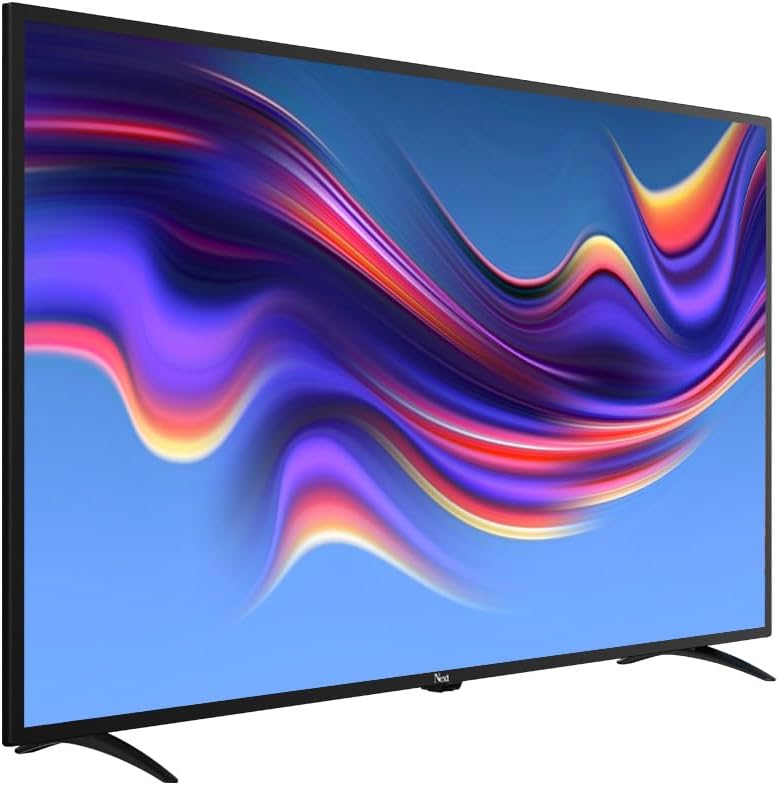
Image 6.3: The Next Google Android TV provides access to a wide range of streaming applications, enhancing your entertainment options.
7. Entretien
7.1. Nettoyage du téléviseur
- Écran: Essuyez délicatement l'écran avec un chiffon doux non pelucheux. Pour les taches tenaces, frottez légèrement.ampHumidifiez le chiffon avec de l'eau ou un nettoyant pour écrans spécialisé (assurez-vous qu'il convient aux écrans LED) et essuyez délicatement. Ne vaporisez pas de liquide directement sur l'écran.
- Cabinet: Essuyez le meuble TV avec un chiffon doux et sec. Évitez d'utiliser des nettoyants abrasifs, des cires ou des solvants.
- Avant le nettoyage : Débranchez toujours le téléviseur de la prise électrique avant de le nettoyer.
7.2. Mises à jour logicielles
Your Android TV may receive software updates periodically. It is recommended to keep your TV's software updated to ensure optimal performance and access to the latest features and security patches. You can usually check for updates in the TV's settings menu under "About" or "System Update."
8. Dépannage
Consultez le tableau suivant pour connaître les problèmes courants et leurs solutions :
| Problème | Cause/solution possible |
|---|---|
| Pas de courant |
|
| Pas d'image, mais le son est présent |
|
| Pas de son, mais l'image est présente. |
|
| La télécommande ne fonctionne pas |
|
| Problèmes de connexion Wi-Fi |
|
| Applications qui plantent ou se bloquent |
|
9. Spécifications
Technical specifications for the Next YE-43020GG4 43-inch Full HD Google Android TV:
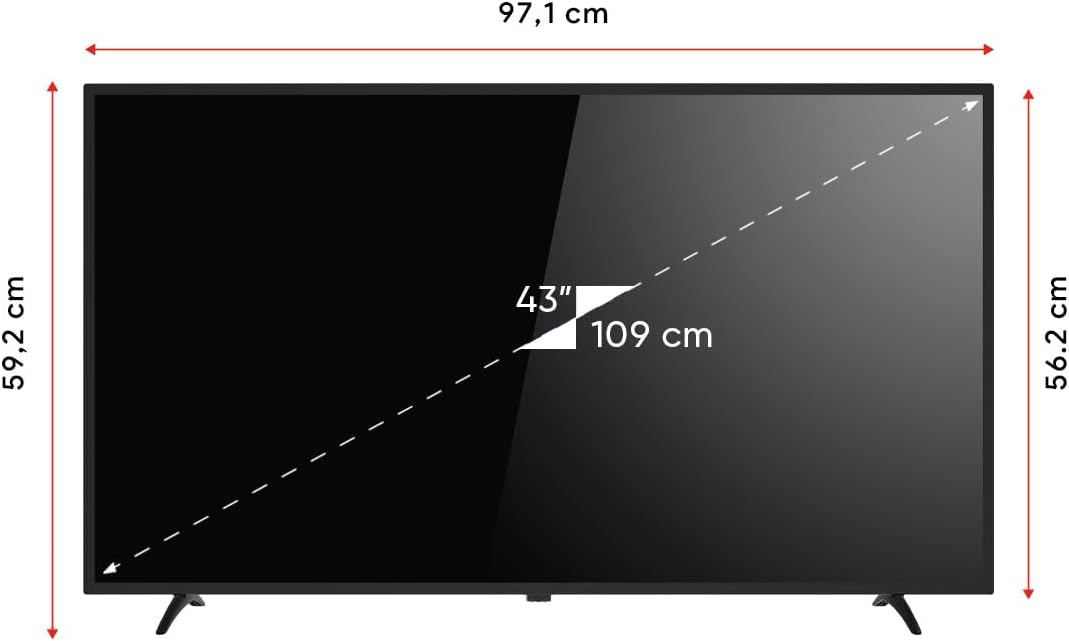
Image 9.1: Dimensions of the Next YE-43020GG4 TV.
| Fonctionnalité | Détail |
|---|---|
| Nom du modèle | YE-43020GG4 |
| Marque | Suivant |
| Taille de l'écran | 43 pouces (109 cm) |
| Technologie d'affichage | DIRIGÉ |
| Résolution | Full HD (1920x1080p) |
| Taux de rafraîchissement | 60 Hz |
| Système opérateur | Google Android TV |
| Connectivité | Wi-Fi, Ethernet |
| Ports HDMI | 2 (1x ARC) |
| Ports USB | 2 |
| Rapport hauteur/largeur | 16:9 |
| Rapport de contraste | 3000:1 |
| Caractéristiques spéciales | Dynamic Contrast Enhancer, Google Assistant |
| Dimensions du produit (LxPxH) | 97.1 x 19.4 x 59.2 cm |
| Poids du produit | 5.9 kilogrammes |
| Année modèle | 2024 |
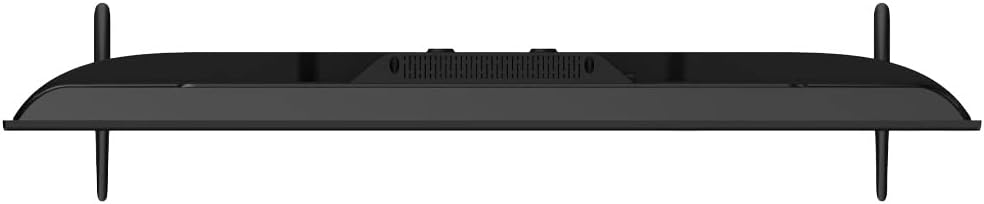
Image 9.2: EU Energy Label for the Next YE-43020GG4, indicating its energy efficiency rating and consumption.
10. Garantie et assistance
10.1. Informations sur la garantie
Your Next YE-43020GG4 television comes with a manufacturer's warranty. Please refer to the warranty card included in your product packaging for specific terms, conditions, and duration of the warranty. Keep your purchase receipt as proof of purchase for warranty claims.
10.2. Assistance clientèle
For technical assistance, troubleshooting beyond this manual, or warranty service, please contact Next customer support. Contact details can typically be found on the manufacturer's official websur le site ou sur la carte de garantie.
Lorsque vous contactez l'assistance, veuillez préparer les informations suivantes :
- Nom du modèle : YE-43020GG4
- Numéro de série (situé à l'arrière du téléviseur)
- Date d'achat
- Une description claire du problème