1. Introduction
This manual provides essential information for the installation, operation, and maintenance of your Qolsys IQ Panel 4. The IQ Panel 4 is an all-in-one touchscreen security and smart home control panel designed for comprehensive connectivity and reliability.
It features a 7-inch HD touchscreen, an 8-megapixel panel camera with Flex-Tilt, and a QuadSound speaker system. The panel supports various wireless technologies including LTE, Wi-Fi, Z-Wave, Bluetooth, PowerG, and legacy security wireless protocols.
2. Consignes de sécurité
- Source d'alimentation : Only use the specified power adapter provided with the device. Using an incorrect power source may damage the unit and void the warranty.
- Placement: Install the panel in a dry, indoor location away from direct sunlight, extreme temperatures, and high humidity. Ensure proper ventilation around the device.
- Nettoyage: Débranchez l'appareil avant de le nettoyer. Utilisez un chiffon doux et sec. N'utilisez pas de nettoyants liquides ni d'aérosols.
- Entretien: N'essayez pas de réparer vous-même ce produit. Confiez tous les travaux d'entretien à du personnel de service qualifié.
- Caméra: The integrated camera is for security and monitoring purposes. Ensure privacy settings are configured according to your preferences.
3. Contenu du colis
Vérifiez que tous les éléments sont présents dans le colis :
- Qolsys IQ Panel 4 (IQP4004)
- Alimentation électrique
- Matériel de montage (vis, chevilles)
- Quick Guide (if applicable)
4. Installation
4.1 Montage du panneau
The IQ Panel 4 can be wall-mounted or placed on a table using the SmartMount installation system. For wall mounting, ensure the chosen location is central and within Wi-Fi range.
- Identify a suitable location for the panel.
- Use the mounting bracket (if included) as a template to mark drill holes.
- Percez des avant-trous et insérez des chevilles si nécessaire.
- Fixez le support de montage au mur à l'aide des vis fournies.
- Carefully attach the IQ Panel 4 to the mounting bracket.
4.2 Mise sous tension
Connect the power supply to the panel's power input port and then plug it into a standard electrical outlet. The panel will automatically power on and begin its boot sequence.
4.3 Configuration initiale
Follow the on-screen prompts to complete the initial setup, which typically includes:
- Sélectionnez votre langue.
- Connexion à un réseau Wi-Fi.
- Réglage de la date et de l'heure.
- Creating a master user code.
5. Operating the IQ Panel 4
The 7-inch touchscreen provides intuitive control over your security system and smart home devices.
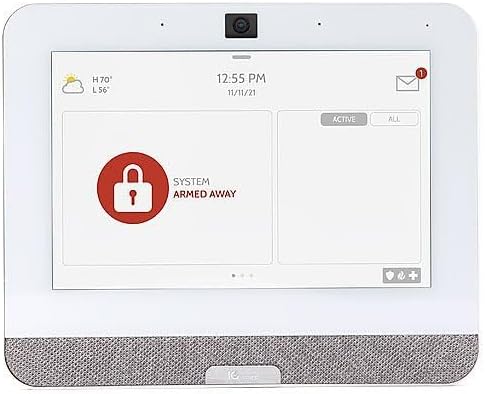
Figure 5.1: The IQ Panel 4 display when the system is armed in 'Away' mode, indicated by a red padlock icon and corresponding text.
5.1 Armement et désarmement
- Reste de bras : Arms the perimeter sensors while allowing movement inside. Tap the "Arm Stay" icon and enter your code.
- Armer loin : Arms all sensors, including interior motion detectors. Tap the "Arm Away" icon and enter your code.
- Désarmer: To disarm the system, tap the "Disarm" icon and enter your master code.
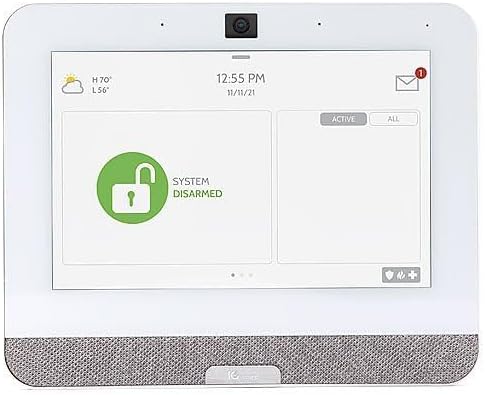
Figure 5.2: The IQ Panel 4 display when the system is disarmed, indicated by a green unlocked padlock icon and corresponding text.
5.2 Caractéristiques de la caméra
The 8-megapixel panel camera supports various functions:
- Disarm Photos: The camera can capture an image when the system is disarmed.
- Peek-in: Permet à distance viewing of the panel's camera feed.
- Alarm Videos: Records video clips during alarm events.
- Flex-Tilt: Ajustez l'angle de la caméra pour une viewing.
5.3 Contrôle de la maison intelligente
The IQ Panel 4 integrates with Z-Wave devices, allowing control of lights, locks, thermostats, and more directly from the panel or a connected smartphone app.
5.4 Bluetooth Touchless Disarming
Enable Bluetooth Touchless Disarming in settings to automatically disarm your system when your paired smartphone is detected within range.
6. Entretien
- Nettoyage de l'écran : Utilisez un chiffon doux non pelucheux pour nettoyer l'écran tactile. Pour les traces tenaces, frottez légèrement avec un chiffon doux.ampHumidifiez le chiffon avec de l'eau. Ne vaporisez pas les produits nettoyants directement sur l'écran.
- Mises à jour logicielles : The IQ Panel 4 receives over-the-air (OTA) software updates. Ensure your panel is connected to Wi-Fi to receive these updates, which provide new features and security enhancements.
- Batterie de secours: The panel includes a backup battery. Periodically check the battery status in the system settings. If the battery needs replacement, contact qualified service personnel.
7. Dépannage
| Problème | Cause possible | Solution |
|---|---|---|
| Le panneau ne s'allume pas | No power from outlet; power supply disconnected or faulty. | Check power outlet; ensure power supply is securely connected to panel and outlet. |
| Impossible de se connecter au Wi-Fi | Incorrect Wi-Fi password; out of range; router issue. | Verify password; move panel closer to router; restart router. |
| Système non armé | Open sensor (door/window); system error. | Check all sensors are closed; review system messages for errors. |
| L'écran tactile ne répond pas | Problème logiciel temporaire. | Perform a soft reboot (refer to system settings for option) or power cycle the device. |
8. Spécifications
- Modèle: IQP4004
- Taille de l'écran : 7 Inches (HD, Capacitive glass multi-touch)
- Caméra: 8 Megapixel Panel Camera with Flex-Tilt
- Stockage: Flash NAND 16GB
- Audio: QuadSound 4x front-facing 4W speakers, 85-decibel siren
- Connectivité sans fil: LTE, Wi-Fi, Z-Wave, Bluetooth, PowerG, 319.5MHz
- Dimensions (paquet) : 12.32 x 7.24 x 2.13 pouces
- Poids (article) : 1.72 livres
- Couleur: Blanc
- Appareils compatibles : Smartphone (pour le contrôle via application)
9. Garantie et assistance
Qolsys products are covered by a limited warranty. For specific warranty terms and conditions, please refer to the warranty card included with your product or visit the official Qolsys website.
For technical support, troubleshooting assistance, or service inquiries, please contact your authorized Qolsys dealer or installer. You may also find additional resources, FAQs, and support documentation on the Qolsys official website.
Note: Unauthorized modifications or repairs to the device will void the warranty.


