1. Introduction
This manual provides comprehensive instructions for the Hyperkin Pixel Art Bluetooth Controller, Tetris™ Edition (Model M01328-TETS). This limited-edition wireless controller is designed for use with various gaming platforms, offering a blend of retro aesthetics and modern functionality. Please read this manual thoroughly before use to ensure proper setup and operation.

Image 1.1: The Hyperkin Pixel Art Bluetooth Controller, Tetris™ Edition, showcasing its unique Tetris-themed design.
2. Contenu du colis
Vérifiez que tous les éléments sont présents dans votre colis :
- Hyperkin Pixel Art Bluetooth Controller (Tetris™ Edition)
- Câble de chargement USB-C
- Manuel de l'utilisateur (ce document)
3. Disposition du contrôleur
Familiarisez-vous avec les boutons et les fonctionnalités de votre manette :

Illustration 3.1 : Avant view of the controller, displaying the D-pad, analog sticks, action buttons (A, B, X, Y), SELECT, START, and Tetris™ logo.
- Croix directionnelle: Entrée directionnelle.
- Joysticks analogiques gauche/droite : Mouvement précis à 360 degrés.
- Boutons d'action (A, B, X, Y) : Boutons d'interaction principaux.
- Bouton SÉLECTIONNER : Function varies by platform/game.
- Bouton Start: Function varies by platform/game.
- Boutons d'épaule (L1, R1) : Boutons montés sur le dessus.
- Boutons de déclenchement (L2, R2) : Bottom-mounted analog triggers.
- Bouton d'accueil: Returns to system menu (functionality varies by platform).
- Bouton Turbo : Activates/deactivates turbo function for selected buttons.
- Port USB-C : Pour la recharge et la connexion filaire.

Image 3.2 : Dos view of the controller, showing the ergonomic grip and product label.
4. Installation
4.1. Chargement du contrôleur
Before initial use, fully charge the controller. Connect the included USB-C charging cable to the controller's USB-C port and the other end to a USB power source (e.g., computer, USB wall adapter). The charging indicator light will show charging status and turn off when fully charged.
4.2. Couplage Bluetooth
The controller supports wireless connection via Bluetooth up to 30 feet. Follow these general steps for pairing:
- Assurez-vous que le contrôleur est chargé.
- Turn on the controller (specific method may vary, typically holding the Home button).
- Activate pairing mode on the controller (refer to specific platform instructions below, usually a combination of buttons or a dedicated pairing button). The indicator lights will flash rapidly.
- On your device (Nintendo Switch, PC, Mac, Android, iOS), navigate to the Bluetooth settings.
- Rechercher available devices and select "Hyperkin Pixel Art Controller" or similar.
- Une fois l'appairage effectué, les voyants de la manette resteront allumés.
4.2.1. Pairing with Nintendo Switch/OLED Model
- Dans le menu ACCUEIL, sélectionnez « Manettes » > « Changer la prise/l’ordre ».
- While on this screen, press and hold the pairing button on the Hyperkin controller until the indicator lights flash.
- Once paired, the controller will appear on the screen, and the player indicator will light up.
4.2.2. Pairing with PC (Windows 10/11)
- Allez dans « Paramètres » > « Appareils » > « Bluetooth et autres appareils ».
- Turn on Bluetooth and click "Add Bluetooth or other device."
- Select "Bluetooth" and then choose "Hyperkin Pixel Art Controller" from the list.
4.2.3. Pairing with Mac
- Open "System Settings" (or "System Preferences") > "Bluetooth."
- Ensure Bluetooth is on. The controller should appear in the list of devices.
- Click "Connect" or "Pair" next to "Hyperkin Pixel Art Controller."
4.2.4. Pairing with Android/iOS Devices
- Go to your device's "Settings" > "Bluetooth."
- Turn on Bluetooth. The controller should appear in the list of available devices.
- Tap on "Hyperkin Pixel Art Controller" to pair.

Image 4.1: The controller demonstrating wireless connectivity with a Nintendo Switch console, highlighting its Bluetooth capability.
5. Mode d'emploi
5.1. Contrôles de base
The controller functions as a standard gamepad. Button mapping may vary depending on the game and platform. Refer to your game's instructions for specific control schemes.
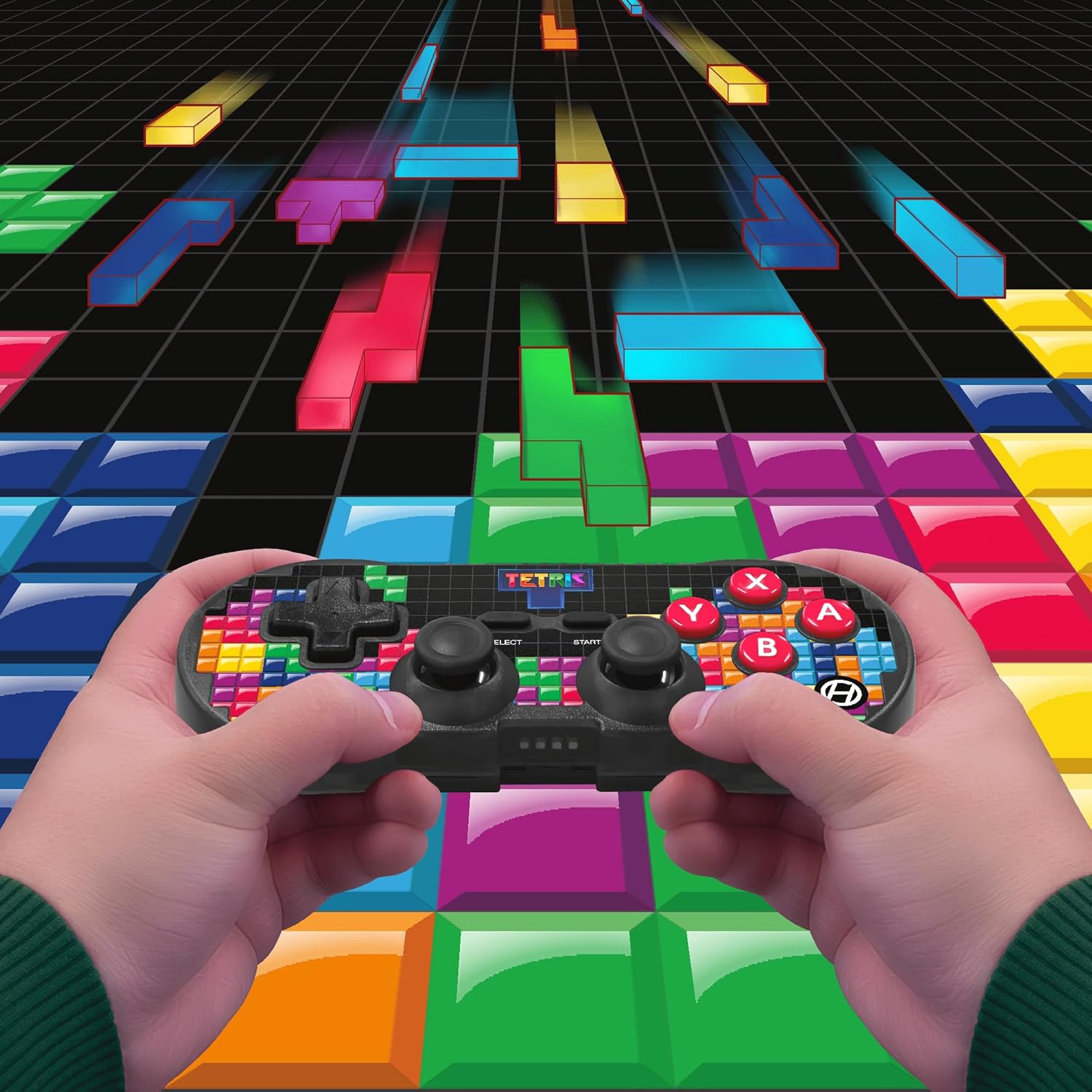
Image 5.1: A user holding the controller, illustrating its use during gameplay.
5.2. Fonction Turbo
The controller features a turbo function for rapid button presses. To activate or deactivate turbo for a specific button:
- Appuyez et maintenez enfoncé le Bouton turbo.
- While holding the Turbo button, press the desired bouton d'action (A, B, X, Y, L1, R1, L2, R2) you wish to apply turbo to.
- Release both buttons. The selected action button will now have turbo enabled.
- To disable turbo for that button, repeat the process.
6. Compatibilité
The Hyperkin Pixel Art Bluetooth Controller is compatible with a wide range of platforms:
- Nintendo Switch
- Modèle OLED de Nintendo Switch
- Ordinateur Windows 10/11
- Mac
- Appareils Android
- Appareils iOS
- Vapeur
- Raspberry Pi
- Amazon Games
- Amazon Luna
- Tesla

Image 6.1: Visual representation of the controller's broad compatibility across multiple gaming and computing platforms.
7. Entretien
Pour garantir la longévité et les performances optimales de votre manette :
- Nettoyage: Utilisez un chiffon doux et sec pour nettoyer la manette. Évitez les nettoyants abrasifs et les solvants.
- Stockage: Rangez la manette dans un endroit frais et sec, à l'abri de la lumière directe du soleil et des températures extrêmes.
- Entretien de la batterie: Do not attempt to replace the internal Lithium Polymer battery. Avoid fully discharging the battery for extended periods.
- Évitez les chutes : Protégez la manette des chutes et des chocs, qui peuvent endommager ses composants internes.
8. Dépannage
Si vous rencontrez des problèmes avec votre manette Bluetooth Hyperkin Pixel Art, consultez les problèmes et solutions courants suivants :
| Problème | Solution possible |
|---|---|
| La manette ne s'allume pas. | Assurez-vous que la manette est complètement chargée. Branchez-la à une source d'alimentation à l'aide du câble USB-C. |
| Controller does not pair via Bluetooth. |
|
| Délai d'entrée ou déconnexion. |
|
| Les boutons ne répondent pas ou sont bloqués. | Clean around the buttons with a soft, dry cloth. Avoid liquid cleaners. If the issue persists, contact support. |
9. Spécifications
| Fonctionnalité | Détail |
|---|---|
| Numéro de modèle | M01328-TETS |
| Connectivité | Bluetooth (Wireless up to 30 ft.), USB-C (Wired) |
| Compatibilité | Nintendo Switch/OLED, Windows 10/11 PC, Mac, Android, iOS, Steam, Raspberry Pi, Amazon Games, Amazon Luna, Tesla |
| Caractéristiques spéciales | Turbo function, Retro design with modern ergonomics, High-quality symmetrical sticks, Responsive action buttons, Reliable triggers |
| Type de batterie | 1 Lithium Polymer battery (internal) |
| Dimensions du colis | 7.24 x 5 x 2.48 pouces |
| Poids de l'article | 9.9 onces |
| Fabricant | Hyperkin |
10. Garantie et assistance
Pour obtenir des informations sur la garantie et une assistance technique, veuillez consulter le site officiel d'Hyperkin. webConsultez leur site web ou contactez leur service client. Conservez votre preuve d'achat pour toute réclamation au titre de la garantie.
Hyperkin Officiel Website: www.hyperkin.com


