Introduction
Thank you for choosing the arVin Wireless Gaming Controller. This manual provides detailed instructions on how to set up, operate, and maintain your controller to ensure an optimal gaming experience across various platforms including iOS, Android, Nintendo Switch, PS4, and PC.
Contenu du colis
- 1 x arVin Wireless Gaming Controller (Model D7)
- 1 x câble de chargement USB
- 1 x Manuel d'utilisation
Produit terminéview et fonctionnalités clés
The arVin Wireless Gaming Controller is designed for versatile gaming across multiple platforms, offering precise control and an ergonomic design for extended play sessions.
- Compatibilité multi-appareils : Supports iOS 13.0+, Android 6.0+, Win7.0+, Nintendo Switch, Switch OLED, Switch Lite, PS3, PS4. (Note: PS5 compatibility is limited to PS4/PS3 games).
- Prise en charge étendue du jeu : Compatible with most cloud gaming services (Nvidia GeForce Now, Xbox Cloud, Amazon Luna, Google Stadia, Rainway, Moonlight), Apple Arcade, and MFi games. Supports popular titles like Call of Duty Mobile, Genshin Impact, Minecraft, Diablo Immortal, Asphalt 9: Legends.
- Remote Play Functionality: Stream PC games via Steam Link, and console games via PS Remote Play and Xbox Remote Play directly to your phone.
- Dual Vibration & 6-Axis Gyroscope: Built-in dual vibration motors provide haptic feedback (for PS3/4/Switch/PC). Sensitive 6-axis gyroscope enables high-precision directional control (for PS3/4/Switch/PC). (Note: These features are not supported on iOS/Android devices).
- Fonction Turbo: Adjustable 3-speed Turbo mode for A/B/X/Y/LT/LB/RT/RB/cross keys, enhancing gameplay in shooting and fighting games.
- Green Ambient Lighting: Integrated green lights create an immersive gaming atmosphere. (Note: Green lights are non-adjustable and cannot be turned off).
- Contrôles précis : Features Hall Effect joysticks for 360° precise control and extended lifespan (up to 5 million times), and analog triggers for low latency and precise input.
- Ergonomic & Stretchable Design: Accommodates phones from 5-7.1 inches, with a recessed design for phone lenses and a bezel-less design for easy volume adjustment.
- Longue durée de vie de la batterie : 600mAh battery provides up to 15 hours of gaming time on a full charge.
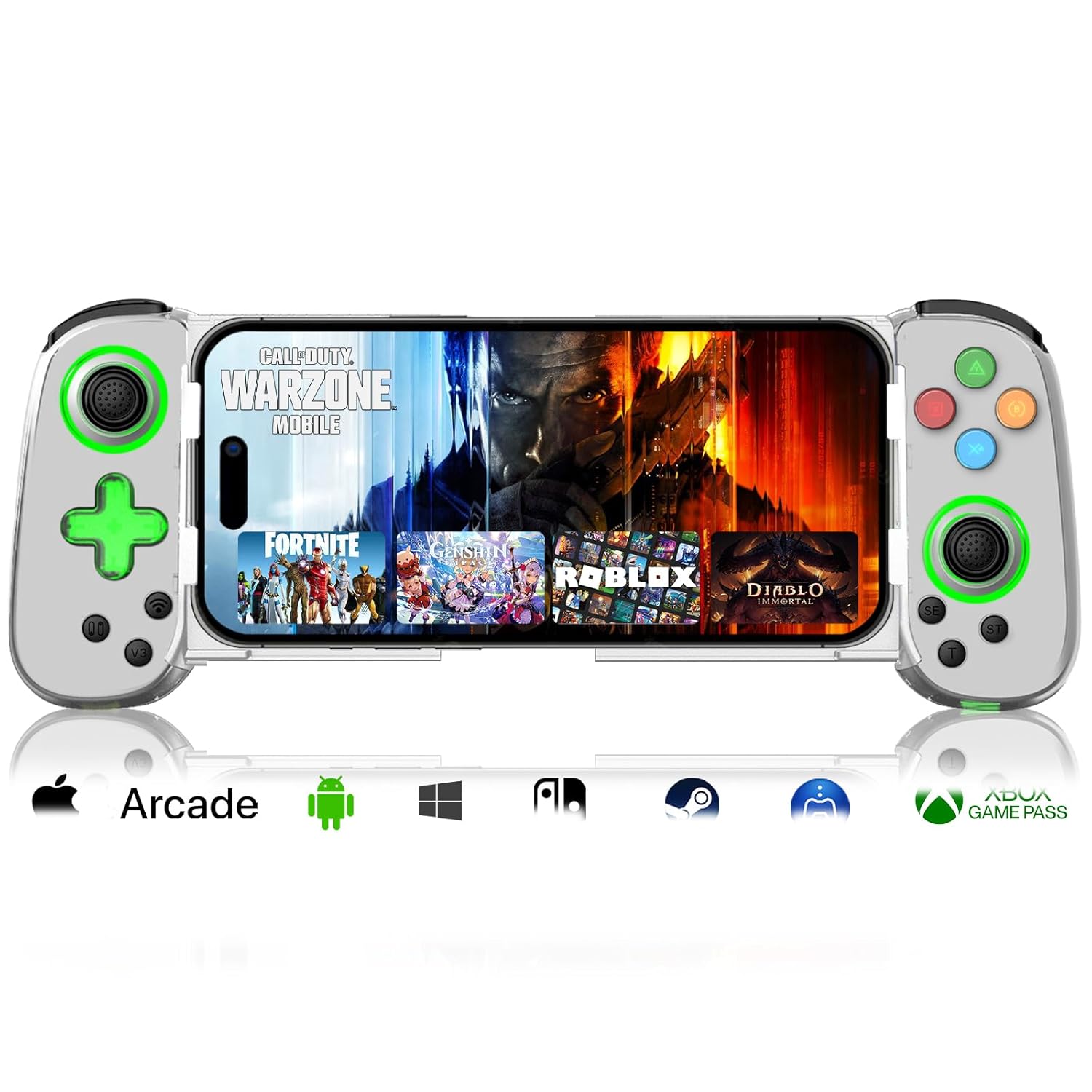
Image: arVin Wireless Gaming Controller with a smartphone inserted, displaying a game.
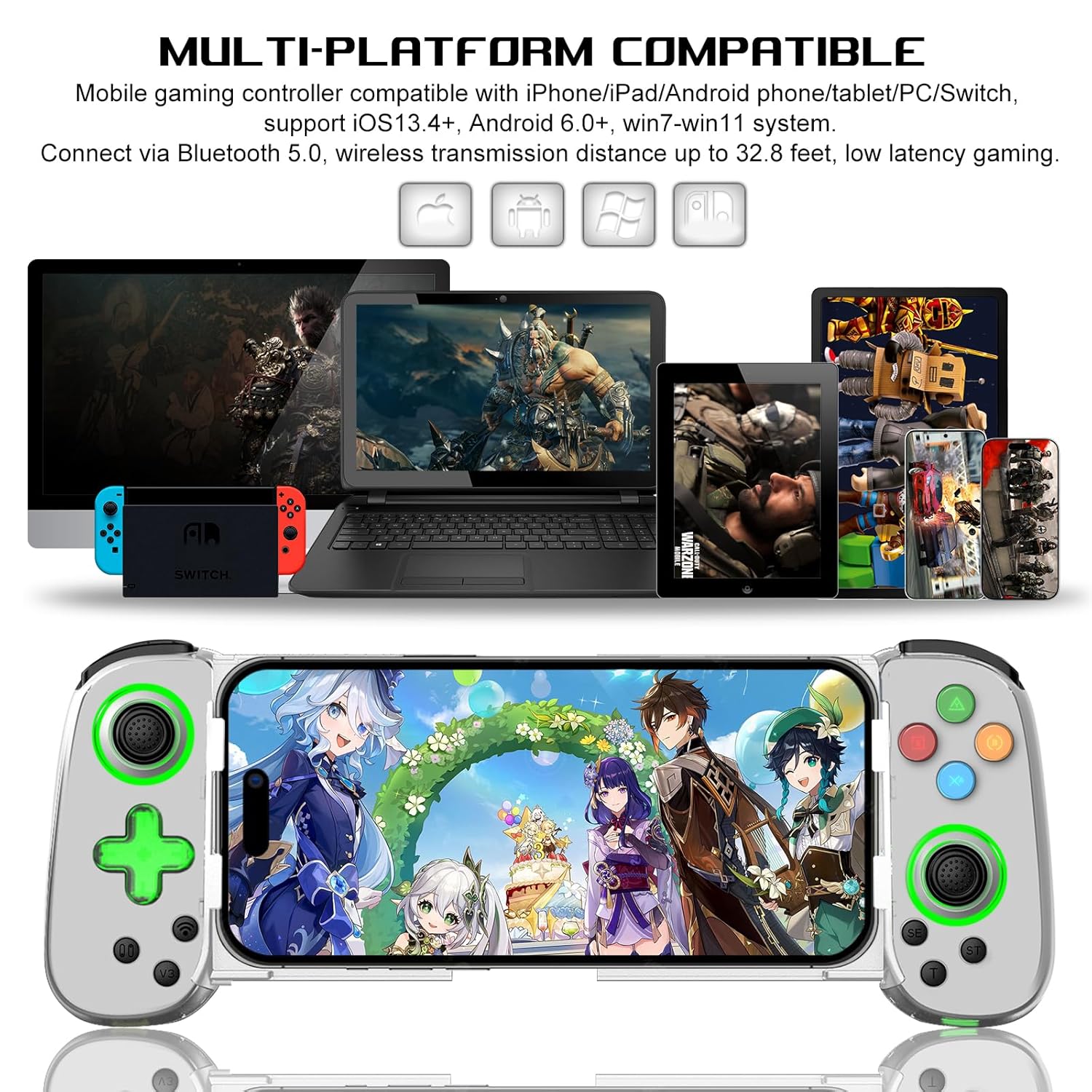
Image: Multi-platform compatibility of the arVin controller, showing it works with iPhone, iPad, Android phones/tablets, PC, Switch, and PS4.

Image : détaillée view of the controller's Hall Effect Joysticks and Analog Triggers, emphasizing their precision and durability.
Guide d'installation
1. Chargement du contrôleur
Before first use, fully charge the controller. Connect the supplied USB charging cable to the controller's charging port and to a USB power source (e.g., computer, wall adapter). The indicator lights will show charging status and turn off when fully charged.

Image: Close-up of the controller's charging port and battery information.
2. Connexion de votre smartphone
The controller features a stretchable design to accommodate smartphones from 5 to 7.1 inches. Gently pull the two sides of the controller apart and carefully insert your phone into the central slot. Ensure your phone is securely seated. The recessed design helps protect phone lenses, and the bezel-less design allows access to volume controls.

Image: A smartphone being inserted into the stretchable arVin gaming controller.
3. Couplage Bluetooth
The arVin controller connects via Bluetooth 5.0 for low-latency gaming.
Pour les appareils iOS (iPhone/iPad) :
- Press and hold the "Bluetooth" key on the controller for 5 seconds until the indicator lights flash quickly.
- Sur votre appareil iOS, accédez à Paramètres > Bluetooth.
- Rechercher and select the Bluetooth name: "Xbox Wireless Controller".
- Once connected, the indicator lights on the controller will remain steadily lit.
Video: Demonstrates the Bluetooth connection process for iOS devices. The video shows pressing the Bluetooth button on the controller until lights flash, then connecting via phone settings to "Xbox Wireless Controller".
Pour les appareils Android :
- Press and hold the "Bluetooth" key on the controller for 5 seconds until the indicator lights flash quickly.
- Sur votre appareil Android, accédez à Paramètres > Appareils connectés > Bluetooth.
- Rechercher and select the Bluetooth name: "Xbox Wireless Controller" or similar.
- Once connected, the indicator lights on the controller will remain steadily lit.
For Nintendo Switch/PS4/PC:
Refer to the specific connection instructions provided in the quick start guide included with your controller, as pairing methods may vary slightly for these platforms. Generally, you will need to put the controller into its respective pairing mode (e.g., Switch Pro Controller mode) and then search for it on your console/PC's Bluetooth settings.
Mode d'emploi
1. Disposition des boutons
Familiarisez-vous avec la disposition des boutons de la manette pour une expérience de jeu optimale.
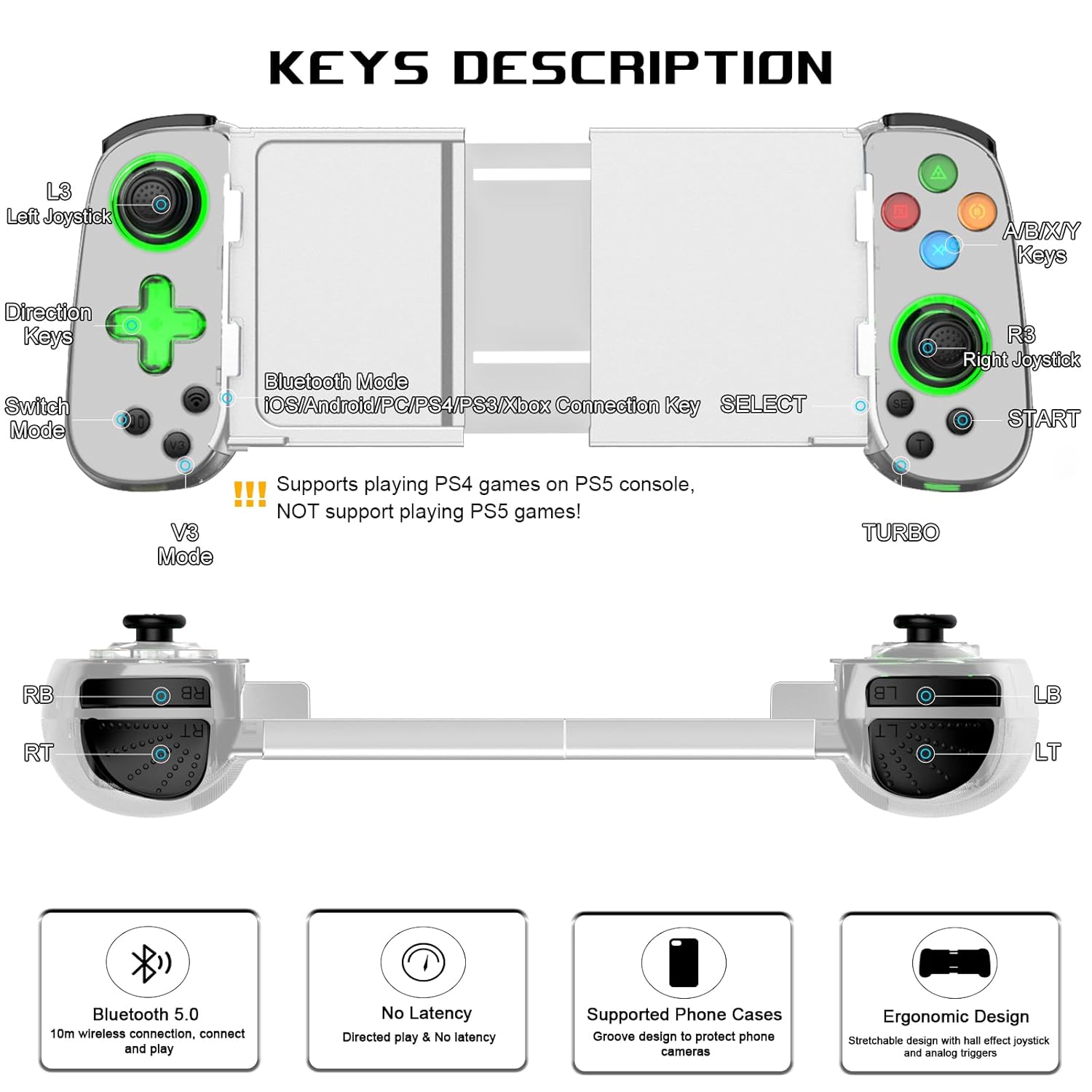
Image: Detailed diagram illustrating the button layout and functions of the arVin Wireless Gaming Controller.
Note: The controller supports playing PS4 games on PS5 consoles, but does NOT support playing PS5 games directly.
You can switch between Xbox and Switch button layouts by pressing the X and A keys simultaneously. The controller will vibrate once to confirm the switch.

Image: Instructions on how to switch between Xbox and Switch button layouts.
2. Fonction Turbo
The Turbo function allows for rapid, automatic pressing of a button, useful in shooting and fighting games.
- To set a button to Turbo: Press and hold the "T" (Turbo) button, then press the desired function button (e.g., A button). The setting is now active.
- To activate auto Turbo: Press and hold the function button (e.g., "A" button) to release the A button function automatically.
- To cancel auto Turbo: Press the "T" button again while holding the function button.
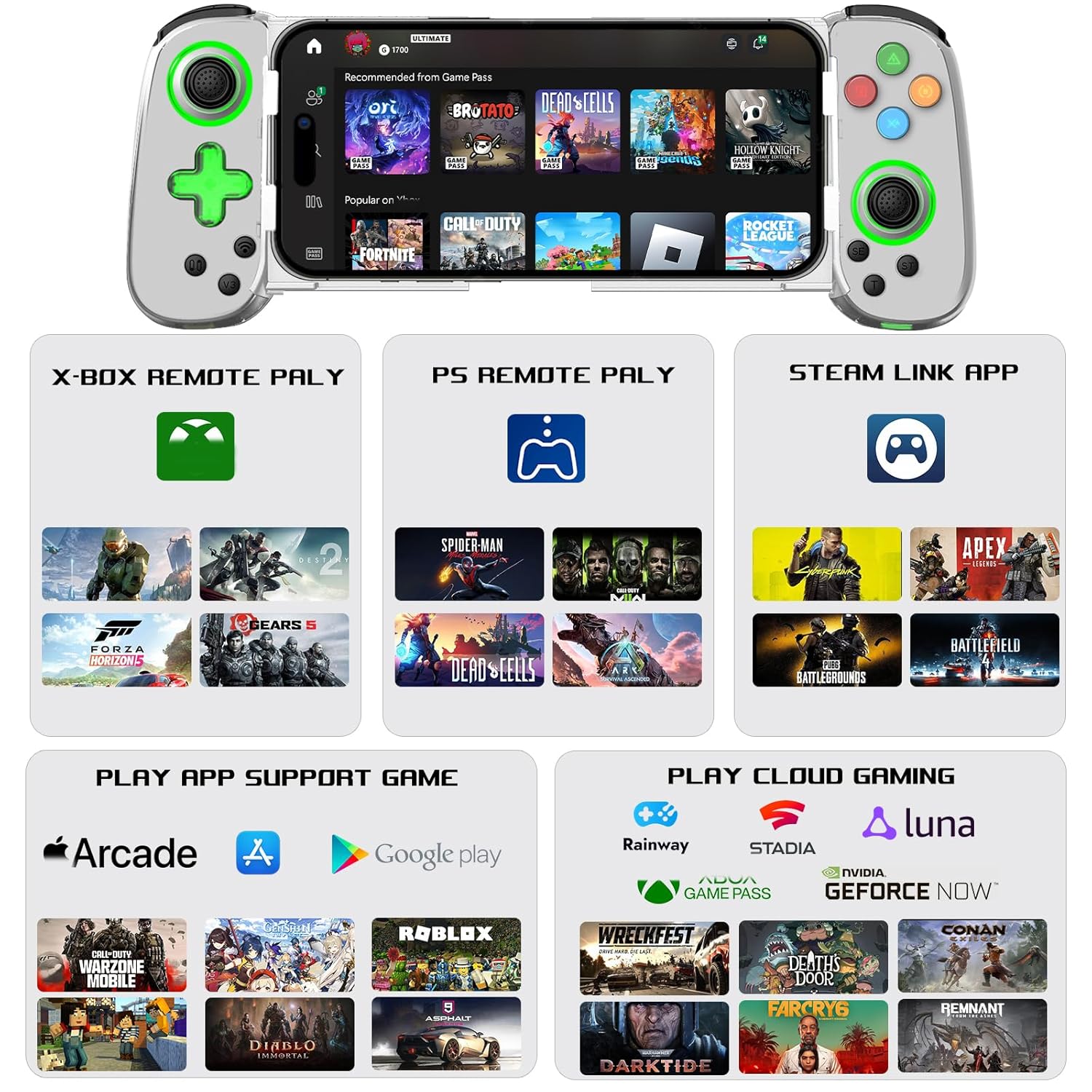
Image: Visual guide on setting up and using the Turbo function.
3. Dual Vibration & 6-Axis Gyroscope
Experience enhanced game immersion with haptic feedback and precise motion control.
- Double vibration : Offre un retour tactile pendant le jeu.
- Gyroscope à 6 axes : Enables high-precision directional control for quick reactions.
Remarque importante : These features are supported on PS3, PS4, Nintendo Switch, and PC. They are non pris en charge on iOS and Android devices.

Image: Visual representation of the Dual Motor Vibration and 6-Axis Gyro features, highlighting their benefits and platform limitations.
4. Green Ambient Lighting
The controller features integrated green ambient lighting to enhance your gaming atmosphere.
Note: The green lights do not support adjustment and cannot be turned off.
To turn the green light on/off: Hold down the 'L3' key (left joystick click), then click the 'TURBO' key.

Image: The controller displaying its green ambient lighting.
5. Jeux et plateformes compatibles
The arVin controller offers broad compatibility with various gaming ecosystems:
- Lecture directe : Supports controller-enabled games on iOS (Apple Arcade, MFi games) and Android (Google Play games).
- Cloud Gaming : Compatible with services like Nvidia GeForce Now, Xbox Cloud, Amazon Luna, Google Stadia, Rainway, and Moonlight.
- Lecture à distance : Use Steam Link for PC games, PS Remote Play for PlayStation games, and Xbox Remote Play for Xbox games. Ensure your phone and game console are on the same local area network (LAN) for remote play.

Image : Terminéview of supported gaming platforms and services, including remote play and cloud gaming options.
Entretien
- Nettoyage: Utilisez un chiffon doux et sec pour nettoyer la manette. Évitez d'utiliser des produits chimiques agressifs ou des matériaux abrasifs.
- Stockage: Rangez la manette dans un endroit frais et sec, à l'abri de la lumière directe du soleil et des températures extrêmes.
- Entretien de la batterie: Pour prolonger la durée de vie de la batterie, évitez de décharger complètement la manette fréquemment. Rechargez-la régulièrement, même si vous ne l'utilisez pas pendant une période prolongée.
- Manutention: Manipulez la manette avec précaution. Évitez de la faire tomber ou de la soumettre à des chocs violents, car cela pourrait endommager ses composants internes.
Dépannage
Manette non connectée/non appariée :
- Assurez-vous que le contrôleur est complètement chargé.
- Assurez-vous que Bluetooth est activé sur votre appareil.
- Verify you are pressing the correct Bluetooth pairing button on the controller for 5 seconds until lights flash quickly.
- Oubliez l'appareil dans les paramètres Bluetooth de votre téléphone et essayez de le jumeler à nouveau.
- Restart both your device and the controller.
- Assurez-vous qu'aucun autre appareil Bluetooth n'interfère avec la connexion.
Buttons/Joysticks Not Responding or Experiencing Drift:
- Vérifiez que la manette est correctement connectée.
- Calibrate the joysticks if your device or game supports it.
- Some users have reported that pressing down on the joystick can help with stick drift issues.
- Si le problème persiste, contactez le support client.
Game Compatibility Issues:
- Not all mobile games natively support controllers. Check the game's settings or description to confirm controller support.
- For remote play (Steam Link, PS Remote Play, Xbox Remote Play), ensure your phone and console/PC are on the same LAN.
- If you are unsure if a specific game is playable, contact arVin customer support.
Green Lights Cannot Be Turned Off:
- As noted in the features, the green ambient lights are designed to be always on and are not adjustable or turn-offable. This is a design characteristic of the D7 Green Light Version.
Caractéristiques
| Modèle | D7 (Green Light Version) |
| Compatibilité | iOS 13.0+, Android 6.0+, Win7.0+, Switch/Switch OLED/Switch Lite, PS3, PS4 (PS4/PS3 games on PS5) |
| Connectivité | Bluetooth 5.0 |
| Capacité de la batterie | Polymère de lithium 600mAh |
| Temps de jeu | Jusqu'à 15 XNUMX heures |
| Temps de charge | 2-3 heures |
| Taille de téléphone prise en charge | 5 à 7.1 pouces |
| Poids de l'article | 8.8 onces (environ 249 grammes) |
| Dimensions du colis | 8.58 x 3.9 x 2.05 pouces |
Garantie et assistance
arVin products are designed for quality and reliability. For any warranty claims, technical support, or inquiries, please refer to the contact information provided with your purchase or visit the official arVin webVeuillez conserver votre preuve d'achat pour faire valoir la garantie.
Vous pouvez également visiter le arVin Store on Amazon pour plus d'informations et d'assistance.


