1. Produit terminéview
The Tera HW0004 Barcode Scanner is a versatile 1D laser scanner designed for efficient data capture in various environments such as supermarkets, retail stores, and logistics. It offers flexible connectivity options and multiple operating modes to suit different user needs.
- Versatile 2-in-1 Transmission: Supports both 2.4GHz wireless and USB 2.0 wired connections. Compatible with Windows and Mac OS, and integrates with common software like Word, Excel, and Novell.
- Deux modes de fonctionnement : Features Instant Upload Mode for real-time data transfer and Storage Upload Mode for offline scanning and later upload.
- Prêt à l'emploi : Requires no driver or software installation for quick setup.
- Prise en charge des codes-barres 1D : Capable of scanning various 1D printed barcodes including Code 39, UPC-A/UPC-E, EAN13, EAN8, Code 93, Code 128, Codabar, Industrial/Interleaved 2 of 5, MSI, Code11, ISBN/ISSN, and Matrix 2 of 5. Note: Does not scan 2D codes (e.g., QR, PDF417) or barcodes from screens.
2. Contenu du colis
À l'ouverture du colis, vérifiez que tous les composants sont présents :
- Tera Barcode Scanner (HW0004)
- Clé USB sans fil 2.4 GHz
- Câble USB 2.0
- Support réglable
- Manuel de l'utilisateur (ce document)
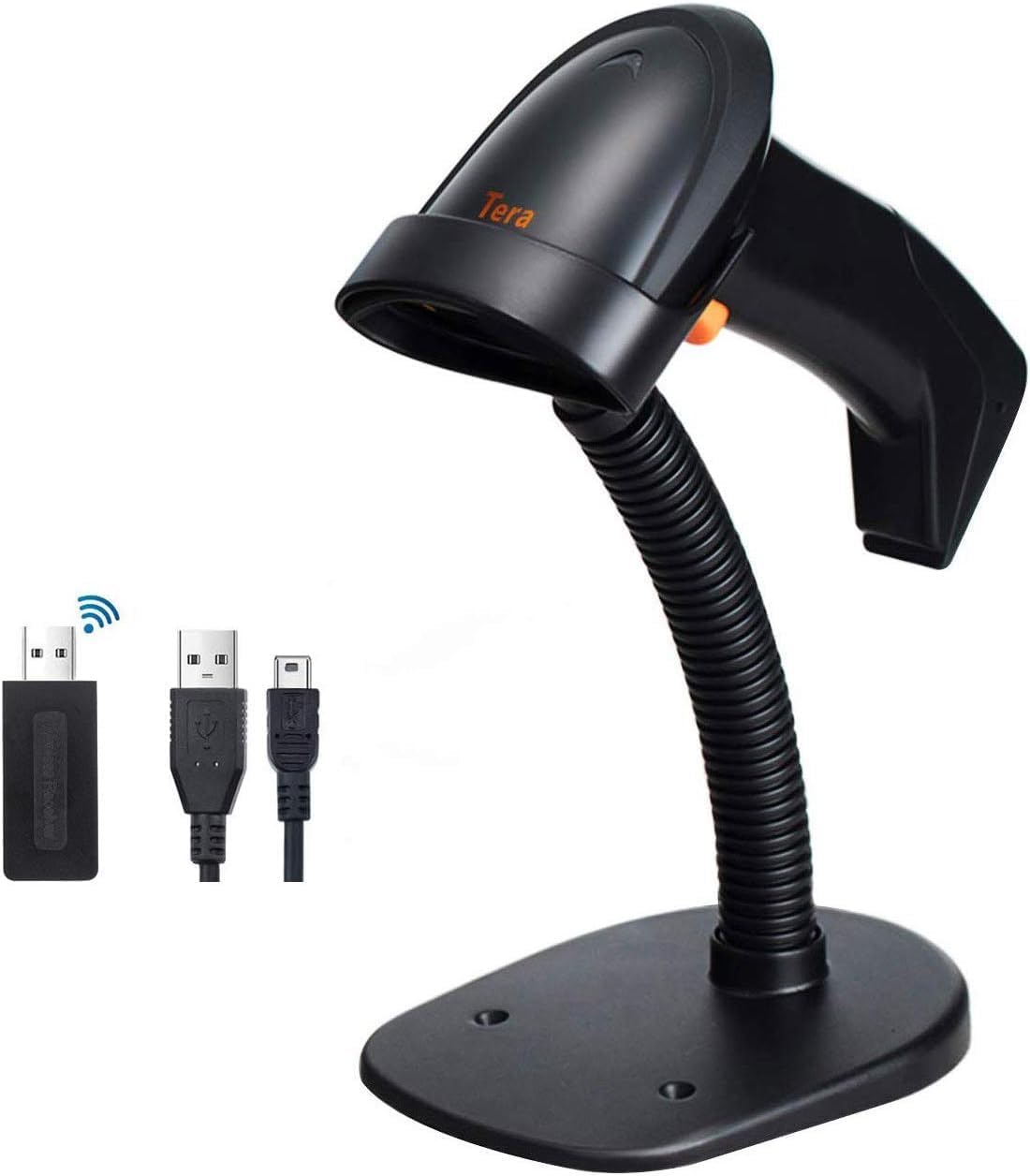
Image: The Tera HW0004 barcode scanner, its wireless USB dongle, USB cable, and the included stand.
3. Configuration et connexion
The Tera HW0004 scanner is designed for easy plug-and-play operation, requiring no complex driver installations.
3.1. Connexion sans fil (2.4 GHz)
- Insert the 2.4GHz wireless USB dongle into an available USB port on your computer or device.
- Turn on the barcode scanner. It will automatically pair with the dongle.
- Le scanner est désormais prêt pour un fonctionnement sans fil.

Image: The barcode scanner connected to a laptop via the wireless dongle, illustrating the plug-and-play setup.
3.2. Wired Connection (USB 2.0)
- Connect one end of the provided USB 2.0 cable to the scanner's USB port.
- Connect the other end of the USB 2.0 cable to an available USB port on your computer or device.
- The scanner will be recognized as a standard HID keyboard device and is ready for use.
The scanner is compatible with various operating systems, including Windows XP, Windows 7, Windows 8, Windows 10, Android, and Linux.
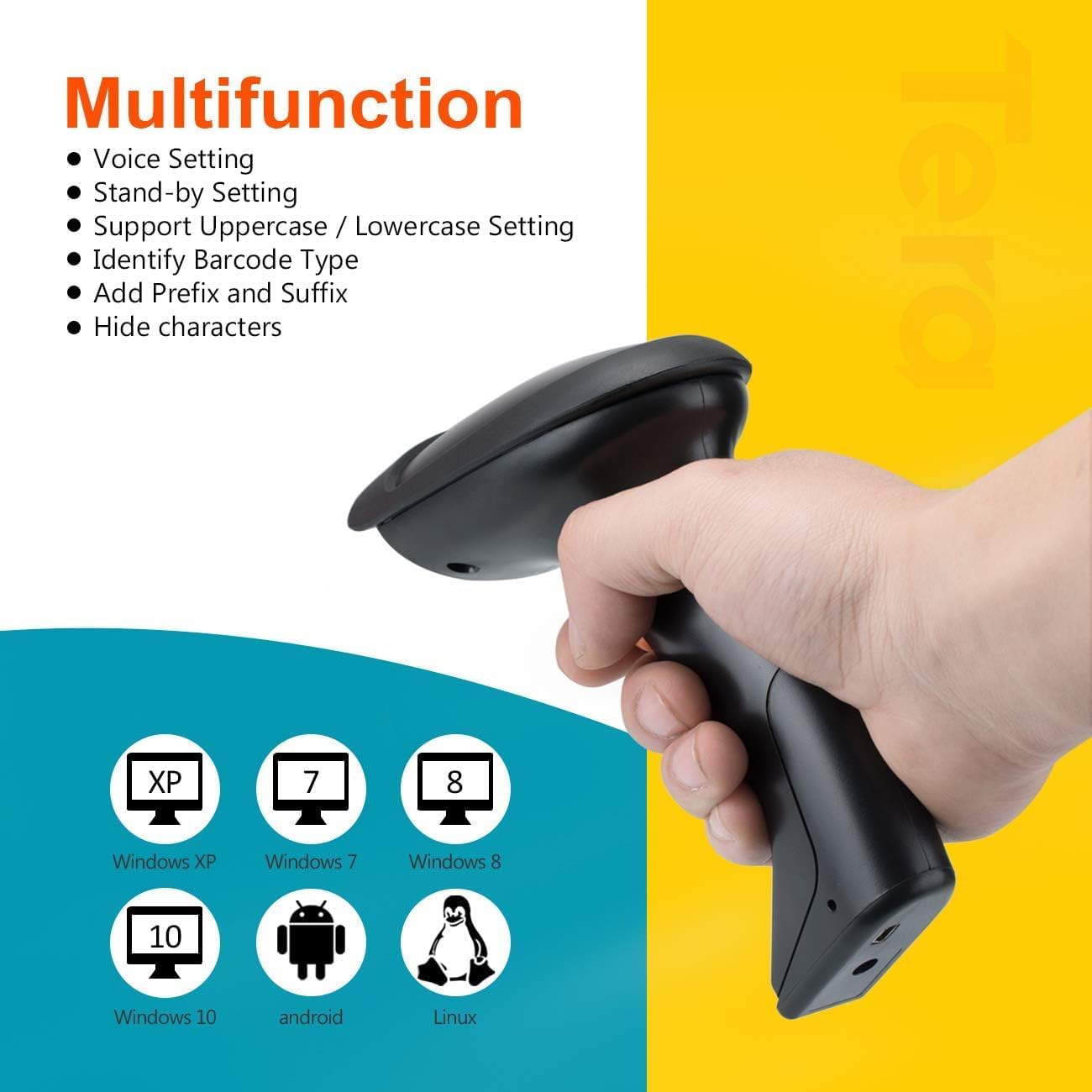
Image: The scanner demonstrating compatibility with multiple operating systems.
4. Utilisation du scanner
4.1. Modes de numérisation
Le scanner prend en charge deux modes de numérisation principaux :
- Mode de déclenchement des touches : Press the trigger button to activate the laser and scan a barcode. Release the button to stop scanning.
- Mode de numérisation continue : The scanner continuously emits the laser, allowing for hands-free scanning when placed on the stand. This mode is ideal for high-volume scanning.
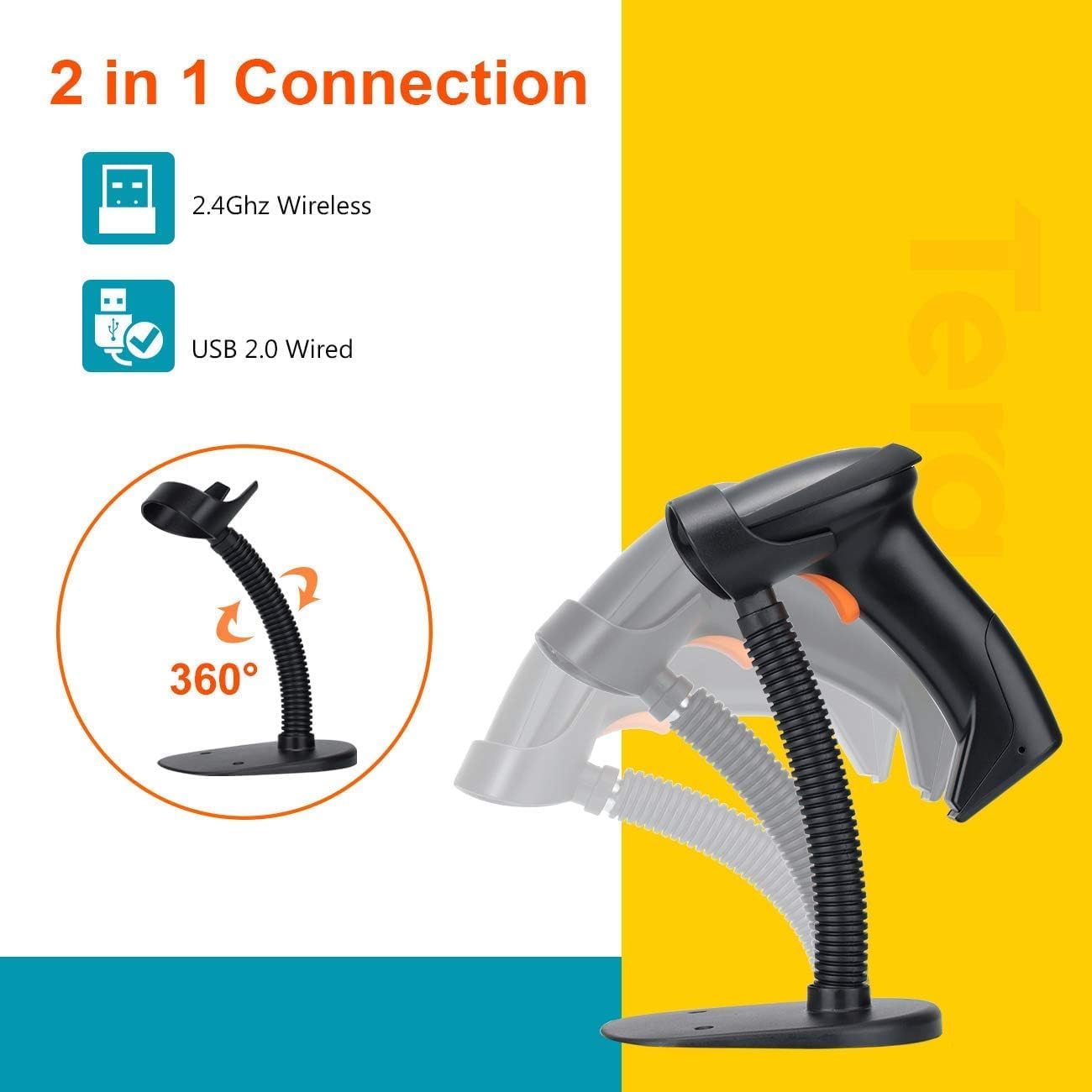
Image: The scanner on its adjustable stand, highlighting its 360-degree rotation and dual connection capabilities.
4.2. Modes de chargement des données
Le scanner propose deux méthodes pour télécharger les données numérisées :
- Mode de téléchargement instantané : Barcodes are synchronously uploaded to your connected device immediately after scanning. This is the default mode for real-time data entry.
- Storage Upload Mode: Barcodes are stored in the scanner's built-in 16MB memory. This mode is useful for scanning outside the wireless signal range. Data can be uploaded to your device later when needed.
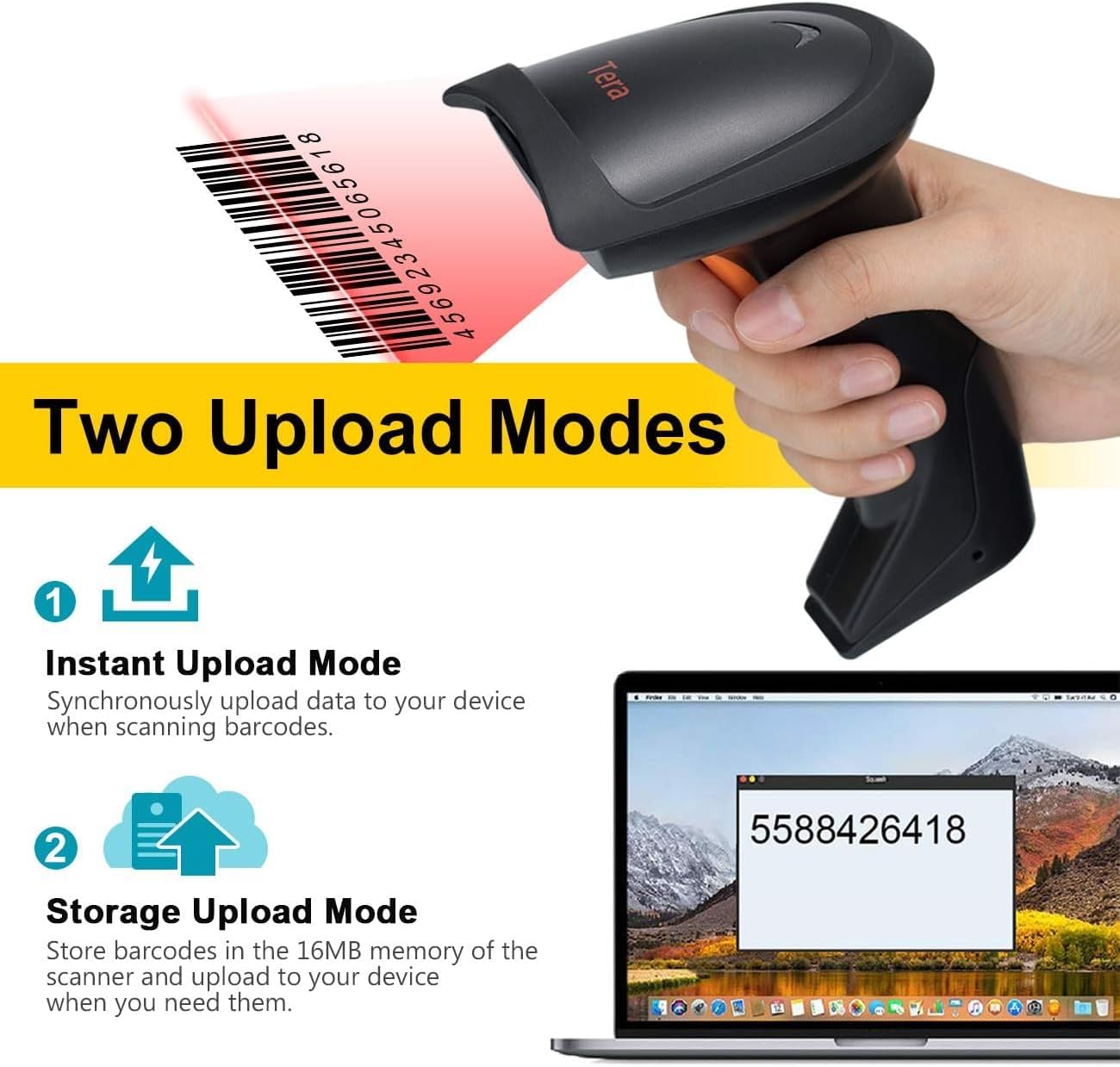
Image: A visual representation of the two data upload modes: Instant Upload and Storage Upload.
4.3. Supported Barcodes and Languages
The scanner supports a wide range of 1D printed barcodes and multiple languages for output:
- Codes-barres 1D pris en charge : Code 39, UPC-A/UPC-E (Include Complement Code), EAN13, EAN8, Code 93, Code 128, Codabar, Industrial/Interleaved 2 of 5, MSI, Code11, ISBN/ISSN, Matrix 2 of 5.
- Unsupported Codes: 2D codes (e.g., QR, PDF417) and barcodes displayed on screens.
- Langues prises en charge : English, Spanish, German, Japanese, French, Italian.

Image: The scanner highlighting its multi-language support and the types of 1D barcodes it can read.
4.4. Multifunction Settings
The scanner offers several configurable settings to enhance its functionality:
- Réglage de la voix
- Stand-by Setting
- Support Uppercase / Lowercase Setting
- Identify Barcode Type
- Add Prefix and Suffix to scanned data
- Masquer les caractères
Refer to the detailed programming guide (usually a separate document or a section within a comprehensive manual) for instructions on how to configure these settings by scanning specific setup barcodes.
5. Entretien
Un entretien approprié garantit la longévité et les performances optimales de votre lecteur de codes-barres.
- Nettoyage: Use a soft, dry, lint-free cloth to clean the scanner's exterior. For the scanning window, use a lens cleaning cloth and a mild, non-abrasive cleaning solution if necessary. Avoid harsh chemicals or abrasive materials.
- Stockage: Rangez le scanner dans un endroit frais et sec, à l'abri de la lumière directe du soleil et des températures extrêmes.
- Entretien de la batterie: As the scanner is battery-powered, ensure it is charged regularly. Avoid fully discharging the battery frequently to prolong its lifespan. If storing for an extended period, charge the battery to about 50% and store in a cool, dry place.
- Manutention: Évitez de faire tomber le scanner ou de le soumettre à des chocs violents, qui pourraient endommager ses composants internes.
6. Dépannage
If you encounter issues with your Tera HW0004 barcode scanner, refer to the following common troubleshooting steps:
| Problème | Cause possible | Solution |
|---|---|---|
| Le scanner ne s'allume pas. | Batterie faible ou problème d'alimentation. | Charge the scanner using the USB cable. Ensure the cable is properly connected to a power source. |
| Aucune donnée n'a été générée après l'analyse. | Incorrect connection mode, scanner not paired, or application issue. |
|
| Le scanner émet des bips mais ne fournit aucune donnée. | Barcode not recognized or corrupted. |
|
| Wireless connection unstable. | Problèmes d'interférence ou de distance. |
|
If the problem persists, please contact Tera customer support for further assistance.
7. Spécifications
| Fonctionnalité | Détail |
|---|---|
| Modèle | HW0004 |
| Marque | Téra |
| Technologie de connectivité | 2.4GHz Wireless, USB 2.0 Wired |
| Type de scanner | 1D Laser Handheld Linear Bar Code Reader |
| Codes-barres pris en charge | Code 39, UPC-A/UPC-E, EAN13, EAN8, Code 93, Code 128, Codabar, Industrial/Interleaved 2 of 5, MSI, Code11, ISBN/ISSN, Matrix 2 of 5 |
| Unsupported Barcodes | 2D codes (QR, PDF417), barcodes from screens |
| Appareils compatibles | Ordinateur de bureau, ordinateur portable |
| Systèmes d'exploitation compatibles | Windows XP/7/8/10, Mac OS, Android, Linux |
| Source d'énergie | Alimenté par batterie |
| Poids de l'article | 8 onces (environ 227 grammes) |
| Dimensions du colis | 7.9 x 3.9 x 3.2 pouces (environ 20.1 x 9.9 x 8.1 cm) |
| Fabricant | Téra |
| Date de première disponibilité | 4 septembre 2023 |
8. Garantie et assistance
Specific warranty information for the Tera HW0004 Barcode Scanner is typically provided with the product packaging or available on the manufacturer's official website. Veuillez consulter ces ressources pour connaître les conditions générales de garantie détaillées.
For technical support, troubleshooting beyond this manual, or inquiries regarding product functionality, please visit the official Tera webConsultez leur site web ou contactez leur service client. Les coordonnées se trouvent généralement sur l'emballage du produit ou sur le site du fabricant. website.
You can visit the Tera Store on Amazon for more information: Tera Store
9. Scénarios d'application
The Tera HW0004 barcode scanner is suitable for a variety of applications, including but not limited to:
- Logistique
- Gestion d'entrepôt
- Supermarkets and Convenient Stores
- Bibliothèques
- Retail Industry
- Postal Industry
- Banques
- Établissements médicaux

Image : Examples of environments where the barcode scanner can be effectively utilized.


