1. Produit terminéview
The ECOPAD 10.1 Inch Android 15 Tablet is designed for versatile use, offering a balance of performance and portability. It features a quad-core processor, the Android 15 operating system, and a 10.1-inch IPS HD touchscreen for clear visuals. With ample storage and expansion options, dual cameras, and robust connectivity, this tablet is suitable for various tasks from entertainment to productivity.
- Système opérateur: Android 15
- Afficher: Écran IPS HD de 10.1 pouces (1280 x 800 pixels)
- Processeur: Quad-core ARM RK3562
- Mémoire: 12 Go de RAM (4 Go physiques + 8 Go virtuels)
- Stockage: 64GB ROM, expandable up to 1TB via SD card (sold separately)
- Caméras : 2.0MP à l'avant, 8.0MP à l'arrière
- Batterie: 6000mAh Lithium Battery (up to 8 hours video playback)
- Connectivité : Dual Band Wi-Fi (2.4/5GHz), Bluetooth 5.0
- Certification: GMS Certified for full Google Play access
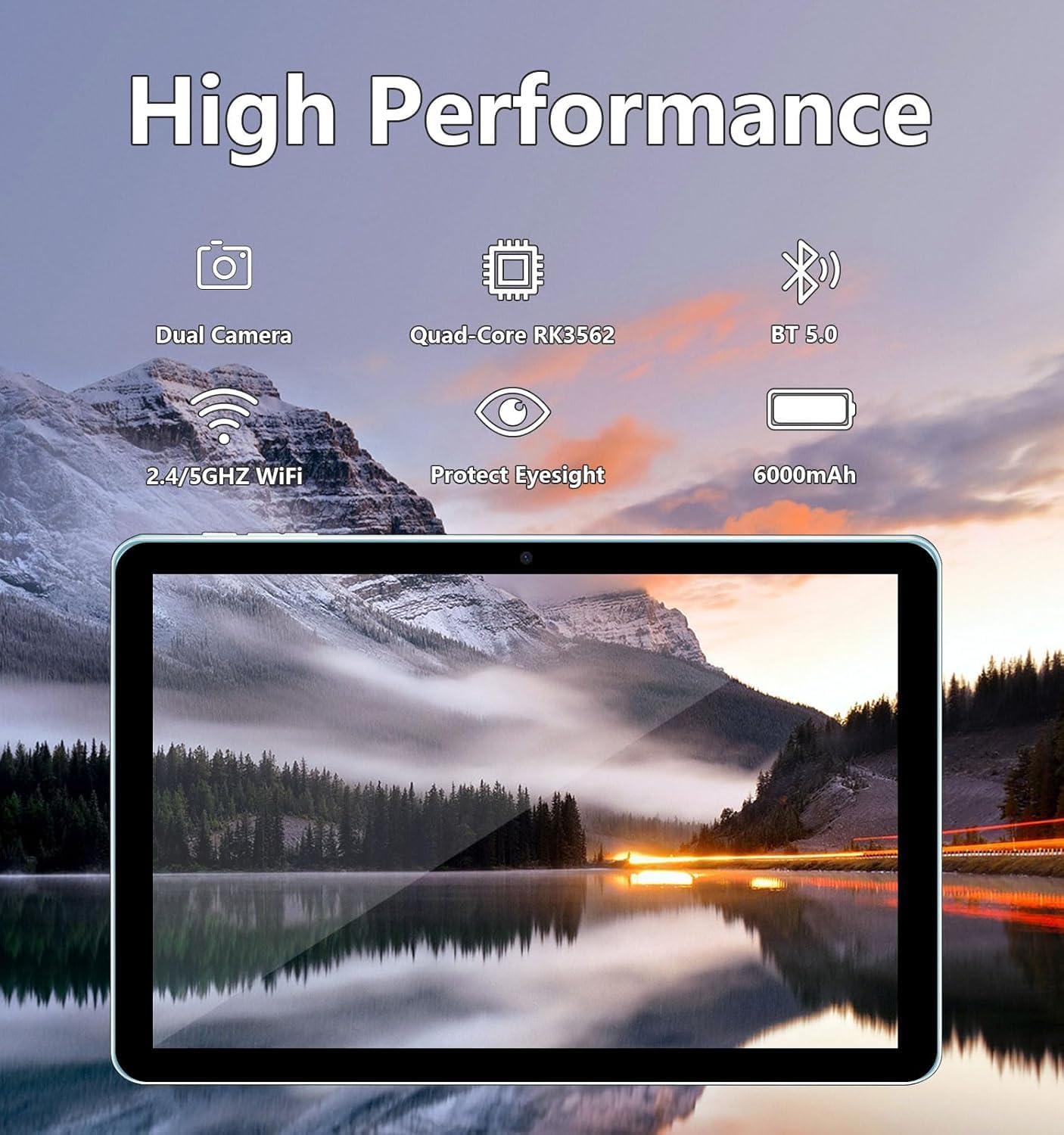
Image: The ECOPAD tablet showcasing its high-performance features including dual cameras, quad-core processor, Bluetooth 5.0, dual-band Wi-Fi, and 6000mAh battery.
2. Mise en route
2.1 Unboxing Your Tablet
Carefully remove all items from the packaging. The box should contain the ECOPAD 10.1 Inch Tablet, a protective case, a USB-C charging cable, and a screen protector. Please check for any damage during transit.
2.2 caractéristiques physiques
Familiarize yourself with the tablet's ports and buttons:

Image: A detailed diagram illustrating the location of the USB-C Port, SD Card Slot, Volume buttons, Power On/Off button, Reset button, Microphone, Front Camera, Headphone Jack, Speakers, Rear Camera, and Flash on the ECOPAD tablet.
- Port USB-C : Pour le chargement et le transfert de données.
- Emplacement pour carte SD : Insérez une carte Micro SD pour étendre la capacité de stockage.
- Volume - / Volume + : Régler le volume audio.
- Marche/Arrêt : Press and hold to power on or off. Short press to sleep/wake.
- Reset (Reboot): A small pinhole for force restarting the device if unresponsive.
- Microphone: Pour la saisie audio pendant les appels ou les enregistrements.
- Caméra frontale : Pour les appels vidéo et les selfies.
- Prise casque: Connectez un casque 3.5 mm.
- Intervenants : Pour la sortie audio.
- Caméra arrière : Pour prendre des photos et des vidéos.
- Éclair: Fournit un éclairage pour la caméra arrière.
2.3 Chargement de la tablette
Before first use, fully charge your tablet. Connect the provided USB-C cable to the tablet's USB-C port and the other end to a compatible USB power adapter (not always included) or a computer's USB port. The battery indicator on the screen will show charging status.
2.4 Mise sous/hors tension
- Pour allumer : Press and hold the Power On/Off button until the ECOPAD logo appears on the screen.
- Pour éteindre : Press and hold the Power On/Off button until a power menu appears. Select 'Power Off' and confirm.
- Pour dormir/se réveiller : Appuyez brièvement sur le bouton Marche/Arrêt.
2.5 Configuration initiale
Lors de la première mise en marche, la tablette vous guidera tout au long du processus de configuration initiale. Celui-ci comprend généralement :
- Sélectionnez votre langue.
- Connexion à un réseau Wi-Fi.
- Connectez-vous avec votre compte Google ou créez-en un nouveau.
- Configuration du verrouillage de l'écran (code PIN, schéma, mot de passe).
- Reviewing and accepting Google services terms.
3. Utilisation de votre tablette
3.1 Navigation tactile
The tablet's 10.1-inch IPS HD touchscreen supports multi-touch gestures:
- Robinet: Sélectionnez un élément ou ouvrez une application.
- Appuyez et maintenez : Accédez aux menus contextuels ou déplacez des éléments.
- Glisser: Naviguez entre les écrans, faites défiler les listes ou ignorez les notifications.
- Pincer pour zoomer : Zoomer ou dézoomer sur les images et web pages.
3.2 Connexion au Wi-Fi
Pour se connecter à Internet :
- Aller à Paramètres > Réseau et internet > Wifi.
- Activer/désactiver le Wi-Fi On.
- Sélectionnez le réseau souhaité dans la liste.
- Saisissez le mot de passe si vous y êtes invité et appuyez sur Connecter.
3.3 Google Play Store
As a GMS Certified device, your tablet has full access to the Google Play Store. You can download a wide variety of applications, games, movies, and books.
- Appuyez sur le Play Store icône sur votre écran d'accueil ou dans votre tiroir d'applications.
- Parcourez ou recherchez des applications.
- Robinet Installer télécharger et installer une application.

Image: The tablet display featuring the Google Play Store icon and other Google Mobile Services (GMS) applications, indicating full access to the Android ecosystem.
3.4 Gestion du stockage
The tablet comes with 64GB of internal storage (ROM) and 12GB of RAM (4GB physical + 8GB virtual for enhanced performance). You can expand storage further:
- Carte Micro SD: Insert a Micro SD card (up to 1TB, sold separately) into the SD card slot to store additional photos, videos, and files.
- Pour gérer le stockage, rendez-vous sur Paramètres > Stockage.

Image: The tablet screen displaying its storage capabilities, including 12GB RAM, 64GB ROM, and the option for 1TB SD card expansion, allowing users to store a large volume of data.
3.5 Utilisation de la caméra
La tablette est équipée d'une caméra frontale de 2.0 MP et d'une caméra arrière de 8.0 MP.
- Ouvrir le Caméra application.
- Appuyez sur l'icône de la caméra pour basculer entre les caméras avant et arrière.
- Appuyez sur le bouton de déclenchement pour prendre une photo ou démarrer/arrêter l'enregistrement vidéo.

Image: The tablet screen showing a video conference with four participants, demonstrating the clarity of the 10.1-inch 1280x800 HD display for communication.
3.6 Connectivité Bluetooth
Connectez votre tablette à des appareils Bluetooth tels que des écouteurs, des haut-parleurs ou des claviers.
- Aller à Paramètres > Appareils connectés > Bluetooth.
- Activer/désactiver Bluetooth On.
- The tablet will scan for available devices. Select your device from the list to pair.
4. Entretien
4.1 Entretien de la batterie
To maximize your tablet's battery life and longevity:
- Évitez les températures extrêmes.
- Ne laissez pas la batterie se décharger complètement trop souvent.
- Débranchez le chargeur une fois que la tablette est complètement chargée.
- Reduce screen brightness and disable unnecessary features (e.g., Bluetooth, Wi-Fi) when not in use.
4.2 Nettoyage de votre tablette
Utilisez un chiffon doux non pelucheux pour nettoyer l'écran et le boîtier de la tablette. Pour les traces tenaces, frottez légèrement avec un chiffon doux.ampNettoyez le chiffon avec de l'eau ou une solution de nettoyage pour écrans. Évitez les produits chimiques agressifs et les matériaux abrasifs.
5. Dépannage
If you encounter issues with your ECOPAD tablet, try the following common solutions:
- La tablette ne répond pas : Press and hold the Power On/Off button for about 10-15 seconds to force a restart. If this doesn't work, locate the small 'Reset' pinhole and use a thin object (like a paperclip) to press it gently.
- Apps are crashing or running slowly: Close unused apps, clear app caches (Settings > Apps > [App Name] > Storage & cache > Clear cache), or restart the tablet. Ensure your apps are updated.
- Problèmes de connexion Wi-Fi : Ensure Wi-Fi is enabled. Try restarting your router and the tablet. Forget the network and reconnect.
- La batterie se décharge rapidement : Reduce screen brightness, disable background app refresh, turn off GPS, Bluetooth, and Wi-Fi when not needed. Check battery usage in Settings to identify power-hungry apps.
- Screen is not responding to touch: Redémarrez la tablette. Si le problème persiste, assurez-vous que l'écran est propre et exempt de poussière.
Si ces étapes ne résolvent pas votre problème, veuillez consulter la section Garantie et assistance pour obtenir de l'aide supplémentaire.
6. Spécifications
| Fonctionnalité | Spécification |
|---|---|
| Taille de l'écran permanent | 10.1 pouces |
| Résolution de l'écran | 1280 x 800 pixels |
| Résolution d'écran maximale | 1280*800 pixels |
| Type sans fil | Bluetooth |
| Autonomie moyenne de la batterie (en heures) | Jusqu'à 8 heures (lecture vidéo) |
| Marque | ECOPAD |
| Série | THTH-K12C |
| Numéro de modèle de l'article | THTH-K12C |
| Système opérateur | Android 15 |
| Poids de l'article | 2.02 livres |
| Dimensions du produit | 9.5 x 6.2 x 0.28 pouces |
| Dimensions de l'article L x l x H | 9.5 x 6.2 x 0.28 pouces |
| Couleur | Bleu |
| Arrière WebRésolution de came | 8 MP |
| Marque du processeur | BRAS |
| Piles | 1 pile lithium polymère requise. (incluse) |
| Capacité de stockage de la mémoire | 64 Go (extensible à 1 To) |
7. Garantie et assistance
ECOPAD offers comprehensive support for your product.
- Garantie: Your ECOPAD tablet comes with a 1-year warranty. This warranty covers product failures due to manufacturing defects.
- Contacter le support : If you have any questions, encounter issues, or require technical assistance, please do not hesitate to contact ECOPAD customer service. Most questions are answered within 24 hours.
ECOPAD is committed to providing high-quality products and excellent customer service, continuously improving products and services through sharing and communication.


