1. Introduction
Thank you for choosing the ONIKUMA CW908 Wired Gaming Mouse. This manual provides detailed instructions on how to set up, operate, maintain, and troubleshoot your new gaming mouse. Please read this manual carefully before use to ensure optimal performance and longevity of your device.
2. Produit terminéview
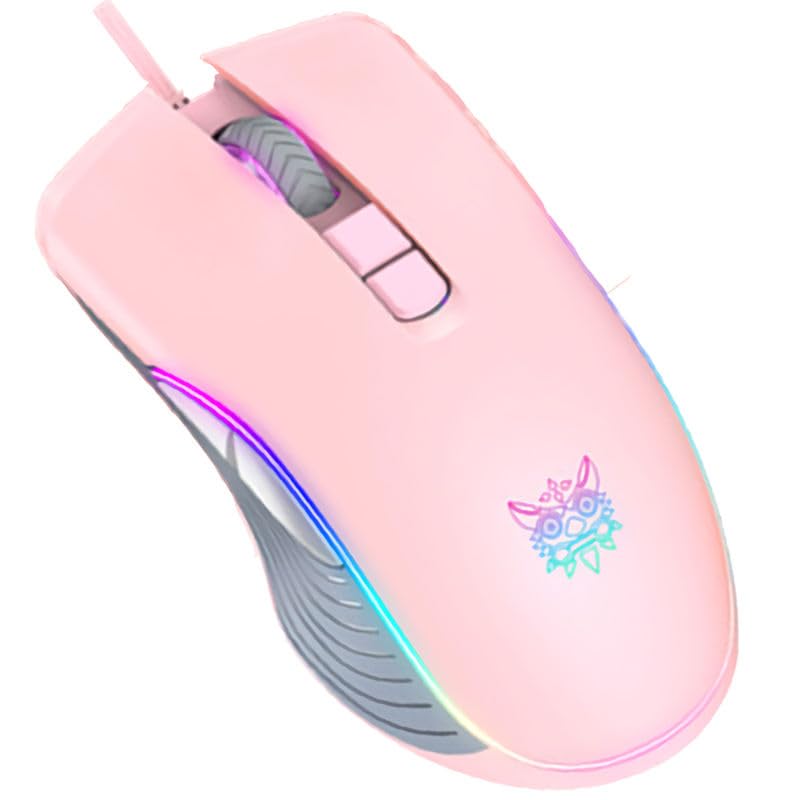
The ONIKUMA CW908 is a high-performance wired gaming mouse designed for comfort and precision. It features 7 programmable buttons, adjustable DPI up to 7200, and vibrant RGB lighting. Its ergonomic and lightweight design ensures comfortable use during extended gaming sessions.
2.1 Composants de la souris
- Bouton clic gauche : Fonction de clic principal standard.
- Bouton clic droit : Fonction de clic secondaire standard.
- Molette: Pour la fonction de défilement et de clic central.
- Bouton de réglage DPI : Permet de faire défiler les paramètres DPI.
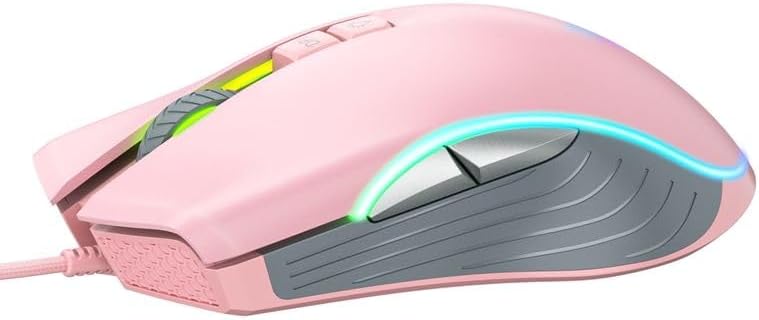
- Bouton avant : Navigue vers l'avant dans web navigateurs ou applications.
- Bouton de retour : Navigue en arrière dans web navigateurs ou applications.
- Éclairage RVB : Integrated LED lighting for aesthetic appeal.
- Connecteur USB : For wired connection to your computer.
2.2 Images du produit
3. Instructions de configuration
Setting up your ONIKUMA CW908 mouse is a simple plug-and-play process.
- Déballez la souris : Retirez délicatement la souris de son emballage.
- Connectez-vous à l'ordinateur : Plug the USB connector of the mouse into an available USB port on your personal computer or laptop.
- Installation du pilote : Your operating system (Windows 7, Windows 98, Linux, or newer versions) should automatically detect and install the necessary drivers. This process may take a few moments.
- Prêt à l'emploi : Once the drivers are installed, the mouse will be ready for immediate use. The RGB lighting will illuminate.
4. Mode d'emploi
The ONIKUMA CW908 mouse offers intuitive controls for both general use and gaming.
4.1 Fonctionnement de base
- Déplacez la souris sur une surface plane pour contrôler le curseur à l'écran.
- Use the Left Click Button for primary actions (e.g., selecting items, opening file(s).
- Use the Right Click Button for secondary actions (e.g., opening context menus).
- Roll the Scroll Wheel up or down to navigate through documents or web pages. Press the Scroll Wheel for its middle-click function.
4.2 Ajustement PPP
The mouse features an adjustable DPI (Dots Per Inch) setting, allowing you to change cursor sensitivity on the fly. The CW908 supports up to 7200 DPI.
- Appuyez sur le Bouton de réglage PPP (usually located behind the scroll wheel) to cycle through different DPI levels.
- Each press will switch to a predefined DPI setting, indicated by a change in the RGB lighting color or pattern (if applicable).
- Select the DPI level that best suits your task, whether it's precise aiming in games or fast navigation across multiple monitors.
4.3 Boutons latéraux
The Forward and Backward buttons on the side of the mouse provide quick navigation.
- Le Bouton Suivant typically moves forward in web navigateurs ou file explorateurs.
- Le Bouton de retour en arrière typically moves backward in web navigateurs ou file explorateurs.
5. Personnalisation des paramètres
While the ONIKUMA CW908 offers plug-and-play functionality, advanced customization for button remapping or more intricate RGB control may require dedicated software. Please check the official ONIKUMA website for any available software downloads specific to the CW908 model.
- Paramètres DPI : As mentioned, the DPI button cycles through preset levels. Software, if available, may allow for custom DPI steps.
- Programmation des boutons : With compatible software, the 7 buttons can often be remapped to perform specific functions, macros, or keyboard shortcuts, enhancing your gaming and productivity.
- Éclairage RVB : Software can provide more granular control over RGB effects, colors, and brightness, beyond the default cycling modes.
6. Entretien
Proper maintenance ensures the longevity and performance of your gaming mouse.
- Nettoyage: Utilisez un chiffon doux et sec pour essuyer la surface de la souris. Pour les saletés tenaces, frottez légèrement avec un chiffon doux et sec.ampNettoyez le chiffon avec de l'eau ou une solution nettoyante douce. Évitez les produits chimiques agressifs.
- Nettoyage du capteur : Il arrive que de la poussière ou des débris s'accumulent autour du capteur optique situé sous la souris. Nettoyez délicatement la zone du capteur à l'aide d'un coton-tige ou d'air comprimé.
- Entretien des câbles : Avoid sharply bending or pulling the USB cable. Store the mouse in a way that prevents the cable from being crimped or damaged.
- Stockage: Lorsqu'elle n'est pas utilisée, rangez la souris dans un endroit propre et sec, à l'abri des températures extrêmes.
7. Dépannage
If you encounter issues with your ONIKUMA CW908 mouse, refer to the following common problems and solutions:
| Problème | Cause possible | Solution |
|---|---|---|
| La souris ne répond pas | Connexion USB défectueuse, port USB défectueux, problème de pilote. | Vérifiez que le câble USB est bien branché. Essayez un autre port USB. Redémarrez votre ordinateur. Consultez le Gestionnaire de périphériques pour vérifier l'état du pilote. |
| Le mouvement du curseur est erratique ou saccadé. | Capteur optique sale, surface du tapis de souris inadaptée. | Nettoyez le capteur optique situé sous la souris. Utilisez un tapis de souris propre et de couleur uniforme. |
| Le bouton DPI ne modifie pas la sensibilité | Dysfonctionnement des boutons, conflit logiciel. | Ensure the mouse is properly connected. If using custom software, check its settings. Try on another computer to rule out system issues. |
| L'éclairage RVB ne fonctionne pas | Problème d'alimentation, paramètre logiciel. | Ensure the mouse is receiving power via USB. If using custom software, check lighting settings. |
8. Spécifications
| Fonctionnalité | Détail |
|---|---|
| Marque | ONIKUMA |
| Modèle | CW908 |
| Technologie de connectivité | Câble USB |
| Détection de mouvement | Optique |
| DPI (points par pouce) | Jusqu'à 26 000 (réglable) |
| Nombre de boutons | 7 |
| Caractéristiques spéciales | LED Lighting (RGB), Comfortable Design, Lightweight |
| Utilisation recommandée | Jeux |
| Appareils compatibles | Ordinateur personnel, ordinateur portable |
| Compatibilité du système d'exploitation | Linux, Windows 7, Windows 98 (and newer Windows versions) |
| Style | Moderne |
| Couleur | Rose |
9. Garantie et assistance
ONIKUMA products are manufactured to high-quality standards. For specific warranty information, please refer to the warranty card included with your product or visit the official ONIKUMA website. If you require technical support or have questions not covered in this manual, please contact ONIKUMA customer service through their official channels.


