Introduction
Thank you for choosing the AVMTON Wireless Gaming Mouse. This manual provides detailed instructions on how to set up, operate, and maintain your new mouse, ensuring optimal performance and an enhanced gaming and work experience. Designed for comfort and precision, this ergonomic wireless mouse features adjustable DPI, customizable buttons, and vibrant RGB lighting.
Produit terminéview
The AVMTON Wireless Gaming Mouse is engineered for both gaming and office use, offering a comfortable ergonomic design and responsive control. It features a honeycomb hollow design with RGB backlighting, providing both aesthetic appeal and lightweight performance.
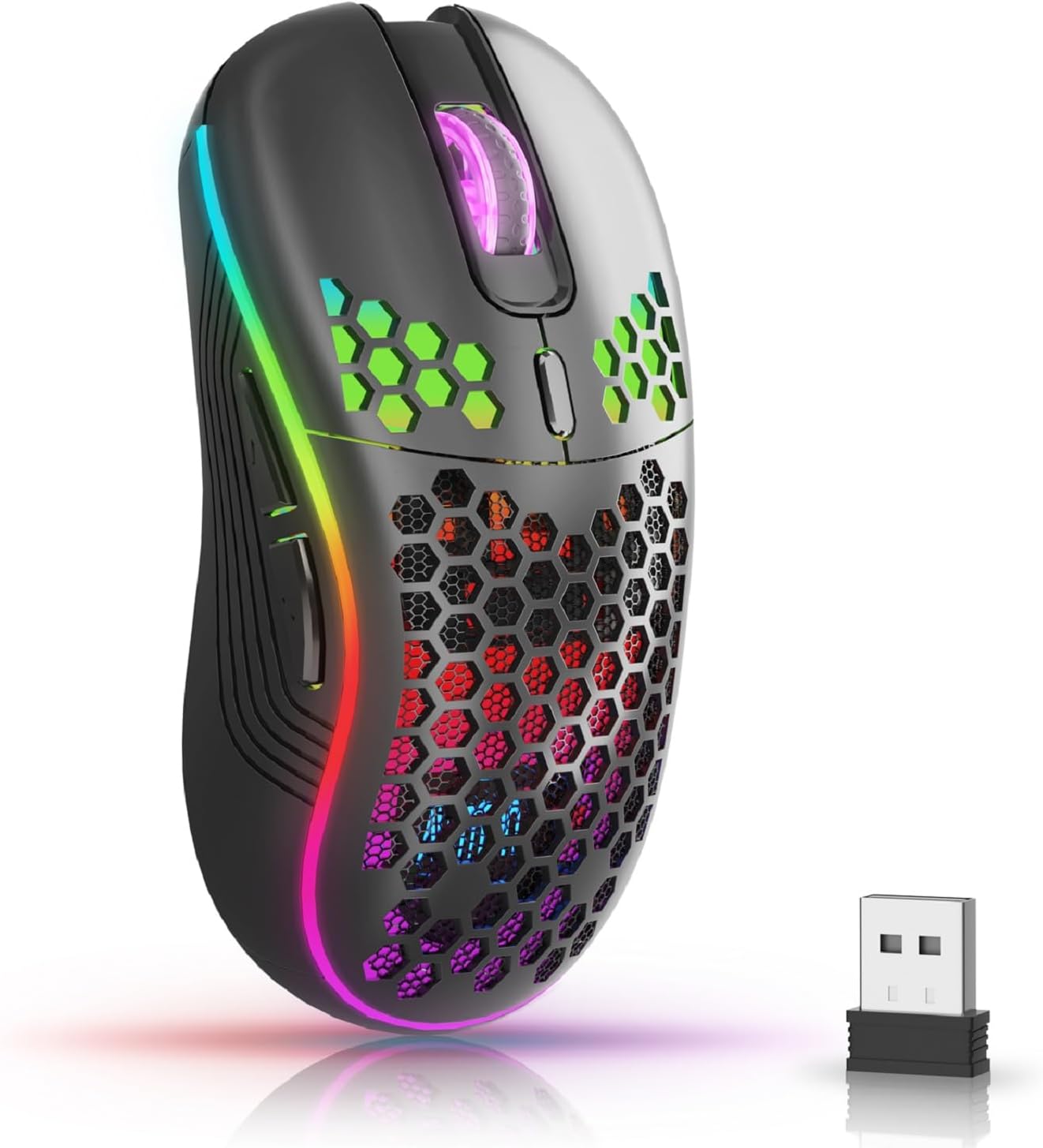
The AVMTON Wireless Gaming Mouse in black, featuring RGB lighting and a honeycomb design, shown alongside its compact USB receiver.

Illustration of the mouse's connectivity modes, including Type-C charging, 2.4G wireless receiver, and a 10m sensing range, suitable for home, gaming, and office environments.
Caractéristiques principales :
- Conception ergonomique : Shaped to fit the hand comfortably, reducing strain during extended use.
- DPI réglable : Easily switch between 800/1200/1600/2400/4800 DPI settings for precise control.
- 6 boutons programmables : Includes forward/backward, left/right click, scroll wheel, and DPI adjustment button.
- Batterie rechargeable : Built-in lithium battery with USB-C charging, offering 15-20 days of use on a single charge.
- Conception à clic silencieux : Ideal for quiet environments like libraries or offices.
- Large compatibilité : Supports Windows 2000/ME/XP/7/8/10/Vista/98, Mac OS, Linux, and compatible with laptops, PCs, desktops, and Macbooks.
- Construction durable : Tested for over 5 million clicks, ensuring long-lasting performance.
Guide d'installation
Follow these steps to set up your AVMTON Wireless Gaming Mouse:
- Chargez la souris : Before first use, fully charge the mouse using the provided USB-C charging cable. Connect the cable to the mouse's Type-C port and a USB power source (e.g., computer USB port, USB wall adapter). The charging indicator will show the charging status.
- Localisez le récepteur USB : The compact USB 2.4G wireless receiver is typically stored in a compartment on the underside of the mouse for safe keeping during transport.
- Connectez le récepteur : Insert the USB receiver into an available USB port on your computer (laptop, PC, desktop, Macbook).
- Mise sous tension : Allumez la souris à l'aide de l'interrupteur situé sous celle-ci.
- Connexion automatique : La souris devrait se connecter automatiquement à votre ordinateur. Aucun pilote supplémentaire n'est généralement nécessaire pour son fonctionnement de base.
Mode d'emploi
Understanding the functions of your mouse buttons and settings will enhance your experience.
Fonctions des boutons :
- Bouton clic gauche : Fonction de clic principal standard.
- Bouton clic droit : Fonction de clic secondaire standard.
- Molette: Faites défiler les documents vers le haut ou vers le bas et web pages. Peut également être pressé pour activer la fonctionnalité de clic central.
- Bouton de réglage DPI : Located near the scroll wheel. Press this button to cycle through available DPI settings (800/1200/1600/2400/4800). Each press changes the cursor speed and sensitivity.
- Bouton avant : Typically located on the side of the mouse. Used for navigating forward in web navigateurs ou file explorateurs.
- Bouton de retour : Typically located on the side of the mouse. Used for navigating backward in web navigateurs ou file explorateurs.
Contrôle du rétroéclairage RVB :
The mouse features dynamic RGB backlighting. If you prefer to turn off the backlight, refer to the specific instructions provided with your mouse or check the manufacturer's website for software utilities, if available. Some models allow toggling RGB with a combination of buttons (e.g., DPI button + another button).
Entretien
Proper maintenance ensures the longevity and performance of your mouse.
- Chargement : Recharge the mouse when the battery indicator shows low power. A full charge provides approximately 15-20 days of use. It is recommended to fully charge the mouse before extensive use.
- Nettoyage: Utilisez un chiffon doux et sec pour nettoyer la surface de la souris. Pour les saletés tenaces, un chiffon légèrement plus sec peut être utile.amp Vous pouvez utiliser un chiffon, mais veillez à ce qu'aucune humidité ne pénètre dans les composants internes. Évitez les produits chimiques agressifs et les matériaux abrasifs.
- Stockage: Pour économiser la batterie, éteignez la souris lorsque vous ne l'utilisez pas pendant une période prolongée. Rangez-la dans un endroit frais et sec.
Dépannage
If you encounter issues with your AVMTON Wireless Gaming Mouse, try the following solutions:
- Souris ne répondant pas :
- Assurez-vous que la souris est allumée.
- Vérifiez que le récepteur USB est correctement branché sur un port USB fonctionnel de votre ordinateur.
- Recharge the mouse. A low battery can cause unresponsiveness.
- Essayez de brancher le récepteur USB sur un autre port USB.
- Redémarrez votre ordinateur.
- Connexion retardée ou intermittente :
- Ensure the mouse is within the 10-meter sensing range of the USB receiver.
- Remove any large metallic objects or other wireless devices that might be causing interference between the mouse and the receiver.
- Try moving the USB receiver to a port closer to the mouse.
- Le réglage DPI ne fonctionne pas :
- Assurez-vous d'appuyer sur le bouton dédié au réglage DPI.
- Si le problème persiste, essayez de redémarrer la souris et votre ordinateur.
- Les lumières RVB ne fonctionnent pas :
- Check if the RGB backlight has been intentionally turned off (refer to "RGB Backlight Control" in Operating Instructions).
- Assurez-vous que la batterie de la souris est suffisamment chargée.
If these steps do not resolve the issue, please contact AVMTON customer support for further assistance.
Caractéristiques
| Fonctionnalité | Détail |
|---|---|
| Marque | AVMTON |
| Numéro de modèle | AV-DDMB-1 |
| Couleur | Noir |
| Technologie de connectivité | Récepteur USB sans fil 2.4 GHz |
| Paramètres PPP | 800 / 1200 / 1600 / 2400 / 4800 |
| Nombre de boutons | 6 |
| Orientation de la main | Droite |
| Autonomie de la batterie | Approx. 15-20 days (on a single charge) |
| Port de chargement | USB Type-C |
| Systèmes d'exploitation compatibles | Windows 2000/ME/XP/7/8/10/Vista/98, Mac OS, Linux |
| Appareils compatibles | Ordinateur personnel, ordinateur portable |
| Caractéristiques spéciales | Portable, Ergonomic, Rechargeable, RGB Backlight, Silent Click |
Garantie et assistance
AVMTON offers a 12-month worry-free after-sales service for this product. If you encounter any problems with your wireless mouse, please do not hesitate to contact us. Our customer support team is ready to assist you.
For support, please visit the official AVMTON webou contactez votre revendeur.


