Introduction
Welcome to the user manual for your new TECLAST F16 Plus 15.6-inch Laptop. This guide provides essential information to help you set up, operate, maintain, and troubleshoot your device. Please read this manual carefully to ensure proper use and to maximize the performance and lifespan of your laptop.
Installation
Déballage et configuration initiale
Carefully remove the laptop and all accessories from the packaging. Ensure all components are present: the TECLAST F16 Plus laptop, power adapter, and this user manual. Connect the power adapter to the laptop's charging port and then to a power outlet. Allow the laptop to charge for at least 30 minutes before its first use.
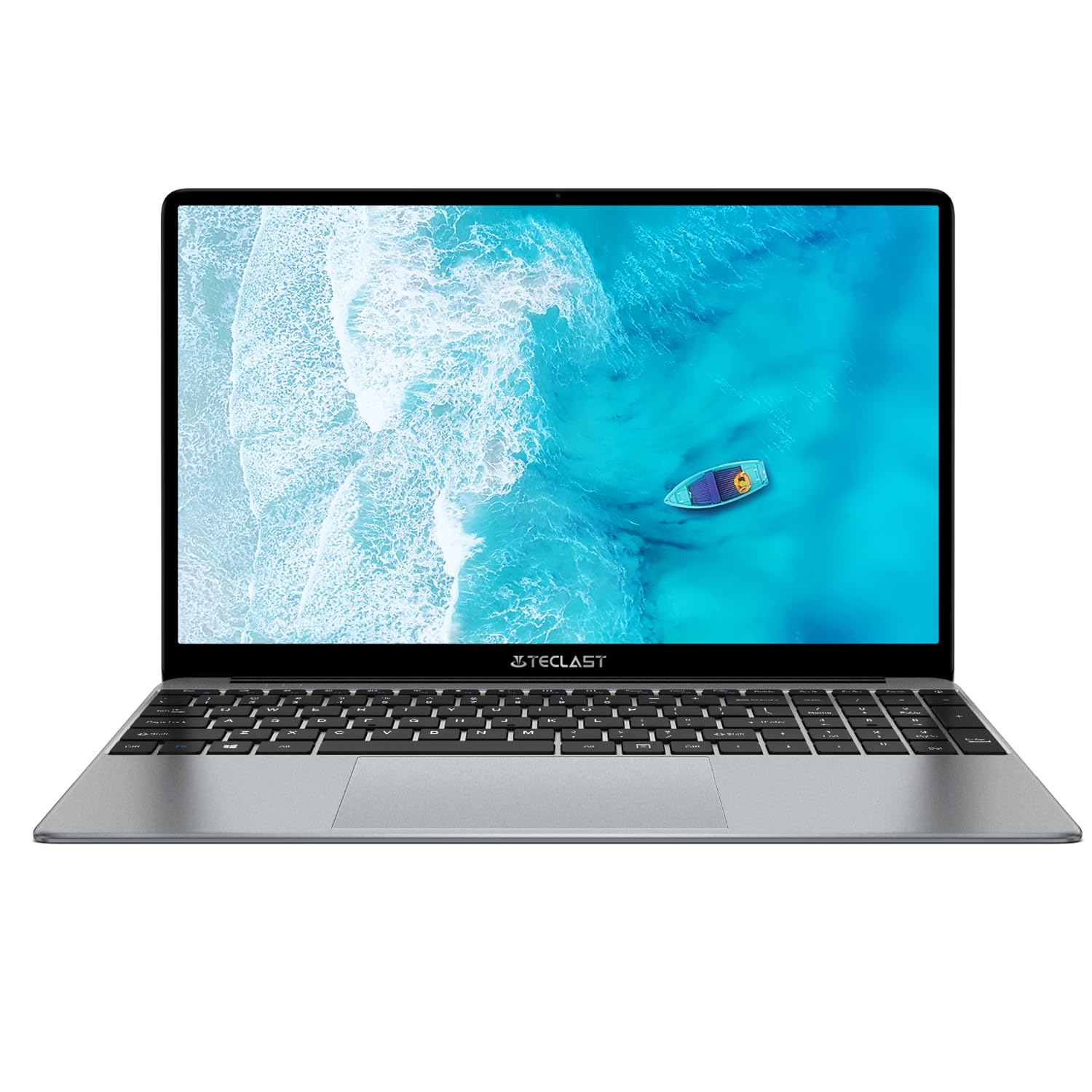
Image: The TECLAST F16 Plus laptop, showcasing its sleek design and 15.6-inch display with the Windows 11 operating system interface.
Mise sous/hors tension
- Pour allumer : Press and hold the power button located on the top right of the keyboard until the screen illuminates.
- Éteindre: Click the Start button in Windows 11, then select the Power icon, and choose 'Shut down'.
- Recommencer: Click the Start button, select the Power icon, and choose 'Restart'.
Connexion des périphériques
Your TECLAST F16 Plus laptop is equipped with multiple ports for connecting external devices. Insert USB devices such as mice, keyboards, or external storage drives into the available USB ports. For external displays, use the appropriate video output port (e.g., HDMI) if available, and configure display settings in Windows.
Opérationnel
Clavier et pavé tactile
The laptop features a full-sized keyboard and a responsive touchpad. Use the touchpad for navigation and gestures. Many function keys (F1-F12) have secondary functions, activated by pressing the 'Fn' key simultaneously. For example, 'Fn + F5' may control keyboard backlighting.
Paramètres d'affichage
Adjust screen brightness using the dedicated function keys (often Fn + F5/F6 or similar). To change display resolution or scaling, right-click on the desktop, select 'Display settings', and make your adjustments.
Paramètres audio
Control volume using the dedicated function keys (often Fn + F2/F3 or similar) or through the sound icon in the Windows taskbar. Connect headphones or external speakers to the audio jack for private listening or enhanced sound.
Connectivité réseau
To connect to Wi-Fi, click the network icon in the taskbar, select your desired network, enter the password, and click 'Connect'. Bluetooth devices can be paired via 'Settings > Bluetooth & devices'.
Notions de base de Windows 11
Your laptop runs on Windows 11. Familiarize yourself with the Start menu, taskbar, and File Explorer for efficient navigation and file management. Regular Windows updates are crucial for security and performance.
Entretien
Nettoyage de l'ordinateur portable
Utilisez un chiffon doux et non pelucheux légèrement dampened with water or a screen cleaner to clean the display. For the keyboard and chassis, use a soft brush or compressed air to remove dust. Avoid harsh chemicals or abrasive materials.
Entretien de la batterie
Pour prolonger la durée de vie de la batterie, évitez de la décharger complètement et fréquemment. Il est recommandé de maintenir la charge entre 20 % et 80 % autant que possible. Rangez l'ordinateur portable dans un endroit frais et sec lorsqu'il n'est pas utilisé pendant une période prolongée.
Mises à jour logicielles
Regularly check for and install Windows updates and driver updates to ensure your system has the latest security patches and performance enhancements. This can be done through 'Settings > Windows Update'.
Gestion du stockage
The 256GB SSD provides fast storage. To maintain optimal performance, regularly delete unnecessary files, empty the recycle bin, and consider using cloud storage for large fileafin de libérer de l'espace local.
Dépannage
Problèmes courants et solutions
- L'ordinateur portable ne s'allume pas : Vérifiez que l'adaptateur secteur est bien branché et que la batterie est suffisamment chargée. Pour forcer la réinitialisation, maintenez le bouton d'alimentation enfoncé pendant 15 à 20 secondes.
- Aucun affichage à l'écran : Connect an external monitor to check if the issue is with the laptop's display. Ensure brightness is not set to minimum.
- Connexion Wi-Fi impossible : Vérifiez si le Wi-Fi est activé dans les paramètres Windows. Redémarrez votre routeur et votre ordinateur portable. Vérifiez le mot de passe Wi-Fi.
- Performances lentes : Fermez les applications inutiles. Vérifiez les processus en arrière-plan dans le Gestionnaire des tâches. Assurez-vous d'avoir suffisamment d'espace libre sur votre disque dur.
- Périphériques USB non reconnus : Try connecting the device to a different USB port. Ensure device drivers are installed. Restart the laptop.
Si vous rencontrez des problèmes persistants non abordés ici, veuillez consulter la section d'assistance pour obtenir de l'aide supplémentaire.
Caractéristiques
Détails techniques
| Fonctionnalité | Détail |
| Marque | TECLAST |
| Modèle | F16 Plus |
| Taille de l'écran | 15.6 pouces |
| Processeur | Intel Celeron N (4 Cores) |
| BÉLIER | 12 Go |
| Stockage | Disque SSD de 256 Go |
| Système opérateur | Fenêtres |
| Couleur | New Gray |
| Composition de la batterie | Lithium-polymère |
| Interface d'entrée | Clavier |
| Dimensions du colis | 50.79 x 29.2 x 7.9 cm |
| Poids du colis | 2.62 kilogrammes |
Garantie et assistance
Your TECLAST F16 Plus laptop comes with a standard manufacturer's warranty. Please refer to the warranty card included in your product packaging for specific terms and conditions. For technical support, driver downloads, or service inquiries, visit the official TECLAST webConsultez leur site web ou contactez leur service client. Munissez-vous de votre reçu d'achat et du numéro de série du produit lorsque vous sollicitez de l'aide.


