Introduction
Welcome to the user manual for your KYOCERA ECOSYS PA4500x Monochrome Laser Printer. This document provides essential information for setting up, operating, maintaining, and troubleshooting your printer to ensure optimal performance and longevity. The ECOSYS PA4500x is designed for efficiency, featuring a long-life main unit (up to 900,000 pages) and an exceptionally low running cost of approximately 0.8 JPY per A4 monochrome page, significantly reducing printing expenses.
1. Guide de configuration
1.1 Déballage de l'imprimante
Carefully remove the printer from its packaging. Ensure all packing materials, tapes, and protective films are removed from the printer body and internal compartments. Keep the packaging for future transportation if needed.
1.2 Installation de la cartouche de toner
- Ouvrez le capot avant de l'imprimante.
- Gently shake the new toner cartridge horizontally several times to distribute the toner evenly.
- Insérez la cartouche de toner dans l'imprimante jusqu'à ce qu'elle s'enclenche.
- Fermez le capot avant.
1.3 Chargement du papier
- Retirez le bac à papier.
- Ajustez les guides papier au format du papier que vous chargez.
- Chargez la pile de papier dans le bac en veillant à ce qu'elle soit bien à plat et en dessous du niveau de remplissage maximal.
- Gently push the paper cassette tray back into the printer.
1.4 Connexion à l'alimentation
Connect the power cord to the printer's power inlet and then to a grounded electrical outlet. Press the power button to turn on the printer.
1.5 Connexion à un ordinateur
- Connexion USB : Connect one end of a USB cable to the printer's USB port and the other end to your computer's USB port.
- Connexion réseau (LAN) : Connectez un câble Ethernet au port LAN de l'imprimante et l'autre extrémité à votre routeur ou commutateur réseau.
1.6 Installation du pilote
Insert the provided driver CD-ROM into your computer's optical drive, or download the latest drivers from the official KYOCERA website. Follow the on-screen instructions to complete the driver installation for your operating system.
2. Mode d'emploi

The printer offers versatile connectivity options, allowing users to print from a PC via network, from mobile devices using a dedicated application (KYOCERA Mobile Print), or directly from a USB storage device.
2.1 Basic Printing from a Computer
- Ouvrez le document ou l'image que vous souhaitez imprimer.
- Sélectionnez « Imprimer » dans le menu de l'application (par exemple, File > Imprimer).
- Choose the KYOCERA ECOSYS PA4500x from the list of available printers.
- Ajustez les paramètres d'impression selon vos besoins (par exemple, le nombre de copies, le format du papier, la qualité d'impression).
- Cliquez sur « Imprimer ».
2.2 Impression recto verso
The ECOSYS PA4500x supports automatic duplex (two-sided) printing. To use this feature:
- In the print dialog box on your computer, navigate to the printer properties or preferences.
- Look for an option related to 'Two-sided printing' or 'Duplex'.
- Sélectionnez le paramètre duplex souhaité (par exemple, reliure bord long, reliure bord court).
- Confirmez votre sélection et procédez à l'impression.
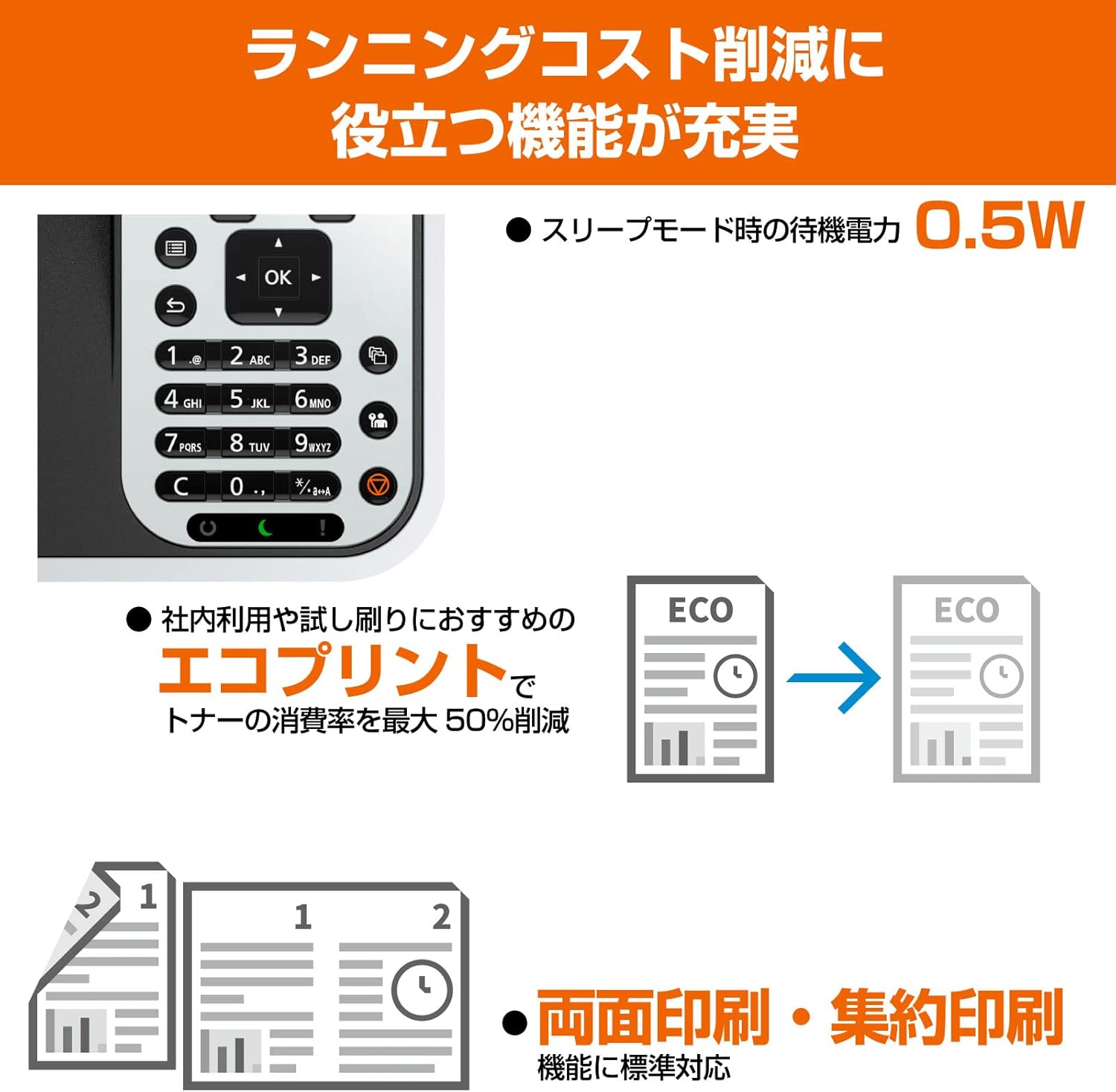
This image highlights key features including the intuitive control panel, the ECO print mode which can reduce toner consumption by up to 50%, and the automatic duplex printing function for efficient paper usage.
2.3 Utilisation du panneau de commande
The printer's control panel allows you to manage various settings and functions directly. Use the navigation buttons (up, down, left, right, OK) to browse menus and confirm selections. The display provides status information and prompts for user interaction.
2.4 ECO Print Mode
The ECO print mode is designed to reduce toner consumption, contributing to lower running costs and environmental impact. Activate this mode through the printer's control panel settings or via the printer driver on your computer. This mode can reduce toner usage by up to 50%.
2.5 Impression mobile
Download the KYOCERA Mobile Print application from your device's app store (App Store for iOS, Google Play for Android). Ensure your mobile device is connected to the same network as the printer. Open the app, select your printer, and follow the in-app instructions to print documents or images directly from your mobile device.
2.6 Direct Printing from USB
Insert a USB storage device containing printable files (e.g., PDF, JPEG, TIFF) into the USB host port on the printer. Use the printer's control panel to navigate to the 'Print from USB' option, select the desired fileet lancer l'impression.
3. Entretien

This image illustrates the cost-efficiency of the KYOCERA ECOSYS PA4500x, highlighting that only the toner cartridge needs frequent replacement, leading to a low running cost of approximately 0.8 JPY per A4 page for monochrome prints.
3.1 Remplacement de la cartouche de toner
When the toner level is low or empty, the printer's display will indicate a need for toner replacement. Follow these steps:
- Ouvrez le capot avant de l'imprimante.
- Retirez la cartouche de toner vide en la tirant vers l'extérieur.
- Unpack the new toner cartridge and shake it gently to distribute toner.
- Insert the new toner cartridge firmly until it locks into place.
- Fermez le capot avant.
- Dispose of the empty toner cartridge according to local regulations.
3.2 Nettoyage de l'imprimante
- Extérieur: Essuyez l'extérieur de l'imprimante avec un chiffon doux non pelucheux.ampRincer à l'eau. Ne pas utiliser de nettoyants abrasifs ni de solvants.
- Intérieur: Periodically open the front cover and gently remove any dust or paper debris from accessible areas using a dry, soft cloth or a small vacuum cleaner designed for electronics. Avoid touching the drum unit.
3.3 Checking Printer Status
You can check the printer's status, including toner levels and error messages, directly from the control panel or through the printer driver software on your computer.
3.4 Long-Life Components
The KYOCERA ECOSYS PA4500x is designed with durable, long-life components, such as the amorphous silicon drum unit, which has a lifespan of up to 900,000 pages. This design minimizes the need for frequent part replacements, contributing to the printer's low running costs and reduced environmental impact.
4. Dépannage
This section addresses common issues you might encounter with your printer. For more detailed troubleshooting, refer to the full electronic manual available on the KYOCERA website.
4.1 Bourrages papier
- Mettez l'imprimante hors tension et débranchez le cordon d'alimentation.
- Open the covers and trays as indicated by the printer's display or manual.
- Carefully remove any jammed paper, pulling it gently in the direction of the paper path. Avoid tearing the paper.
- Close all covers and trays, plug in the power cord, and turn on the printer.
4.2 Problèmes de qualité d'impression
- Empreintes à peine visibles : Check the toner level. If low, replace the toner cartridge.
- Streaks or Spots: Perform a cleaning cycle from the printer's control panel or driver. Ensure the drum unit is not damaged (though it is a long-life component, extreme conditions can affect it).
- Uneven Density: Ensure the toner cartridge is properly installed and shaken before use.
4.3 Problèmes de connectivité
- Imprimante non détectée : Check all cable connections (USB or Ethernet). Ensure the printer is powered on. For network connections, verify network settings on both the printer and computer.
- Wireless Printing Issues: If using a wireless adapter (optional, not standard for this model but common for mobile printing), ensure it is correctly installed and configured, and that the printer is connected to the correct Wi-Fi network.
4.4 Messages d'erreur
Refer to the printer's display for specific error codes or messages. Consult the comprehensive user manual or the KYOCERA support website for detailed explanations and solutions for each error code.
5. Spécifications du produit

The KYOCERA ECOSYS PA4500x is designed for compact spaces, with dimensions of 380mm width, 410mm depth, and 285mm height, making it suitable for desktop installation.
| Nom du modèle | ECOSYS PA4500x |
| Technologie d'impression | Laser |
| Sortie de l'imprimante | Monochrome |
| Vitesse d'impression maximale (monochrome) | 45 pages/minute |
| Résolution d'impression maximale (monochrome) | 600 x 600 ppp |
| Impression recto verso | Automatique (Oui) |
| Taille maximale du support | A4 |
| Formats de feuilles pris en charge | A4, B5, A5 (vertical orientation) |
| Capacité maximale des feuilles | 250 feuilles |
| Technologie de connectivité | Ethernet, USB |
| Dimensions du produit (L x P x H) | 380 mm x 410 mm x 285 mm |
| Poids du produit | 18.5 kg |
| Composants inclus | Cartouche de toner |
| Couleur | Blanc |

This table provides a comparison of various KYOCERA monochrome laser printers, detailing specifications such as dimensions, supported paper sizes, duplex printing, connectivity options (LAN/WLAN/USB), print speed, and running costs per page.
6. Garantie et assistance
For information regarding the product warranty, please refer to the warranty card included with your printer or visit the official KYOCERA website. le website also provides access to comprehensive support resources, including FAQs, driver downloads, and contact information for technical assistance.
Pour obtenir de l'aide supplémentaire, veuillez consulter le KYOCERA official website.