1. Produit terminéview
The GMBACK Wireless Switch 2 Pro Controller is a versatile gaming controller designed for a wide range of platforms, including Nintendo Switch 2/Switch/Lite/OLED, Apple devices (iPhone, iPad, Mac, TV, Apple Arcade MFi Games), Android devices (phone, tablet, Android TV, TV boxes), PC/Laptop (Windows 7/8/9/10/11), and Steam. It features advanced functionalities such as programmable buttons, 6-axis gyro motion control, adjustable vibration, turbo modes, and customizable RGB lighting to enhance your gaming experience.

Image : Avant view of the GMBACK Wireless Switch 2 Pro Controller, showcasinson design ergonomique et ses joysticks lumineux.
2. Contenu du colis
Veuillez vérifier le contenu du colis lors du déballage pour vous assurer que tous les éléments sont présents :
- GMBACK Wireless Switch 2 Pro Controller
- Câble de chargement USB
- Manuel d'utilisation (ce document)
3. Configuration et connexion
3.1 Large compatibilité
The controller supports a broad range of devices. Ensure your device's Bluetooth is enabled before attempting to pair.
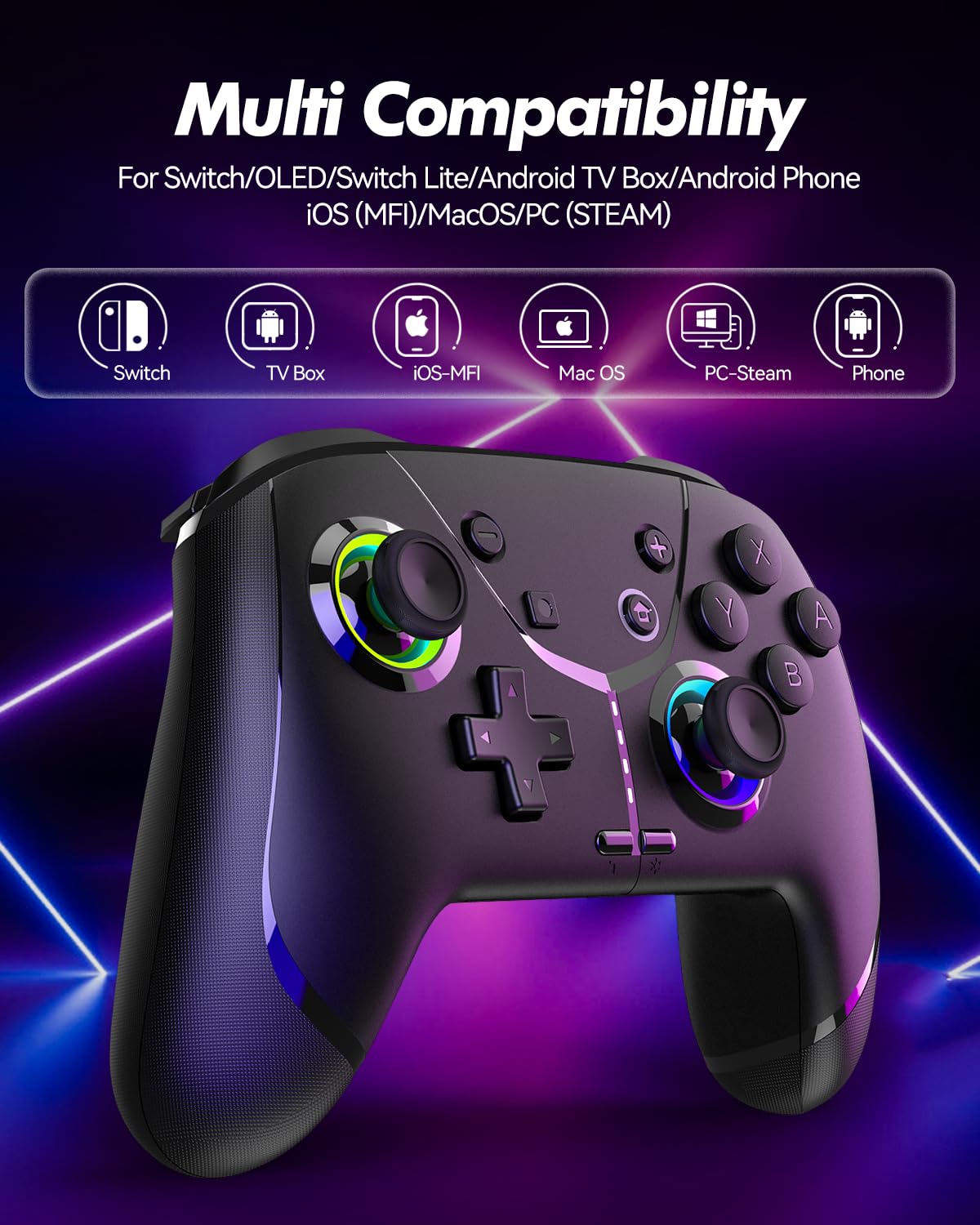
Image: Diagram illustrating the controller's compatibility with Nintendo Switch, TV Box, iOS-MFi, Mac OS, PC-Steam, and Phone devices.
3.2 Connexion Bluetooth
To pair the controller via Bluetooth:
- Assurez-vous que la manette est suffisamment chargée.
- Allumez la manette en appuyant sur le bouton Accueil.
- Activate Bluetooth pairing mode on the controller (refer to specific device pairing instructions below).
- On your device (Switch, phone, PC), go to Bluetooth settings and search for new devices.
- Select "Pro Controller" or similar from the list to connect.
- Une fois la connexion établie, les voyants du contrôleur se stabiliseront.
3.3 connexion filaire
For PC or other compatible devices, you can connect the controller directly using the provided USB cable. This will typically allow for plug-and-play functionality without requiring Bluetooth pairing.
4. Mode d'emploi
4.1 Programmable Buttons (AR/AL)
The controller features two programmable buttons (AR and AL) on the back. These can be mapped to single buttons or record a sequence of up to 30 seconds of gaming operations.
- Mapping Single Buttons: Press the Program button, then the button you wish to map (e.g., A, B, X, Y, L, R, ZL, ZR, Left Joystick, Right Joystick, D-pad, +,-), then press AR or AL.
- Enregistrement de macros : Press the Program button, then perform the sequence of actions you wish to record. Press AR or AL again to save the macro.

Image : Gros plan view of the controller's underside, highlighting the AR and AL programmable buttons and their mapping capabilities.
4.2 Motion Controls (6-Axis Gyro Sensor)
The built-in 6-axis gyro sensor allows for precise motion control in compatible games on Switch, mobile phones, PC, and TV. This feature enables intuitive aiming and movement based on the controller's orientation.

Image: Illustration of the 6-axis gyro sensor functionality, showing a user holding the controller with motion lines indicating active control in a racing game.
4.3 Vibration réglable
The asymmetric dual motors provide four adjustable vibration intensities (100%, 70%, 50%, 0%) for an immersive gaming experience. Adjust the vibration level to your preference through the controller's settings or specific button combinations (refer to the quick start guide for details).

Image: Visual representation of the dual vibration feature with intensity levels (None, Weak, Medium, Strong) and the auto/manual turbo function.
4.4 Turbo Modes
The controller offers both auto and manual turbo modes with three adjustable speeds (5, 10, or 15 shots per second). This feature allows for rapid, continuous input of a button press, useful in fast-paced games.
- Turbo manuel : Press the Turbo button and the desired action button simultaneously.
- Turbo automatique : Press the Turbo button and the action button twice.
- Réglage de la vitesse : While in Turbo mode, press the Turbo button and move the right joystick up or down to cycle through speeds.
4.5 ABXY Function Switching
Easily switch between Nintendo Switch (A/B/X/Y) and Xbox (Y/X/B/A) button layouts without physically removing buttons. This ensures compatibility and comfort across different gaming platforms.

Image: Depiction of the ABXY button layout switching feature, showing the buttons rotating to indicate the change between Nintendo and Xbox configurations.
4.6 Wake-Up Function and RGB Light
The controller supports a wake-up function for connected devices (e.g., Nintendo Switch). It also features cool RGB lighting around the joysticks, which can be customized or turned off to suit your preference.

Image: The controller with illuminated RGB lights around the joysticks, indicating the "Wake Up & Cool LED Light" feature.
4.7 Fonction de capture d'écran
A dedicated screenshot button allows you to capture in-game moments instantly on compatible platforms.
5. Chargement et autonomie de la batterie
The controller is equipped with a built-in 800 mAh rechargeable battery, providing approximately 15-20 hours of gameplay on a full charge. Charging time is typically around 3 hours.
- Connect the controller to a USB power source (e.g., console, PC, USB wall adapter) using the provided USB charging cable.
- Les voyants lumineux indiqueront l'état de charge et s'éteindront ou changeront de couleur une fois la charge complète.

Image: Illustration highlighting the controller's ergonomic design and battery specifications: 800mAh Lithium Battery, 3H Charging Time, and 15-20H Playing Time.
6. Entretien
To ensure the longevity and optimal performance of your GMBACK Wireless Switch 2 Pro Controller:
- Nettoyez la manette avec un chiffon doux et sec. Évitez d'utiliser des produits chimiques agressifs ou des matériaux abrasifs.
- Rangez la manette dans un endroit frais et sec, à l'abri de la lumière directe du soleil et des températures extrêmes.
- Évitez de laisser tomber la manette ou de la soumettre à des chocs violents.
- Ne tentez pas de démonter ou de modifier la manette, car cela annulera la garantie.
- Rechargez régulièrement la manette, même si vous ne l'utilisez pas fréquemment, afin de préserver la durée de vie de la batterie.
7. Dépannage
| Problème | Cause possible | Solution |
|---|---|---|
| La manette ne s'allume pas. | Batterie faible. | Charge the controller for at least 3 hours. |
| Impossible de coupler via Bluetooth. | Manette non en mode appariement ; interférences Bluetooth ; Bluetooth désactivé sur l’appareil. | Ensure controller is in pairing mode. Turn off and on device Bluetooth. Move closer to the device. Try wired connection. |
| Délai d'entrée ou déconnexion. | Low battery; too far from device; wireless interference. | Contrôleur de charge. Rapprochez-vous de l'appareil. Réduisez les interférences avec les autres appareils sans fil. |
| Boutons/joysticks non réactifs. | Bug logiciel ; dommage physique. | Restart the controller and the connected device. If problem persists, contact customer support. |
| La vibration ne fonctionne pas. | Intensité des vibrations réglée sur 0 % ; le jeu ne prend pas en charge les vibrations. | Adjust vibration intensity. Check game settings. |
8. Spécifications
- Modèle: Capteur gyroscopique à 6 axes
- Connectivité : Bluetooth
- Compatibilité: Nintendo Switch 2/Switch/Lite/OLED, Apple (iPhone, iPad, Mac, TV, MFi Games), Android (phone, tablet, TV), PC (Windows 7/8/9/10/11), Steam
- Batterie: Batterie au lithium de 800 mAh
- Temps de charge : Environ 3 heures
- Temps de jeu : 15-20 heures
- Caractéristiques: Programmable Buttons, 6-Axis Gyro, Adjustable Vibration, Turbo Modes, ABXY Function Switching, Wake-up, RGB Light, Screenshot
- Poids de l'article : 11.3 onces
- Dimensions du colis : 6.61 x 5.2 x 2.76 pouces
- Fabricant: GMBACK
9. Garantie et assistance
GMBACK is committed to providing high-quality products and excellent customer service. For any issues or inquiries regarding your controller, please refer to the following:
- Informations sur la garantie : Please retain your proof of purchase for warranty claims. Specific warranty terms may vary; refer to the product packaging or contact GMBACK customer support for details.
- Assistance clientèle : For technical assistance, troubleshooting, or warranty service, please contact GMBACK customer support through the retailer where you purchased the product or visit the official GMBACK store on Amazon: GMBACK Store.
- Manuel d'utilisation en ligne : A PDF version of the user manual may be available for download at https://manuals.plus/m/56f01544f3b9d5425429644adc4053f7681b5d3717aa40f944cdb0f9bfccf36b.


