1. Introduction
This manual provides comprehensive instructions for the Maxcom Fit FW55 Aurum Pro Smartwatch. It covers essential information regarding product setup, operation, maintenance, and troubleshooting to ensure optimal performance and user experience. Please read this manual carefully before using your device.
2. Contenu du colis
Veuillez vérifier que tous les éléments énumérés ci-dessous sont présents dans votre emballage :
- Maxcom Fit FW55 Aurum Pro Smartwatch
- Câble de chargement
- Manuel de l'utilisateur (ce document)
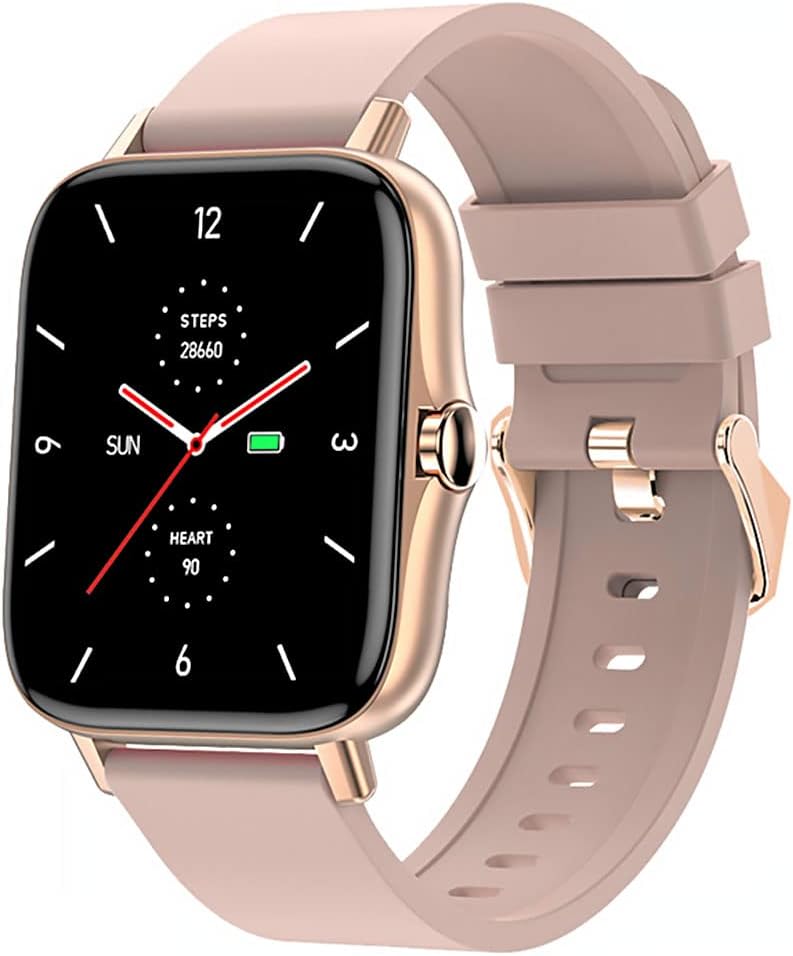
Image 1: Maxcom Fit FW55 Aurum Pro Smartwatch with a pink silicone band. The watch face displays steps, heart rate, and time.
3. Installation
3.1. Recharge de la montre connectée
Before initial use, fully charge your Maxcom Fit FW55 Aurum Pro Smartwatch. Connect the provided charging cable to the charging port on the back of the smartwatch and plug the other end into a standard USB power adapter (not included) or a computer's USB port. The watch display will indicate charging status.
- Assurez-vous que les broches de chargement sont propres et correctement alignées avec les contacts de chargement de la montre.
- Une charge complète prend généralement environ 2 heures.
3.2. Appairage avec votre smartphone
To unlock the full functionality of your smartwatch, you need to pair it with your smartphone via Bluetooth.
- Téléchargez l'application : Rechercher the official Maxcom Fit application in your smartphone's app store (iOS App Store or Google Play Store) and install it.
- Activer Bluetooth : Assurez-vous que Bluetooth est activé sur votre smartphone.
- Ouvrez l'application : Launch the Maxcom Fit application on your smartphone.
- Ajouter un appareil : Follow the in-app instructions to add a new device. Select "FW55 Aurum Pro" from the list of available devices.
- Confirmer l'association : Une demande de jumelage peut apparaître à la fois sur votre smartphone et sur votre montre connectée. Confirmez le jumelage sur les deux appareils.
Once successfully paired, the smartwatch will synchronize data with your phone, and you can customize settings through the app.
4. Utilisation de la montre connectée
4.1. Marche/Arrêt
- Mise sous tension : Press and hold the side button for a few seconds until the Maxcom logo appears.
- Éteindre: From the watch face, swipe down to access quick settings, or navigate to the 'Settings' menu. Select 'Power Off' and confirm. Alternatively, press and hold the side button and select 'Power Off'.
4.2. Navigation de base
- Écran tactile : The FW55 Aurum Pro features a 1.7-inch touch screen for intuitive interaction.
- Balayez vers le haut/bas : Scroll through notifications, menus, or quick settings.
- Balayez vers la gauche/droite : Access different widgets or main functions (e.g., heart rate, activity data).
- Robinet: Sélectionnez un élément ou confirmez une action.
- Bouton latéral: Press to return to the watch face or wake the screen. A long press may access power options.
4.3. Principales caractéristiques
The Maxcom Fit FW55 Aurum Pro Smartwatch offers a range of features to support your daily activities and health monitoring:
- Suivi des activités : Il enregistre le nombre de pas effectués, la distance parcourue et les calories brûlées.
- Surveillance de la fréquence cardiaque Fournit des données de fréquence cardiaque en temps réel.
- Surveillance du sommeil : Analyse les cycles et la qualité du sommeil.
- Notifications: Reçoit les alertes d'appels, de messages et de notifications d'applications de votre smartphone associé.
- GPS: GPS intégré pour un suivi précis des activités de plein air.
- Cadrans de montre personnalisables : Personnalisez le cadran de votre montre via l'application associée.

Image 2: Maxcom Fit FW55 Aurum Pro Smartwatch featuring a gold metal mesh band. The watch face displays digital time, steps, and heart rate.
5. Entretien
Un entretien et des soins appropriés prolongeront la durée de vie de votre montre connectée.
- Nettoyage: Regularly wipe the watch screen and body with a soft, dry, lint-free cloth. For stubborn dirt, slightly dampNettoyez le chiffon avec de l'eau. Évitez d'utiliser des produits chimiques agressifs ou des matériaux abrasifs.
- Entretien du bracelet : Clean the watch strap according to its material. Silicone straps can be washed with mild soap and water. Metal straps may require specific cleaning agents.
- Évitez les conditions extrêmes : Do not expose the smartwatch to extreme temperatures, direct sunlight for prolonged periods, or corrosive liquids.
- Résistance à l'eau : While the watch may have some water resistance, it is not suitable for diving or high-pressure water activities. Refer to the product specifications for detailed water resistance ratings.
6. Dépannage
If you encounter issues with your Maxcom Fit FW55 Aurum Pro Smartwatch, try the following solutions:
- La montre ne s'allume pas : Assurez-vous que la montre est complètement chargée. Branchez-la au chargeur pendant au moins 30 minutes.
- Impossible de connecter le smartphone :
- Assurez-vous que le Bluetooth est activé sur votre téléphone et votre montre.
- Assurez-vous que la montre se trouve à portée Bluetooth de votre téléphone.
- Redémarrez votre téléphone et votre montre connectée.
- Essayez de dissocier puis de réassocier l'appareil via l'application.
- Données inexactes (nombre de pas, fréquence cardiaque) :
- Assurez-vous que la montre soit bien ajustée à votre poignet, environ une largeur de doigt au-dessus de l'os du poignet.
- Nettoyez le capteur situé à l'arrière de la montre.
- Update the companion app to the latest version.
- Notifications non reçues :
- Check notification settings in the Maxcom Fit app.
- Assurez-vous que les autorisations de notification de votre téléphone sont accordées à l'application.
- Verify that the watch is successfully paired and connected to your phone.
If problems persist, consult the Maxcom support website ou contacter le service client.
7. Spécifications
Below are the technical specifications for the Maxcom Fit FW55 Aurum Pro Smartwatch:
| Fonctionnalité | Détail |
|---|---|
| Marque | Maxcom |
| Numéro de modèle | FW55 Aurum Pro |
| Taille de l'écran | 1.7 pouces |
| Technologie de connectivité | Bluetooth |
| Norme de communication sans fil | Bluetooth |
| Appareils compatibles | Smartphone |
| GPS | GPS intégré |
| Forme | Carré |
| Public cible | Adulte unisexe |
| Composants inclus | Chargeur |

Illustration 3 : Avant view of the Maxcom Fit FW55 Aurum Pro Smartwatch with a pink silicone band, highlighting the square display.
8. Garantie et assistance
For warranty information and customer support, please refer to the documentation included with your purchase or visit the official Maxcom webConsultez le site. Conservez votre preuve d'achat pour toute réclamation au titre de la garantie.
Pour toute assistance technique ou question complémentaire, veuillez contacter le service client de Maxcom via leurs canaux officiels.


