1. Introduction
This manual provides essential instructions for the safe and efficient operation of your RONGTA SE4770 Rugged PDA Barcode Scanner. This device is a high-performance mobile handheld terminal designed for various applications including retail, warehouse management, logistics, and inventory control. It combines the functionality of an Android 11 smartphone with an integrated Zebra SE4770 barcode scanner, offering robust performance and durability.
Veuillez lire attentivement ce manuel avant d'utiliser l'appareil et conservez-le pour toute consultation ultérieure.
2. Produit terminéview
2.1 Composants de l'appareil
The RONGTA SE4770 features a rugged design with a 6-inch HD touch screen and an integrated barcode scanner. Key components include:
- Écran avant : 6-inch FHD+ 1080P HD screen for clear visual interaction.
- Panneau arrière: Integrated Zebra SE4770 barcode scanner, camera, and battery compartment.
- Boutons latéraux : Power button, volume controls, and dedicated scan buttons.
- Ports: Port USB-C pour le chargement et le transfert de données.

Figure 2.1 : Face et dos view of the RONGTA SE4770 PDA Barcode Scanner, showing the display and rear scanner module.
2.2 Principales caractéristiques
- Système opérateur: Android 11 for a familiar and versatile user experience.
- Processeur: Octa-core 2.0GHz CPU for high performance and stability.
- Stockage de mémoire: 4GB RAM + 64GB ROM, expandable via microSD card (not included).
- Afficher: 6-inch FHD+ (1080P) HD touch screen, visible in strong outdoor light, supports multi-touch with gloves or wet hands.
- Scanner de codes-barres : Integrated Zebra SE4770 for fast and accurate scanning of 1D, 2D, and QR barcodes, even if blurred, dirty, or worn.
- Durabilité: IP68 rated for water and dust resistance, and 1.5m drop resistance.
- Batterie: 5000mAh large capacity battery with QC3.0 18W fast charging. Features a SuperCap power change solution for seamless battery swaps without shutdown.
- Connectivité : 2.4G/5G Dual-band Wi-Fi, 4G Full Network support, and Bluetooth 5.1.
- Caméra: 1600W+500W Pixel Camera (details on usage in Operating Instructions).
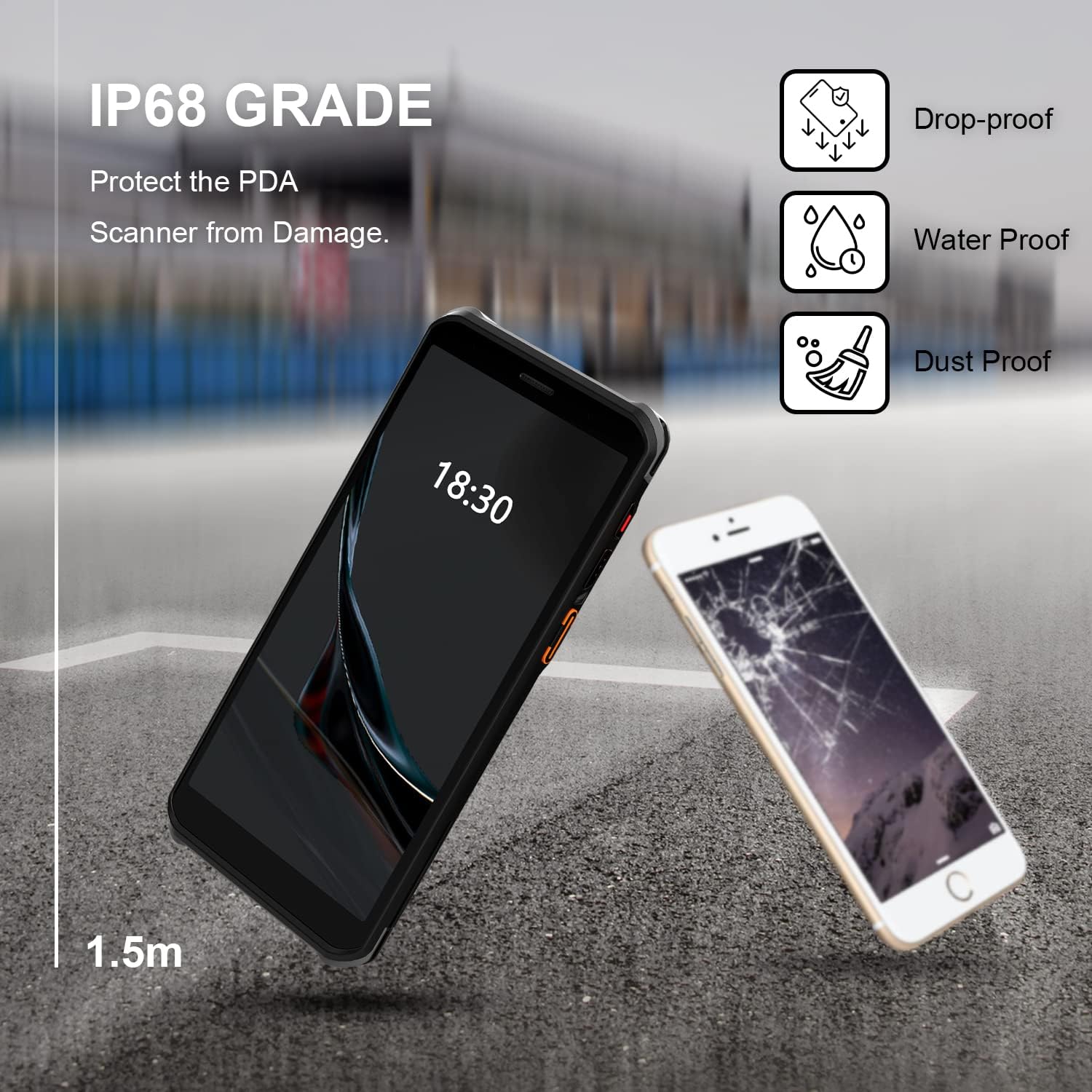
Figure 2.2: The RONGTA SE4770 PDA is designed with IP68 water and dust resistance and 1.5m drop protection, ensuring durability in demanding environments.

Figure 2.3: The device supports 2.4G/5G Dual-band WIFI and Bluetooth 5.1 for reliable wireless connectivity.
3. Installation
3.1 Déballage et inspection initiale
Carefully remove all components from the packaging. Verify that all items are present and undamaged. The package should include the RONGTA SE4770 PDA, a USB-C cable, a power adapter, and a hand-strap belt.
3.2 Installation et charge de la batterie
- Repérez le compartiment de la batterie à l'arrière de l'appareil.
- If the battery is not pre-installed, insert the 5000mAh Lithium-Ion battery, ensuring correct orientation.
- Fermez soigneusement le compartiment à piles.
- Connect the USB-C cable to the device's charging port and the other end to the power adapter. Plug the adapter into a power outlet.
- Allow the device to charge fully before first use. The 18W fast charging feature will expedite this process.

Figure 3.1: The device charging, indicating battery status.
3.3 Mise sous/hors tension
- Pour allumer : Press and hold the Power button on the side of the device until the RONGTA logo appears on the screen.
- Pour éteindre : Maintenez le bouton Marche/Arrêt enfoncé jusqu'à ce que le menu des options d'alimentation apparaisse. Sélectionnez « Éteindre ».
- Recommencer: Maintenez le bouton Marche/Arrêt enfoncé jusqu'à ce que le menu des options d'alimentation apparaisse. Sélectionnez « Redémarrer ».
3.4 Configuration initiale d'Android
Upon first power-on, follow the on-screen prompts to complete the initial Android 11 setup. This typically includes selecting your language, connecting to a Wi-Fi network, setting up a Google account (optional), and configuring security settings.
4. Mode d'emploi
4.1 Utilisation du lecteur de codes-barres
The RONGTA SE4770 is equipped with a high-performance Zebra SE4770 scanner capable of reading various 1D, 2D, and QR barcodes.
- Open an application that requires barcode input (e.g., inventory management software, POS application).
- Point the scanner window, located on the top rear of the device, towards the barcode.
- Press one of the dedicated scan buttons on the side of the device. A red aiming beam will appear.
- Align the aiming beam with the center of the barcode. The device will emit a beep or vibrate upon successful scan, and the data will be entered into the active field of your application.

Figure 4.1: A user scanning a package barcode using the RONGTA SE4770 PDA.

Figure 4.2: The SE4770 Zebra scanner in use, demonstrating fast and accurate scanning in a warehouse environment.
4.2 Navigation sous Android 11
The device operates on Android 11, providing a familiar interface. Use touch gestures to navigate:
- Robinet: Pour sélectionner un élément ou ouvrir une application.
- Glisser: Pour faire défiler les listes ou passer d'un écran d'accueil à l'autre.
- Pincer pour zoomer : Pour zoomer ou dézoomer sur les images et web pages.
- Notifications: Faites glisser votre doigt du haut vers le bas de l'écran pour accéder aux notifications et aux paramètres rapides.
4.3 Connectivité
L'appareil prend en charge différentes options de connectivité :
- Wifi: Go to Settings > Network & internet > Wi-Fi to connect to available wireless networks. Supports 2.4GHz and 5GHz bands.
- Bluetooth : Go to Settings > Connected devices > Connection preferences > Bluetooth to pair with Bluetooth-enabled devices like headsets or printers.
- Données mobiles (4G) : If equipped with a SIM card slot (check device specifications), insert a compatible SIM card to access mobile data.
4.4 Utilisation de la caméra
The device includes a camera for capturing images or videos. Open the Camera application from the home screen or app drawer. Tap the screen to focus and press the shutter button to take a photo or start/stop video recording.
5. Entretien
5.1 Nettoyage de l'appareil
Pour maintenir des performances et une apparence optimales :
- Wipe the screen and device body with a soft, lint-free cloth.
- Pour les taches tenaces, légèrement dampNettoyez le chiffon avec de l'eau ou un nettoyant pour écrans. Évitez les produits chimiques agressifs et les matériaux abrasifs.
- Ensure the scanner window is clean and free of dust or debris for accurate scanning.
5.2 Entretien de la batterie
Un entretien adéquat de la batterie prolonge la durée de vie de votre appareil :
- Charge the battery regularly using the provided charger.
- Évitez de décharger complètement la batterie fréquemment.
- Si vous devez stocker l'appareil pendant une période prolongée, chargez la batterie à environ 50 % et rangez-la dans un endroit frais et sec.
- The SuperCap power change solution allows for hot-swapping batteries without device shutdown, ensuring continuous operation.
5.3 Mises à jour logicielles
Periodically check for software updates to ensure your device has the latest features and security patches. Go to Settings > System > System update.
6. Dépannage
This section addresses common issues you might encounter with your RONGTA SE4770 PDA.
| Problème | Cause possible | Solution |
|---|---|---|
| L'appareil ne s'allume pas | Batterie faible ou déchargée ; dysfonctionnement de l’appareil. | Chargez l'appareil pendant au moins 30 minutes. S'il ne s'allume toujours pas, contactez l'assistance. |
| Le scanner ne lit pas les codes-barres | Dirty scanner window; incorrect aiming; unsupported barcode type; application issue. | Clean the scanner window. Ensure the aiming beam covers the entire barcode. Verify the barcode type is supported. Restart the scanning application or the device. |
| Problèmes de connectivité Wi-Fi/Bluetooth | Hors de portée ; mot de passe incorrect ; interférence. | Move closer to the Wi-Fi router or Bluetooth device. Re-enter the password. Restart Wi-Fi/Bluetooth on the device. |
| L'appareil est lent ou ne répond pas. | Trop d'applications en cours d'exécution ; espace de stockage insuffisant ; bug logiciel. | Close unnecessary applications. Clear cache. Restart the device. Consider a factory reset if issues persist (backup data first). |
7. Spécifications
Detailed technical specifications for the RONGTA SE4770 PDA Barcode Scanner:
- Dimensions du produit : 3.03 x 0.51 x 6.41 pouces
- Poids de l'article : 10.6 onces
- Piles : 1 batterie lithium-ion requise (incluse)
- Source d'alimentation : Alimenté par batterie
- Fabricant: RONGTA
- Appareils compatibles : Desktop, Laptop, Smartphone (for data transfer/management)
- Technologie de connectivité: Bluetooth, Wi-Fi (2.4G/5G Dual-band), 4G
- Système opérateur: Android 11
- Processeur: Octa-core 2.0 GHz
- Mémoire: 4 Go de RAM
- Stockage: ROM de 64 Go
- Taille de l'écran : 6 inches FHD+ (1080P) HD Touch Screen
- Scanner: Zebra SE4770 (1D, 2D, QR)
- Durabilité: IP68 Water and Dust Resistant, 1.5m Drop Protection
- Capacité de la batterie : 5000mAh
- Chargement : QC3.0 18W Fast Charge
8. Garantie et assistance
For warranty information and technical support, please refer to the documentation included with your purchase or visit the official RONGTA website. If you encounter any issues not covered in this manual, please contact RONGTA customer service for assistance.


